


If your Qualified plan includes multiple domains and brands, then you will see additional settings that allow you to configure multiple themes for different domains.
Create a new theme
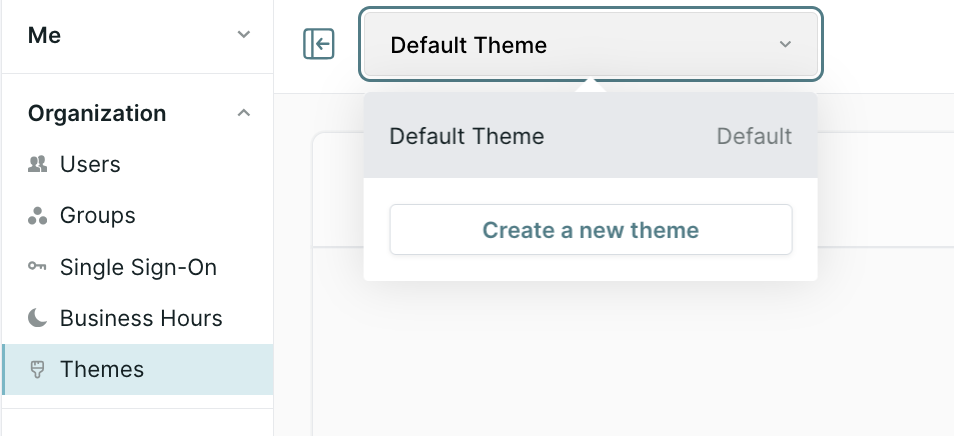
- Under Settings → Organization → Themes, click the dropdown at the top of the page and you'll see a button to Create a new theme.
- In the pop-up, add a Theme name, optionally choose to Set as the default theme, and add the domain(s) it should apply to in the Display on domains field.
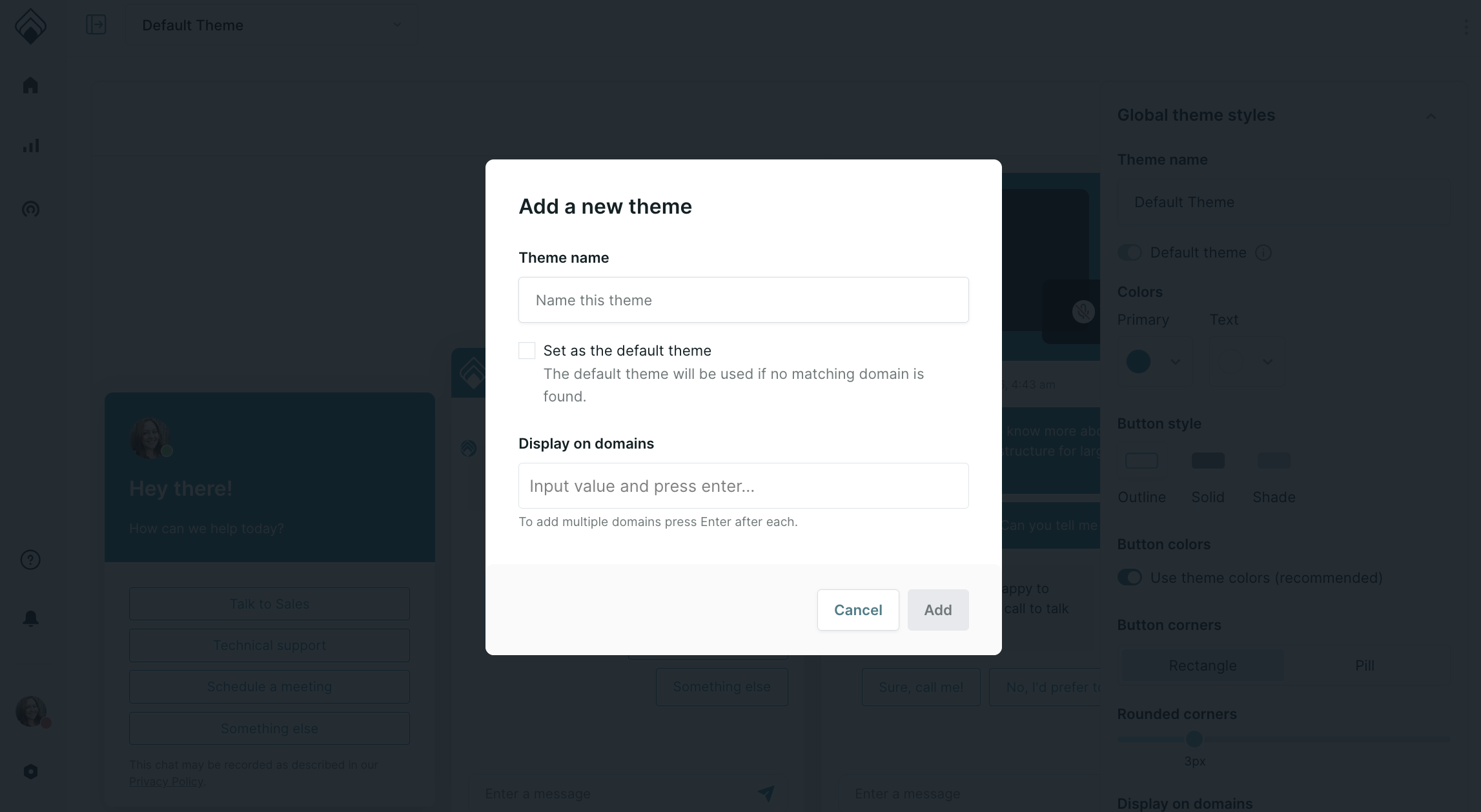
- Click Add.
- Customize the theme starting with the global theme styles. Note: you must add a customized privacy disclosure before you can save.
- Once completed, click Save.
Edit an existing theme
Go to Settings → Organization → Themes, click the dropdown at the top of the page and select the theme you want to update. Then, update your theme using the guidance above.



.svg)


