


If your company uses Microsoft 365, most likely you’re also using Microsoft Teams to keep your team connected via chat. Microsoft Teams is a collaborative workspace within the Microsoft suite that works as your internal business chat tool.
Qualified integrates with Microsoft Teams to allow for your most important insights and signals from Qualified to flow into your company chat rooms.
Connect to Microsoft Teams
Before getting started, please note that the user that connects Microsoft Teams to Qualified does not need to be a Microsoft Teams administrator, however, the user will need to have access to the Team(s) and/or Channel(s) you want to send alerts to.
To get connected:
- In your Qualified Admin account, go to Settings → Integration → MS Teams → Connection.
- Click Connect to Microsoft Teams to trigger the Microsoft 365 authorization pop-up.
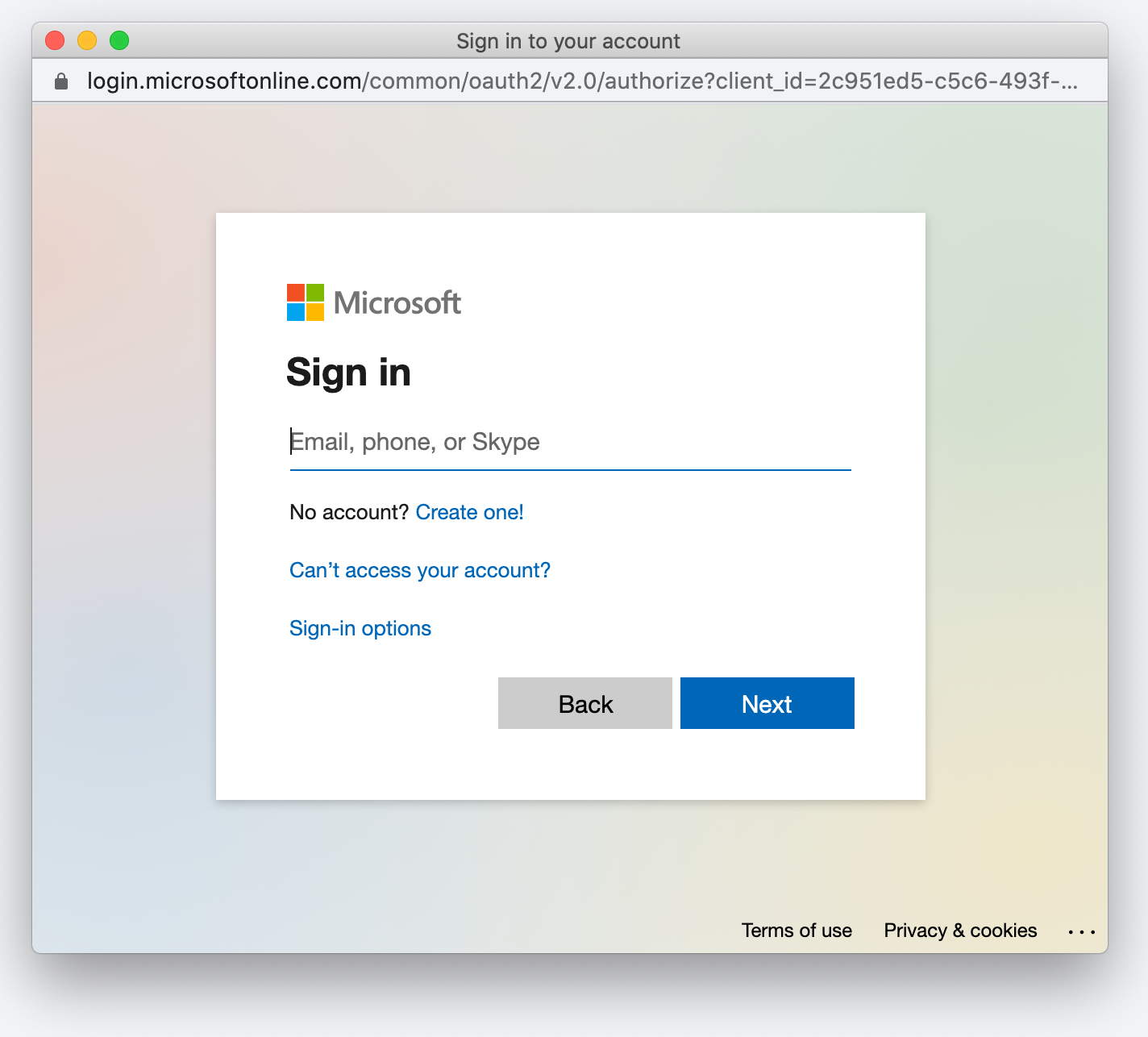
- Sign in to your Microsoft 365 Account.
- Accept the screen asking to access your Microsoft Teams information. This allows Qualified to pull in the Teams that you have authorization to add alerts to.
- Once completed, you’ll notice the connection button change to now reflect the action to “Disconnect”.
Add Qualified to Teams
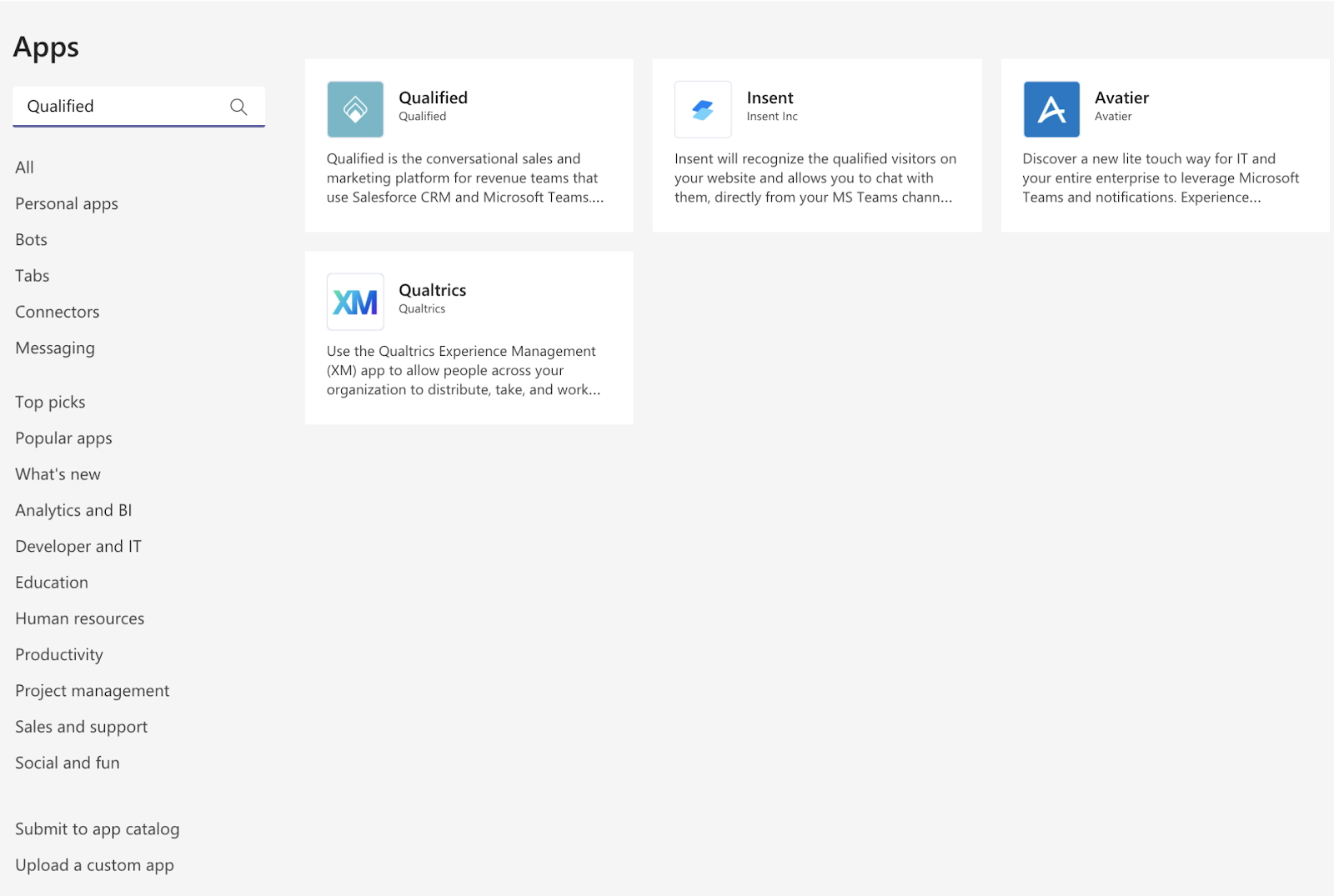
- In Teams, navigate to your app library, search for Qualified, and click on the app shown below.
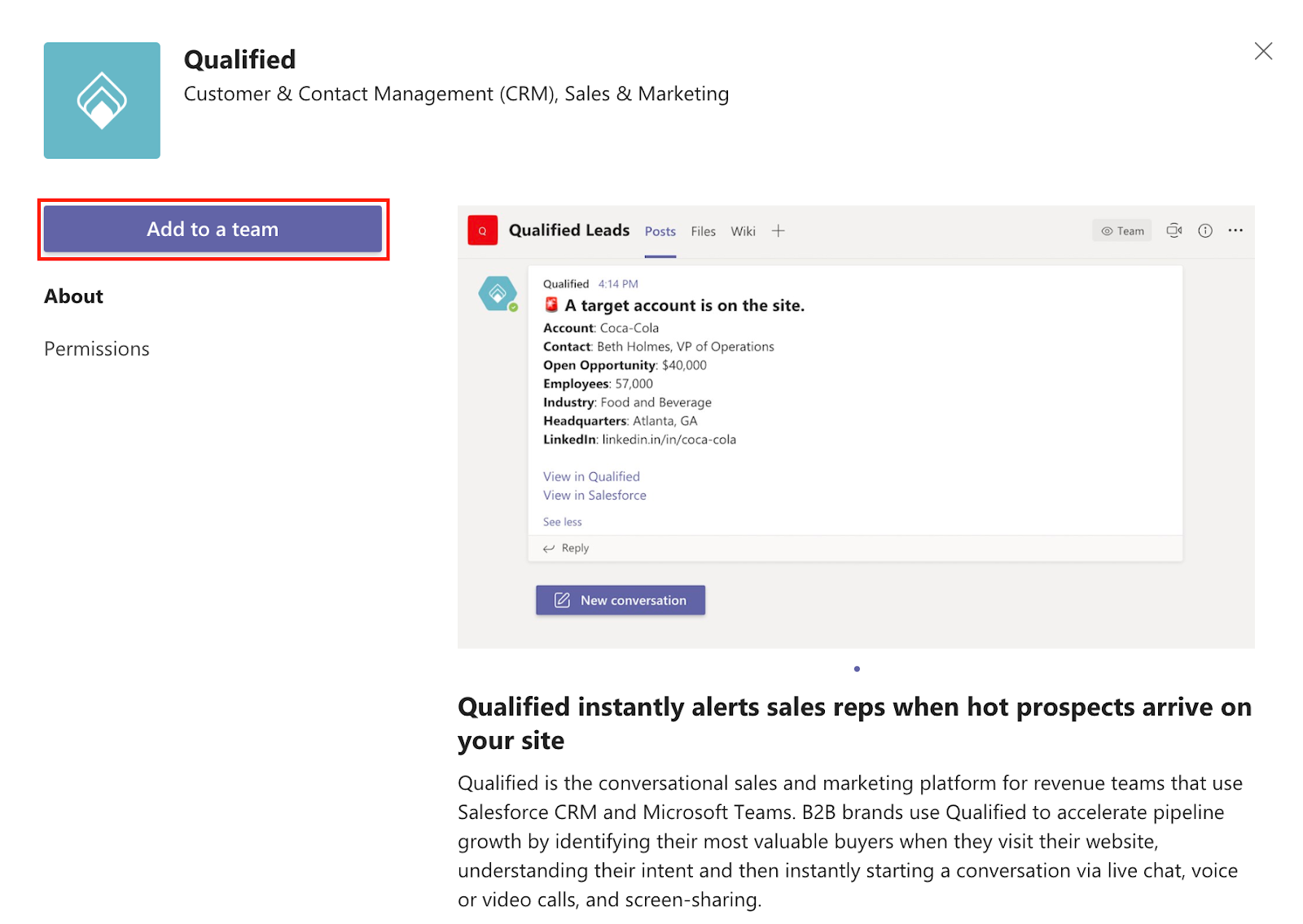
- Click Add to a Team and enter the team(s) name you wish to send alerts to, and then click the “Set up a bot” button.
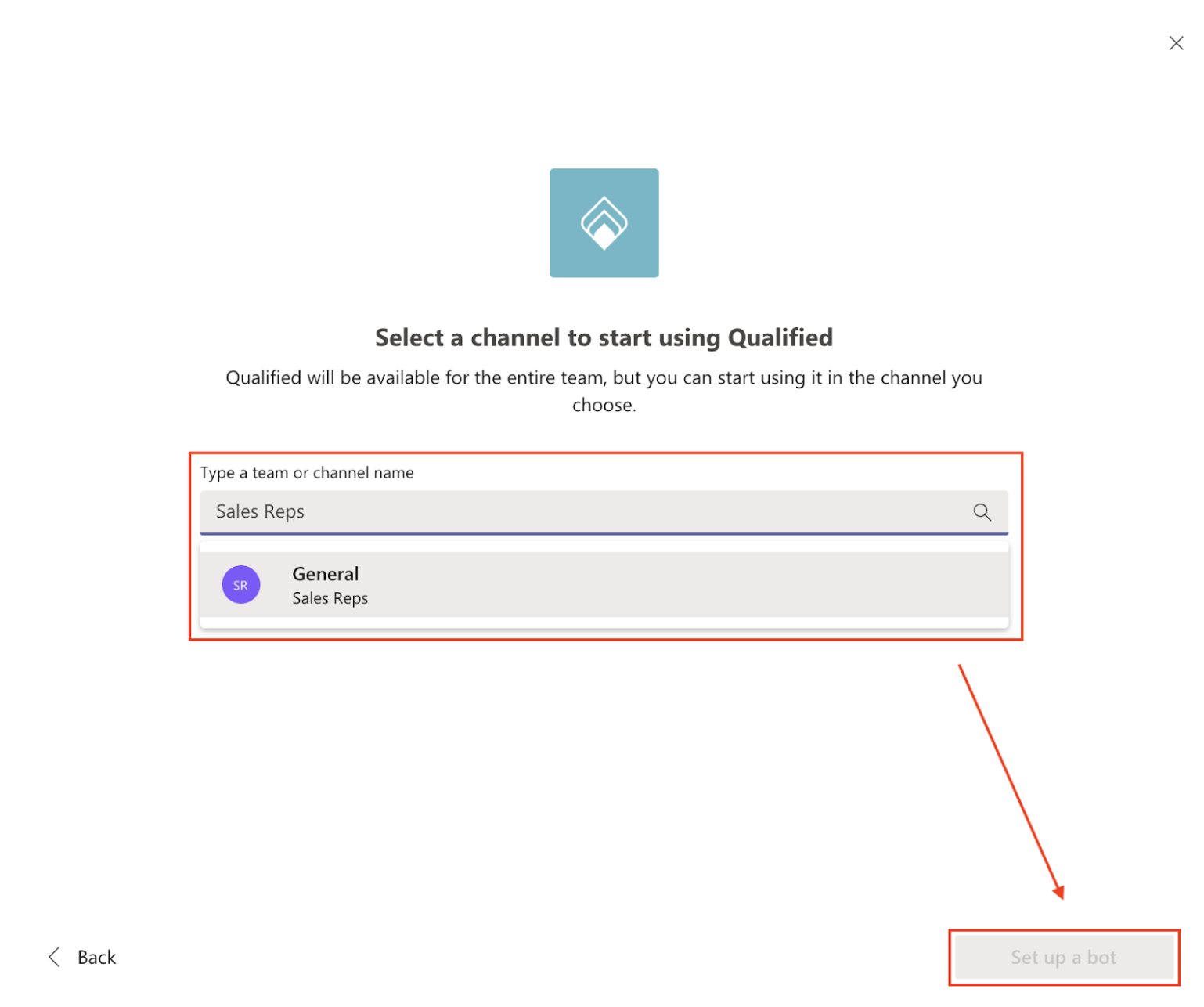
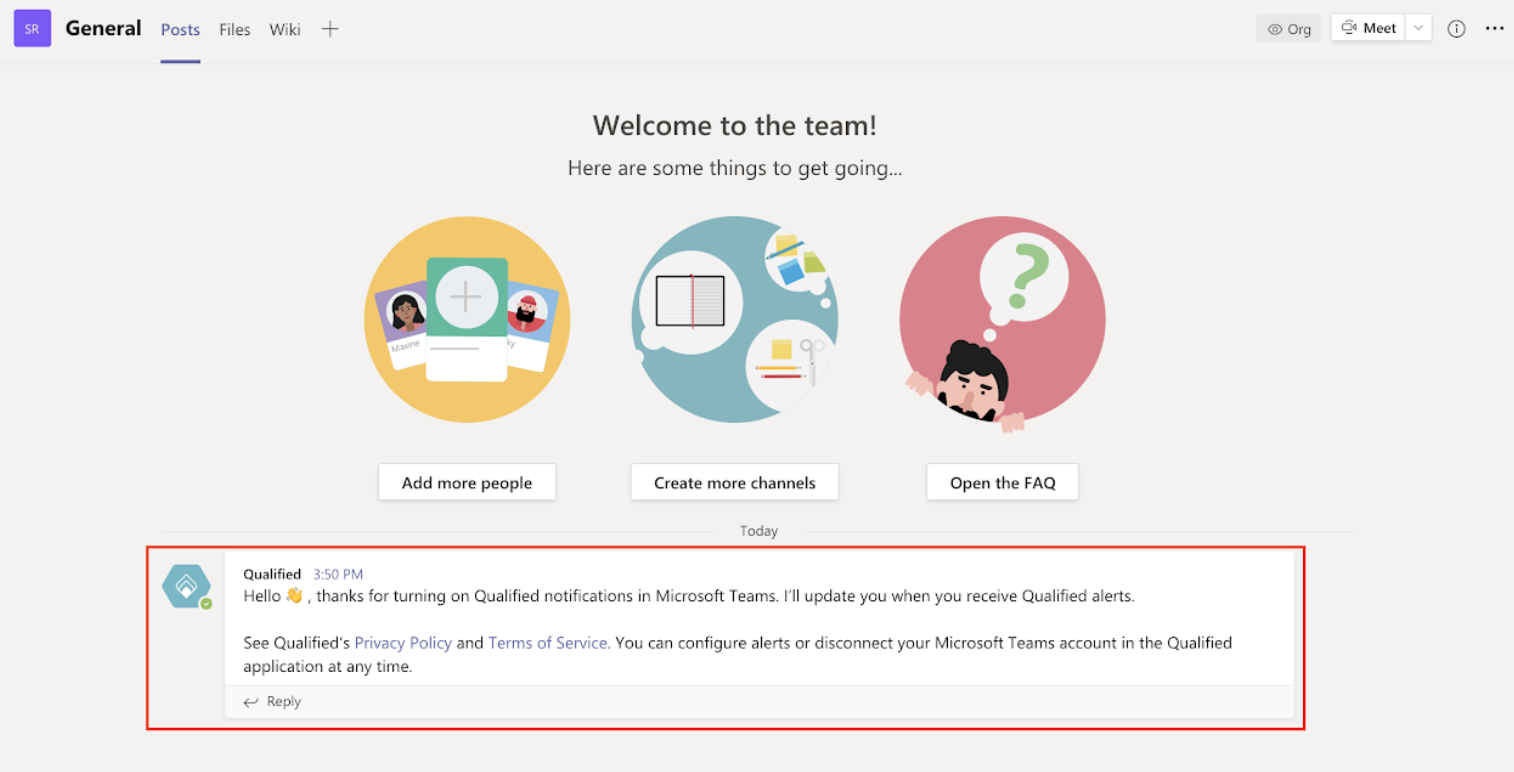
- You will see a welcome message appear in the “General” channel for the team you added the bot to. This message is always sent to the “General” channel and not any other channels for the selected team.


.svg)


