


Think of Piper for Slack as a personal research assistant that lives right inside your Slack workspace. This feature enables sales representatives to get a full briefing on a visitor or lead immediately after an associated notification is sent. Instead of digging through various platforms for context, you can simply ask your AI SDR agent follow-up questions to get the insights you need to move a deal forward.
How it works
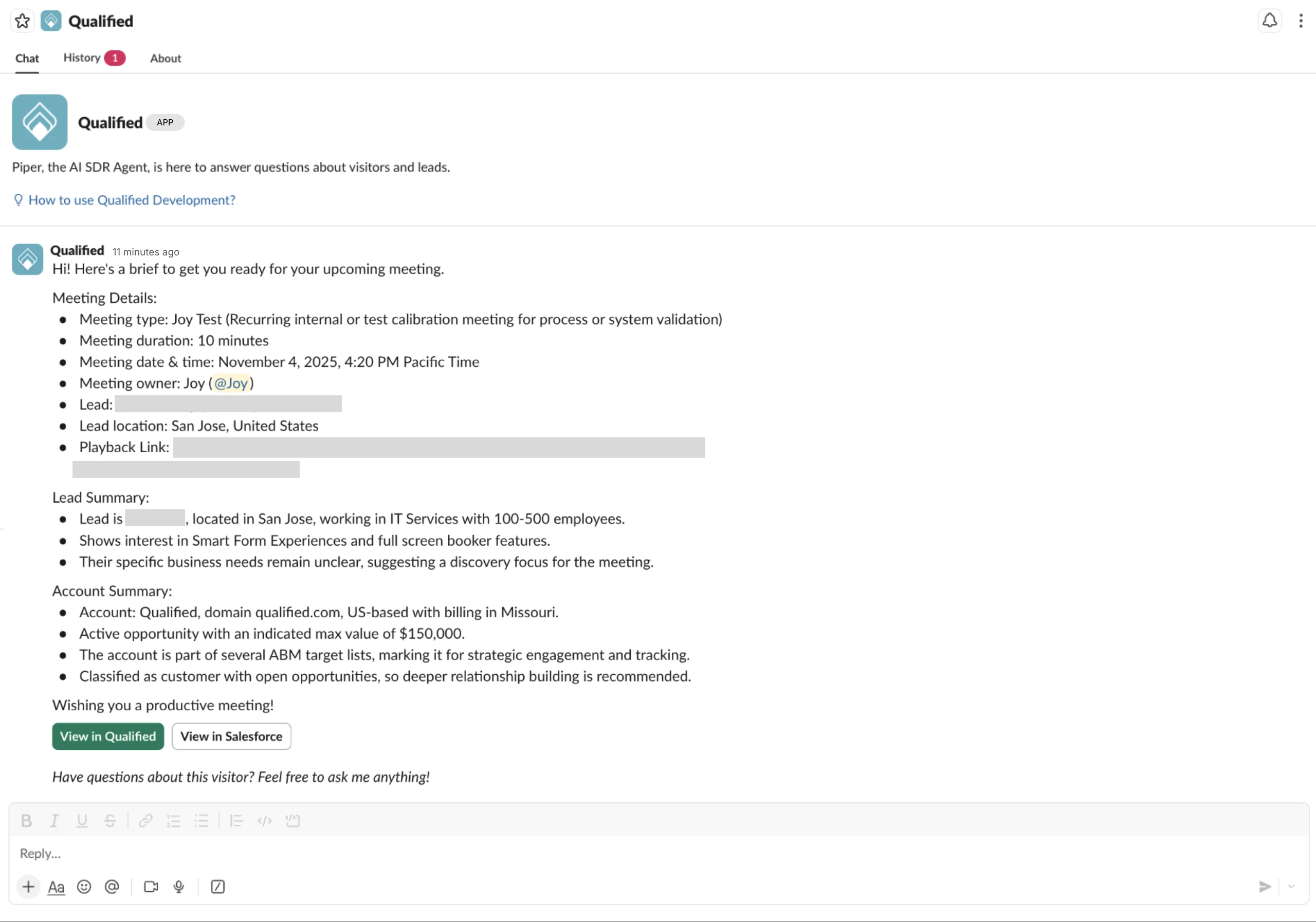
When an alert or meeting brief associated with a lead or visitor is posted in Slack, your AI SDR agent will include a prompt at the end of the message: "Have questions about this visitor? Feel free to ask me anything!"
You can engage with your AI SDR agent in two primary ways:
-
Direct messages: Start a conversation within the Qualified app DM in Slack.
-
Threaded follow-ups: Ask questions directly under an alert message or meeting brief sent by Qualified.
Accessing conversation history
The Chat tab in the Qualified Slack app will always display the most recent meeting booked.
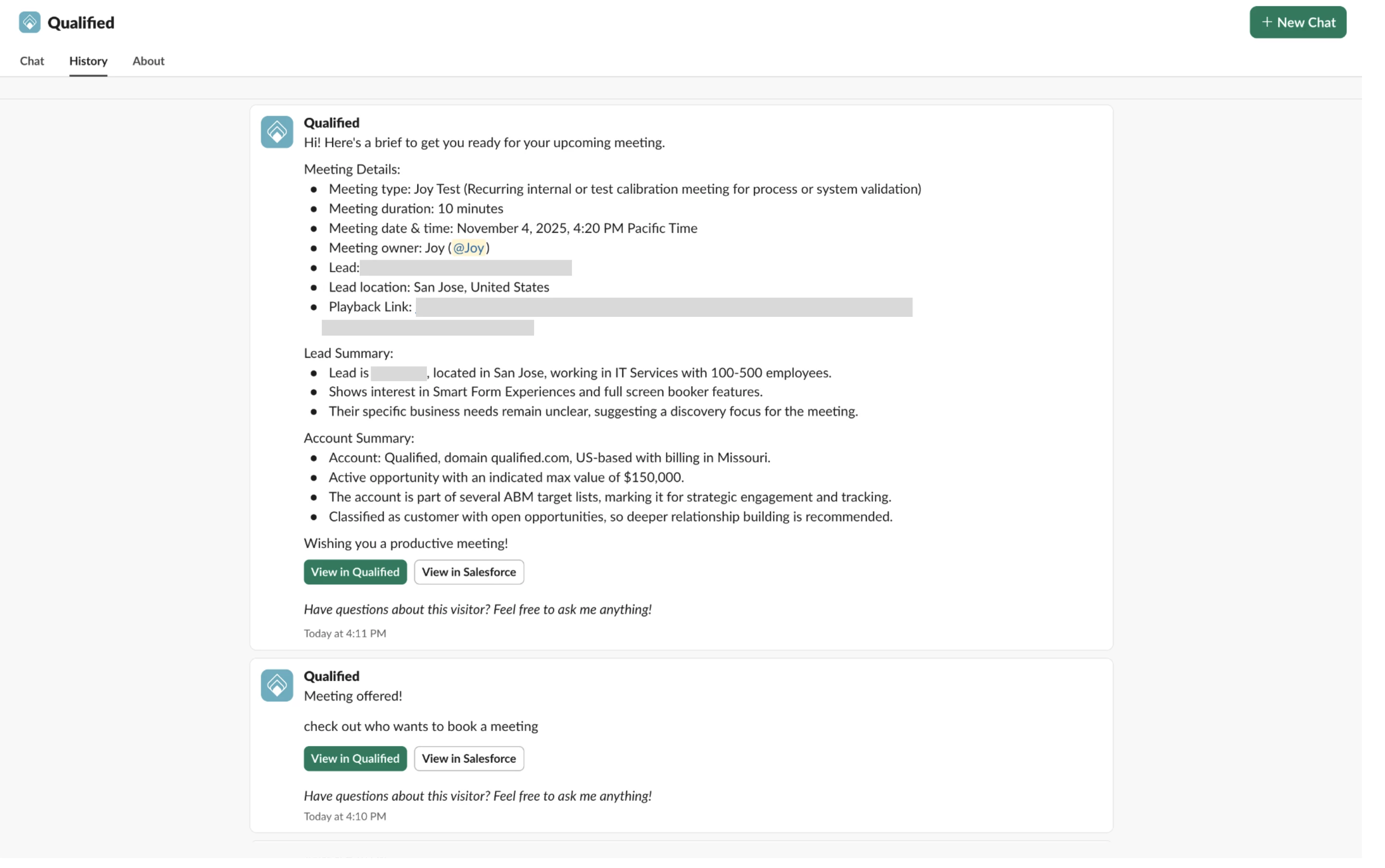
If you need to ask questions about an older notification or meeting, click on the History tab, locate the specific message, and click on it to open the correct conversational thread.
What your AI SDR agent knows
To provide comprehensive briefings, your AI SDR agent has access to a wide range of data points, including:
-
Lead details: Standard field values, engagement timelines, and previous conversation transcripts.
-
Account context: Account name, domain, external integration field values, and any target lists or segments the account belongs to.
-
Meeting specifics: If the thread starts with a meeting brief, the agent knows the meeting time, duration, type, and owner.
-
Real-time updates: While the agent primarily uses data available at the time the alert was sent, it can fetch the latest data if you ask for the "latest activity" or "current status" of a lead.
Connecting your AI SDR agent to Slack
If you’re setting up Slack to receive alerts from Qualified for the first time, check out the details in this article.
If you’ve used Qualified to send notifications to Slack previously, you will need to disconnect and reinstall the Qualified app for Slack and reconnect your team-level Slack connection in Qualified.
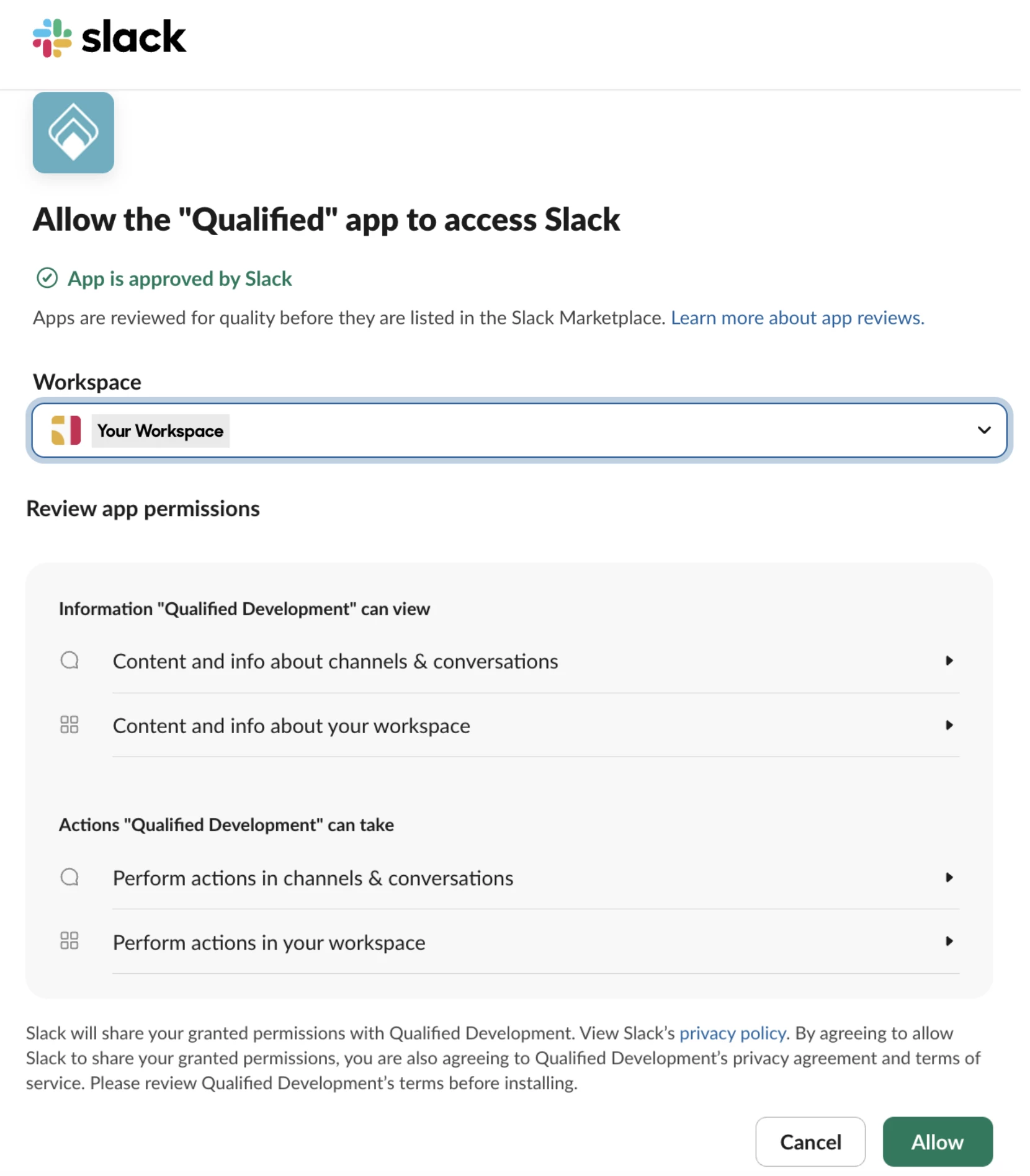
If you do not see the option to ask Piper follow-up questions in Slack, please contact your Qualified Success Architect (QSA) for more information on how to enable this functionality for your organization.
Customizing your AI SDR agent’s appearance
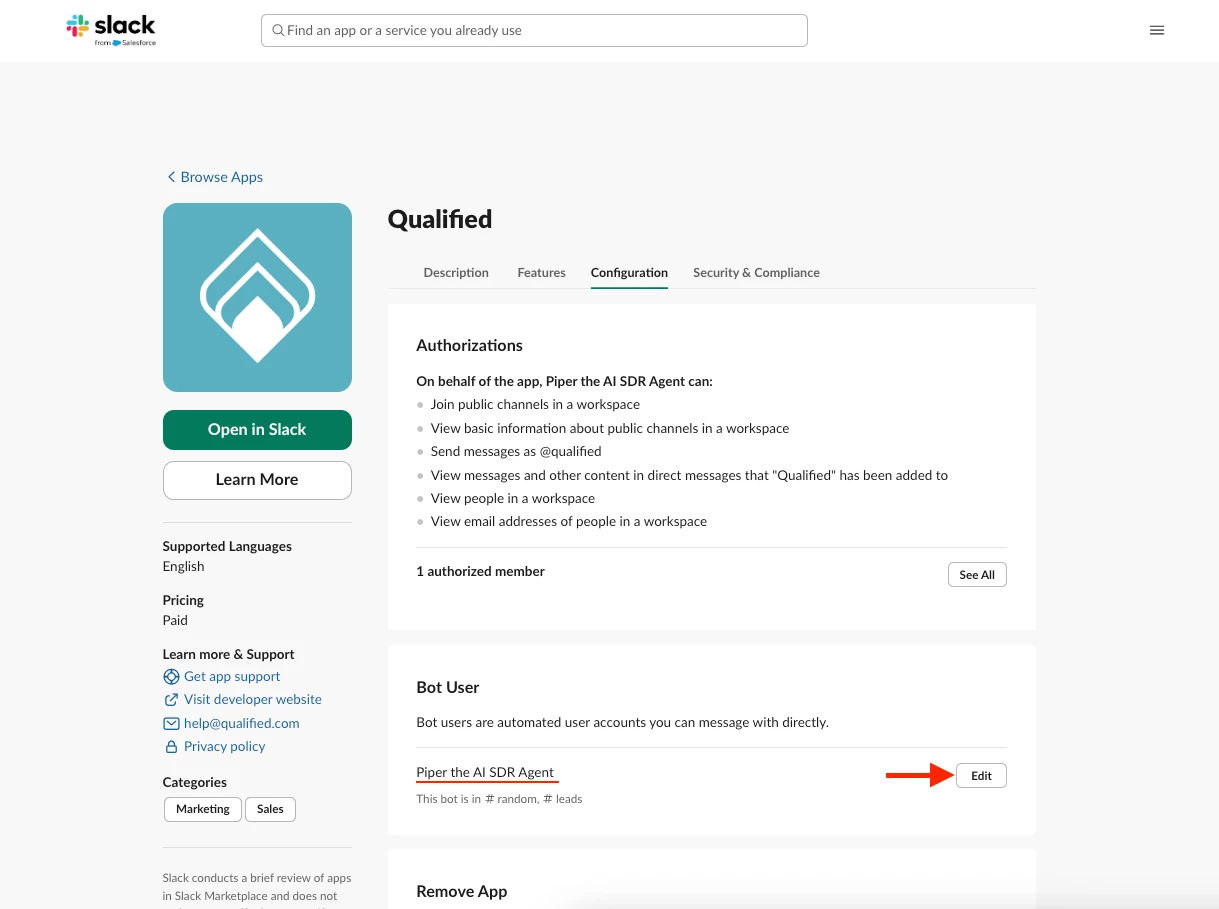
Once you’ve set up the Qualified app in your Slack environment, you can customize the appearance of the bot user that will send your reps messages. In the app’s configuration, click the Edit button next to “Bot User” to customize the name that appears in your Qualified messages.
Important considerations
-
Workspace connections: To ensure successful back-and-forth conversations, a Slack workspace can only be connected to one Qualified organization.
-
Association: Your AI SDR agent can only answer questions about the specific visitor or lead associated with the initial message in that Slack thread.



.svg)


