


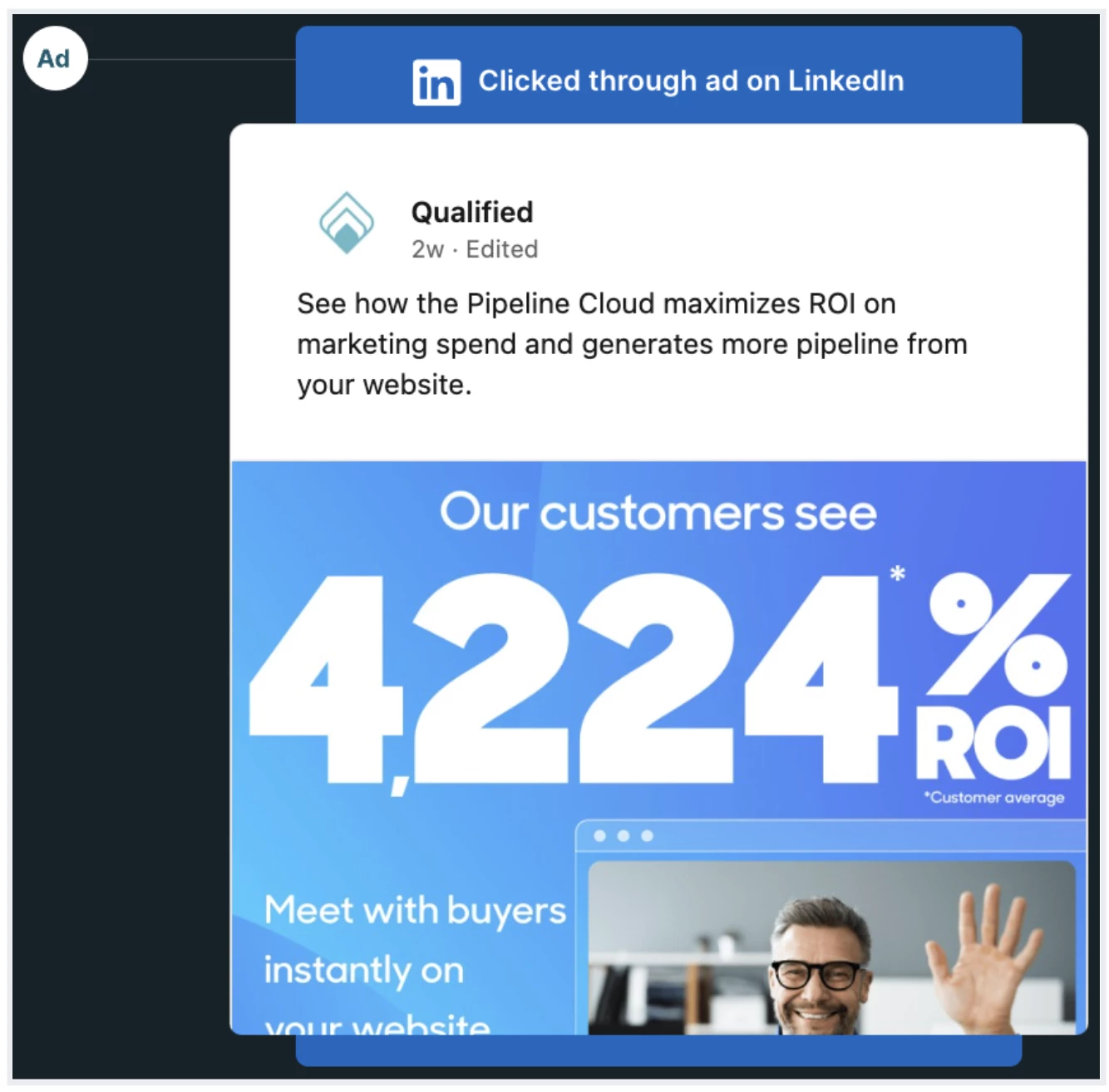
Connect your LinkedIn Ads platform so you can monitor when and how frequently your LinkedIn Ads are clicked. A visual snapshot of the advertisement then appears in the Live View and Account 360.
How to track ads automatically
When you link your LinkedIn Ads account, Qualified can auto-track clickthroughs on certain ad types.
Connect your ad account
Qualified uses an OAuth connection with LinkedIn Ads. To connect, follow these steps:
- Navigate to Settings → App settings → Advertising.
- Click the Connect button under LinkedIn.
Create a new ad campaign with a supported ad type
Qualified focuses on the most commonly used ad types. After you connect your ad account, we apply Qualified-specific query parameters to track ads that are currently active or pending review.
These ad types are automatically tracked:
How to track ads manually
If you don’t want to connect Qualified to your ad platform, you can still surface if and when a clickthrough happens.
When you track ads with an alternate method, Qualified only monitors if and when a visitor clicked on an advertisement. It will not, however, display the ad’s visual.
To track an ad manually, append UTM parameters to the hyperlinks in your ad:
- utm_source (We recommend setting the value to linkedin.)
- utm_campaign
View clickthroughs in Qualified
With either method, you can see when a clickthrough happened in the Live View and Account 360. A card appears with the date and time and, if you used auto-tracking, the ad’s visual.
You can also create a session report and include the Ad Clickthrough? column to know which sessions began with a tracked ad.
Troubleshooting
Why am I unable to view the ad's visual in the Live View or Account 360?
There are a few possibilities:
- Confirm that the ad is one of our supported LinkedIn Ads types.
- If you see an error message about “your ad blocker,” turn off your browser’s ad blocker and open the page again. You should see the visual asset then.
If you still don’t see the ad within the Live View or Account 360, reach out to your Qualified Success Architect for assistance.



.svg)


