


Activities let you teach your AI agent to recognize specific lead behaviors on your website and adjust its outreach accordingly. You define criteria, like "the visitor asked about pricing" or "the visitor browsed the integrations page for more than 30 seconds" - and the AI will automatically detect when those criteria are met during a lead's session.
Once detected, activities can trigger AI email campaigns and shape how your agent crafts follow-up emails. This makes outreach more relevant to what the lead actually did or said.
Configuring activities
To configure activities, follow these steps:
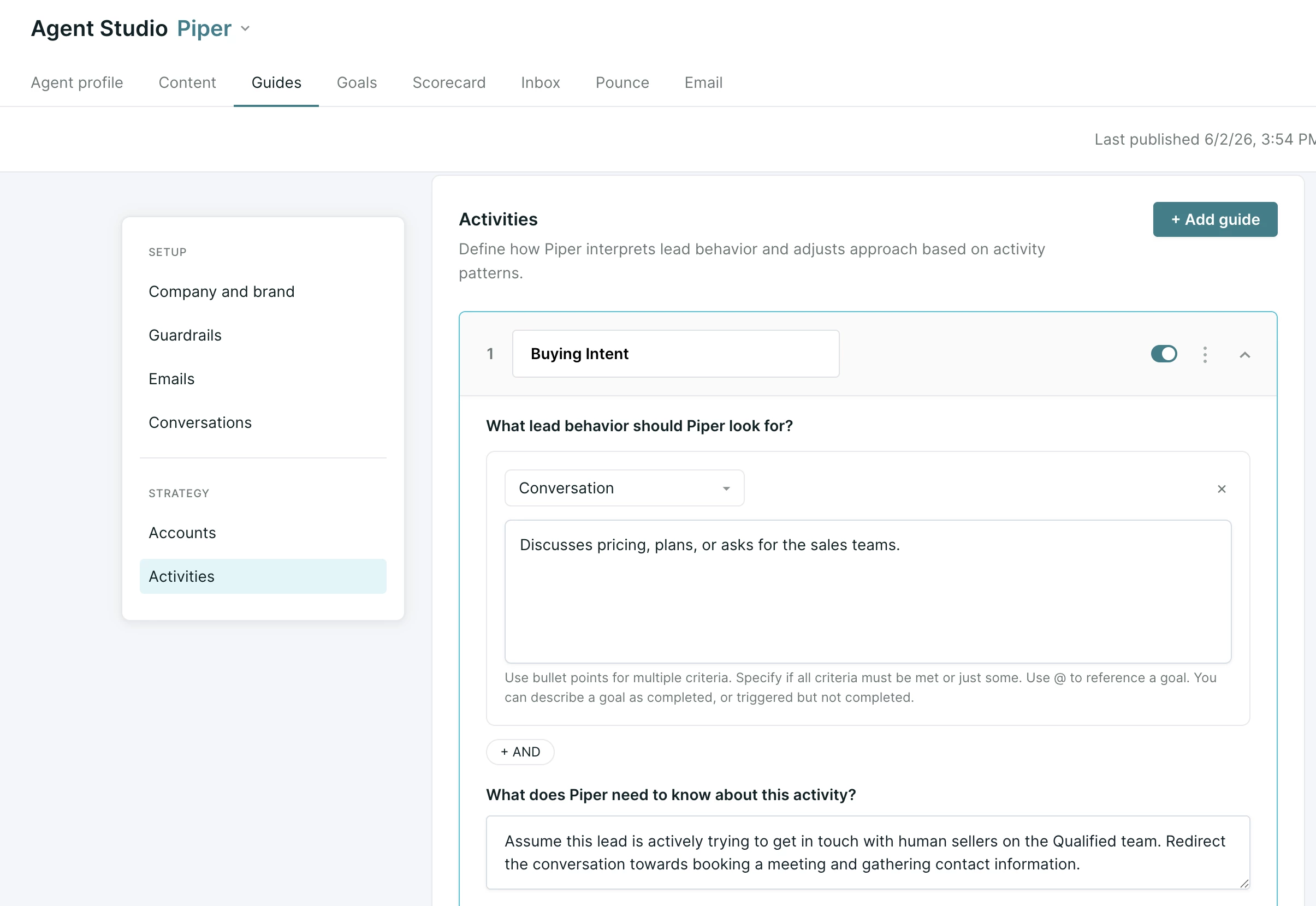
- Navigate to Settings > Agent Studio > Guides > Activities
- Click + Add guide. You will configure the following sections:
- Activity name: Give your activity a clear, descriptive name. You’ll use this name to select the activity in campaign triggers, and for your own reference.
- Criteria: Configure one or more lead behaviors that the lead may take which should trigger this guidance. More detail is provided on these criteria below.
- Messaging guidance: Tell your agent how to adjust its messaging when the criteria in #2 is met. For example, “Emphasize ROI and offer a call with a solutions engineer” or “Acknowledge their interest in the Enterprise plan and highlight key differentiators”
- When your activity is complete, click Save.
- Optionally, use the Toggle to control whether the activity is enabled or disabled.
Pro tip: Disabled activities won’t be evaluated. Use this feature to “pause” listening for an activity without deleting it!
Activity criteria
Each activity has one or more criteria blocks. For each criterion, you choose a lead activity type and provide instructions.
Lead behavior
When defining the lead behavior to watch for, activities are broken into three types: conversation, browsing behavior, and no activity.
-
Conversation: Evaluates chat transcripts between the visitor and the AI assistant. Use this when the behavior you care about is something the visitor said or asked about.
-
Browsing behavior: Evaluates pages visited and time spent on pages. Use this when the behavior is about where the visitor went on your site.
-
No activity: Records an activity when a lead has stopped engaging for a period you choose. Use this to reach leads that have gone quiet. This type works differently from the other two, and is covered in its own section below.
Conversation and browsing behavior criteria can be mixed and matched within a single activity. For example, if a visitor has browsed the pricing page and asked about the difference between pricing plans, you can provide guidance to your agent on how to describe the value added in higher-tier plans.
Instructions
Regardless of the activity type, use the text box that appears to describe in natural language what your AI agent should look for. For example:
-
"The visitor asked about pricing or requested a demo."
-
"The visitor spent more than 60 seconds on the pricing page."
-
"The visitor submitted a contact form."
Use bullet points if you have multiple criteria and specify whether all conditions must be met or any one of them. Be specific - reference page URLs, topics, or keywords you care about.
Referencing goals in your criteria
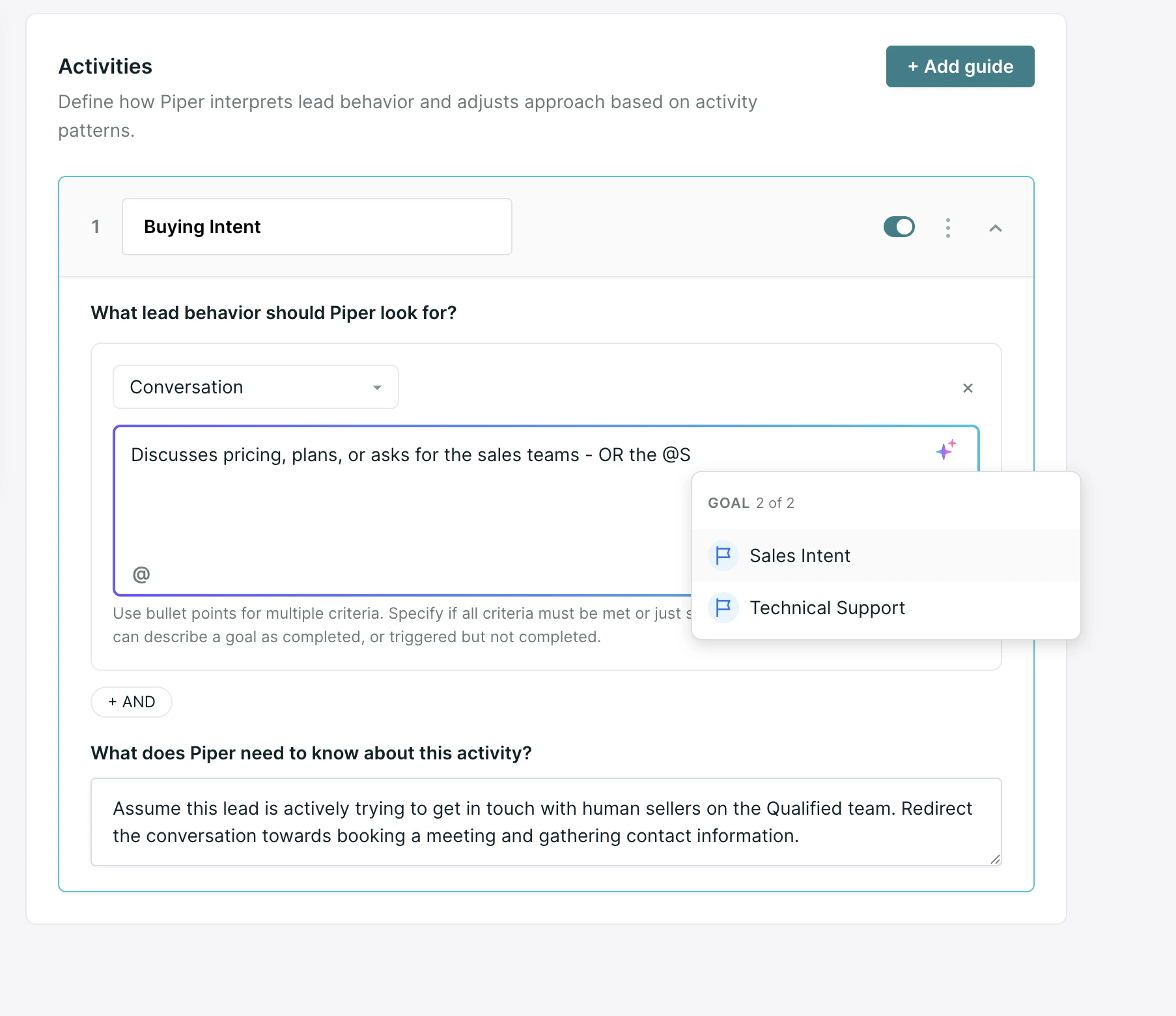
Criteria can reference the AI goals you have configured in Agent Studio, which is useful for chaining behaviors together. To add one, type @ or click the @ button in the toolbar, then select a goal from the dropdown. It is inserted as a tag.
You can reference a goal as completed, or as started without finishing:
- "The @[Goal Name] goal was completed" detects leads who finished a specific goal.
- "The @[Goal Name] goal was triggered but not completed" detects leads who started one and stopped.
Goals that are turned off show a warning indicator when referenced. Enable the goal in Agent Studio if you want to use it in an activity.
Behavior scope
Activities don't just look at what happened in a lead's most recent session. Your agent can also evaluate up to 90 days of past session history. This means your instructions can reference patterns and behaviors that span multiple visits, such as:
-
Frequency or counts: e.g., "Visited the pricing page in at least 3 different sessions."
-
Cross-session patterns: e.g., "Returned to the product page across multiple visits."
-
Recency conditions: e.g., "Asked about pricing within the last week."
If your criteria only concern the current session, the AI will focus on that session alone. When your instructions involve counts or patterns, your AI agent will automatically consider the full history available.
Instruction validation
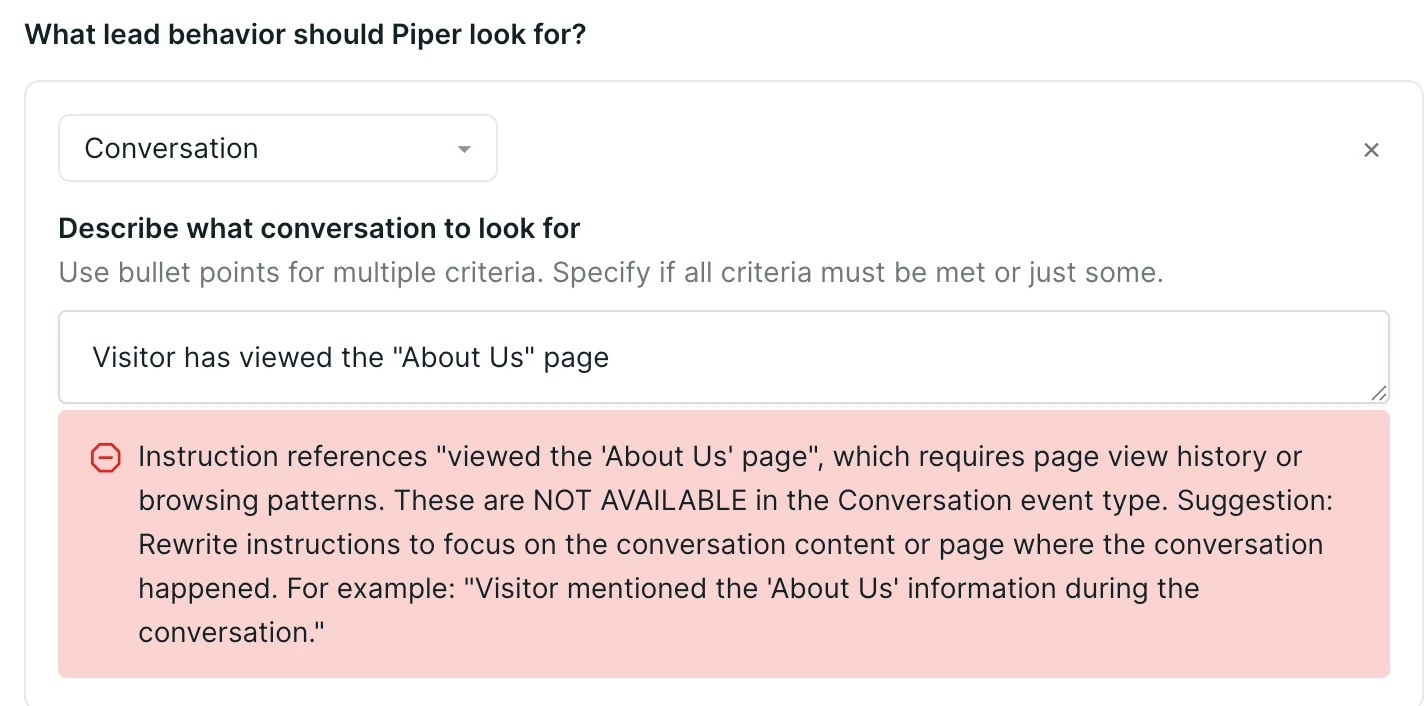
When you write criteria instructions, the system automatically validates them to ensure they are feasible based on the selected activity type. For example, a Conversation activity has access to chat transcripts but not page view history. If your instructions reference data that isn't available, you will see a warning with a suggested revision.
Recognizing when a lead goes quiet
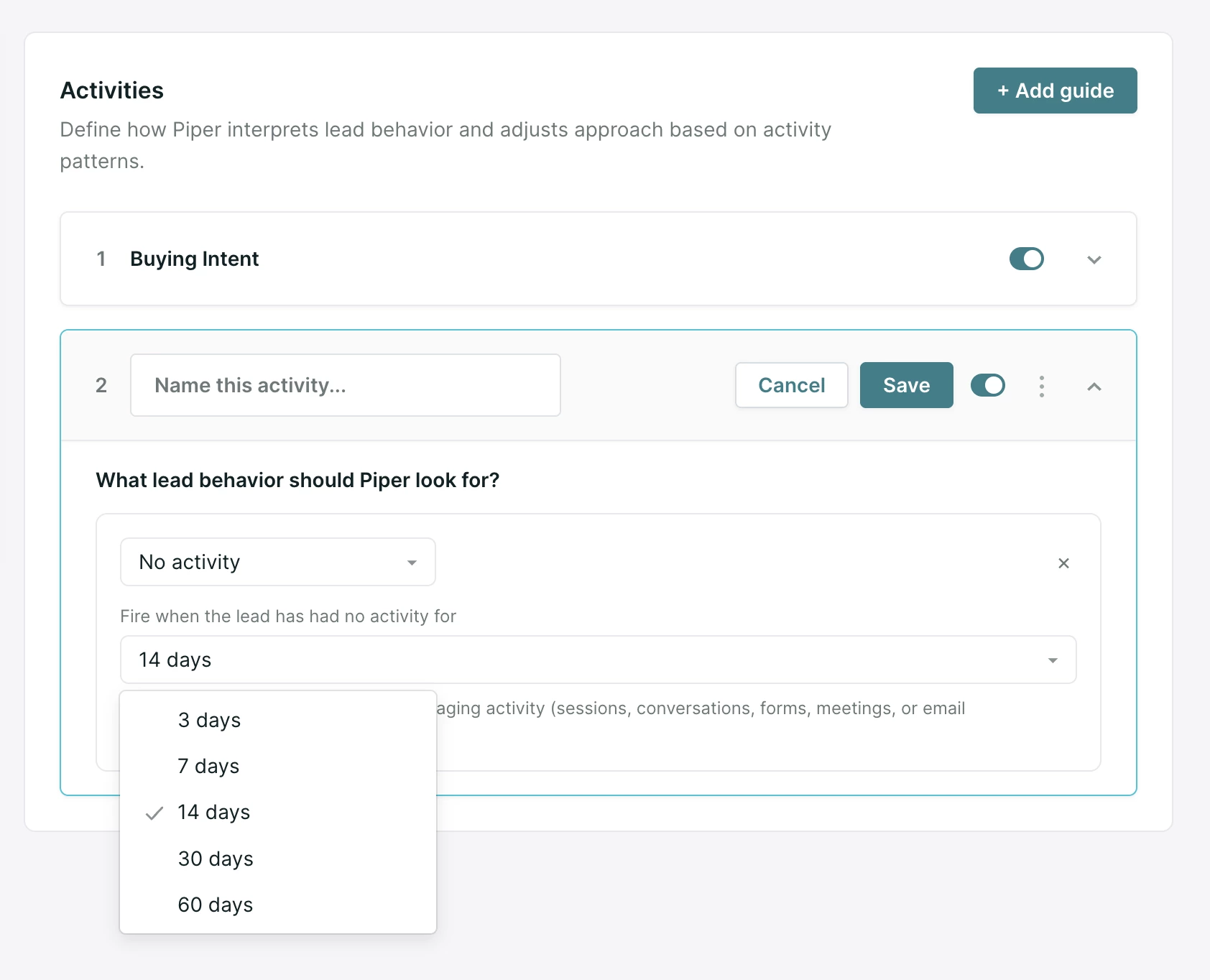
Conversation and browsing behavior activities detect something a lead did. The No activity type detects the absence of engagement, which lets you reach leads that have gone quiet and enroll them in a re-engagement campaign.
Choose No activity as the lead behavior, then set an inactivity window of 3, 7, 14, 30, or 60 days. The default is 14.
This type does not take instructions, and it has no messaging guidance field. It works as a trigger on its own, so the campaign you pair it with is where you set the tone and content of the follow-up.
Any of the following counts as engagement and restarts the countdown:
- A website visit or session, including a single page view
- A conversation with your AI SDR agent or a rep
- A form submission
- An offer click
- A meeting booked
- An email opened, replied to, clicked, or unsubscribed
Sending an email to the lead does not restart the countdown, and internal system actions such as an administrative campaign exit are not counted as engagement.
A few behaviors are worth knowing before you enable one:
- It runs on a daily schedule. Conversation and browsing behavior activities are evaluated during a lead's session. This one runs once a day in the background at approximately 12:00 PM UTC, which is 5:00 AM Pacific. Leads are recorded on that daily cycle rather than the moment they cross your threshold.
- Existing quiet leads are not swept in. Turning the activity on does not record leads that were already quiet. Only leads that cross the threshold after you enable it will be recorded, so expect a steady daily volume rather than one large batch.
- Each lead is recorded once per quiet period. If a lead goes quiet, re-engages, and then goes quiet again, it is recorded again the next time it crosses the threshold.
- Leads without an email address cannot be enrolled in an email campaign, so a portion of your quiet leads will not be reachable this way.
Using activities in campaigns
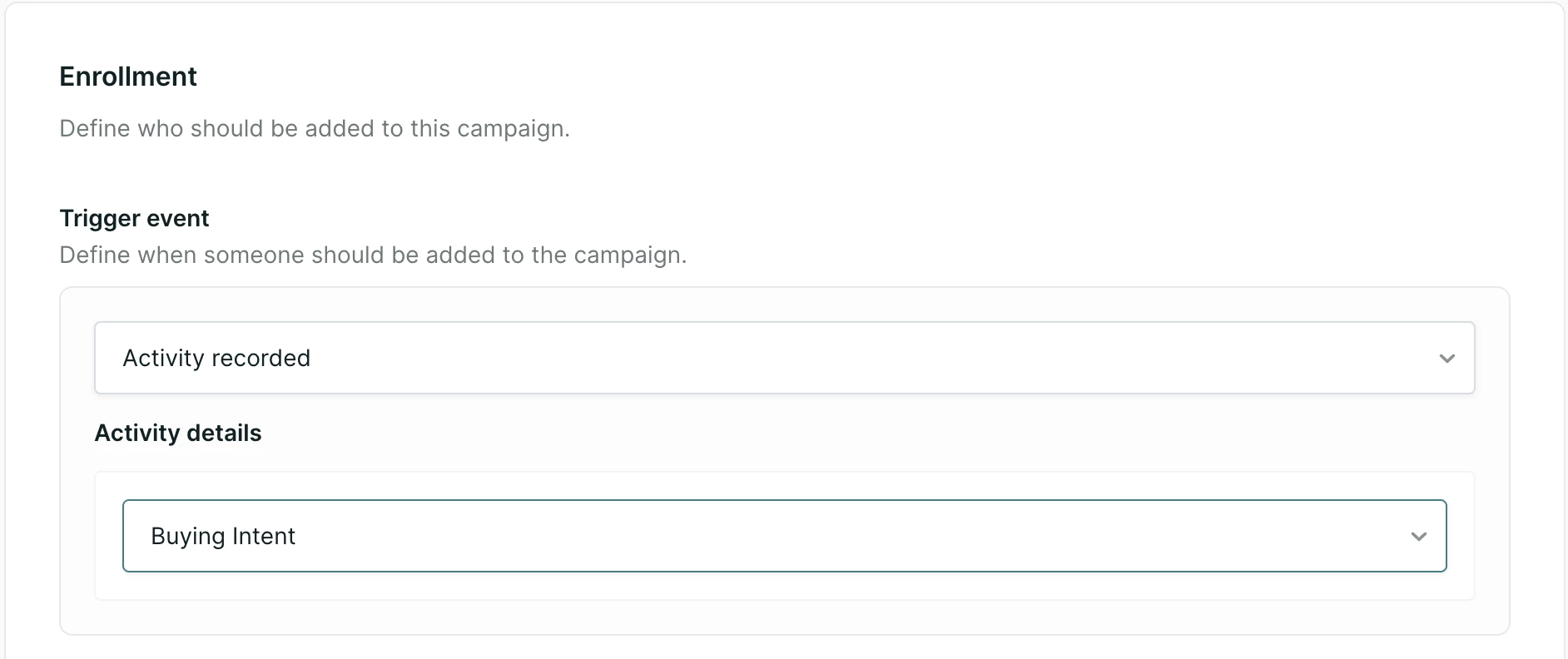
Once you have created and enabled an activity, you can use it as a campaign trigger:
-
Go to your Campaign Settings and set up a new campaign (or edit an existing one).
-
Choose Activity recorded as the trigger type.
-
Select the specific activity from the dropdown.
When the selected activity fires for a lead, that lead will be enrolled in the campaign automatically.
Best practices
-
Start simple: Begin with one or two high-value activities, such as pricing inquiries or demo requests.
-
Be specific: The more precise your criteria, the more accurate the detection.
-
Use messaging guidance thoughtfully: Describe the tone and focus you want rather than telling the AI exactly what to say.



.svg)


