


Your AI SDR agent can now show up on your website as video, voice, or text, and you control which of those options are available. Set a default modality for your agent, then override it for individual experiences when you want to test something different, like a custom avatar, before rolling it out everywhere.
How modality controls work
Modality controls have two layers.
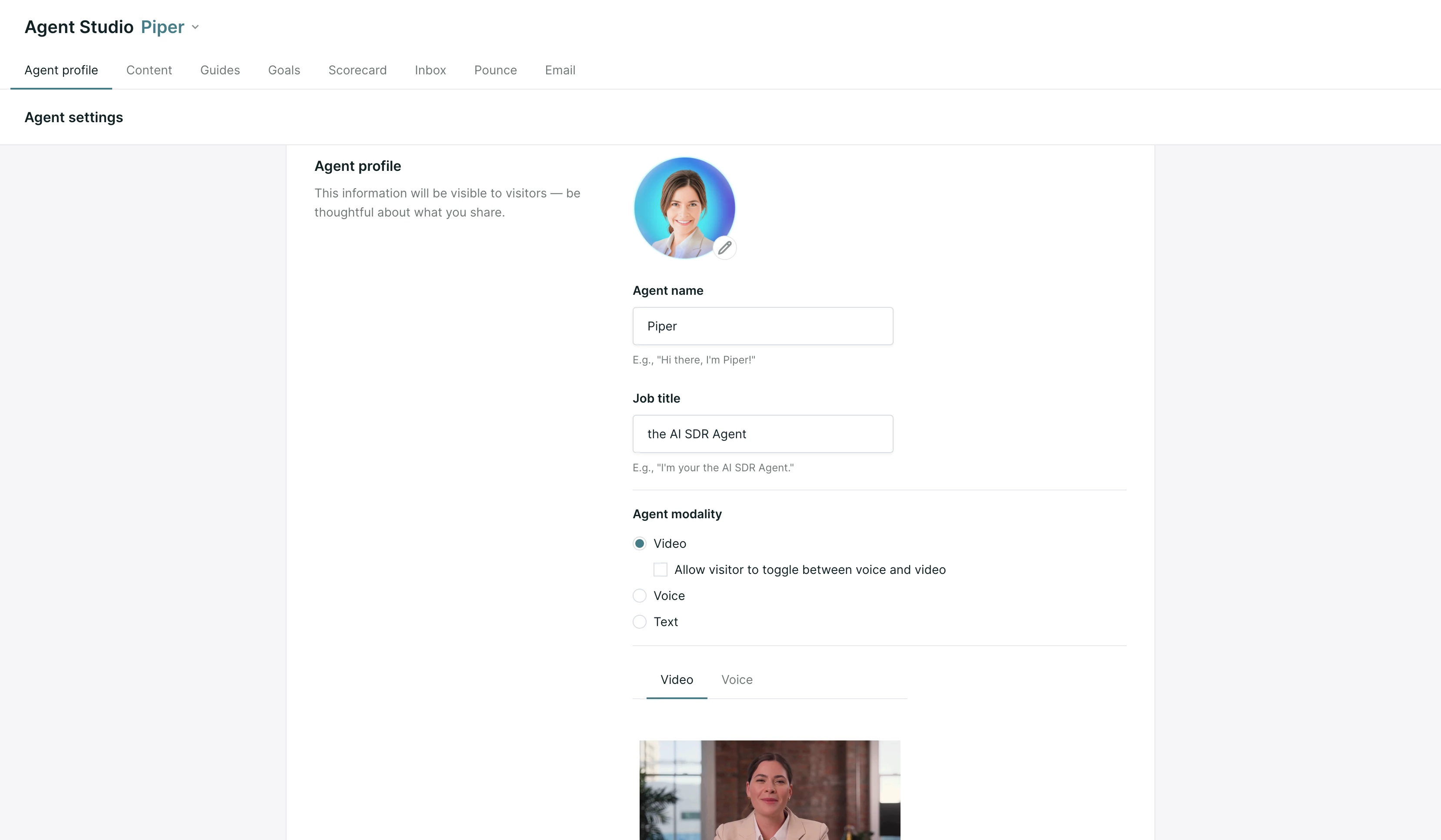
The first is your agent's default modality. This is the setting your agent uses across every experience unless you specify otherwise. You choose from Video, Voice, Text, or an option that lets the visitor toggle between voice and video themselves.
The second layer is the experience override. Any individual experience can be set to use a different modality than your agent's default. This is useful when you want to try something on a single page or campaign, such as a custom avatar, without changing how your agent behaves everywhere else.
Note: To enable modality options for your organization, contact your Qualified Success Architect (QSA).
Setting your agent's default modality
- In Agent Studio, open your agent profile.
- Go to Agent settings.
- Under Agent modality, choose the option you want to use by default: Video, Allow visitor to toggle between voice and video, Voice, or Text.
- Save your changes.
Overriding modality for a specific experience
- Open the experience you want to customize in the experience builder.
- Find the modality setting for that experience and choose Override default agent modality.
- Select the modality you want this experience to use.
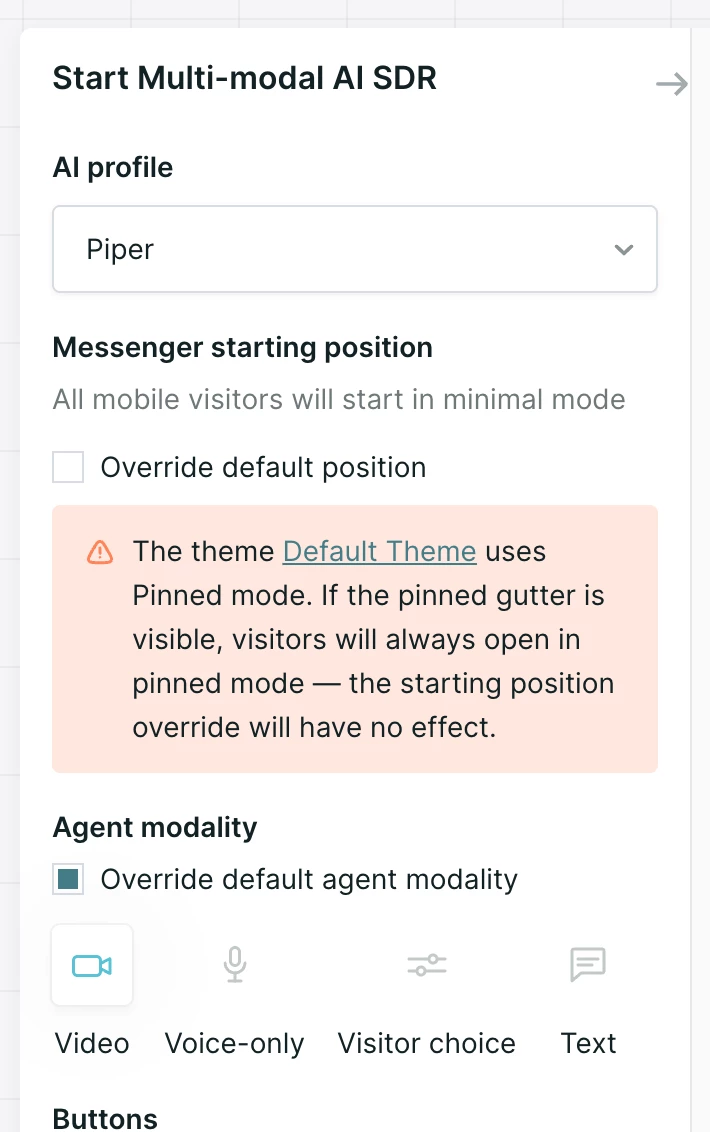
This is a convenient way to test a custom avatar or a different modality on one experience before deciding whether to change your agent's overall default.
Letting visitors choose their modality
If you select the voice and video toggle option, visitors can pick voice or video when the conversation starts, and switch between them mid-conversation. This gives buyers control over how they want to engage with your AI SDR agent, rather than locking them into a single format.



.svg)


