


What is Qualified Mailbox?
Qualified Mailbox lets Piper the AI SDR Agent send high-volume email from a custom, branded sender address such as piper@go.yourcompany.com. It removes the daily sending limits you run into when your AI SDR agent sends through a connected Gmail or Microsoft mailbox, so you can scale outreach for events, lead nurture, and other campaigns
To learn more about the best practices for protecting your sender reputation and ensuring your emails land in the inbox, be sure to check out our complete Qualified’s Email Deliverability Guide.
How Qualified Mailbox works
Qualified Mailbox is powered by Amazon Simple Email Service (Amazon SES). You keep ownership of your domain and your DNS. Qualified doesn't need access to your DNS provider or your AWS account.
To send on your behalf, Qualified has to prove to receiving mail servers, such as Gmail, Outlook, Microsoft 365, and Yahoo, that mail claiming to come from your domain is genuinely authorized by you. This is done with standard, industry-wide email authentication: DKIM, SPF, and a custom MAIL FROM domain.
There's no software to install and no private keys for you to manage. Amazon SES uses Easy DKIM, so the signing keys are created and rotated automatically by AWS. You publish a small set of DNS records once, and they keep validating through every automatic key rotation.
You set all of this up inside Qualified: you enter a sending subdomain, Qualified generates the exact DNS records to add, and once those records are detected, your domain is authenticated and ready to send
Before you start
Before setting up Qualified Mailbox, make sure you have all of the following:
- A new, dedicated sending subdomain, for example go.yourcompany.com. It should be a subdomain of a domain you already own that has a good sending reputation. It must be new and unused: not a subdomain you already send other mail from or receive mail on (for example, one already used by a marketing automation tool). A dedicated subdomain protects your primary domain's reputation and is required so replies can route back into Qualified.
- Access to your DNS provider. You, or your IT or DNS admin, will add a handful of records at your DNS provider (Cloudflare, Route 53, GoDaddy, Namecheap, and so on).
- Your company mailing address on file. To comply with anti-spam law (CAN-SPAM), Qualified requires your company's physical mailing address before you can finish setup. Add it in your organization's company details settings.
Note: To confirm Qualified Mailbox is available for your organization, contact your Qualified Success Architect (QSA).
Set up Qualified Mailbox
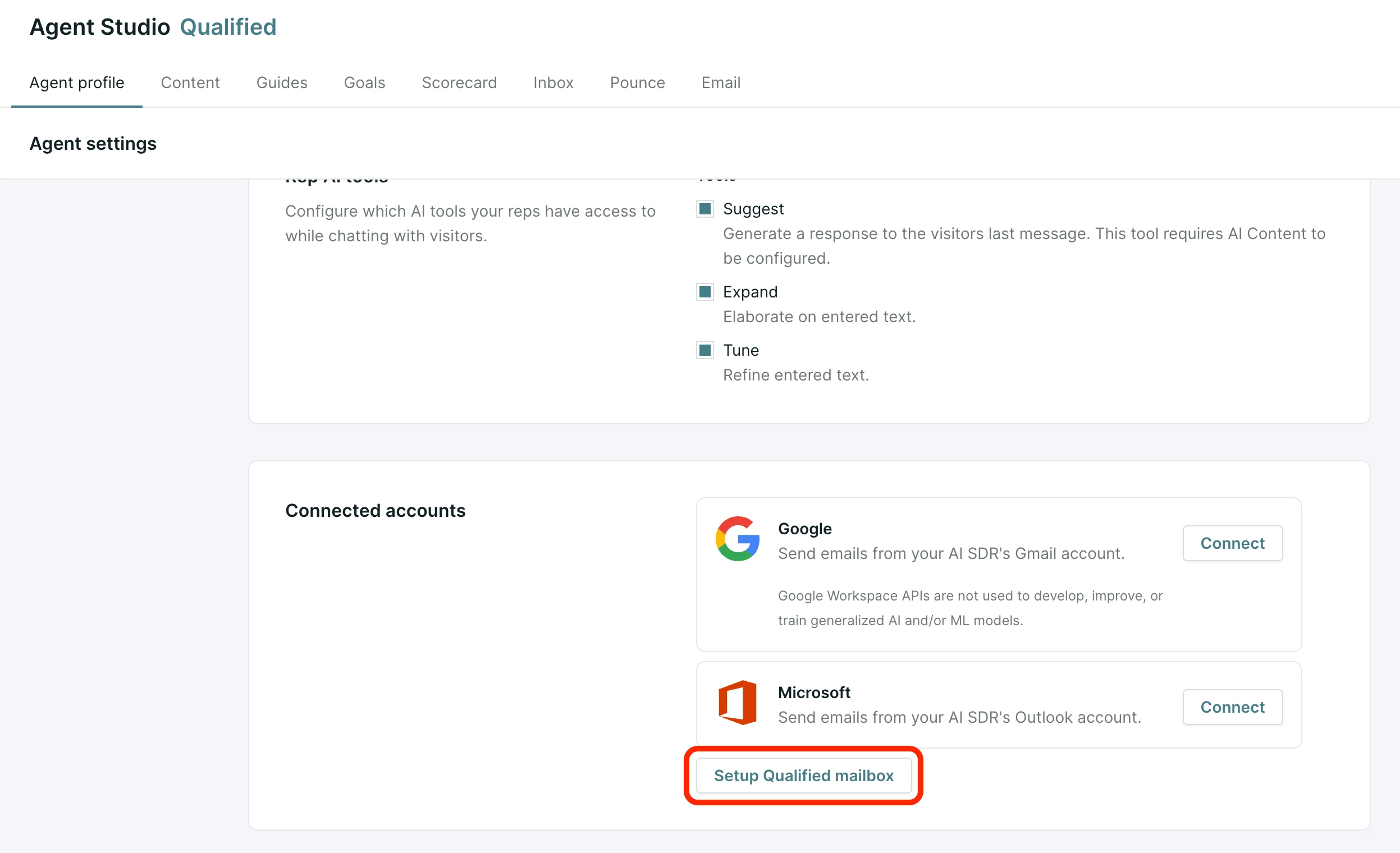
Open your AI SDR agent's email connection settings and click Setup Qualified mailbox. Setup runs as a short wizard.
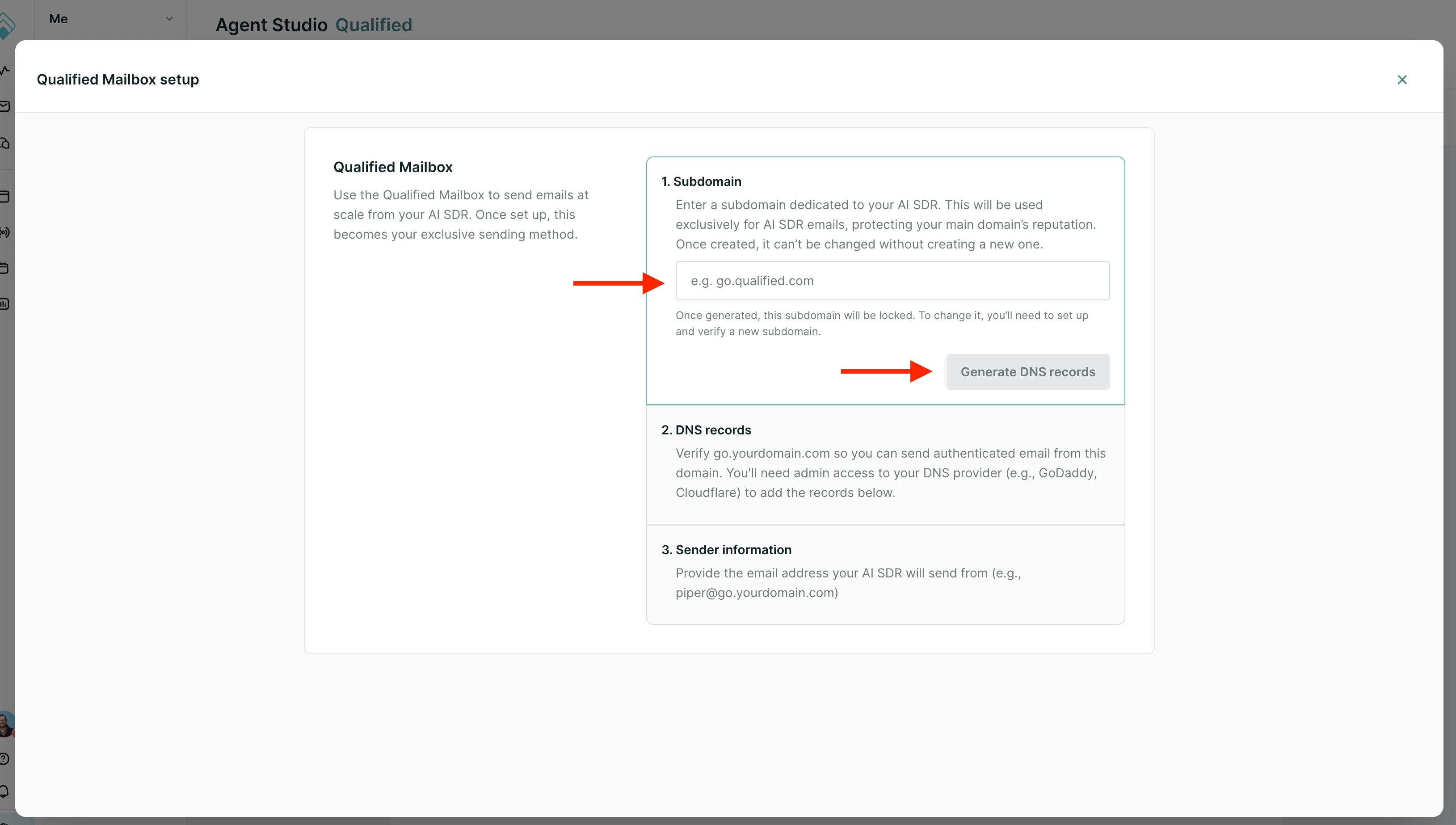
Step 1: Choose your sending subdomain
Enter the sending subdomain dedicated to your AI SDR agent (for example, go.yourcompany.com) and click Generate DNS records. Once generated, the subdomain is locked. To change it later, you'll need to set up and verify a new subdomain.
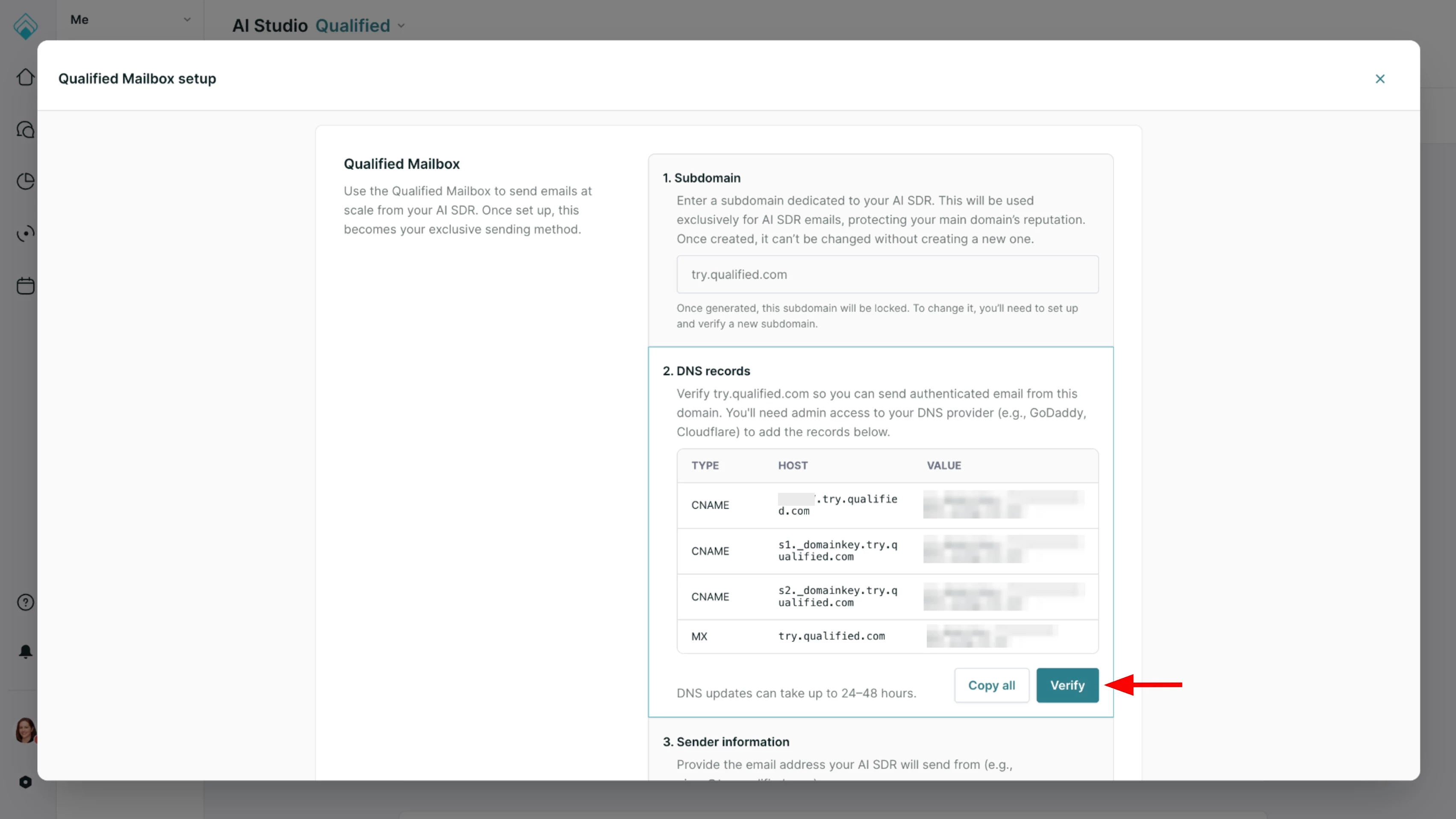
Step 2: Publish your DNS records
Qualified shows a list of DNS records unique to your domain. Use Copy all to copy the full list (type, host, value, and priority) and hand it to whoever manages your DNS.
After the records are published, they validate automatically. This can take up to 24 to 48 hours, and occasionally up to 72 hours, though it's usually much faster. Click Verify (relabeled Check pending records once your domain is verified for sending) at any time to refresh the status.
See DNS records for your DNS admin below for what each record does
What are these records for? These DNS records act as a digital signature. They prove to receiving email servers that your AI SDR agent is a legitimate sender authorized by your company. This is a standard and crucial step for protecting your domain's reputation and ensuring your emails land in the inbox.
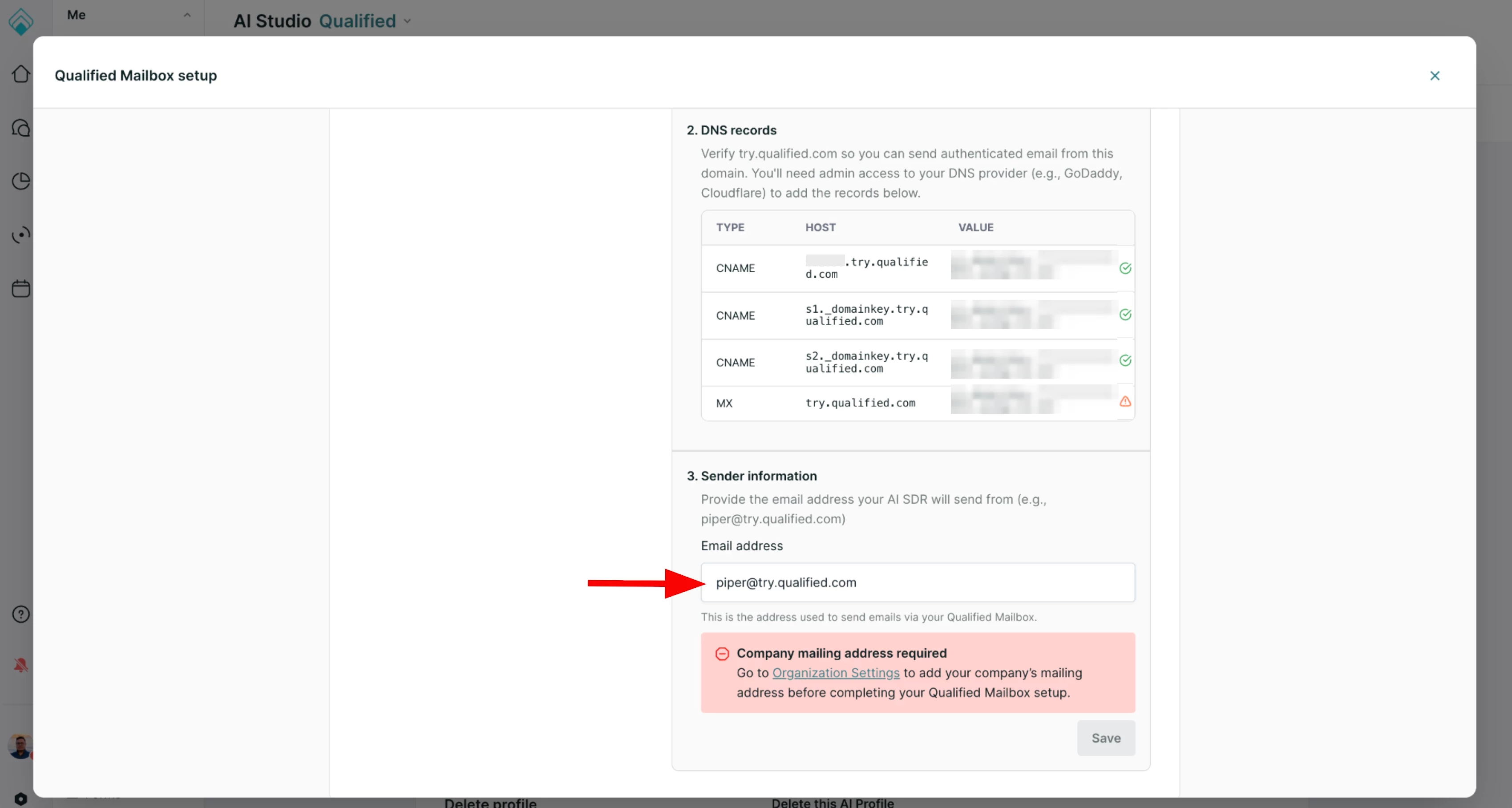
Step 3: Add your sender information
Enter the email address your AI SDR agent will send from, for example piper@go.yourcompany.com. It must be on the subdomain you just verified.
The address doesn't have to be an existing mailbox in Google or Microsoft. Qualified creates and manages the sender for you, and routes replies back into Qualified automatically.
-
Add a Company Mailing Address: To comply with CAN-SPAM regulations, you must have a mailing address added to the Company Details settings. If you see a large red error box, it means this address is missing from your Company Details section. Save is disabled until your company mailing address is on file.
-
Click Save.
Your AI SDR agent is now ready to send emails with Qualified Mailbox!
DNS records for your DNS admin
The exact hostnames and values shown in the Qualified app are unique to your domain. Always copy them from the app rather than typing them by hand. The records below, shown for an example subdomain of go.example.com, are only to help you and your DNS admin understand what each record is for.
DKIM records
Qualified generates three CNAME records that publish your domain's DKIM public keys. Adding all three both verifies the domain and enables DKIM signing. With Easy DKIM, there's no separate domain-verification TXT record to add.
- Type: CNAME
- Host/name: {token}._domainkey.go.example.com (one record for each of the three tokens Qualified provides)
- Value: {token}.dkim.amazonses.com
Custom MAIL FROM: MX record
A custom MAIL FROM subdomain (by default mail.go.example.com) lets SPF pass on your own domain rather than on Amazon's, and gives your domain a place to receive bounce and complaint notifications.
- Type: MX
- Host/name: mail.go.example.com
- Value: feedback-smtp.us-east-1.amazonses.com (region varies by account)
- Priority: 10
This record, and its matching SPF TXT record below, aren't strictly required to start sending. If they're missing, SES falls back to its default amazonses.com MAIL FROM and mail still sends. We recommend adding them anyway: some major mailbox providers require SPF to pass for your sending domain specifically, and without these records it passes for amazonses.com instead.
Two requirements from Amazon SES for this subdomain:
- Publish exactly one MX record on it. More than one MX record on mail.go.example.com causes the custom MAIL FROM setup to fail in SES.
- Don't use this subdomain for anything else. It must not be a subdomain you already send other mail from or receive mail on. If mail. is already in use on your domain, let Qualified know and a different prefix can be configured.
Custom MAIL FROM: SPF TXT record
- Type: TXT
- Host/name: mail.go.example.com
- Value: v=spf1 include:amazonses.com ~all
DNS providers differ on whether the TXT value needs quotation marks. Most require them; some add them for you and will double them up if you paste them in as well. If the record doesn't verify, try it the other way.
Inbound MX record for replies
So that replies to your emails are captured and routed back into Qualified, add one MX record on the sending subdomain pointing at Qualified's inbound mail endpoint. The exact target hostname is shown in the app; copy it from there.
- Type: MX
- Host/name: go.example.com
- Value: the inbound endpoint shown in the app
- Priority: 10
Unlike the other records, Amazon SES doesn't check this one; Qualified verifies it with its own DNS lookup. Your domain can show as verified for sending while this row is still pending.
If your sending subdomain already has MX records pointing elsewhere, replies will be split between that destination and Qualified. This is another reason to use a dedicated subdomain that isn't already handling mail.
Notes for your DNS admin
- TTL: there's no specific value required. Use your DNS provider's default, commonly 300 to 3,600 seconds.
- Auto-appended hostnames: some DNS providers automatically append your domain to the host field. If yours does, enter only the token portion (for example, {token}._domainkey) rather than the full hostname.
- Underscores: the _domainkey records require an underscore in the name. A small number of DNS providers reject underscores in record names; if yours does, contact their support.
- Copy all: use the app's Copy all button to copy the full record list to your clipboard and avoid transcription errors.
How email authentication works
DKIM (DomainKeys Identified Mail) attaches a cryptographic signature to every message:
- A public and private key pair is generated for your domain. The private key stays with Amazon SES and signs outgoing mail. The public key is published in your DNS.
- When Qualified sends a message, SES adds a DKIM signature header signed with the private key.
- The receiving mail server looks up the public key in your DNS, verifies the signature, and confirms the message wasn't altered in transit and came from an authorized sender.
Because the public key lives in your DNS, receivers trust the setup, which improves deliverability and reduces the chance of mail landing in spam.
Two supporting standards work alongside DKIM. SPF is a DNS record that lists which mail servers are allowed to send for your domain. DMARC is a policy that tells receivers what to do when DKIM or SPF checks fail, and gives you reporting.
On Qualified's side, when you start setup, Qualified registers your sending domain with Amazon SES and enables Easy DKIM, which generates and manages the signing keys. Qualified then turns the DKIM tokens and MAIL FROM settings into the ready-to-copy record list you see in the app. Key rotation needs no action from you: because the records you add are CNAMEs pointing at SES-managed values, nothing changes on your side when SES rotates keys.
DMARC
DMARC is increasingly important for deliverability. Major mailbox providers now expect high-volume senders to publish a DMARC policy on their sending domain, and mail from domains without one is more likely to be rejected outright rather than filtered into spam.
We recommend publishing DMARC regardless of your sending volume: prospect lists often contain personal addresses, corporate mail filters increasingly weigh DMARC in their own reputation scoring, and a policy set to enforcement helps prevent attackers from spoofing your brand.
Qualified doesn't generate this record for you. The policy is a decision for your security or email team, and the setup described above is designed to satisfy it.
Your Qualified mail already aligns on DKIM
Qualified requires your AI SDR agent's From address to be on the exact domain you verified with Amazon SES. If your sending domain is go.example.com, your AI SDR agent sends from something like piper@go.example.com, and SES signs with DKIM for that same domain.
Because the DKIM domain and the From domain match exactly, your Qualified mail passes DMARC on DKIM alignment even under the strictest setting (adkim=s). You don't need to loosen your DMARC policy for Qualified, and you can run p=reject on your domain.
You may already be covered
Receiving servers look for a DMARC record on your sending subdomain first (_dmarc.go.example.com). If there isn't one, they fall back to your organization's policy at _dmarc.example.com and apply its subdomain (sp=) value, or its p= value if no sp= is set. Most organizations already publish DMARC at the top level, so the sending subdomain inherits it automatically.
You can check from a terminal with a command such as dig TXT _dmarc.example.com, or on Windows, nslookup -type=TXT _dmarc.example.com. If you'd rather not use a terminal, a web-based lookup such as MxToolbox's DMARC Check gives the same answer. You're looking for a record that starts with v=DMARC1. If nothing comes back, your organization doesn't have a DMARC policy yet and your sending subdomain isn't covered.
Optional: a record just for your sending subdomain
If your organization's policy already covers the sending subdomain, there's nothing more you need to do for Qualified. Some teams add a second record scoped to the sending subdomain anyway. It isn't required, but it gives you a separate reporting stream, so AI SDR traffic doesn't mix into your corporate DMARC reports, and it lets you set the subdomain's policy independently.
- Type: TXT
- Host/name: _dmarc.go.example.com
- Value: v=DMARC1; p=none; rua=mailto:dmarc-reports@example.com
If you're starting from no DMARC at all, a phased rollout is recommended: begin at p=none to monitor, move to p=quarantine once the reports look clean, then p=reject.
If you add a subdomain-specific record, avoid weakening it. If your organization's domain is already at p=quarantine or p=reject, publishing p=none on the sending subdomain "just to be safe" during setup leaves a soft spot on your own brand that attackers can abuse. Since Qualified's mail aligns on DKIM from day one, there's no deliverability reason to loosen anything. Match whatever policy your parent domain already uses.
A note on SPF alignment
Your custom MAIL FROM domain (mail.go.example.com) is a subdomain of your From domain (go.example.com). They share an organizational domain, so SPF alignment passes under relaxed alignment, which is the default for both DMARC and Amazon SES.
If your DMARC policy specifies strict SPF alignment (aspf=s), the SPF side won't align, and you'll see that reflected in your DMARC aggregate reports. This doesn't affect delivery: DMARC passes when either SPF or DKIM aligns, and DKIM aligns for Qualified mail. It's worth knowing so the reports don't cause alarm. Removing aspf=s is optional cleanup, not a fix.
How replies work
Replies to your AI SDR agent's emails are captured through the inbound MX record and routed back into Qualified. The reply-to address is your Qualified Mailbox sending address (for example, piper@go.yourcompany.com), so replies land on the dedicated subdomain rather than your root domain.
How replies are handled is controlled per campaign:
- Auto-replies on: your AI SDR agent responds to the lead and, on its first response, can hand off to the appropriate person, who is introduced and cc'd on the email. You can view the full email history in the Qualified app.
- Auto-replies off: your AI SDR agent doesn't respond. You can choose a forwarding address so all replies go to a single inbox, such as your marketing ops admin, for a person to triage.
Switching from Gmail or Outlook
If your AI SDR agent is already sending through a connected Gmail or Microsoft mailbox, connecting Qualified Mailbox doesn't interrupt conversations already in progress. Leads currently being worked finish on the existing connection, and new leads use Qualified Mailbox going forward.
Frequently asked questions
Does this require additional email authentication, like SPF or DKIM?
Yes, and Qualified generates the exact records for you. During setup, you'll get a list of DNS records to publish on your domain: DKIM CNAMEs, a custom MAIL FROM MX and SPF TXT, and an inbound MX for replies. DMARC is recommended and is yours to publish; see DMARC above.
Does the sending subdomain have to be dedicated?
Yes. It must be a new, unused subdomain, not one you already use for another tool. This is required so replies route correctly, and it protects your main domain's reputation.
Can I send from my root domain instead of a subdomain?
You can use another domain you control, but a dedicated subdomain is strongly recommended to protect your primary domain's reputation and deliverability. This is standard practice for high-volume sending.
What happens if I change the Qualified Mailbox sender email?
Emails already in flight use the previously configured address. New emails use the new address and start a new email thread, while your AI SDR agent continues the conversation from where it left off.
Can I be connected to Gmail or Microsoft and Qualified Mailbox at the same time?
Yes. Once Qualified Mailbox is connected, it becomes the default for new leads, while conversations already underway on Gmail or Microsoft finish on that connection.
Troubleshooting
- Records not verifying yet: DNS changes can take up to 24 to 48 hours, and occasionally up to 72. Click Verify or Check pending records again after some time.
- DKIM verification failed: double-check that the CNAME values were entered exactly as shown, with no extra characters or trailing-dot issues introduced by your DNS provider.
- Host field auto-appended: if your provider appends your domain automatically, enter only the token portion (for example, {token}._domainkey).
- MX or MAIL FROM not detected: re-check the MX priority and exact target value. Confirm the SPF TXT is on the mail. subdomain and that mail. has exactly one MX record; extra MX records there cause SES to fail the setup.
- SPF TXT not detected: try the value with and without surrounding quotation marks, since providers differ.
- Domain verified but the inbound MX row is still pending: this is expected while the inbound MX propagates. Sending works, but replies won't route into Qualified until that record resolves.
- "This domain is not available" or "may already be in use": a sending domain can be configured by only one account. If you believe this is an error, contact support.



.svg)


