


The website crawler visits the pages of your website to learn about your business and stores that knowledge to power your agentic marketing strategy. This information forms the knowledge base your AI SDR agent draws on when it engages with your visitors.
Understanding the crawler
The crawler's primary job is to visit pages on your site to learn about your products, services, and brand voice. This knowledge is what powers the intelligence behind your AI SDR agent, allowing it to answer complex questions and provide relevant information to potential leads. If your AI SDR agent seems to be missing information from a specific page, it is often because that page has not yet been crawled or was blocked during the discovery process.
Initial setup and allowlisting
To ensure your website is indexed correctly, your technical team may need to allowlist the Qualified crawler. Modern website hosting services often use bot-blocking security to reduce unwanted traffic, which can inadvertently block the Qualified bot.
How to allowlist the Qualified bot
You should provide your website or IT team with two specific pieces of information to ensure the crawler can access your site:
-
The Qualified User Agent string: This text identifies the crawler to your server so it knows the request is coming from a trusted source.
-
Bot IP addresses: These are the specific addresses the crawler uses to make requests.
Your team must ensure that requests from this User Agent and these IP addresses are allowed through your website's server, as well as any CDN or reverse proxy services you use, such as Cloudflare or WPEngine. If you are unsure if your site is currently blocking the bot, contact your Qualified Success Architect (QSA) to run a diagnostic test.
How to start your initial crawl
Once allowlisting is confirmed, you can initiate the first crawl of your site through Agent Studio.
-
Navigate to Settings > Agent Studio > Content.
-
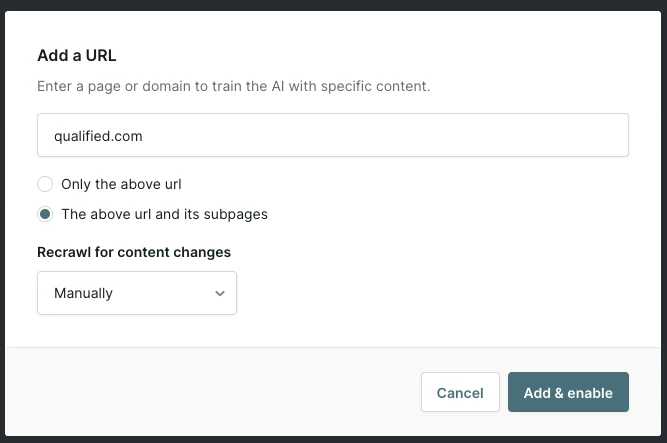
Select +Add Content > Website.
-
Choose This URL and its subpages. To crawl only the URLs listed in a sitemap, choose XML sitemap instead.
-
Set your recrawl frequency, which determines how often your AI SDR agent's knowledge is refreshed: Manual-only (the default), Weekly, or Monthly. With Manual-only, the site is recrawled only when you start a recrawl yourself.
-
Enter your domain and click Crawl and add to library.
How crawling works: the big picture
The crawler uses two main strategies to discover your website's content:
-
Sitemaps: It first looks for a
robots.txtfile to find your XML sitemap. This file acts as a map, telling the crawler exactly where all your URLs are located. -
Link scanning: If a sitemap isn't available, the crawler starts at your root URL and follows every link it finds (e.g., from your homepage to your "Product" or "About Us" pages) until it has mapped the entire site.
Specific crawl behaviors
-
Subpage prefixing: The crawler only scans pages that share the prefix you provided. For example, crawling
qualified.com/meetingswill includequalified.com/meetings/demobut notqualified.com/blog. -
URL limits: By default, the crawler can index up to 5,000 pages. If your site is larger, please contact your QSA to discuss increasing this limit.
-
Query parameters: By default, the crawler ignores URLs that require query parameters (the text after a "?" in a URL). If your site requires these for important content, reach out to your QSA to enable this functionality.
Post-crawl management
After a crawl is complete, you have several ways to manage the knowledge your AI SDR agent uses:
-
Manual recrawls: You can manually trigger a refresh of a specific source at any time to update your agent's knowledge base.
-
Toggle paths: If there are specific pages you do not want your AI SDR agent to use, such as internal-only pages or outdated documentation, you can selectively disable those paths in the UI.
-
Skiplists: If you have only a small section of your site that you want to exclude from being crawled and used by the AI SDR agent, contact your QSA to set up a skiplist that will prevent these pages from being crawled.
Handling complex site structures
-
Bulk URL management: To enable or disable many pages at once, use the checkboxes in the website management modal. In the Content Library, you can also select multiple URLs and share them as offers, or stop sharing them, in one step. See Managing website content and Using bulk actions.
-
CSV or pasted lists: To enable or disable a large set of URLs from a CSV file or a pasted list, contact your QSA.
-
Language pages: If your site exists in multiple languages (e.g.,
/es/for Spanish), the crawler may find all versions, which can quickly consume your URL limit. A better strategy is to crawl only the specific language directories relevant to your AI SDR agent's deployment. -
XML sitemap crawls: You can choose to crawl only the URLs listed in an XML file without allowing the crawler to discover new links. This is useful for high-precision control over your agent's knowledge.
Troubleshooting and FAQs
A page isn't being crawled. Check if the URL is visible in your crawled files list but currently disabled. Ensure the URL isn't accidentally included in a skiplist.
The crawl failed or is stuck. This often happens if allowlisting was not completed correctly. Verify with your IT team that the User Agent and IP addresses are permitted. You can also try manually initiating a recrawl.
We are exceeding the 5,000 URL limit. Review your crawled pages for irrelevant content, such as duplicate language pages or deep archive sections, and add those to your skiplist. If you still need more space, contact your QSA.
When do scheduled recrawls happen? Recrawls typically run around the same time of day they were originally scheduled, and the update can take some time to complete.



.svg)


