


Qualified enables you to speak with buyers at the most opportune time - when you’re top of mind and they’re already on your website. Turn on in-app notifications so you’re alerted immediately when a visitor is routed to you.
Configure your default notification sound
To set up your default notifications you will need to go to Settings → Me → Notifications, then select a default notification sound from the drop-down menu.
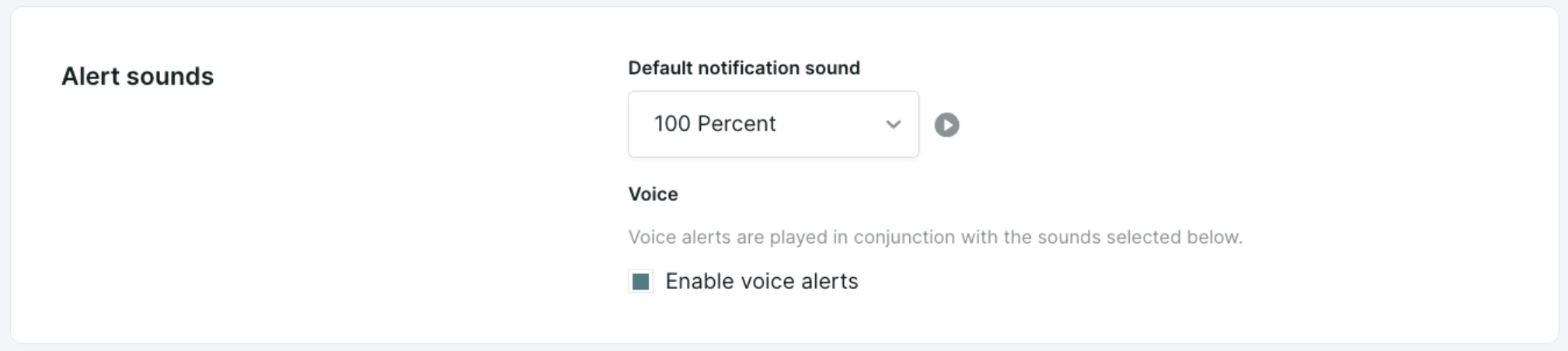
Enable or disable voice alerts
You have the option to enable or disable voice alerts, if enabled, you can select which stream notifications will include voice alerts.
Customize notifications by stream
The “Waiting for Rep” stream desktop notification cannot be disabled; all other streams allow you to customize them.
- Select desktop and/or mobile app notifications.
- Select notification sound.
- Select to include a voice alert for highest value visitors.
Select a unique notification sound per visitor stream to customize your personal app alert preferences. (These preferences don’t change alerts your Qualified admin created for Slack or Microsoft Teams.)
Enable browser notifications and microphone access
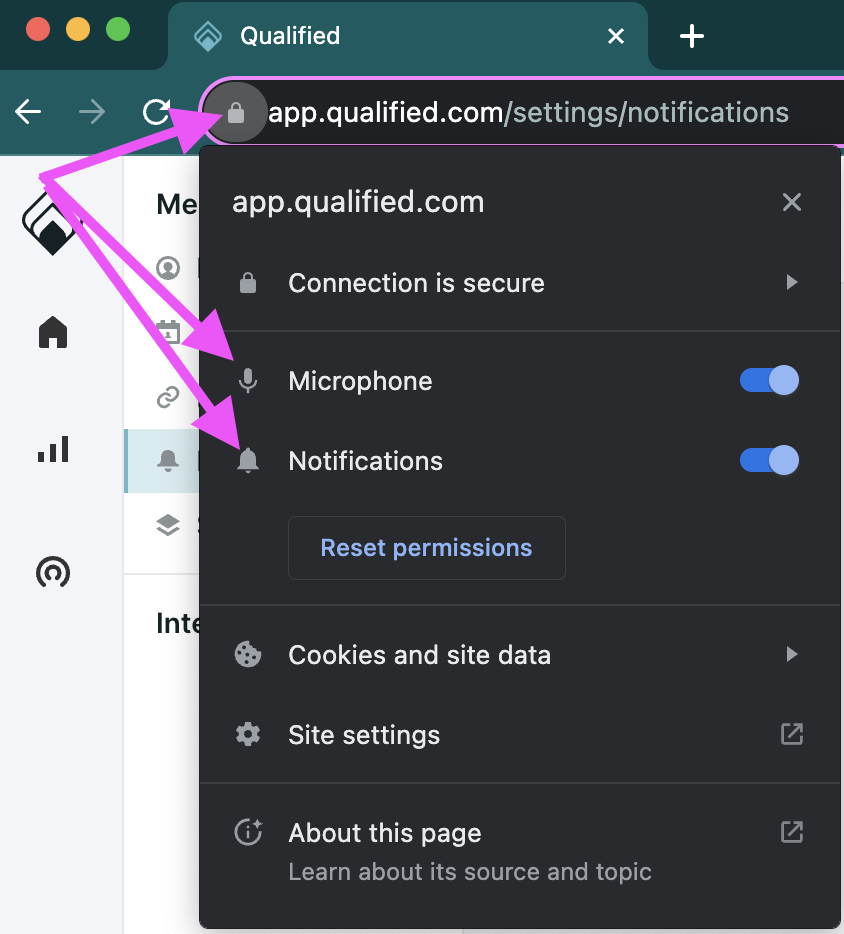
In Chrome and other browsers, click the lock icon in the URL bar to confirm notifications are enabled, as well as microphone for voice & video calls.


.svg)


