


The smart selector allows Qualified admins to select buttons for button experiences directly from a preview of their website. This convenient no-code solution lets you connect the CTAs on your website to conversations, meeting bookers, and more.
Launching the smart selector
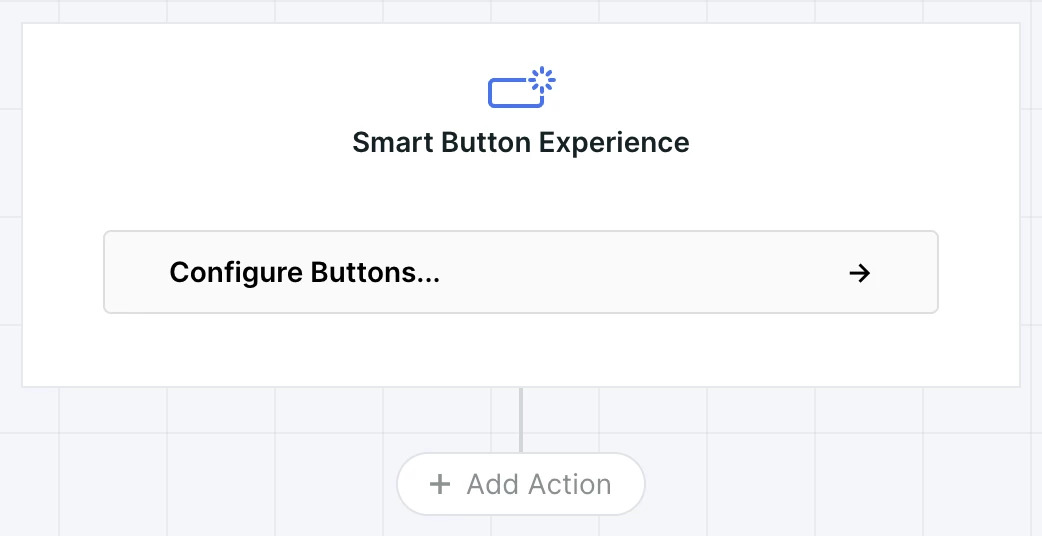
To launch the smart selector, select or create a button experience and click into the Configure Buttons... option at the top of the experience builder:
Using the smart selector
At the top of the smart selector, utilize the control panel to use the smart selector’s features:
URL bar
Type or edit the URL here to select which page is previewed in the smart selector. When first launching the smart selector, the URL Bar will contain the first url in your setup whitelist.

Entering a url that is not listed in your whitelist will result in an error message.
Select/Navigate toggle
Use this toggle to control whether clicking on elements of your website will navigate, or select an element to configure.

Use the Navigate setting to find the button or CTA you’d like to configure, then switch to Select to configure it for your experience.
Configuring a button
Once a button or CTA has been selected using the smart selector, options will appear to set how the button can trigger the experience.
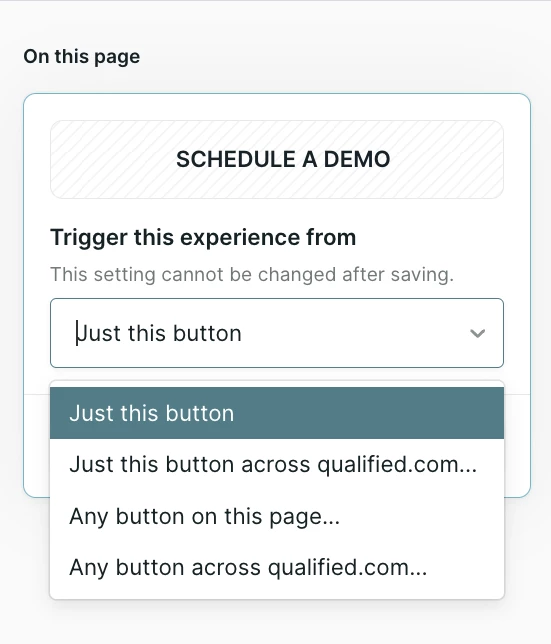
- Just this button: The experience will trigger only when this exact button, on this exact URL, is pressed.
- Just this button across {your website domain}: Any button with this css ID and configuration, anywhere on your website domain, will trigger this experience.
- Any button on this page...
- That says {text}: Any button on this exact URL that has the same text as the selected button will trigger this experience.
- That links to {link}: Any button on this exact URL that links to the same destination as the selected button will trigger this experience.
- Any Button across {your website domain}:
- That says {text}: Any button anywhere on your website domain that has the same text as the selected button will trigger this experience.
- That links to {link}: Any button anywhere on your website domain that links to the same destination as the selected button will trigger this experience.
Multiple buttons can be configured to trigger the same experience. An error message will display if the same button is configured to trigger more than one experience.



.svg)


