


As you build your visitor experiences in Qualified, there will likely be steps that you find yourself using over and over - a set of qualification questions you ask your prospects, or a guided FAQ that helps top-of-funnel visitors learn more about your product. Rather than building these steps in every experience, blocks let you build them once, and run them in all of your experiences.
Creating a block
To create a new Block as a Qualified admin:
- Go to Settings → Experiences → Blocks.
- Click the + Create block experience button at the top.
- Add a descriptive name in the Name this experience… field.
- Click the Save Block button in the top right corner.
- Build the experience flow by clicking the + Add Action button under the visitor criteria.
Blocks cannot be run inside of other blocks; all other actions are available.
Using blocks in experiences
To use the blocks you’ve created, open an existing conversation experience. Once in the experience, create a new step and select the block option as shown below.
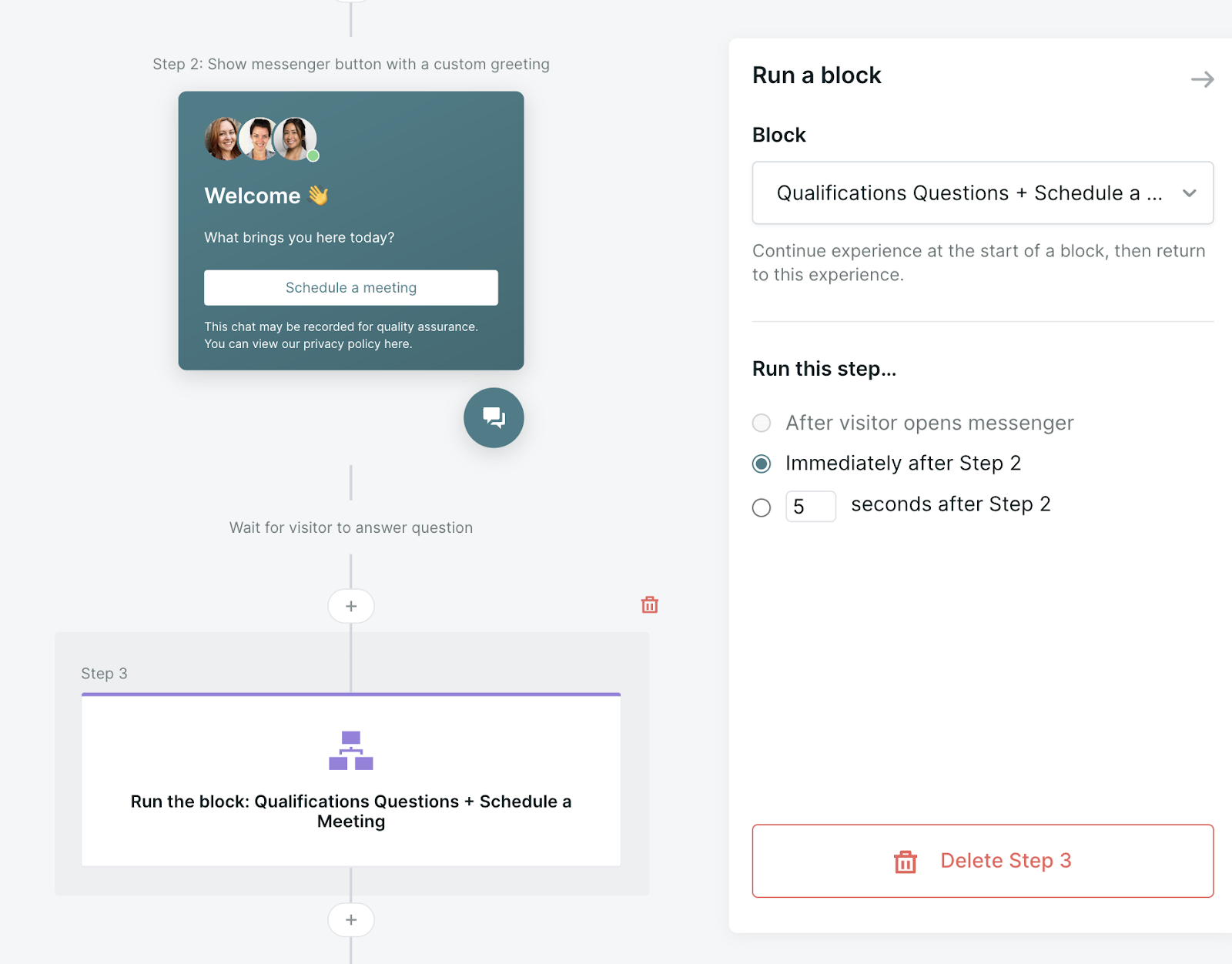
Once the experience has jumped to the block you designated, it will go through the block and return to the experience once the block has ended.
Blocks cannot be used in experiences under the Offer a Meeting (fullscreen) action, often used in form and button experiences.



.svg)


