


Piper, the AI SDR Agent, is designed for high visibility when loaded in the open and pinned configuration. This setup is intended to make the agent immediately visible to visitors as they land on the website.
However, for this option to load in a way that minimizes impact on your site's Cumulative Layout Shift (CLS) score, we recommend implementing the Qualified docking script (also known as "Pin Mode").
When docking is enabled, your page content automatically shrinks to make room for the widget on the right side of the screen. Instead of the widget floating on top of your content, it lives side-by-side with your website. By adding a small piece of additional JavaScript to your site's header, you install a "gutter" that reserves this space instantly to support visual stability and minimize impact on layout-related metrics.
When should I use the docking script?
The docking script creates a "gutter," a structural element that reserves space for the messenger. We recommend implementing the gutter when both of the following apply:
- Opened Pinned mode: Your messenger is configured to start in the Opened Pinned position.
- Cumulative Layout Shift (CLS) optimization: You want to protect your website's CLS score.
Protecting your CLS score
CLS is a core web vital that measures the visual stability of a page. Because Qualified persists the state of the messenger between page navigations and reloads, the messenger will reappear in its last state when a user moves to a new page.
If the gutter is not present, the sudden appearance of the Pinned messenger may cause the website content to shift, which can negatively impact your CLS score. Implementing the gutter allows your website layout to shift appropriately, minimizing negative impact on your CLS score.
Configuration limitations
It is important to note that if your theme is set to start in Opened Pinned mode, you currently cannot use an experience override to start the messenger in a different position. This is because the gutter does not dynamically "tear down" or remove itself once rendered.
How docking affects your page layout
When docking is active, your AI SDR agent takes up about 400px on the right side of the screen, and your page content shrinks to fit the remaining width.
The docking script converts the media queries in your page's stylesheets to container queries, so your responsive layout responds to the page width that remains after docking. On smaller desktop screens, this can trigger your site's mobile breakpoints, such as a hamburger menu.
Setting up the docking script
To enable docking, you must update your existing Qualified snippet to include the docking script. Which script you should use depends on your configuration.
Add the docking script when you're ready to go live with your Pinned experience. Waiting until then avoids unnecessary layout shifts while you're still testing.
Important: The docking script must be placed in the <head> and must be loaded synchronously (do not use async or defer attributes). This is critical to prevent CLS issues. If the script loads asynchronously, the page will visibly shift when docking activates.
If you are using Google Tag Manager (GTM) to inject the Qualified JavaScript to your website, please note that the pinned mode JavaScript (everything except for <script async src="https://js.qualified.com/qualified.js?token=YOUR_TOKEN"></script>) must be placed directly on the head of your website, not via GTM.
Note: You should use the docking-enabled snippet only on pages where you want your AI SDR agent to appear in open and pinned mode. For pages where you aren’t showing your AI SDR agent (like your careers page), this JavaScript can create an “empty” space that won’t be filled by an agent.
Original Qualified JavaScript snippet
<script>
(function(w,q){w['QualifiedObject']=q;w[q]=w[q]||function(){
(w[q].q=w[q].q||[]).push(arguments)};})(window,'qualified')
</script>
<script async src="https://js.qualified.com/qualified.js?token=YOUR_TOKEN"></script>
New snippet when Qualified is set to opened and pinned mode
<script>
(function(w,q){w['QualifiedObject']=q;w[q]=w[q]||function(){
(w[q].q=w[q].q||[]).push(arguments)};})(window,'qualified')
</script>
<script src="https://js.qualified.com/docking.js" type="text/javascript"></script>
<script type="text/javascript">
qualified.docking.init({
defaultDocked: true,
showSkeleton: true,
});
</script>
<script async src="https://js.qualified.com/qualified.js?token=YOUR_TOKEN"></script>
New snippet when Qualified starts in another position and opens in pinned mode
Use this version if your messenger starts in a different position, and opens in pinned mode once a conversation begins. Because defaultDocked is set to false, the gutter appears only for visitors who opened the messenger on an earlier visit.
<!-- Qualified -->
<script> (function(w,q){w['QualifiedObject']=q;w[q]=w[q]||function(){ (w[q].q=w[q].q||[]).push(arguments)};})(window,'qualified') </script>
<!-- Qualified pin mode script --> <script src="https://js.qualified.com/docking.js" type="text/javascript"></script> <script type="text/javascript"> qualified.docking.init({ defaultDocked: false, showSkeleton: true, }); </script> <!-- End Qualified pin mode script -->
<script async src="https://js.qualified.com/qualified.js?token=YOUR_TOKEN"></script> <!-- End Qualified -->
Visualizing the experience
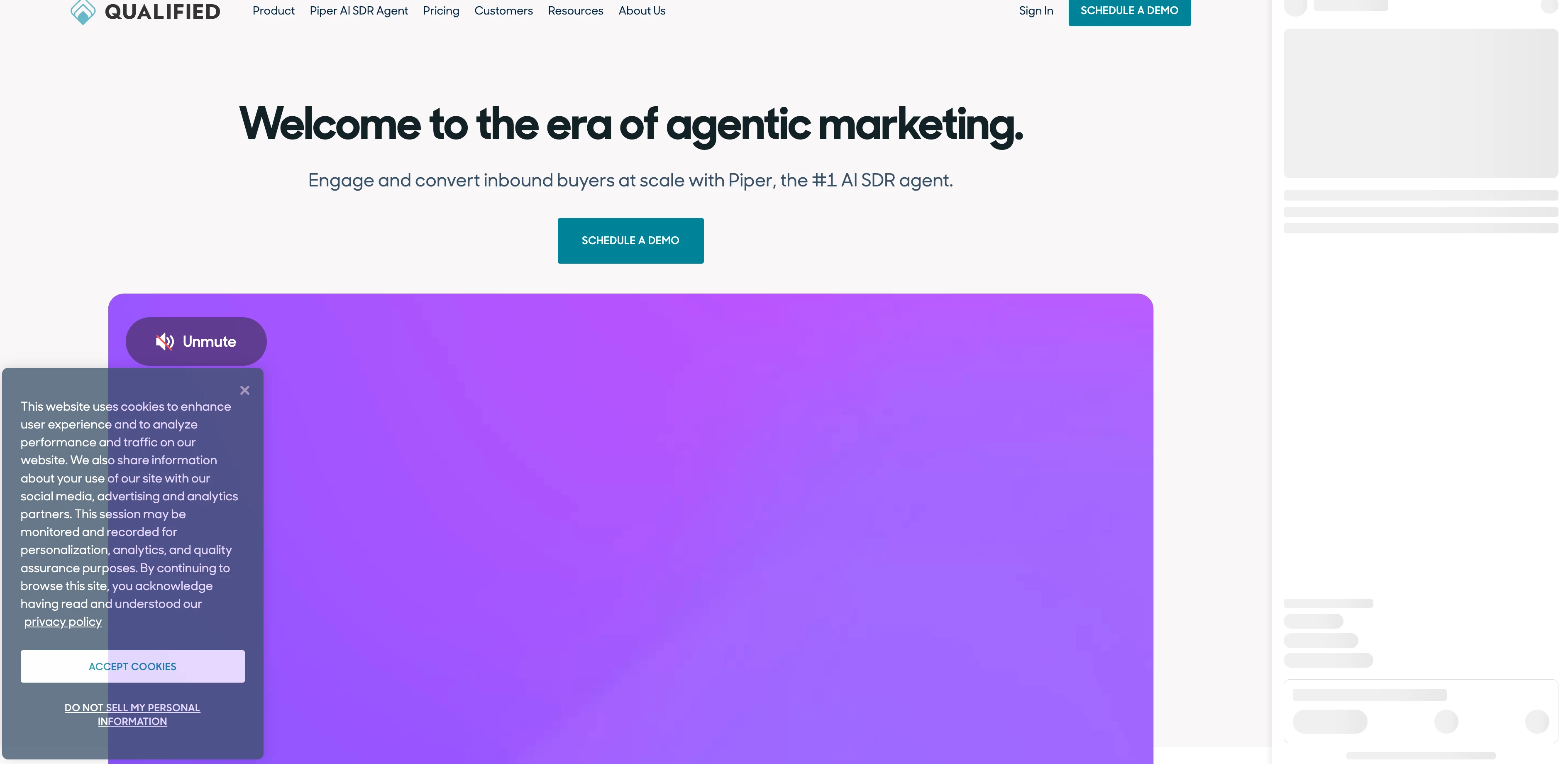
The gutter
When the page first loads, a gutter is added to the right side of your website. This reserved space ensures that the rest of your site content stays in place to help mitigate CLS.
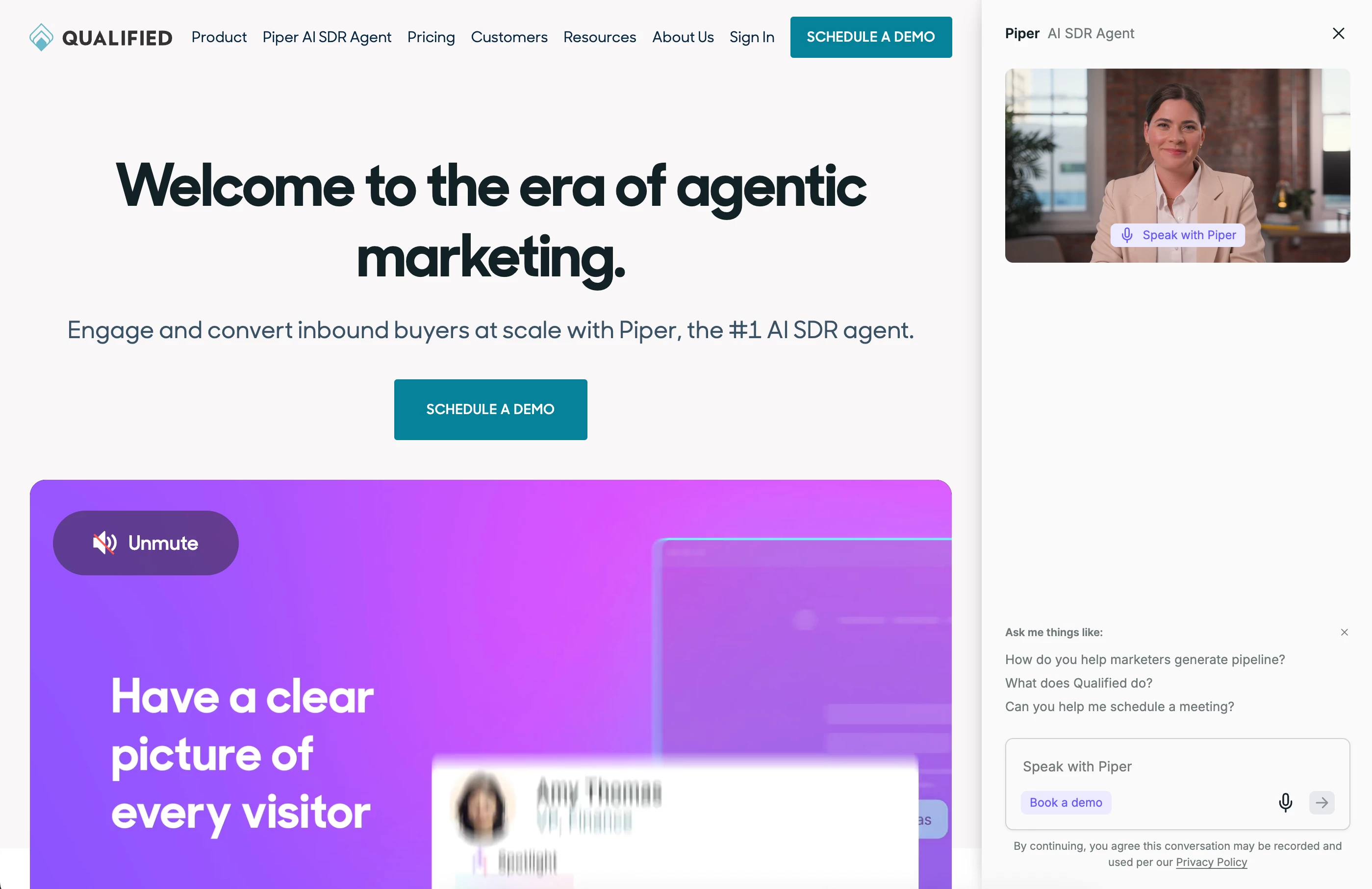
The full docked experience
Once your AI SDR agent loads, it fills that gutter space. The result is an integrated experience where your website and your agent live side-by-side.
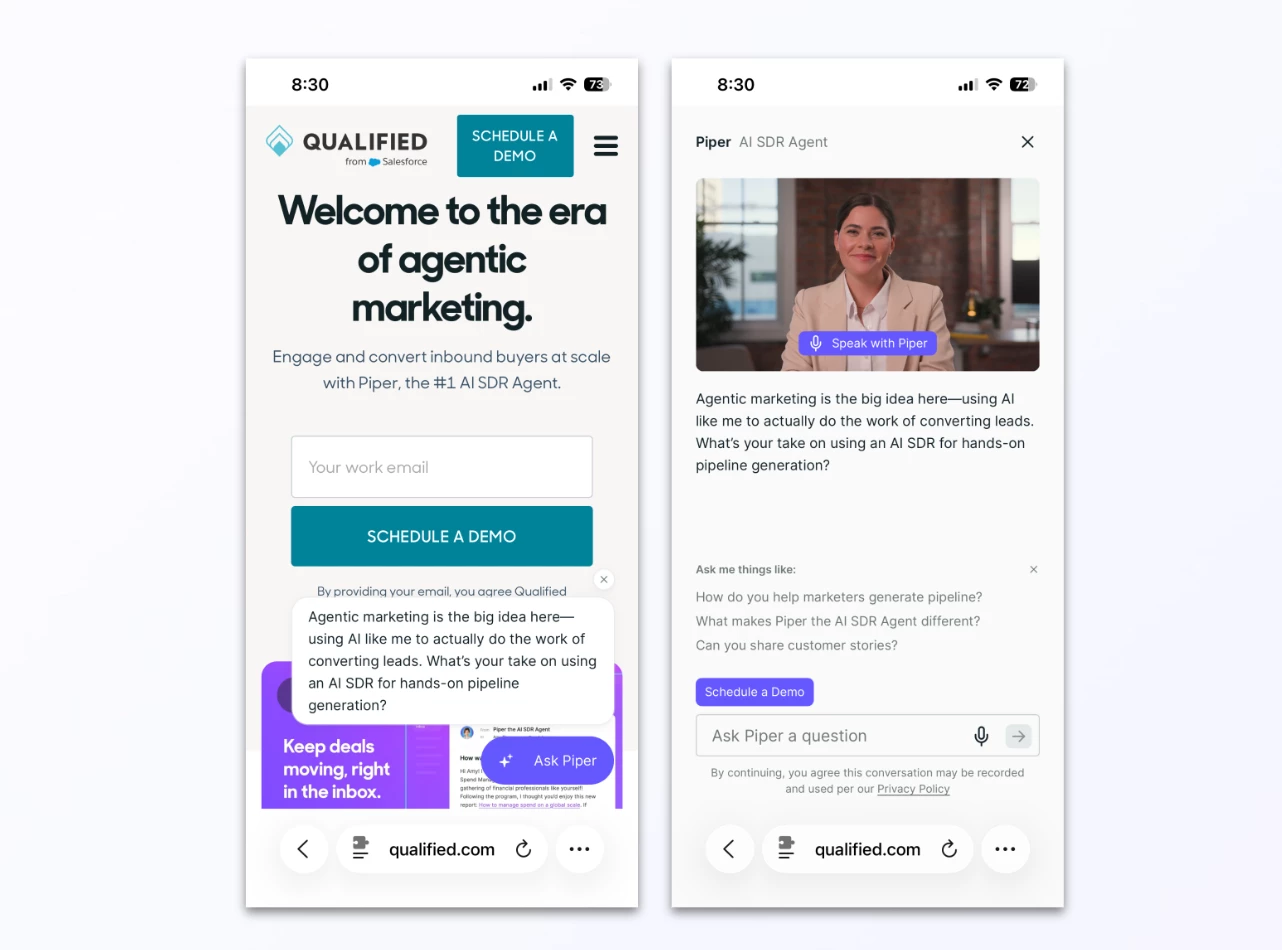
Mobile and blocked experiences
Visitors on mobile will not see the gutter or pinned mode. If a visitor comes to your website on mobile, their experience will begin in minimal mode and open to fullscreen mode.
Visitors on blocked pages will not see your AI SDR agent experience. If the gutter is set up for these visitors, they may briefly see the gutter appear, but it will close itself automatically after 2–3 seconds. If your agent doesn't load within 15 seconds, the gutter is designed to remove itself so your page isn't left with an empty space.
Configuration options
The init method accepts an optional configuration object to help you fine-tune how the docking area behaves:
| Option | Type | Default | Description |
| defaultDocked | boolean | false | Whether the page should start in docked mode. If a visitor has previously toggled docking, their preference (stored in a cookie) takes priority. |
| dockUnderHeader | boolean | false | When true, the gutter is carved out of the page's main and footer regions instead of the whole document, so a full-width sticky header stays in place and spans the entire viewport, with your AI SDR agent docking flush underneath it. When false (default), the entire page shrinks, including the header. Use this when your site has a sticky or fixed top header that should remain full-width above the docked agent. Requires specific page markup, see "Docking under a sticky header" below. |
| skipCrossOriginStylesheets | boolean | false | When true, cross-origin stylesheets are skipped entirely rather than reloaded with CORS support. Use this only if your CDN doesn't serve CORS headers and you're seeing related console errors. |
| showSkeleton | boolean | false | When true, displays a loading skeleton in the docked area while content is loading to provide a visual indicator to visitors. |
| includedSelectors | string[] | [] | Additional CSS selectors for fixed-position elements (like custom headers) that should be adjusted when docking is active. |
| excludedSelectors | string[] | [] | CSS selectors for elements that should be excluded from docking adjustments. |
Docking under a sticky header
If your site has a sticky or fixed header that should stay full-width while your AI SDR agent docks beneath it, use the dockUnderHeader option. Because this mode shrinks only the main content and footer rather than the whole page, your page needs semantic HTML5 landmarks (or the equivalent ARIA roles) so the docking script can identify which region to keep full-width and which regions to shrink.
Header
- A
<header>element, or any element withrole="banner". - It must not be nested inside
<main>. - It should be sticky or fixed to the top of the viewport. The script only treats it as the header if it sits near the top of the page (within the top 25% of the viewport height) and isn't taller than half the viewport height.
Content that shrinks to form the gutter
<main>or an element withrole="main".<footer>or an element withrole="contentinfo".
The ideal page structure looks like this:
<body> <header><!-- full-width sticky nav, stays put --></header> <main><!-- shrinks to make room for the agent --></main> <footer><!-- shrinks to make room for the agent --></footer> </body>
Note: If your page doesn't have a
<header>orrole="banner"element, your AI SDR agent still docks, but starts from the very top of the page. If there's no<main>or<footer>landmark, there's nothing for the script to shrink and the gutter won't open correctly. In that case, use the default mode (dockUnderHeader: false), which shrinks the whole page instead.
Best practices and troubleshooting
Script order matters
The Qualified queue object snippet must come first. The docking script depends on window.qualified already existing when it runs. The correct order is:
- Queue object snippet (the small inline script).
- Docking script + qualified.docking.init().
- Main qualified.js script (loaded async).
Common fixes
- Page shifts visibly: Ensure the docking.js script is in the <head> and does not have async or defer attributes.
- Fixed elements overlap: Use the includedSelectors option in init() to manually specify elements like sticky navigation bars that the script may have missed.
- Mobile layout: Note that docking only activates on desktop viewports (768px and above). On mobile, the page layout remains unchanged.
- Header overlaps the docked experience (in dockUnderHeader mode): Confirm your page has a semantic
<header>orrole="banner"element, and that it's sticky at the top of the viewport. - Gutter doesn't open in dockUnderHeader mode: Your page is missing a
<main>(orrole="main") or<footer>(orrole="contentinfo") landmark for the script to shrink. Add the landmarks, or switch to the default mode (dockUnderHeader: false).
For more information on advanced implementation or to discuss how this fits into your specific plan, please contact your Qualified Success Architect (QSA).



.svg)


