


Mission Control - Activity acts as the primary landing page for Admins when they log into Qualified, offering immediate insight into the activity, intent, and value being driven by Piper, the AI SDR agent.
At the core of this view is a list of Qualified Leads, the visitors Piper is actively working to engage.
At the top of the activity view, data tiles provide key metrics for the selected date range. Clicking on these tiles will filter the list to show only the matching records.
- Filter by tile: Clicking on a data tile allows you to instantly filter the lead list to show only those who had that specific engagement type (e.g., booked a meeting) during the selected date range.
- Top-level filters: You can also search and adjust the overall date range for the data tiles and the list view.
Lead view
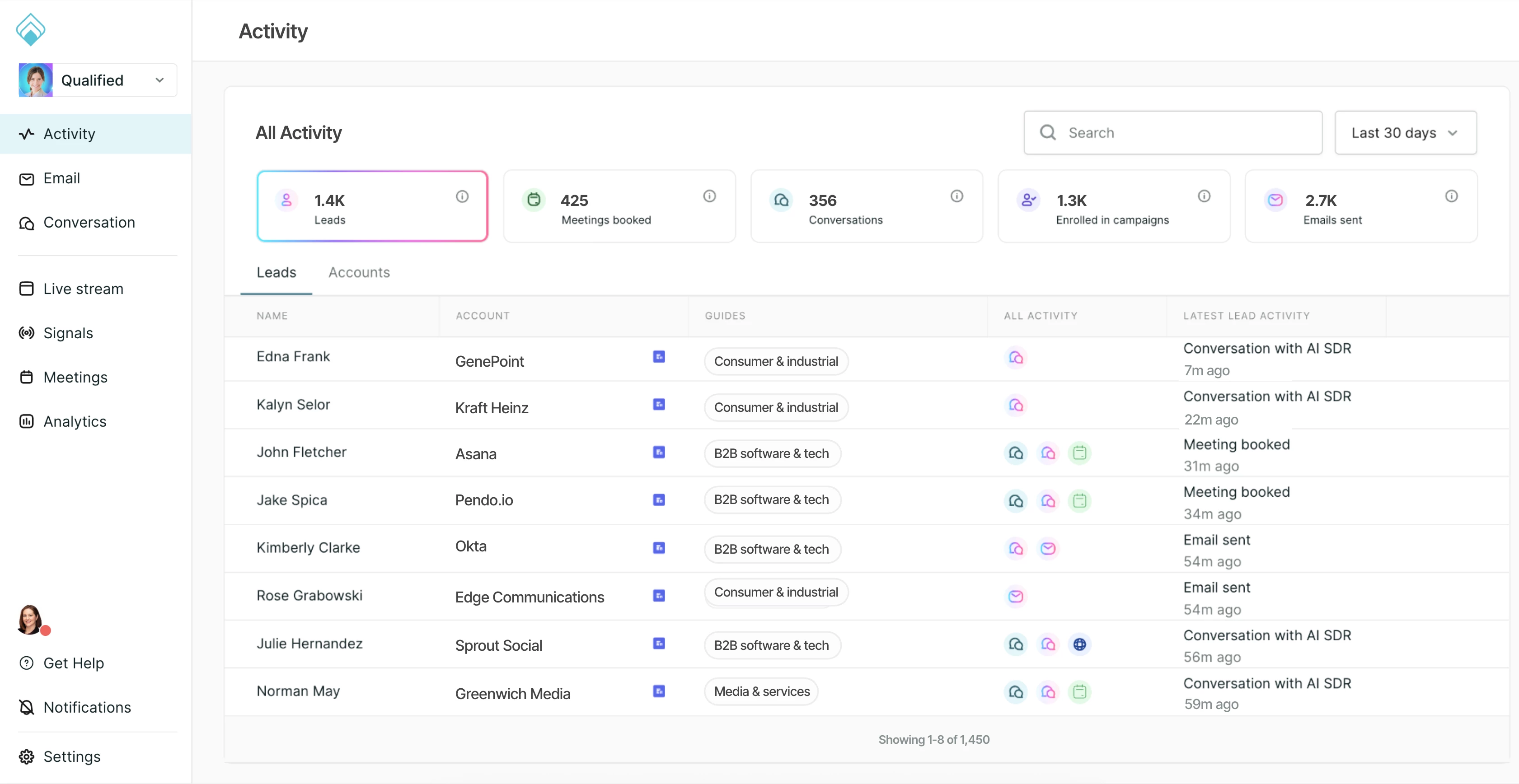
The default view focuses on leads with a known email address who have completed at least one of the following high-intent activities:
- Clicked a website offer.
- Had a website conversation.
- Been added to an email campaign.
- Booked a meeting.
- Submitted a Qualified form.
Available columns in this default view include:
- Name.
- Company.
- Guides.
- Latest [agent name] Activity (the most recent of the lead's activities).
- [agent name] Activity (activities such as meeting booked, conversation, offer clicked, form submitted, and email sent).
The two activity columns take your AI SDR agent's name, so most teams see Latest Piper Activity and Piper Activity. Click an activity badge to open that item in the lead's Lead 360 timeline.
Why a lead may not appear
If a lead you expect isn't in the list, check the following:
- AI profile: The list shows leads for the selected AI profile. Leads engaged under another AI profile appear when you switch to that profile.
- Date range: The list defaults to the last 7 days. Widen the date range to see older activity.
- Tiles and filters: A data tile or filter you selected earlier may still be applied. Clear it to see the full list.
- Agent activity: A lead appears once it has at least one qualifying activity with your AI SDR agent, such as those listed above.
- Anonymous leads: Leads without a known email address are hidden by default. To show them, contact your QSA.
- Your role: Users who aren't admins may see only their own leads by default.
Lead 360
Clicking any lead in the list view opens the Lead 360 panel, which provides deep context for that individual lead.
The Lead 360 contains several key sections:
Spotlight
This section offers Agent notes of the lead's profile and engagement. It outlines:
- What the lead has done.
- How Piper, the AI SDR agent, plans to continue engaging with them.
- Relevant offers for the lead.
Inputs that drive the agent notes include:
- Information about the company Piper is selling for, such as the company description and knowledge stored from website crawls in Agent Studio.
- The current date, for temporal context.
- Specific lead information, including Account Guide personalization details.
- Data from external systems (like Salesforce, HubSpot, etc.) using external identifiers.
Activity timeline
- Activity timeline: A chronological snapshot of the lead’s engagement activities.
- Activity details: Clicking an activity in the timeline gives more specific information, such as the content of a sent email or the details of a submitted form.
Details
Click Details to view all of the lead's field values, active campaigns, and the most recent visits, conversations, and form fills on your website.



.svg)


