


Live Streams within Qualified provide your sales reps visibility into VIP website visitors who are on the website in real time allowing for them to proactively engage with the prospects that mean the most to your business.
Getting started
We recommend a prerequisite before getting started with configuring live streams: Visitor Segments.
After getting familiar with visitor segments, you’re ready to begin configuring Live Streams for your team.
Only Qualified admins can create Live Streams. Your Live Streams can be shown to all chat users, but will depend on if a visitor in that stream is specifically routed to them via Conversation Routing.
Live Streams will be shown to your reps when they log in to Qualified and will be populated as visitors come to your website that are part of your live stream criteria and who are routed to your reps. For example, you might have Live Streams bucket your visitors into groups for:
- High intent visitors
- Target Accounts
- Known customers
- Known Leads
Live Stream criteria can be made up of both visitor Segments and visitor Experiences.
Creating new streams
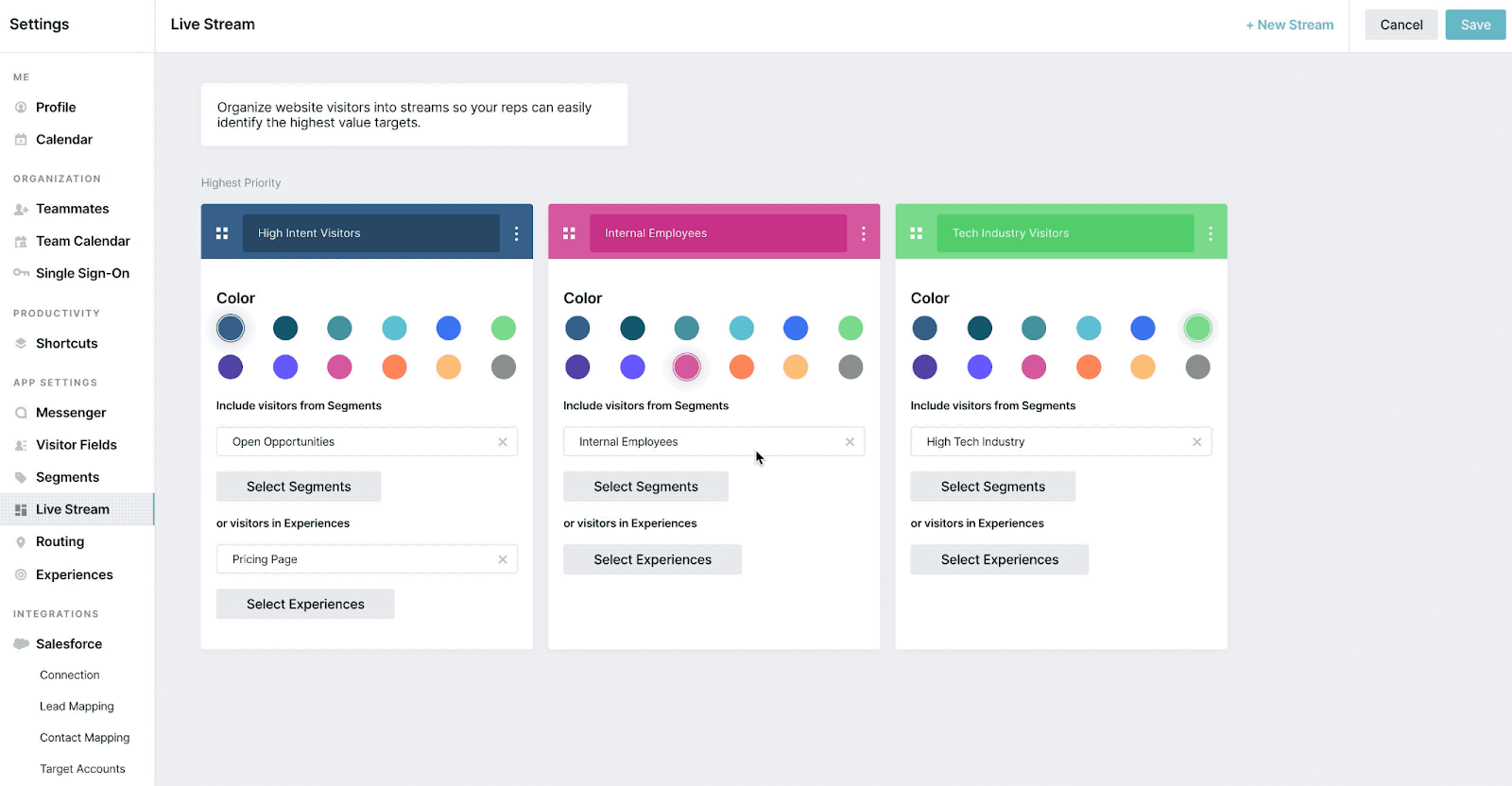
- Go to Settings → Conversations → Streams.
- Click the + New Stream button in the upper right-hand corner.
- Enter a “Column Name…”
- Choose a color.
- Optionally turn on Auto pounce for the visitors in the Stream. If Auto pounce is not enabled, contact your Qualified Success Architect.
- Select to include visitors from specific Segments and/or Experiences.
Stream priority
Once you’ve finished creating Streams, you’ll organize them from highest priority (left) to lowest priority (right) by dragging and dropping the Streams into place.
If a visitor matches the criteria for multiple Streams, they will appear in the Stream that’s placed further to the left since it’s higher priority.
Deleting streams
If you no longer need a stream to appear in Qualified for your sales reps, you can delete it at any time.
- Go to Settings → Conversations → Streams.
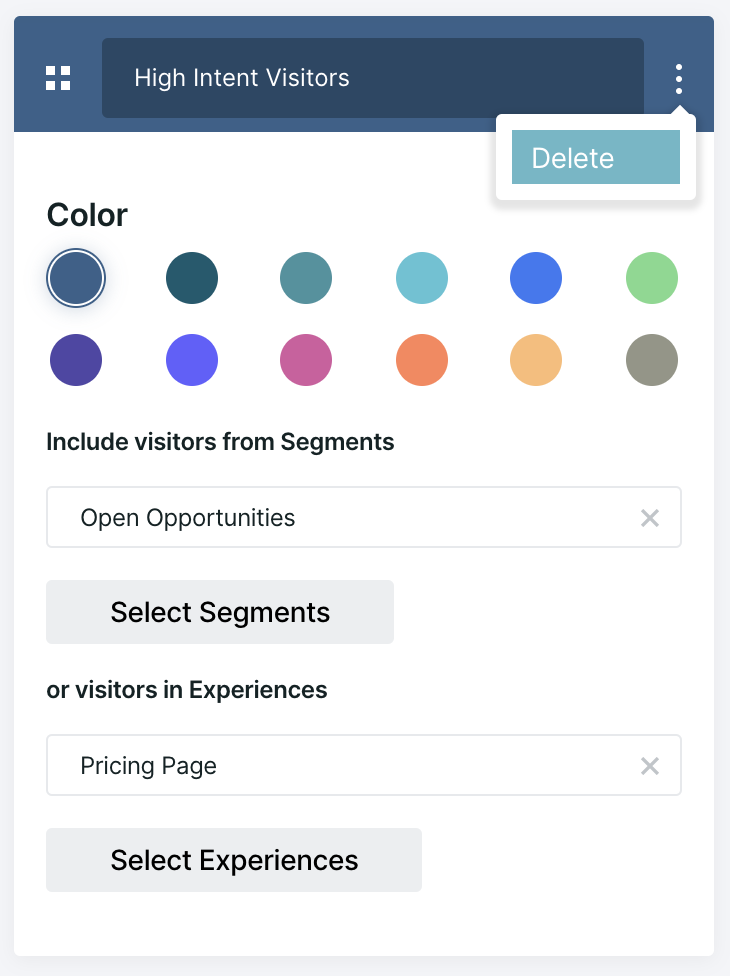
- Click the 3 dots on the right-hand side of the Stream you want to delete.
- Select Delete, then Save.



.svg)


