


While your AI SDR agent uses website content and PDFs to learn facts, Slides allow your agent to engage visitors visually. By uploading specific images, you can empower your agent to "present" content, such as an implementation milestones or process diagrams, at the exact moment they are relevant in a chat.
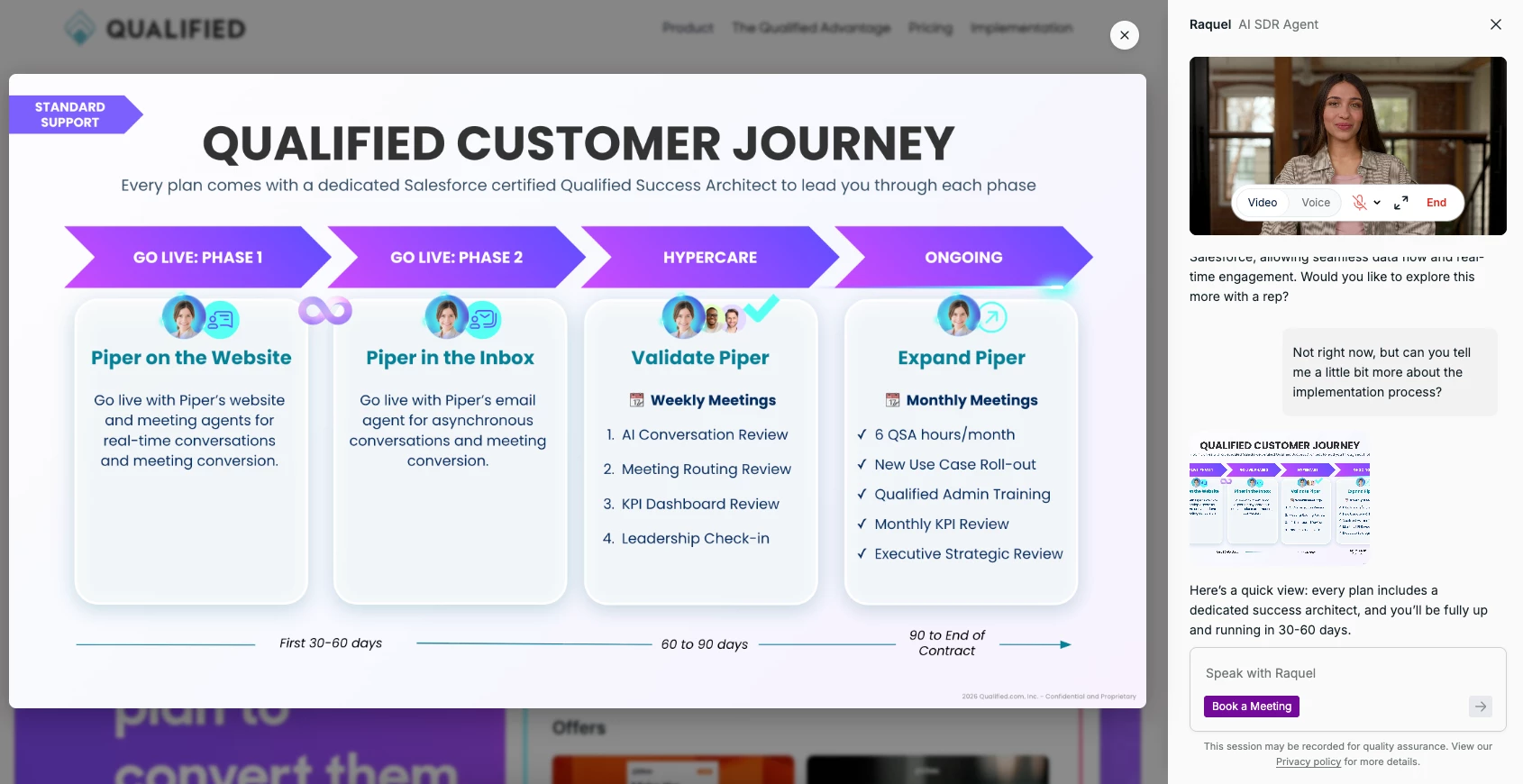
Understanding content types
The Content tab in Agent Studio serves two primary purposes:
- Knowledge base: Providing URLs, Snippets, and PDFs for the agent to understand your business.
- Interactive assets: Managing Offers (links to high-value pages) and Slides (visual images) that the agent proactively shares with buyers to drive conversion.
How to add a slide
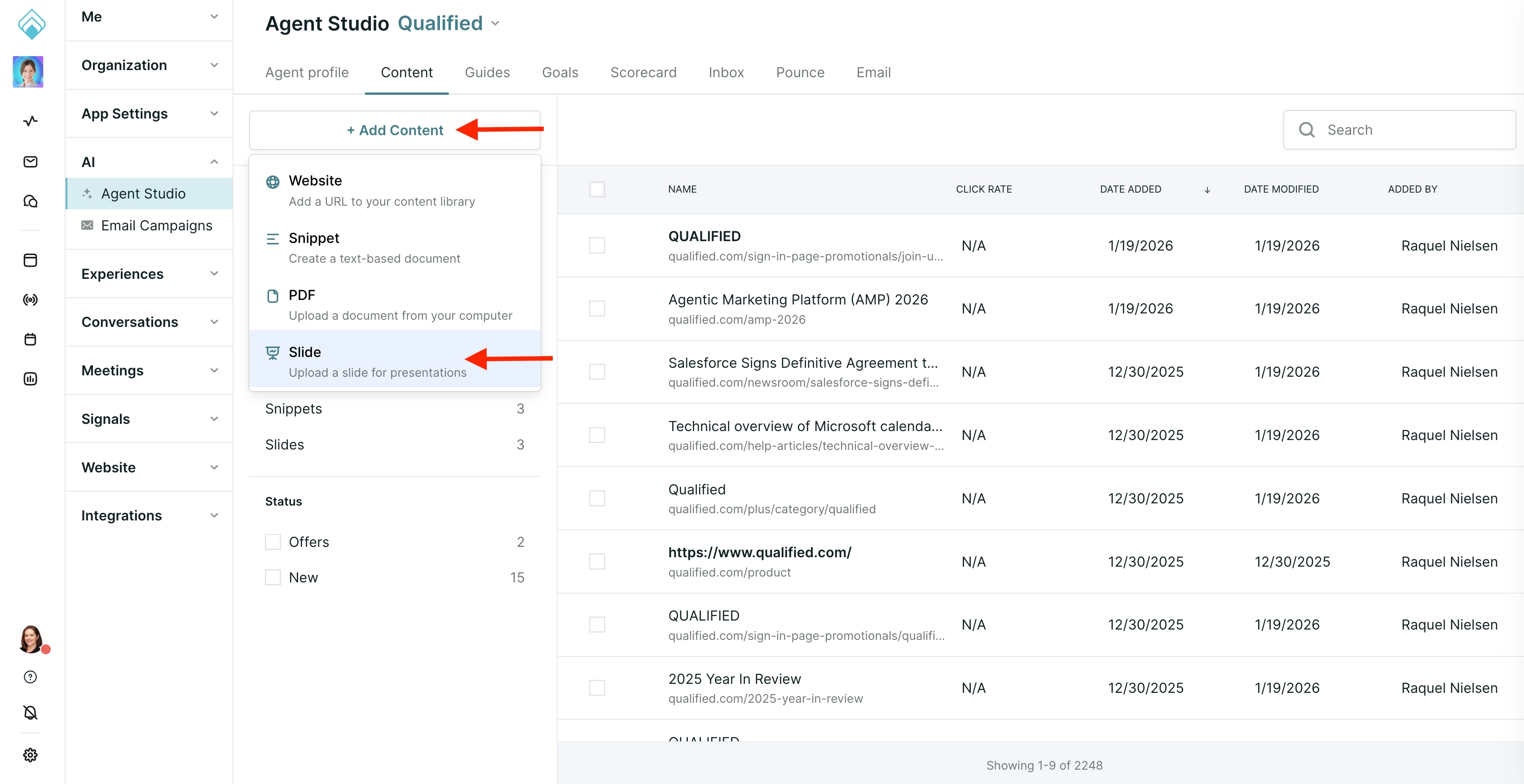
To begin building your agent's visual library, navigate to the Content section of your settings:
- Go to Settings → Agent Studio → Content.
- Click the Add Content button and select Slide
Configuring your slide
When you upload a slide, the agent automatically processes the visual content to determine how and when to use it during a conversation.
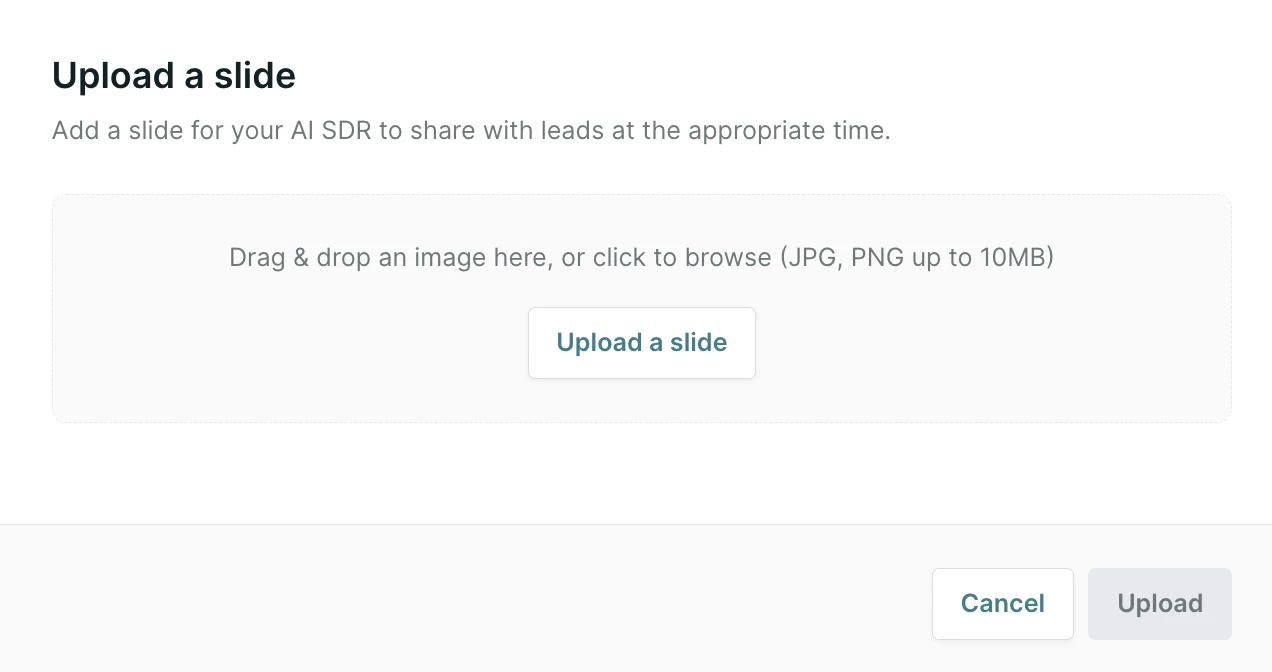
- Upload the image: Drag and drop your file or click to browse (JPG or PNG format, under 10MB).
- Automatic processing: Once added, the agent will analyze the image to auto-generate the following:
- Title: This is an internal title for the slide within your library. This is not visible to the visitor.
- Description: A summary of what is on the slide. This is a critical field - your agent uses this text to "narrate" the slide to the visitor as it appears in the chat.
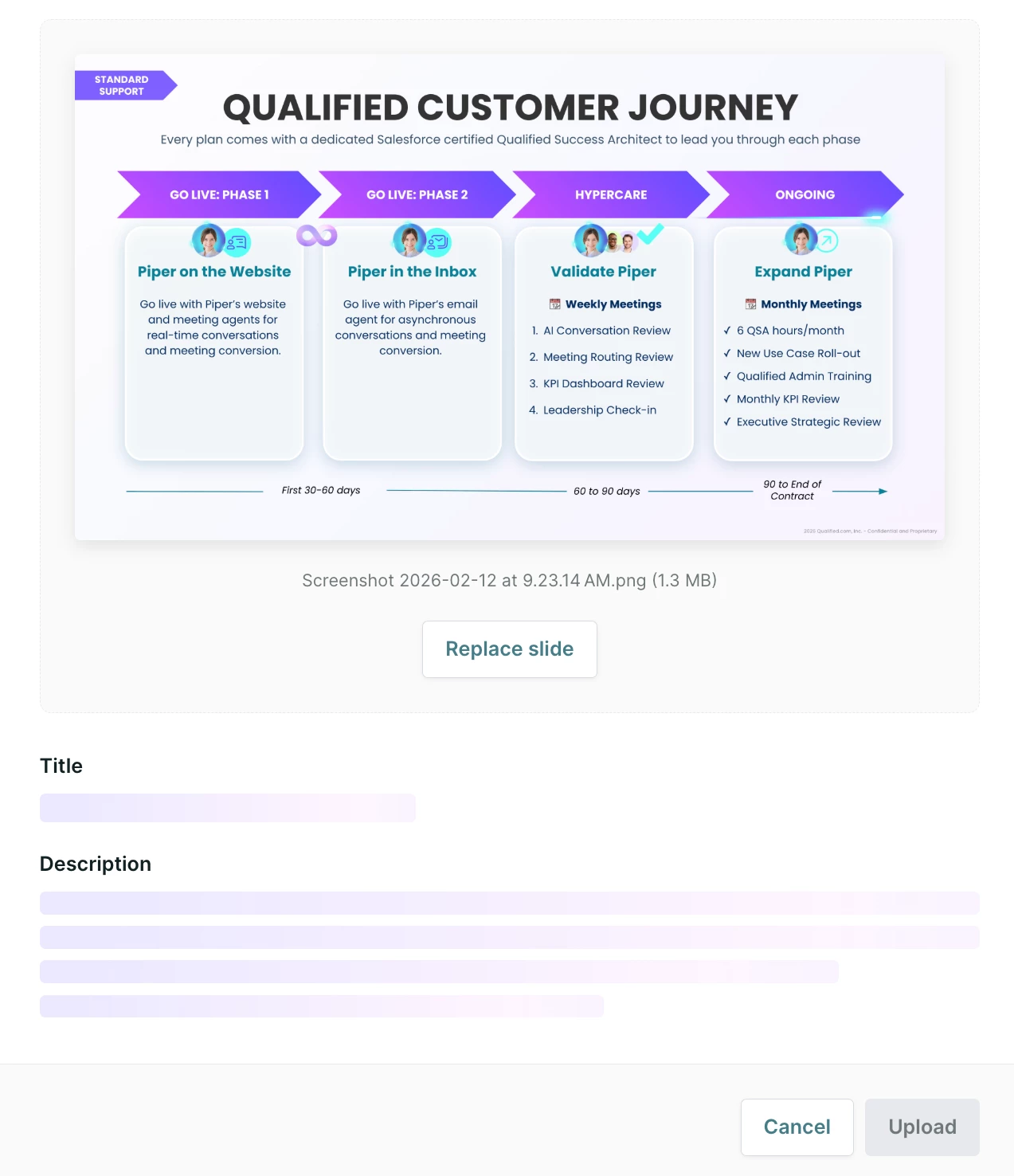
- Review and edit: While the agent generates these fields automatically, you have full control to edit the Title or Description to better align with your messaging or brand voice.
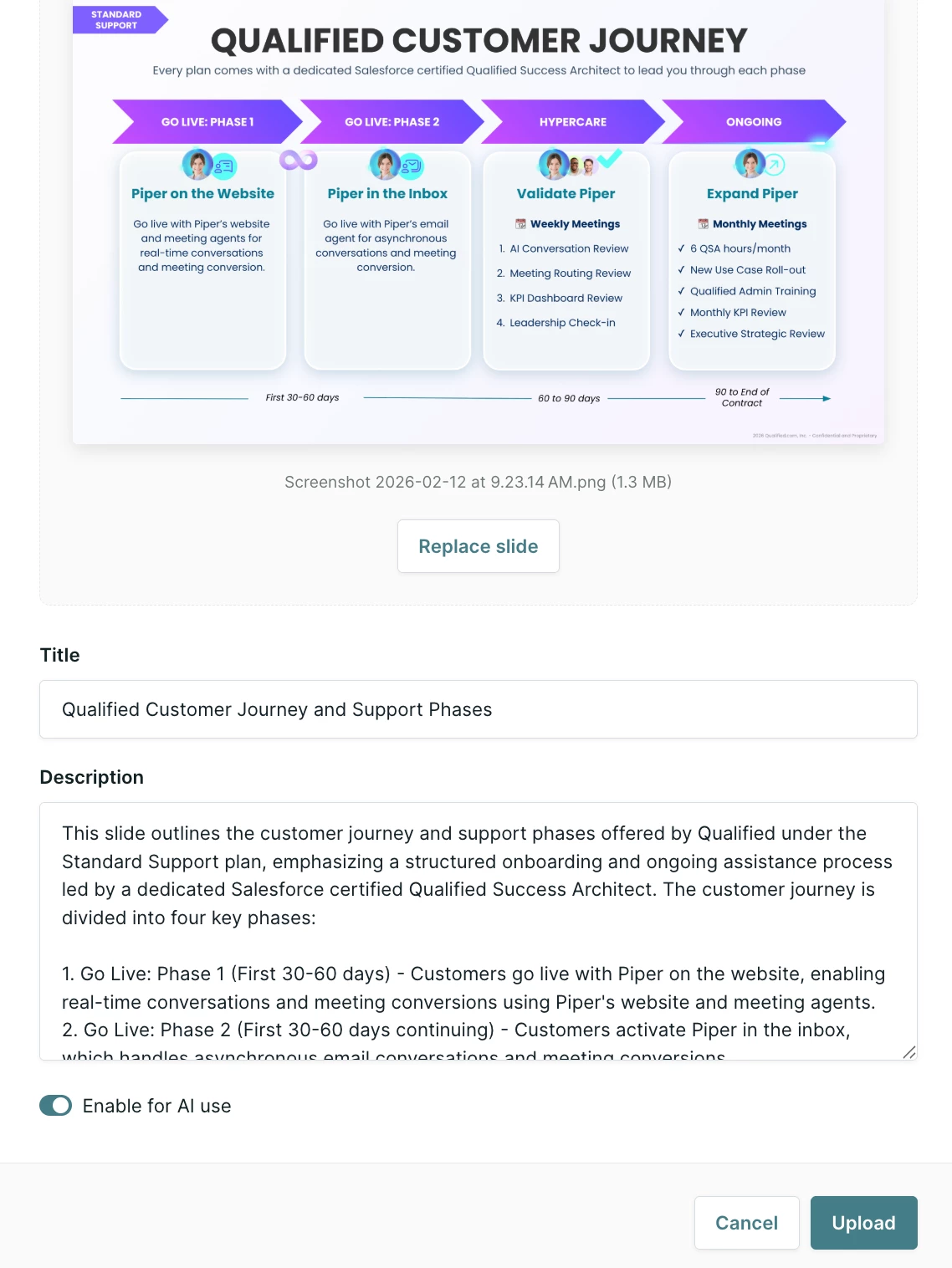
- Enable for AI use: Ensure the Enable for AI use toggle is turned on. This authorizes your agent to proactively pull this slide into conversations when the content is contextually relevant.
- Finalize: Click Upload to save the asset to your library and make it available for your agent to use.
Pro-Tip: Review the auto-generated Description to ensure it captures the key differentiators you want the agent to emphasize when sharing this slide. Since the agent uses this text to inform its messaging while the slide is displayed, a quick polish here ensures the spoken context aligns with the visual.
Best practices
- Discovery visuals: Start by uploading the top 5 visuals your SDRs use during discovery calls.
- Complementary data: Use slides to show information that is hard to explain via text, such as a "Process Map" or "Implementation Roadmap."
- High resolution: Ensure any text within your images is large and legible.



.svg)


