


To help our customers navigate global data regulations, the Qualified platform includes a privacy consent feature (also known as explicit consent).
This feature introduces a consent modal that requires visitors to provide explicit permission before they can send messages, start calls, or interact with calls to action (CTAs) and cold start buttons. You can think of it as a digital disclosure: before a visitor engages, they are informed of how their data is handled and can choose to opt in or out.
This functionality is designed for teams using the multimodal node, including PiperX and the updated messenger interface. For questions about access, please contact your Qualified Success Architect (QSA).
Activating privacy consent
The privacy consent feature is disabled by default. To activate it, follow these steps.
- Navigate to Settings > Organization > Themes > Multimodal Messenger.
- Below the existing privacy disclosures, scroll to the Privacy Consent section.
- Under Consent request mode, choose whether to show the modal for all countries or for select locations.
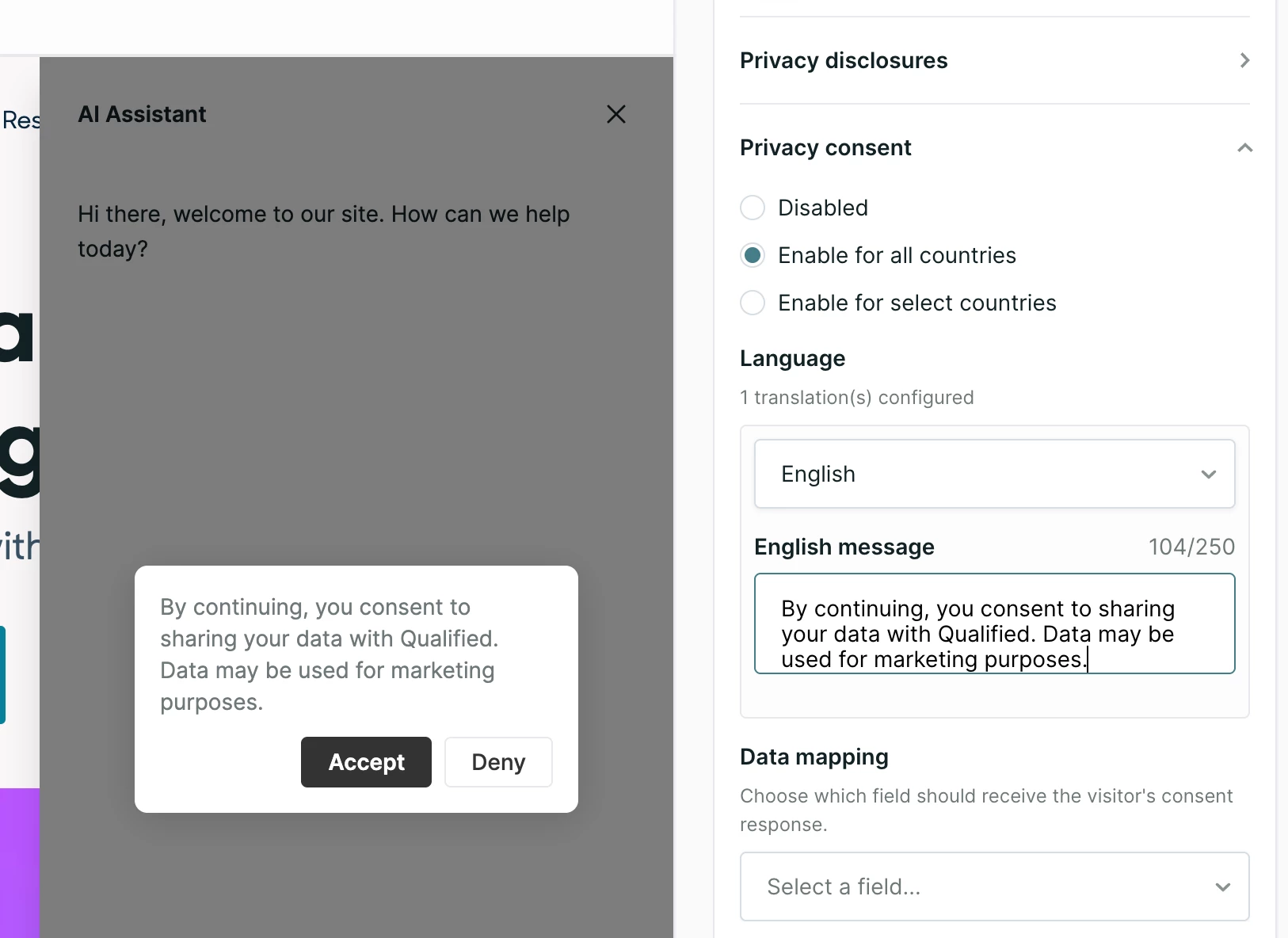
Global and regional configuration
-
Enable for all countries: The explicit consent modal will appear for every visitor regardless of their location.
-
Show consent for select locations: The modal appears only for visitors in the locations you add. Click Add a location to add a country with its own consent language. To add language for a single US state, such as California, add United States as a location first, then click Add state exception.
-
Visitor detection: Qualified uses reverse IP lookup to detect a visitor's country and match the appropriate language settings.
Language and localization
The language of the consent modal is tied to your experience settings.
-
Automatic translation: The "Accept" and "Deny" buttons are automatically translated into the visitor's detected language (e.g., French, Spanish, or Chinese) and are not editable.
-
Customizable body text: While the buttons are fixed, the main body of the consent message can be customized for each language you support.
-
Language fallback: If no experience language matches the visitor's country, the modal appears in English.
The visitor experience
When your AI SDR agent pounces or a visitor opens the messenger, the interaction proceeds as follows:
-
The trigger: If a visitor attempts to type a message, click a cold start button, or engage with a CTA, the consent modal pops up before the action is completed.
-
Accepting consent: If the visitor clicks Accept, their message is processed, and the conversation with your AI SDR agent continues normally.
-
Denying consent: If the visitor clicks Deny, the messenger minimizes. Your AI SDR agent may continue to pounce, but if the visitor attempts to interact again, the modal will reappear.
-
What gets recorded: The system records the visitor's most recent response in a session. For example, if a visitor denies consent twice but accepts on the third prompt, the field will be recorded as "accepted" at the end of the session.
Data mapping and analytics
You can map a visitor's consent status directly to a boolean (checkbox) field in Qualified.
-
Field setup: Navigate to the Fields section in Settings to select or create a checkbox field for this data.
-
Reporting: Because consent is captured as a recorded field, you can pull this data into Analytics to monitor visitor preferences.
-
Workflows: You can build Workflows using field-based selection to trigger specific actions or segments based on whether a visitor has accepted or denied consent.
Important considerations
-
Previewing the modal: To preview the consent modal within the themer, you must select the Open Pinned or Open Floating messenger positions. It cannot be previewed in the Center, Right, or Minimal positions. For the most accurate test, save your configuration and view it live on your website.
-
End-of-session writing: Consent state is written to the visitor record at the end of the session based on their final response.
-
Greeting visitors before cookie consent: In locations that require consent, your AI SDR agent can load and greet visitors before they accept cookies. See Explicit cookie consent.



.svg)


