


Qualified Mailbox is moving to new email sending infrastructure on Amazon SES. If your organization is affected, a guided wizard in your AI SDR agent's email settings walks you through publishing the new DNS records, testing them end to end, cutting over, and removing the old SendGrid records. Your sending address, your existing conversations, and your Qualified configuration stay as they are, and email keeps flowing throughout.
Before you start
Two people are usually involved: a Qualified admin to drive the wizard, and whoever controls DNS for your sending domain. Line both up before you begin, since the DNS records need to be published by hand at your provider.
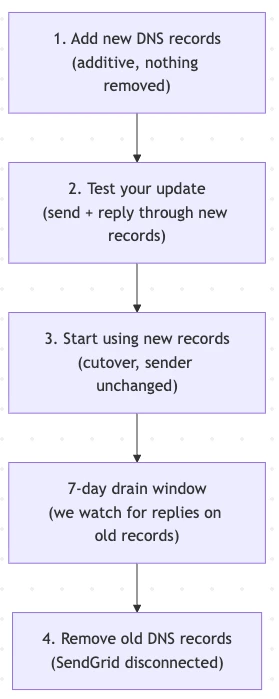
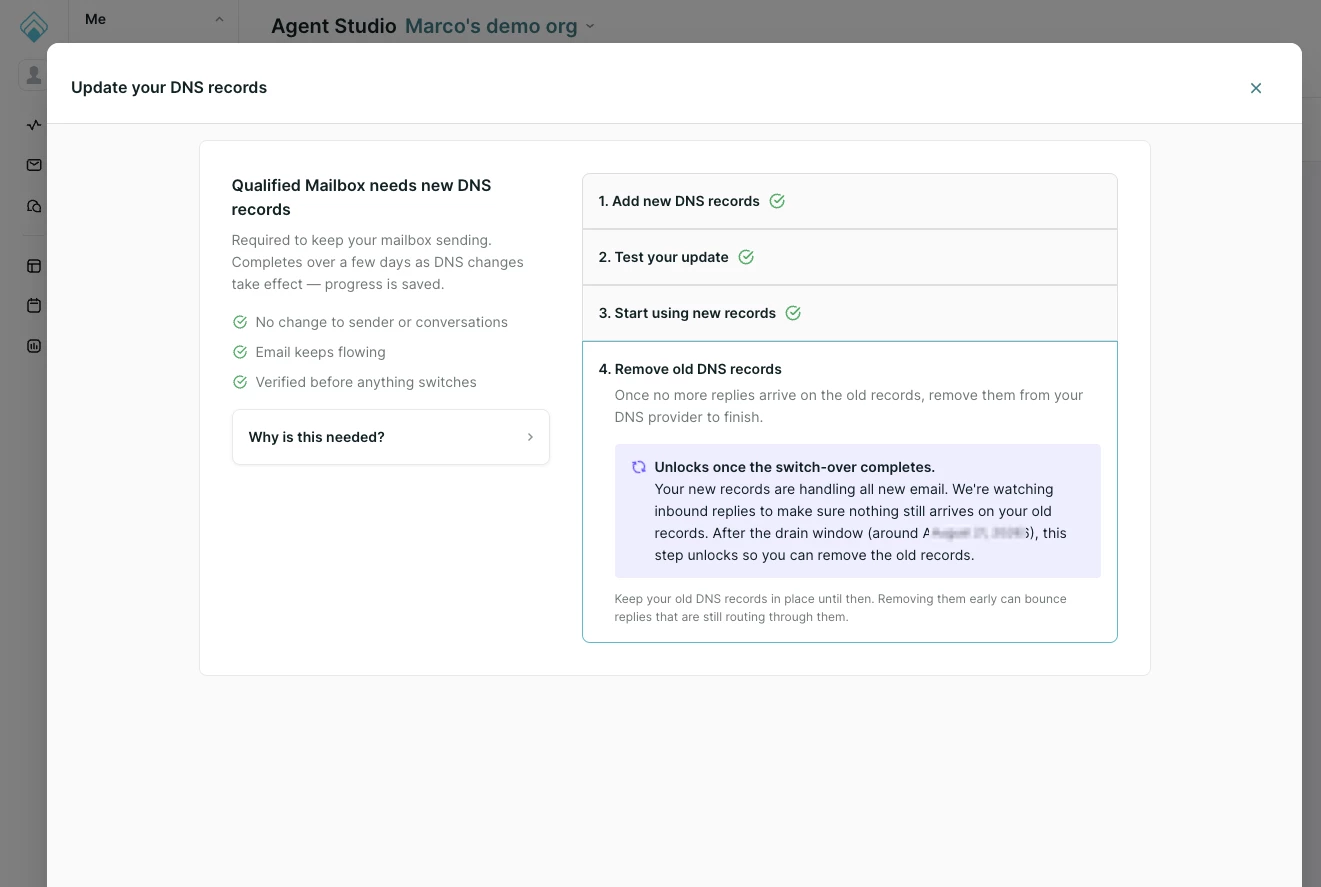
Plan for roughly a week and a half from start to finish. The first three steps can often be completed in one session if your DNS propagates quickly. The fourth step stays locked for about a week by design, which is explained below. This image explains the steps at a high level:
If you don't see the update prompt described in the next section and you want to confirm whether this applies to your organization, contact your Qualified Success Architect (QSA).
Starting the update
Go to Settings → Agent Studio → Agent Profile and find the Connected accounts section. When a migration is required, the Qualified card shows an UPDATE REQUIRED badge and a Start update button. Clicking Start update opens the Update your DNS records modal.
The Remove option on the Qualified card is disabled for the duration of the migration, so the existing setup can't be torn down mid-flight.
Your progress is saved. You can close the modal at any point and pick up where you left off, and the card will then read Continue update instead of Start update.
Step 1: Add your new DNS records
Your records are generated automatically when the modal opens, against your existing sending domain. Publish them at your DNS provider, then click Check records.
Important: Add these records alongside your existing records and remove nothing yet. Your current SendGrid records need to stay live until step 4.
Here is what each record does:
- Three CNAME records at token._domainkey.yourdomain pointing to token.dkim.amazonses.com. These are the DKIM signing keys that let receiving servers verify that mail is genuinely from your domain.
- One MX record on mail.yourdomain pointing to feedback-smtp.region.amazonses.com at priority 10. This is the bounce and complaint feedback path.
- One MX record on your root domain at priority 9. This routes inbound mail, meaning replies from prospects, to the new provider.
- One TXT record on mail.yourdomain containing v=spf1 include:amazonses.com ~all. This is the SPF record authorizing the new sender.
The root MX is set to priority 9 on purpose. Your existing SendGrid MX record is priority 10, and lower numbers take precedence, so inbound replies begin preferring the new infrastructure as soon as the record propagates while SendGrid remains in place as a fallback. That ordering is what makes the test in step 2 meaningful.
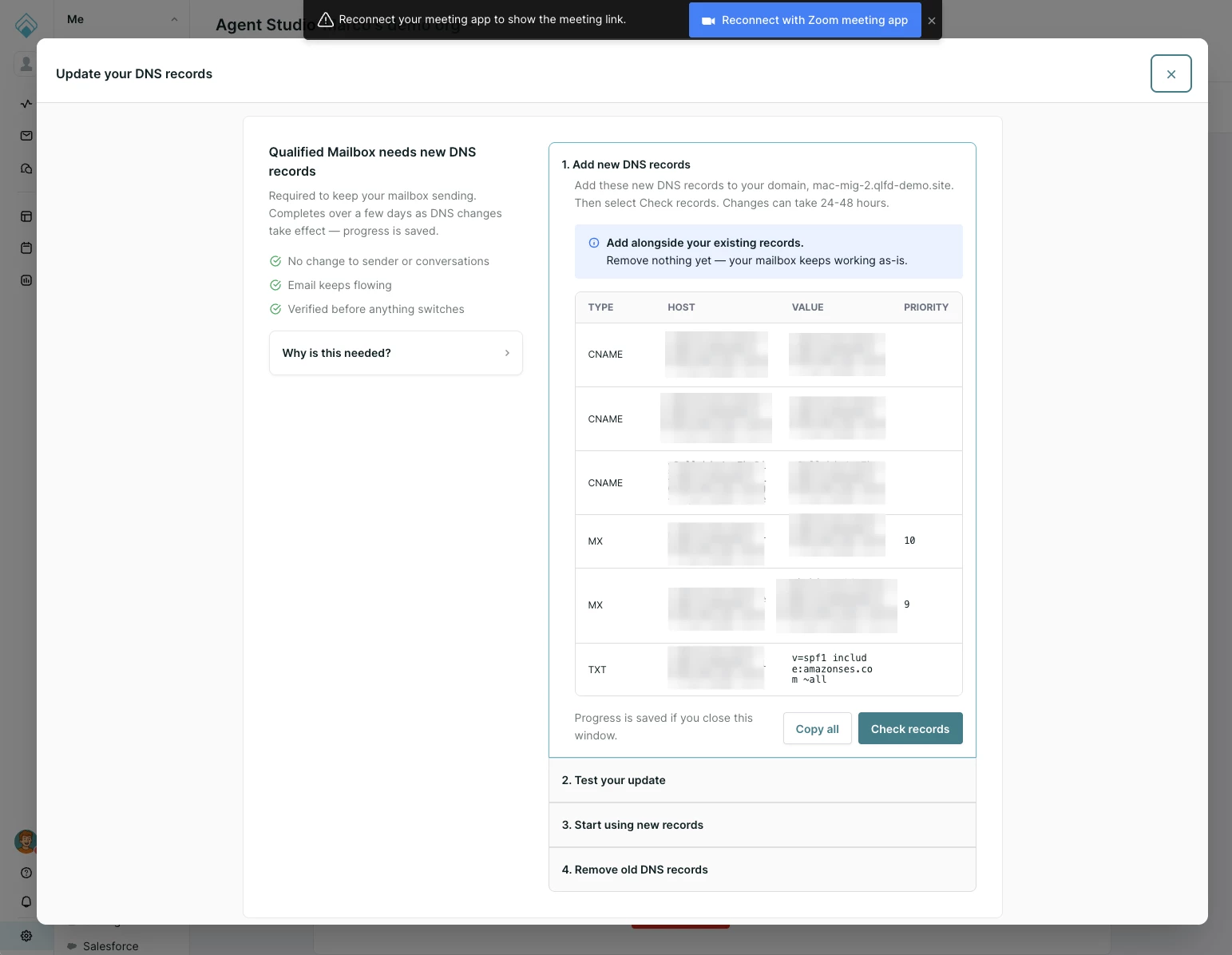
Copy all copies every row as tab separated text, which pastes cleanly into most bulk import fields. Check records revalidates, and once some records have turned green the label changes to Check pending records.
Every record needs to show green, including the root MX, before step 2 unlocks. The root MX is resolved directly by Qualified rather than verified through Amazon, so until it is detected it shows a tooltip reading "We'll verify this record once it's added to your DNS."
The modal notes that DNS changes can take a day or two to take effect. Most providers propagate faster than that, though it's worth planning for the longer end.
DNS provider tips
- Host duplication. Many providers automatically append your domain to whatever you type in the host field. If you paste the full token._domainkey.yourdomain.com, you can end up with a doubled domain. Enter only the portion before your domain if your provider works that way.
- Priority fields. Some providers accept MX priority inline with the target, others use a dedicated column. The wizard shows priority as its own column.
- A second root MX record. You are adding a second MX record at the root, and the existing SendGrid record stays. Some providers make this awkward, but both records need to coexist.
- Trailing dots. Some providers require a trailing dot on MX targets and others reject it. Either form works on the Qualified side.
- TTL. There is nothing to change here, though a low TTL on your existing records will make the migration move faster.
Step 2: Test your update
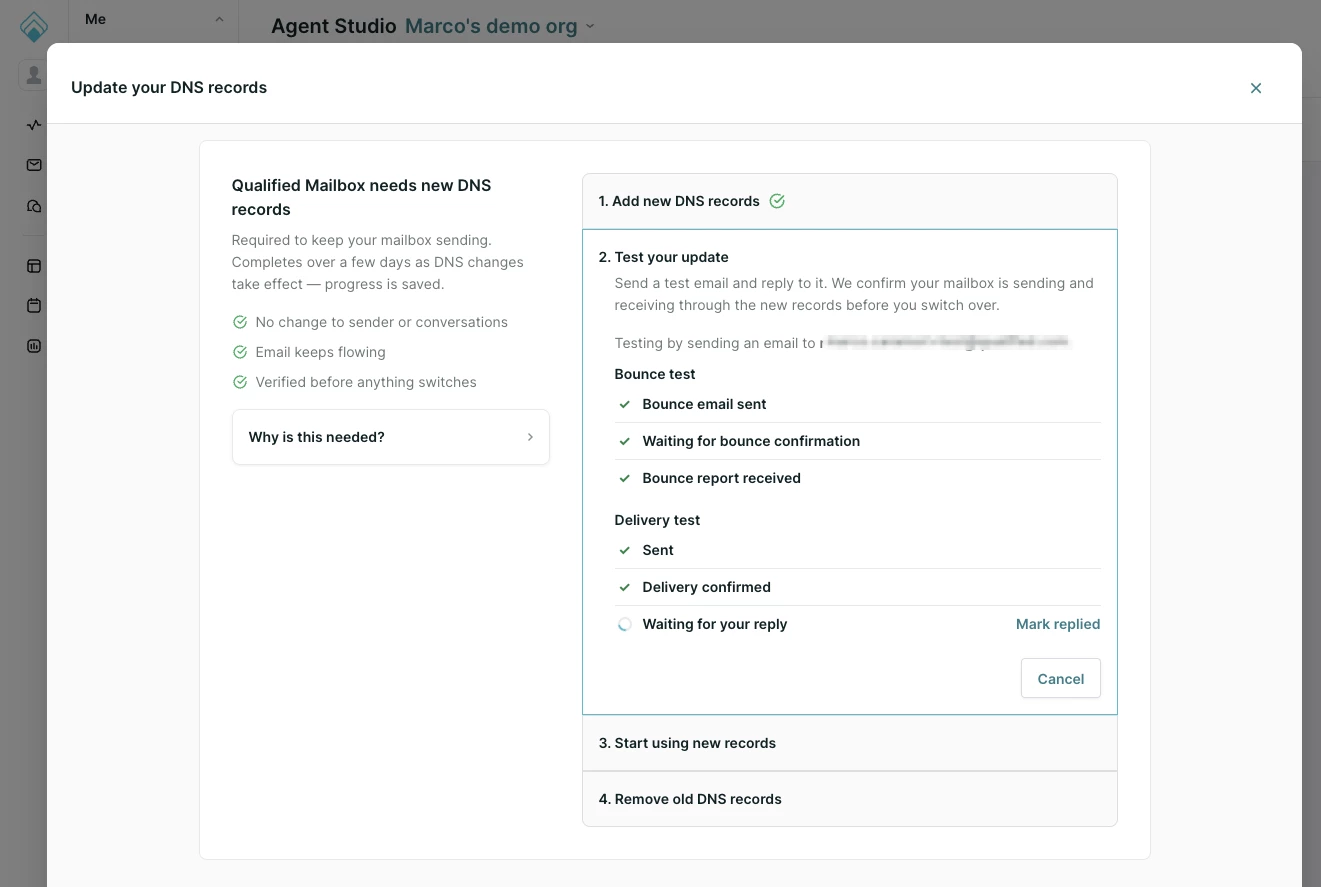
This step confirms that your new records work in both directions before anything switches over. The From address is your AI SDR agent's sender, and the To address is your own email, which is read only.
Click Send test email, then go to your inbox and reply to the message. Two checks then run in parallel.
The bounce test is fully automatic. A companion message goes to Amazon's bounce simulator, and the returning bounce notification confirms that the feedback path on mail.yourdomain is wired up correctly, which is what helps protect your sending reputation.
The delivery test moves through Sent, then Delivery confirmed, then Waiting for your reply, then Reply received. Delivery is confirmed on an actual delivery notification rather than a successful handoff.
Mark replied next to "Waiting for your reply" is a nudge rather than a shortcut. It tells Qualified that your reply has been sent so the check polls more tightly, and the label changes to "Loading your reply." It does not complete the step, so clicking it without replying will leave the check waiting.
If the delivery and bounce confirmations don't complete within a couple of minutes, the wizard shows a "taking longer than expected" warning. A similar warning appears shortly after you click Mark replied.
If your reply came back through the old records
A green checkmark on delivery is not the whole test. Qualified also checks which infrastructure your reply actually arrived on. If it came back through the old SendGrid MX record, the step won't pass and you'll see a message telling you the reply arrived through your old DNS records.
In most cases this means the priority 9 root MX record hasn't fully propagated yet. Wait and retry rather than changing anything. You can confirm the record is visible externally with a DNS lookup tool such as MXToolbox, or with a dig MX query against your domain, before retrying.
Step 3: Start using your new records
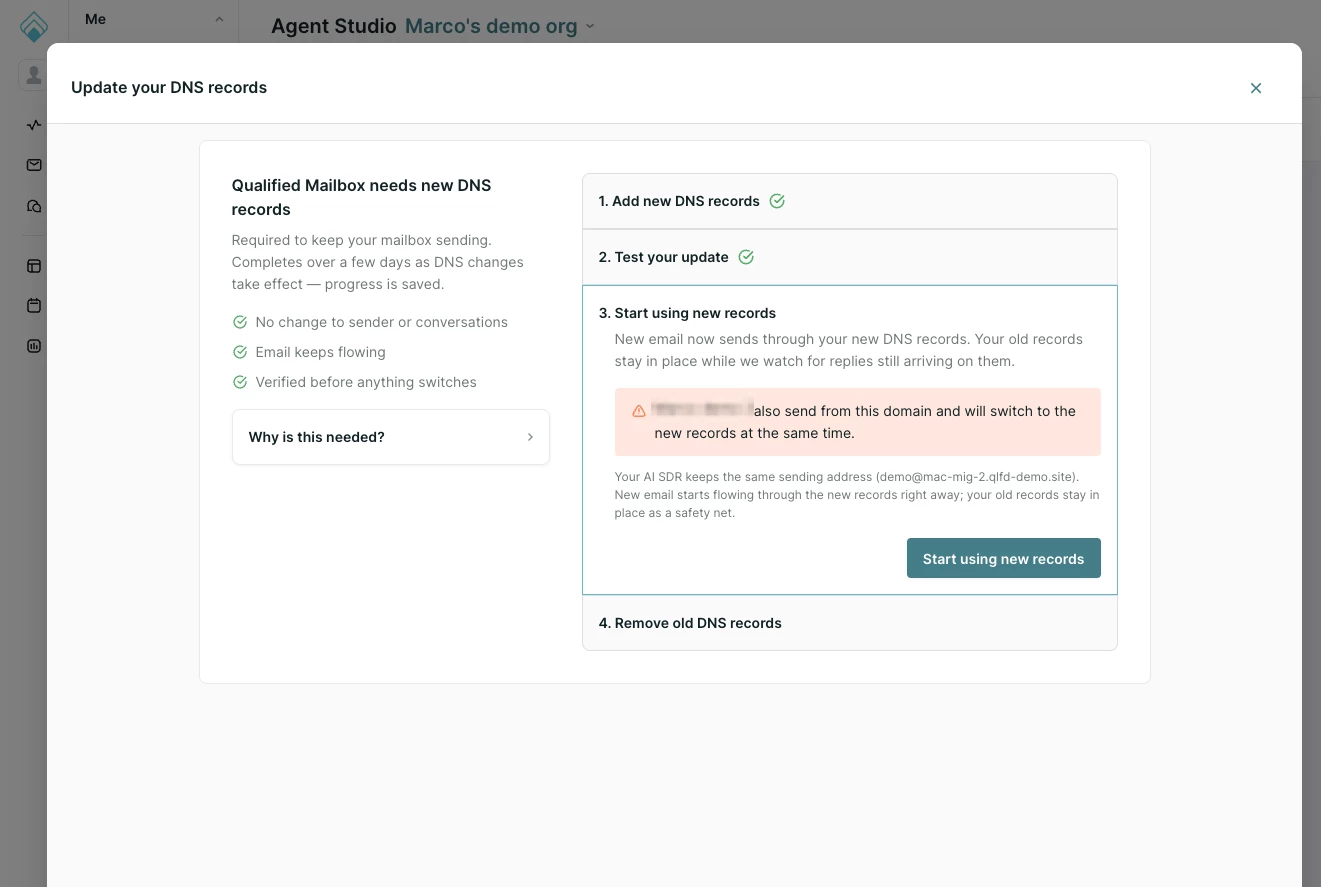
This is the cutover, and new email begins sending through your new records immediately.
Three things are worth knowing before you click through:
- Your sending address does not change. Your AI SDR agent keeps the address it used on SendGrid.
- Your old records stay in place as a safety net. Nothing is deleted at this step.
- Conversations already in flight are unaffected. Existing threads stay on the infrastructure they started on, and new threads use the new records.
If more than one AI SDR profile sends from your domain
DNS is configured per domain, so all AI SDR profiles sending from the same domain cut over together. If other profiles are affected, an orange warning names them on this screen. There is no way to migrate one profile and leave another on the old records, so make sure the stakeholders for every listed profile know the change is happening before you run this step. Profiles that have the domain configured but no sender are skipped.
The cutover is applied as a single operation across those profiles, so a domain isn't left in a partly migrated state.
Why step 4 stays locked after cutover
After cutover, step 4 stays locked and shows an estimated unlock date. That delay is deliberate. Replies can keep arriving on your old records while DNS caches expire across the internet, and removing those records too early would bounce real prospect replies.
Four conditions need to be met before step 4 unlocks:
- Your step 2 test passed with a reply verified on the new records.
- About a week has passed since that test passed. The wizard shows the estimated unlock date.
- No replies arrived on your old SendGrid records for that mailbox during the trailing week.
- At least one reply has arrived on the new records since the test passed.
The fourth condition is positive proof that inbound mail is working on the new path, rather than just an absence of traffic on the old one. Condition 3 is scoped to the specific mailbox address, so another profile still receiving on SendGrid won't hold up this mailbox's cleanup.
Do not remove your old records early at your DNS provider. The wizard blocks the removal on its side, and deleting the records directly at your provider before step 4 unlocks can bounce replies from prospects.
Note: If your mailbox receives very few replies, step 4 can stay locked past its estimated unlock date because the fourth condition hasn't been met yet. Contact your Qualified Success Architect (QSA) if you find yourself waiting in that situation.
Step 4: Remove your old DNS records
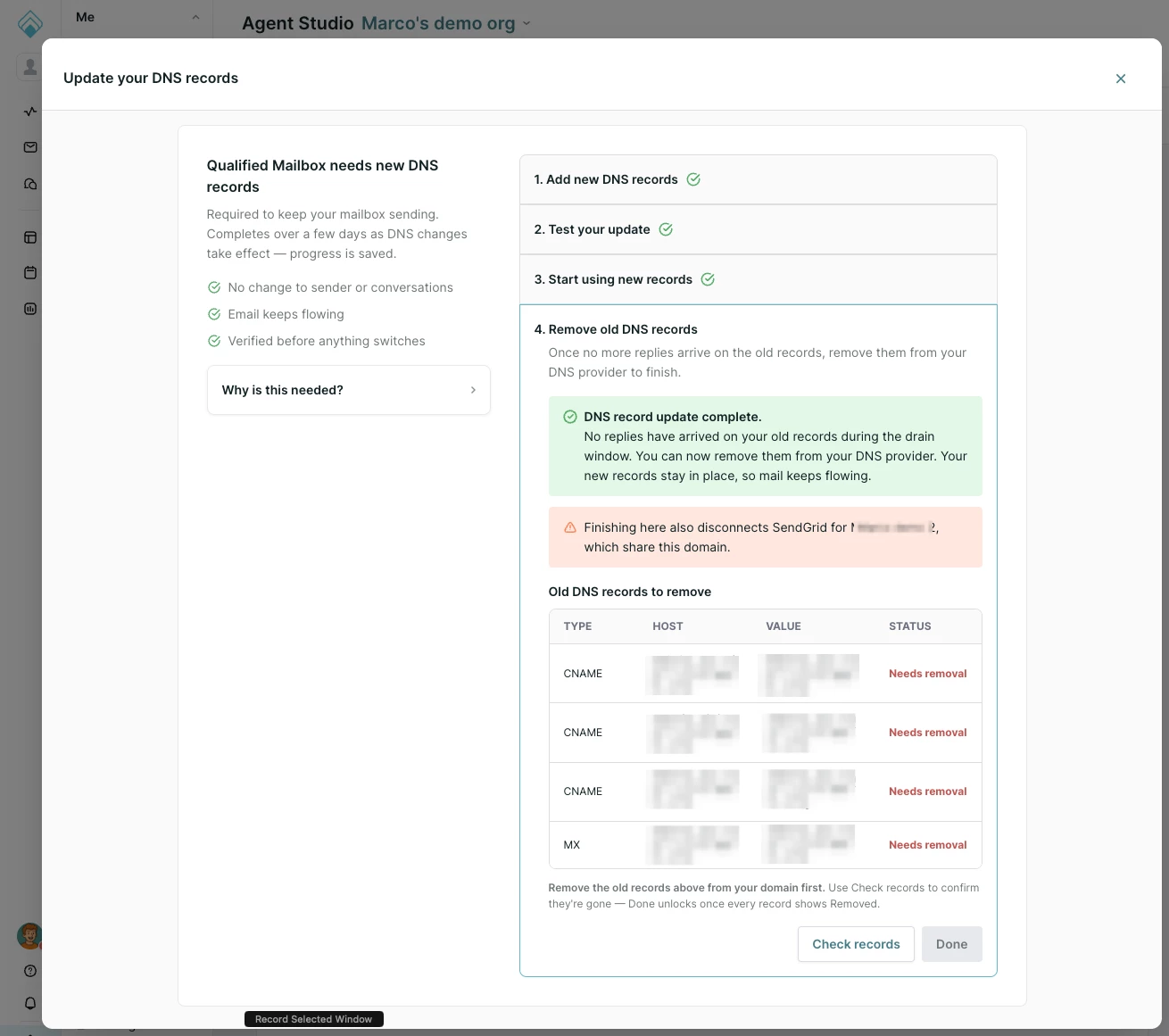
Once step 4 unlocks, you'll see a green confirmation and the exact list of old SendGrid records to delete. These are typically:
- A CNAME record at em####.yourdomain pointing to a sendgrid.net host
- CNAME records at s1._domainkey.yourdomain and s2._domainkey.yourdomain
- An MX record on your root domain pointing to mx.sendgrid.net at priority 10
Every row starts at Needs removal. Delete the records at your DNS provider, then click Check records. Qualified queries multiple public DNS resolvers live, and a record counts as still present if any of them still sees it, so a stale answer from one resolver will keep a row red. If that happens, wait a few minutes and check again.
If another profile shares the domain, an orange warning notes that finishing here also disconnects SendGrid for those profiles.
Done stays disabled until every row reads Removed. Clicking it clears the SendGrid configuration from your mailbox, and from any other profiles on that domain. Your new records stay in place, mail keeps flowing, and the migration is complete.
After the migration, you manage your mailbox under Settings → App Settings → Mailboxes. To learn more, see Setting up Qualified Mailbox.



.svg)


