


Qualified admins can manage key meeting settings that apply across all meeting types, ensuring seamless scheduling, reducing no-shows, and preventing availability conflicts during holidays.
Configuring round robin absence handling
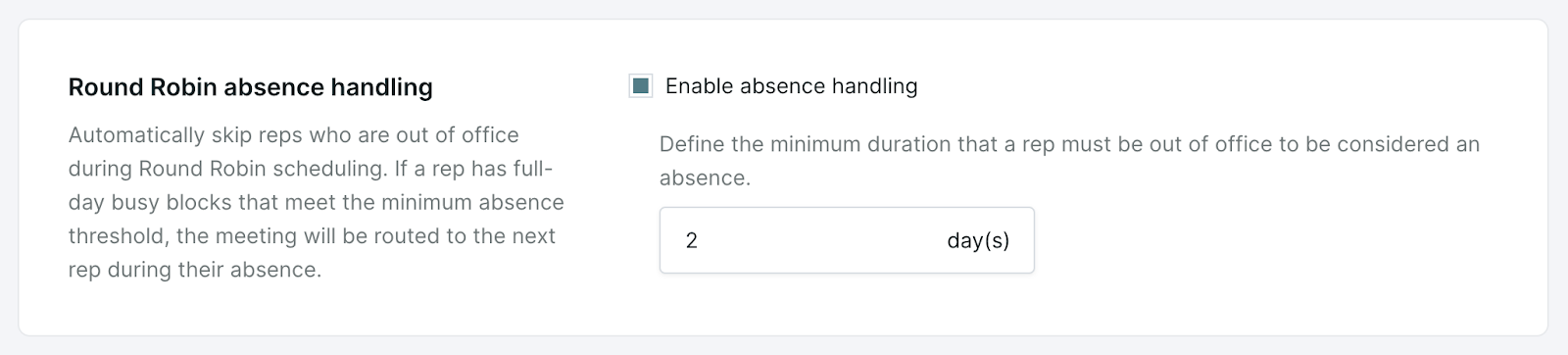
Round robin absence handling ensures that meetings are always routed to available team members. When a rep is out of the office, this feature automatically skips them in the round robin meeting rotation, allowing visitors to book with the next available rep. This reduces friction, eliminates gaps in scheduling, and guarantees that potential leads aren't lost due to rep unavailability.
How to configure round robin absence handling
- Navigate to Settings → Meetings → Settings.
- Scroll to round robin absence handling.
- Check the “Enable absence handling” box.
- Enter the minimum number of day(s) that a rep must be out of office to be considered an absence.
- Click Save in the top right hand corner.
Definition of an “absence”
To be considered an “absence”, a Qualified User must have an all-day “Busy” event that is the total length, or longer, than the minimum absence duration set by the admin in Qualified.
For example, the user below has a two-day, "All day", "Busy" event blocking their calendar. When the absence duration is set to 2 days in Qualified, this rep would be considered absent and would be skipped in the round robin meeting scheduler.
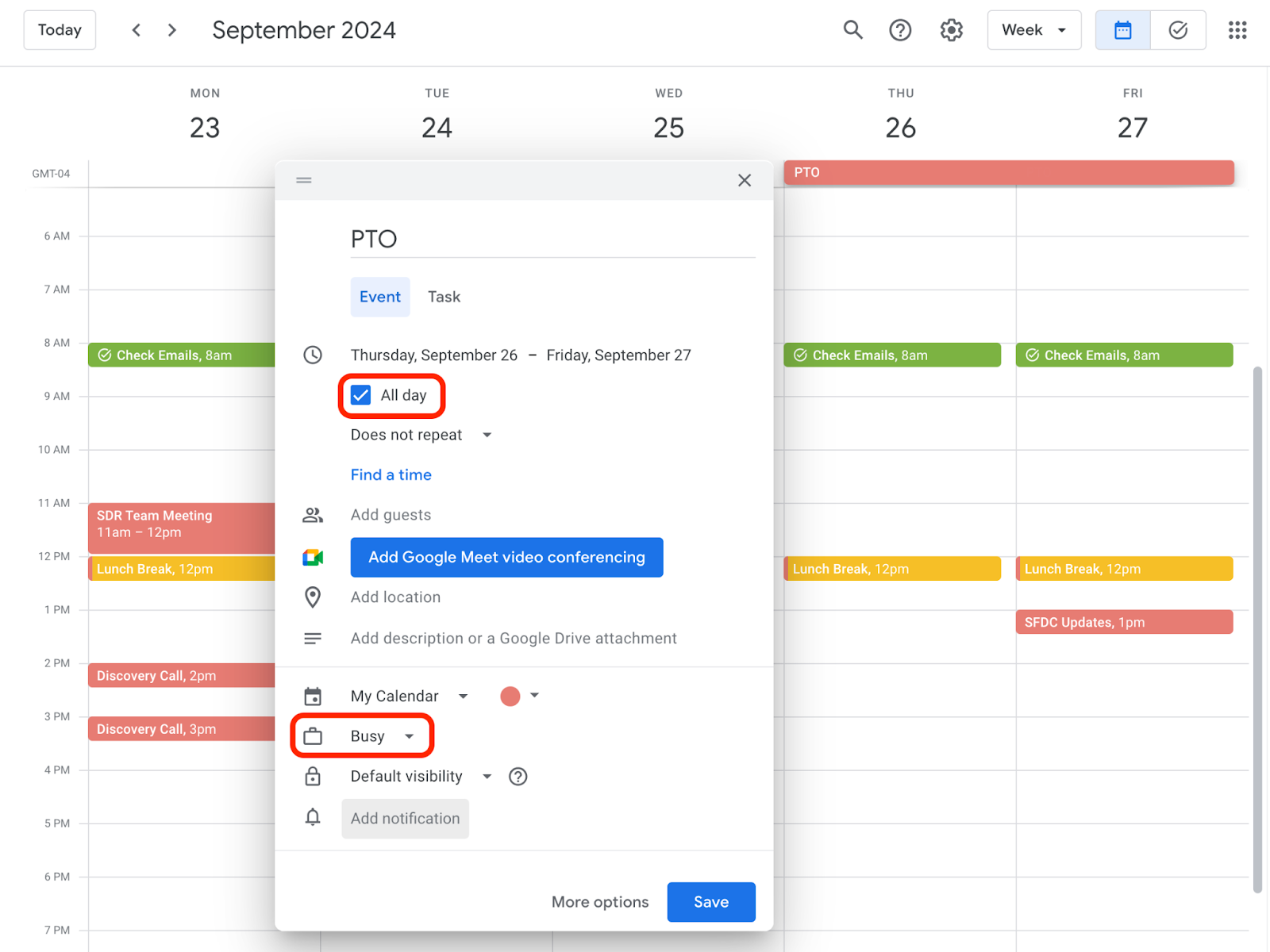
Make sure the calendar time zone in Google or Microsoft matches the time zone set in your Qualified profile. We use the Qualified profile's time zone to determine if an event spans the entire day.
Enabling no-show reporting
No-show reporting allows your team to easily track when prospects fail to attend scheduled meetings. By marking meetings as no-shows, your team can identify trends, improve follow-up strategies, and measure the impact of missed opportunities. This feature provides valuable insights that help enhance accountability and optimize sales performance.
How to enable no-show reporting
- Navigate to Settings → Meetings → Settings.
- Scroll to No-show reporting.
- Check the “Enable no-show reporting” box.
- Click Save in the top right hand corner.

Admins can override this org-level setting within each Meeting Type. Learn more about configuring individual meeting types in the meeting types article.
How to report a no-show
Reporting a No-Show (Using the Qualified Chrome Extension)
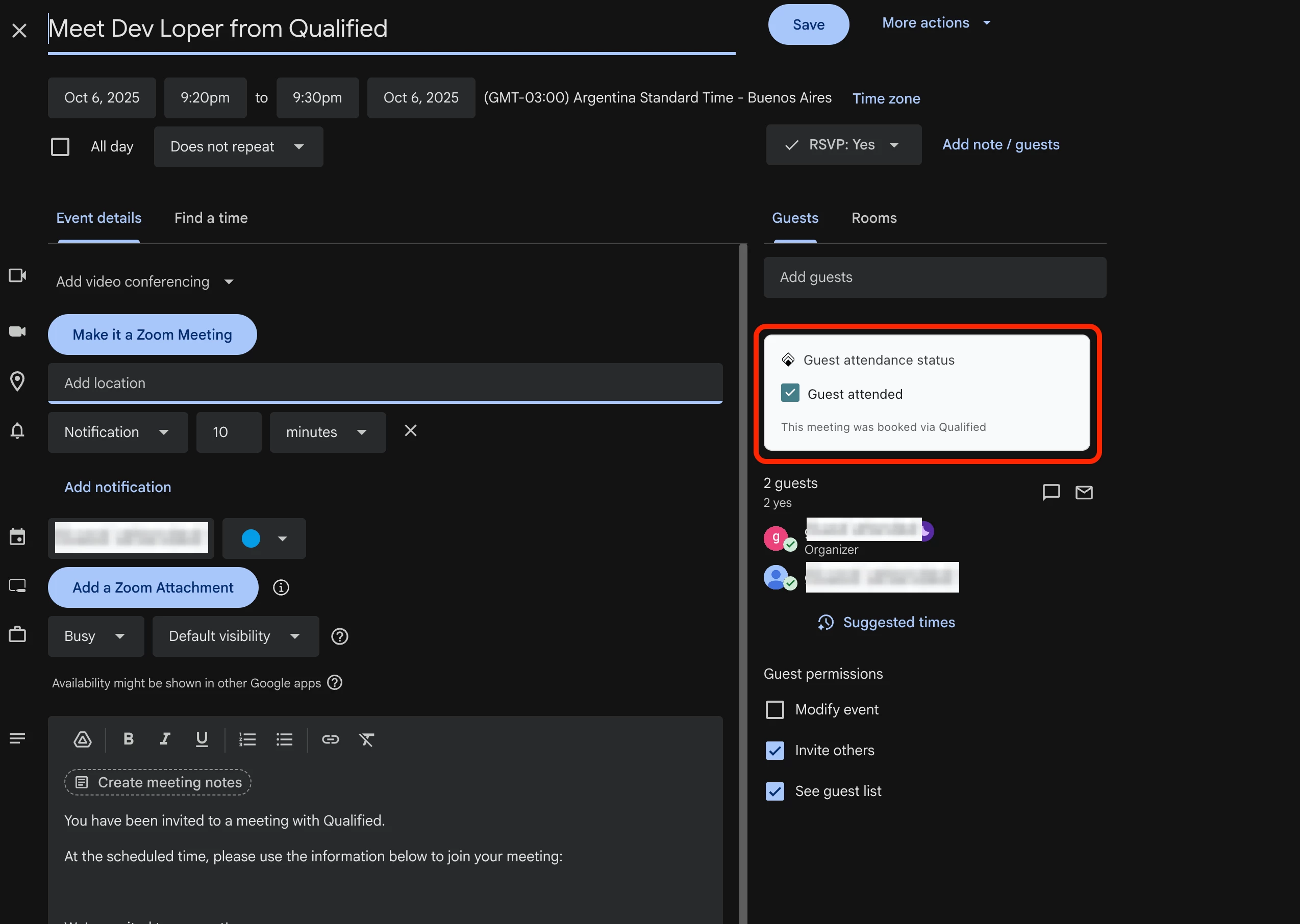
If your team is using Gmail and the Qualified Chrome Meeting Booker Extension, a checkbox to report no-shows will appear directly inside the edit window of the Meeting Details.
Reporting a No-Show (Without the Chrome Extension)
Once enabled, the meeting owner will receive an email from app@qualified.com at the end of the scheduled meeting time, or a few minutes later, for all meetings booked via Qualified. The rep will see details about the meeting and a button to report the meeting as a no-show.
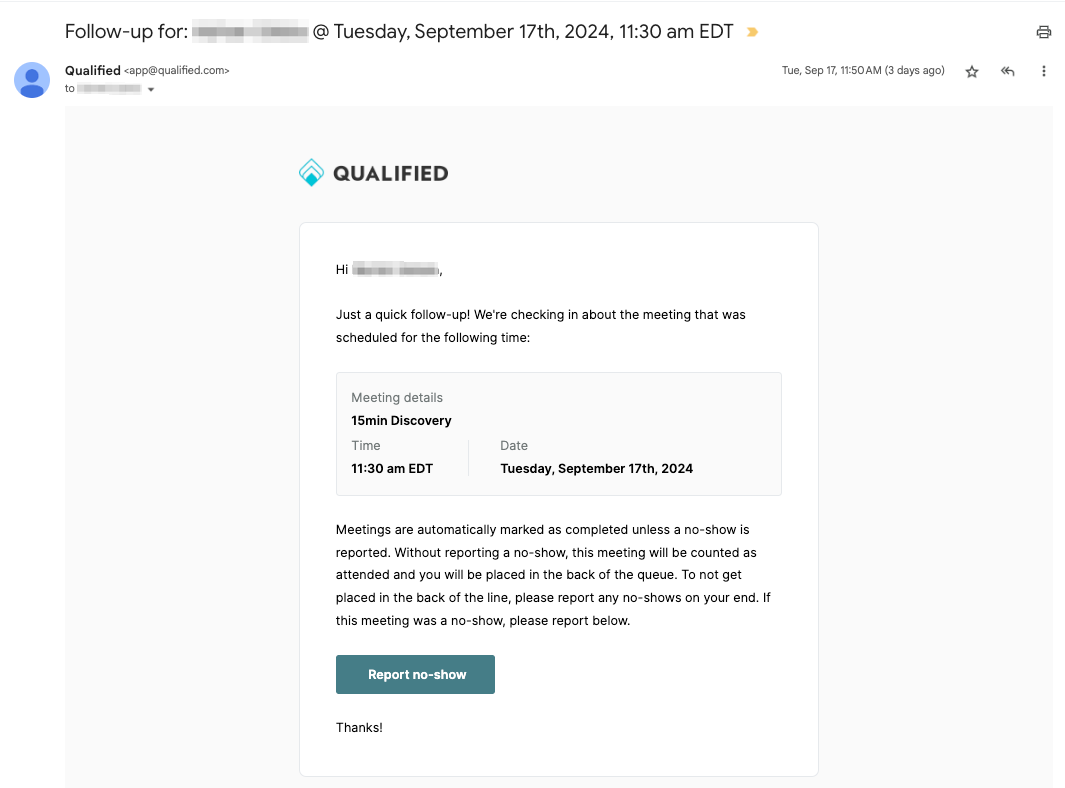
If the prospect attended the meeting, no action is required. The meeting will be automatically marked as completed.
If the prospect did not attend the meeting, the rep will click the “Report no-show” button within the email, and then follow the steps outlined below to report a no-show.
- After clicking Report no-show, a new browser tab will open to a “No-Show Confirmation” page.
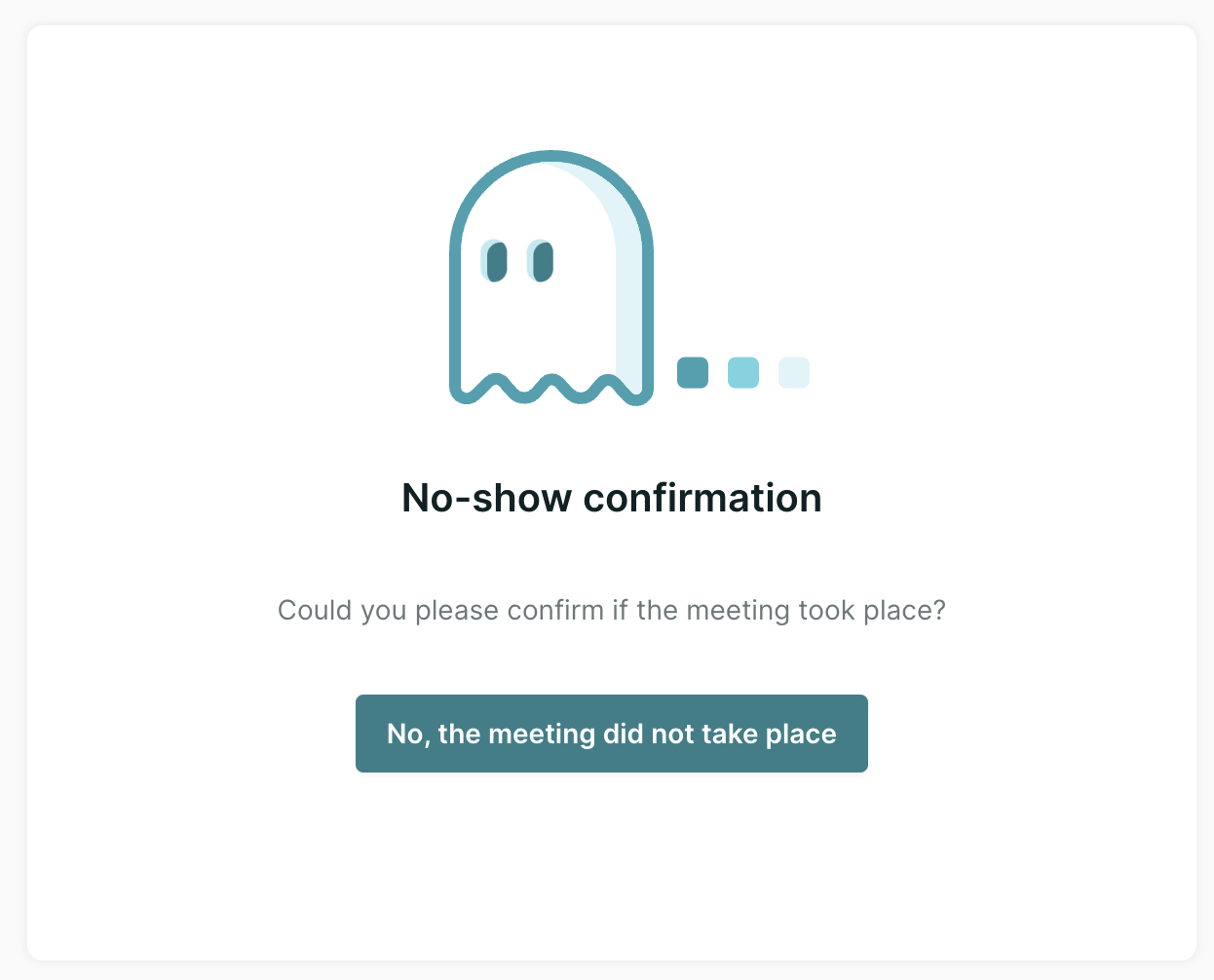
- Click No, the meeting did not take place to confirm.
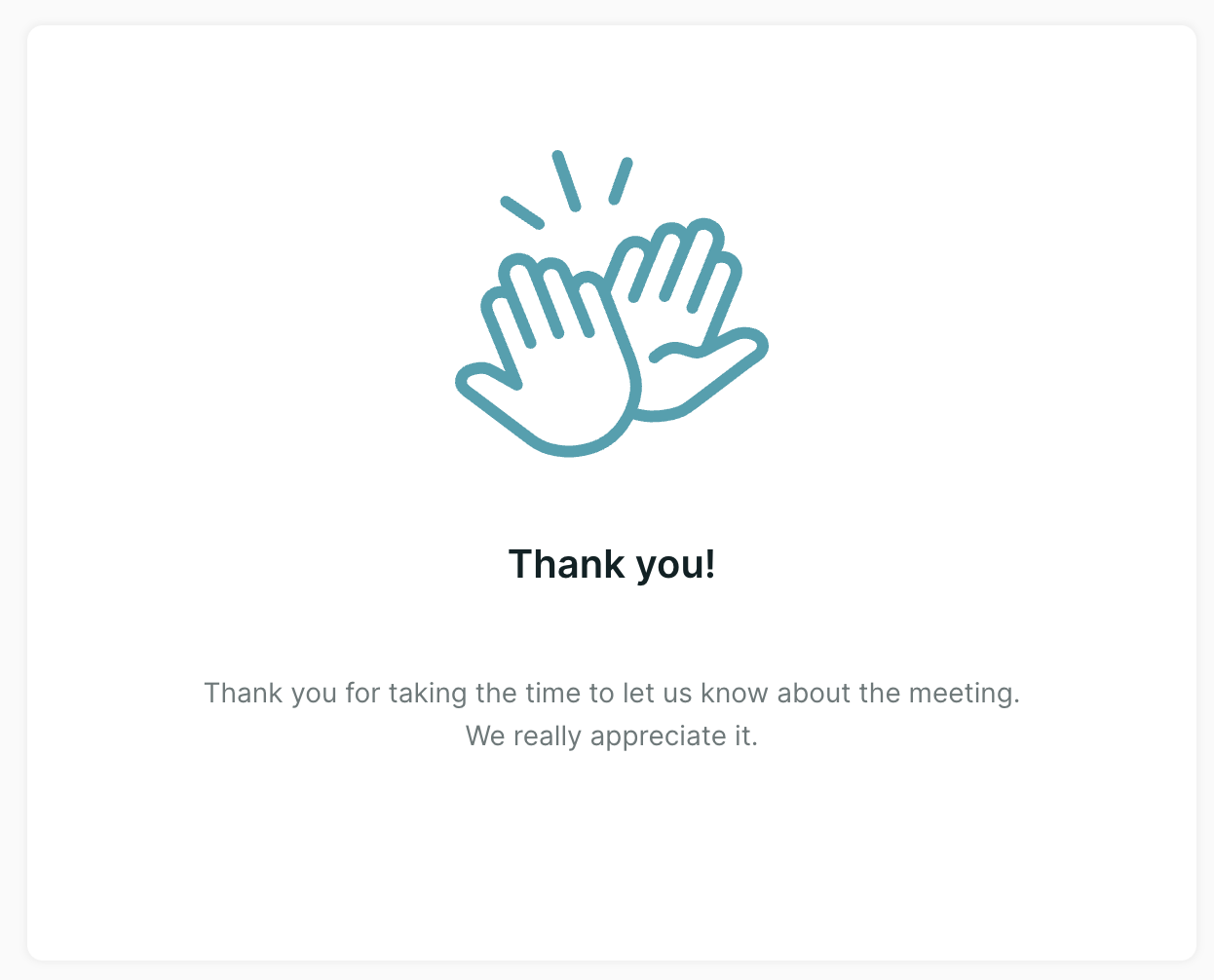
- Then, you’ll see a “Thank You” message confirming the no-show report.
Viewing no-show reports in Qualified analytics
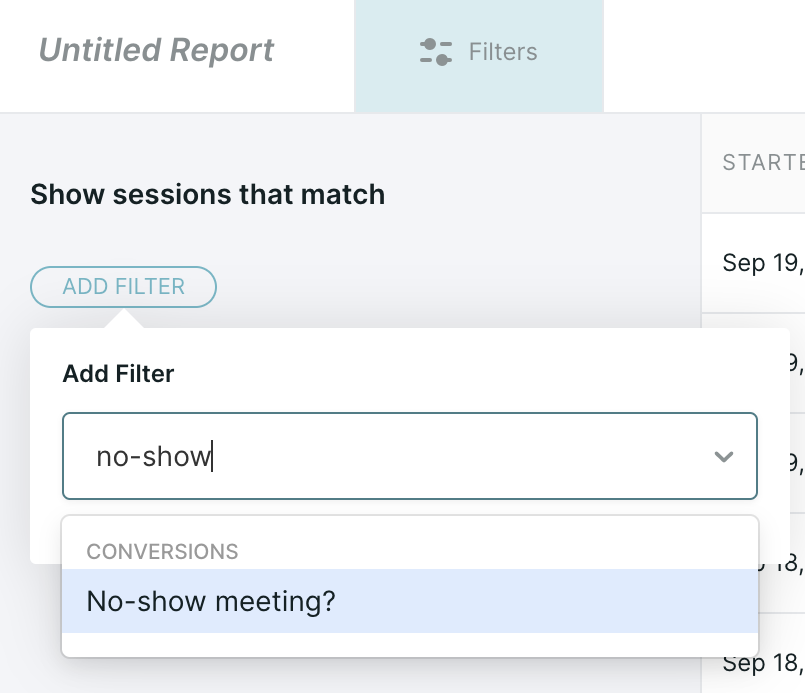
Reports and dashboards filter
A filter for “No-show meeting?” can be added to session reports, custom dashboards, or specific tile(s) within a custom dashboard.
Dashboard component
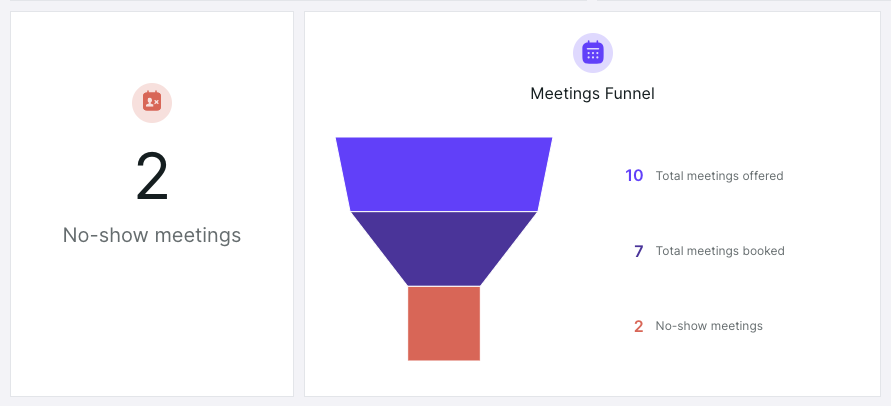
In addition to the filter option for the dashboards mentioned above, admins can add “No-show meetings” standard tile, or as a metrics within a comparison tile.
Salesforce Event update
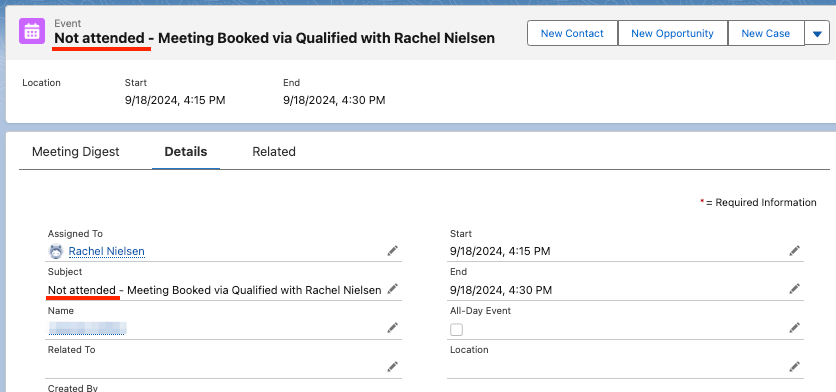
In addition to being marked as a “No-show meeting” in Qualified, the Salesforce Event that was created when the prospect booked the meeting will be updated. “Not attended” will be added to the beginning of the existing Subject field on the event.



.svg)


