


When Qualified is connected to your MAP form experiences, you have a choice as to how your visitor’s data syncs back to your MAP (and to Salesforce). These processes are detailed below - before deciding which to use, consider lead assignment rules, duplicate checks, and workflow automation.
Option 1: Qualified creates Leads in Salesforce
One option for optimizing lead management with Qualified Meetings involves MAP creating unqualified prospects within the MAP while the form handles lead creation. Simultaneously, Qualified takes charge of lead creation in Salesforce (SFDC) and will assign the lead to the meeting owner.
However, to implement this option, MAP Admin needs to pause lead creation on the form from the MAP to SFDC. Additionally, the Qualified form experience must either replicate the form MQL process or pass data to the MAP for future replication. It's worth noting that some customers may find this option infeasible if they wish to retain their existing form automation process.
This option can be configured either by a workflow or using experience action steps.
Using a workflow
- Navigate to Settings → Workflows.
- Press + Create new workflow.
- Enter a descriptive name in the Name this workflow… box.
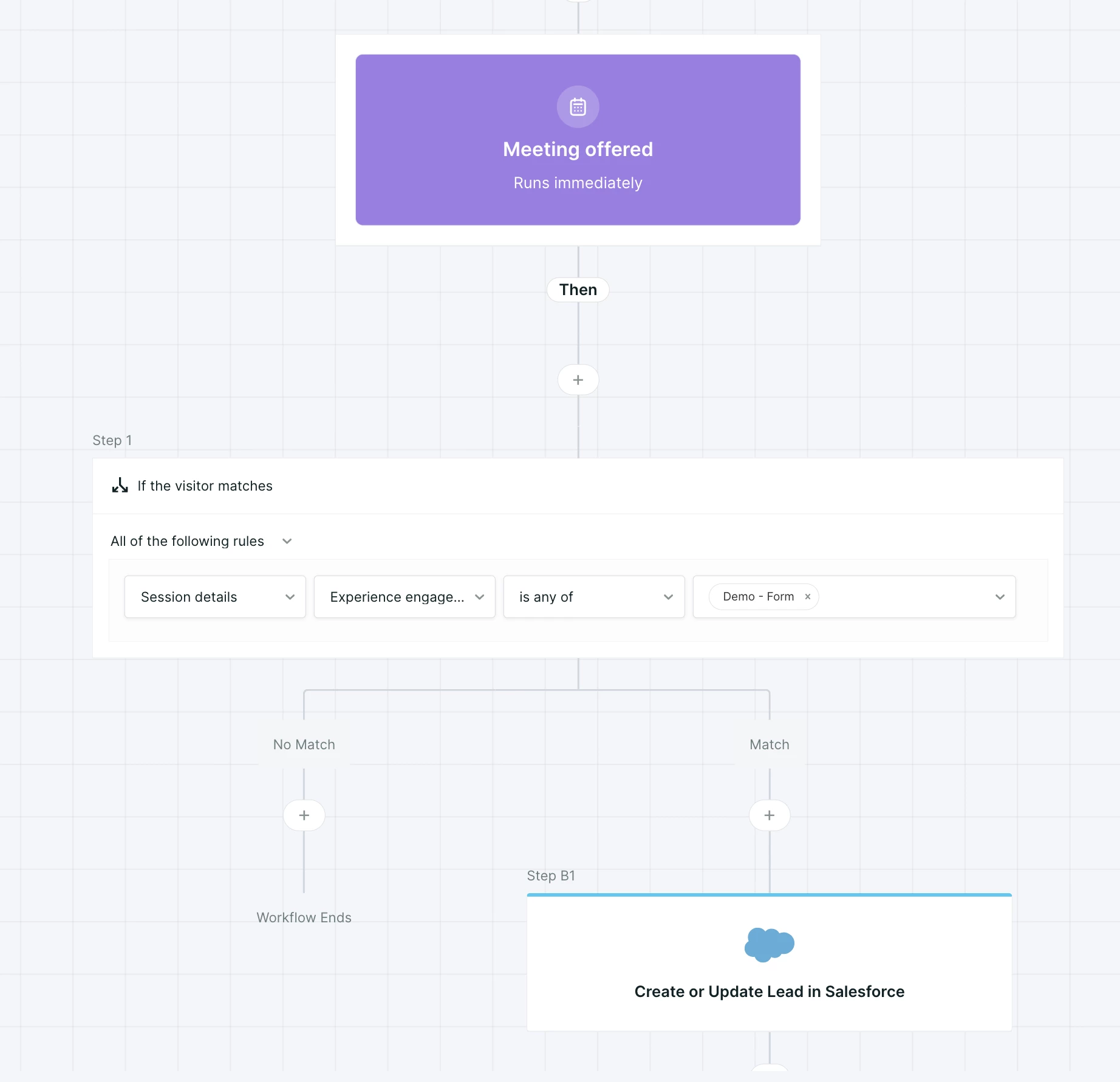
- Select the Meeting offered trigger.
- If you want this workflow to function only for this form fill, add a branch at the top of your workflow.
- Set the branch criteria to the following: Session details → Experience engaged with → Is any of → [your form experience].
- Add a Push to external system step.
- Destination: Salesforce.
- Create Lead: Enabled.
- Update existing Lead or Contact record: Enabled - Update any record in Salesforce.
- Optionally, add any additional workflow actions as desired.
Within a form experience
- Add a Push to an external system step after the Route for a meeting step in your form experience.
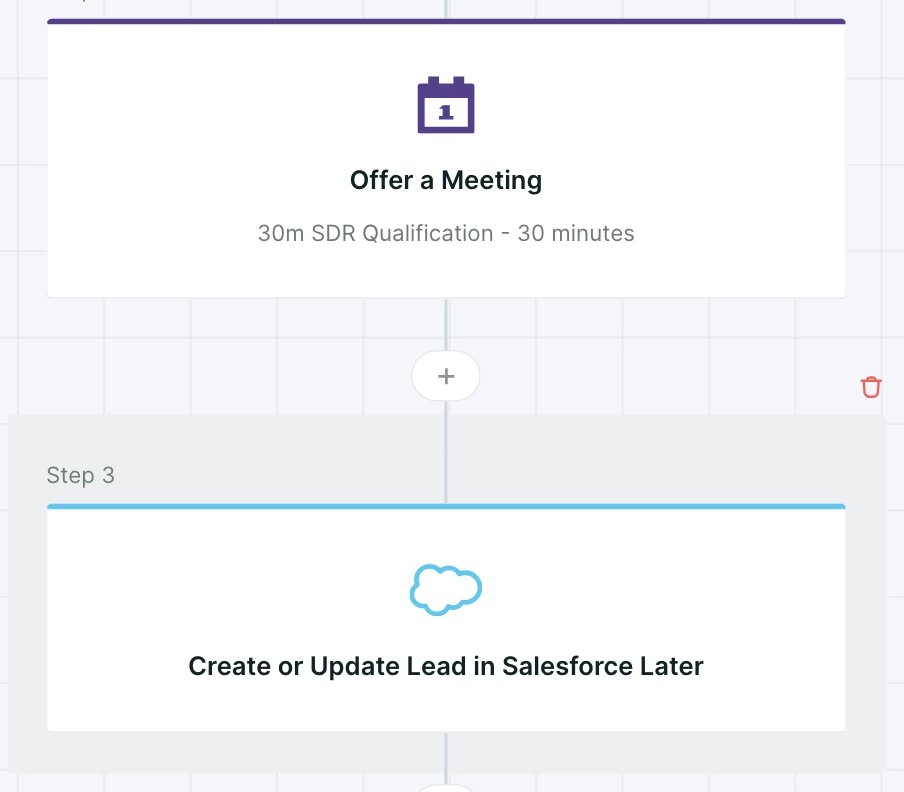
- Configure the step as follows:
- Destination: Salesforce.
- Create Lead: Enabled - Wait to create a new Lead
- Update Existing Lead or Contact: Enabled - Update any record in Salesforce.
- Update Behavior: Wait to update existing Lead or Contact.
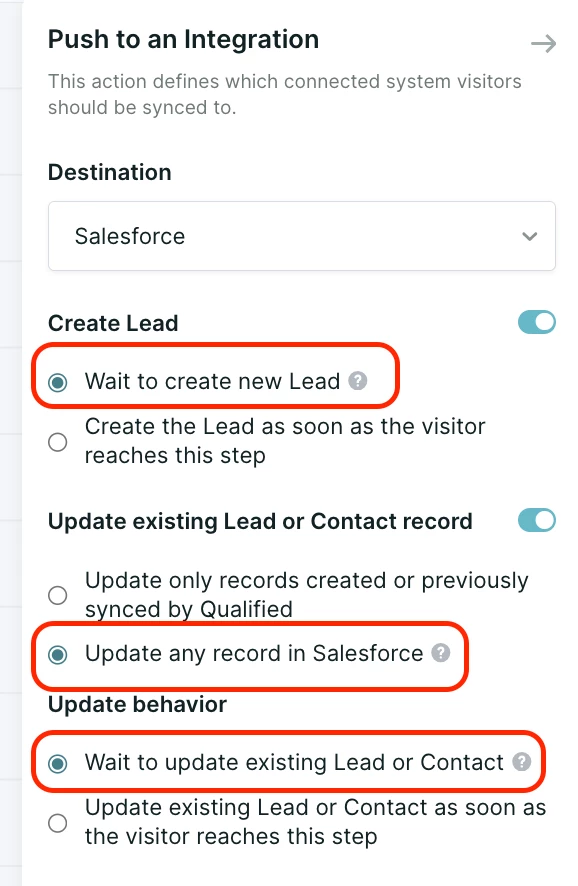
These configurations are the default recommendations, but may be changed depending on your needs or data sync policy. As a reminder, with these settings, the updates will wait until the visitor session ends or a meeting is booked.
Option 2: MAP or Qualified create SFDC Leads
Another approach to optimizing lead sync and ownership in Qualified meetings is to have the MAP Admin maintain their existing automations. While this option may result in potential Lead reassignments in Salesforce (SFDC), it offers flexibility and relies on the sync speed between the MAP and Salesforce.
When Qualified attempts to push data to SFDC, two scenarios may occur. If the MAP has already created the Lead in SFDC, Qualified will reassign the Lead to the meeting owner. If the MAP hasn't created the Lead yet, Qualified will create and assign the Lead to the meeting owner.
To mitigate the possibility of reassignment, the admin can choose to delay lead creation on the MAP side for up to 5 minutes, providing a smoother lead ownership experience.
This option is only available from within a form experience, as workflows do not allow for lead reassignment.
Within a form experience
- Add a Push to an external system step after the meeting has been booked.
- Configure the step as follows:
- Destination: Salesforce.
- Create Lead: Enabled - Wait to create a new Lead.
- Update Existing Lead or Contact: Enabled - Update any record in Salesforce.
- Update Behavior: Wait to update existing Lead or Contact.
- Reassign new Leads to meeting owner: Enabled.
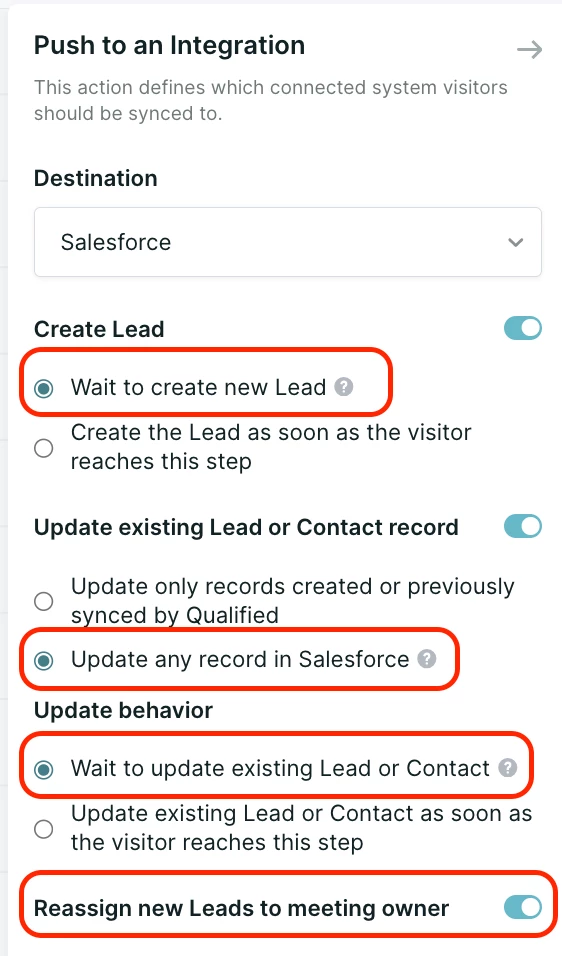
The Reassign new Leads to meeting owner option will only appear if it is placed after a meeting has been booked.
Option 3: MAP creates SFDC Leads and manages Lead assignment
To optimize lead sync and ownership in Qualified Meetings, another option is to have the MAP Admin maintain their existing automations. In this configuration, the MAP Admin is responsible for configuring lead assignment based on the meeting owner data passed by Qualified.
To ensure accurate lead creation that aligns with the collected meeting owner information, the admin can choose to delay lead creation from MAP to SFDC for up to 5 minutes. This delay allows for the proper collection of meeting owner details before creating the lead in the MAP, enhancing lead management and ownership accuracy.
With this option, Qualified configuration is only required if you are capturing the meeting owner in a field within your MAP. This configuration requires the creation of a Qualified visitor field to store the owner ID, which must then be mapped to your MAP.
For this configuration, see below.
Using a workflow
- Navigate to Settings → Workflows.
- Press + Create new workflow.
- Enter a descriptive name in the Name this workflow… box.
- Select the Meeting booked trigger.
- Add a branch at the top of your workflow.
- Set the branch criteria to the following: Session details → Experience engaged with → Is any of → [your form experience].
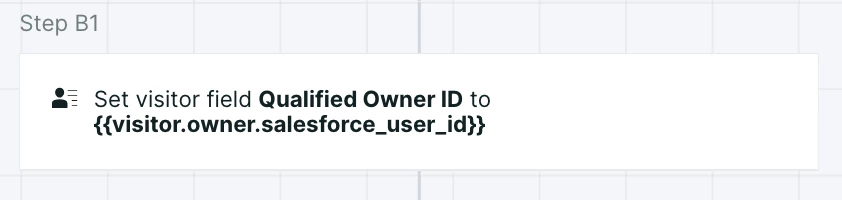
- Add a Set a value on a visitor field step.
- Visitor field: [Your user ID field].
- Value: {{visitor.owner.salesforce_user_id}}.
- Add a Push to external system step.
- Destination: MAP.
- Create Lead: Disabled.
- Update existing Lead or Contact record: Enabled.
- Optionally, add any additional workflow actions as desired.
Within a form experience
- Add a Set a value on a visitor field step after the meeting has been booked.
- Visitor field: [Your user ID field].
- Value: {{visitor.owner.salesforce_user_id}}.
- Add a Push to an External System step.
- Destination: MAP.
- Create Lead: Disabled.
- Update Lead: Enabled - wait to update existing record.



.svg)


