


Qualified forms allow you to gather information about website visitors. Display Qualified forms within a Qualified offer to promote content and create leads.
Creating Qualified forms
A Qualified Form is a kind of form experience, but rather than looking at a marketing automation platform or custom form, Qualified forms are captured directly within Qualified.
To create a new Qualified form, follow these steps:
- Go to Settings → Experiences → Forms.
- Click + Create Form Experience.
- Confirm the form is set to “Qualified Form” - this is the default option for form experiences.
- Configure the form fields (see below).
- Add a descriptive name in the Name this experience… field.
- Click Save.
Qualified form fields
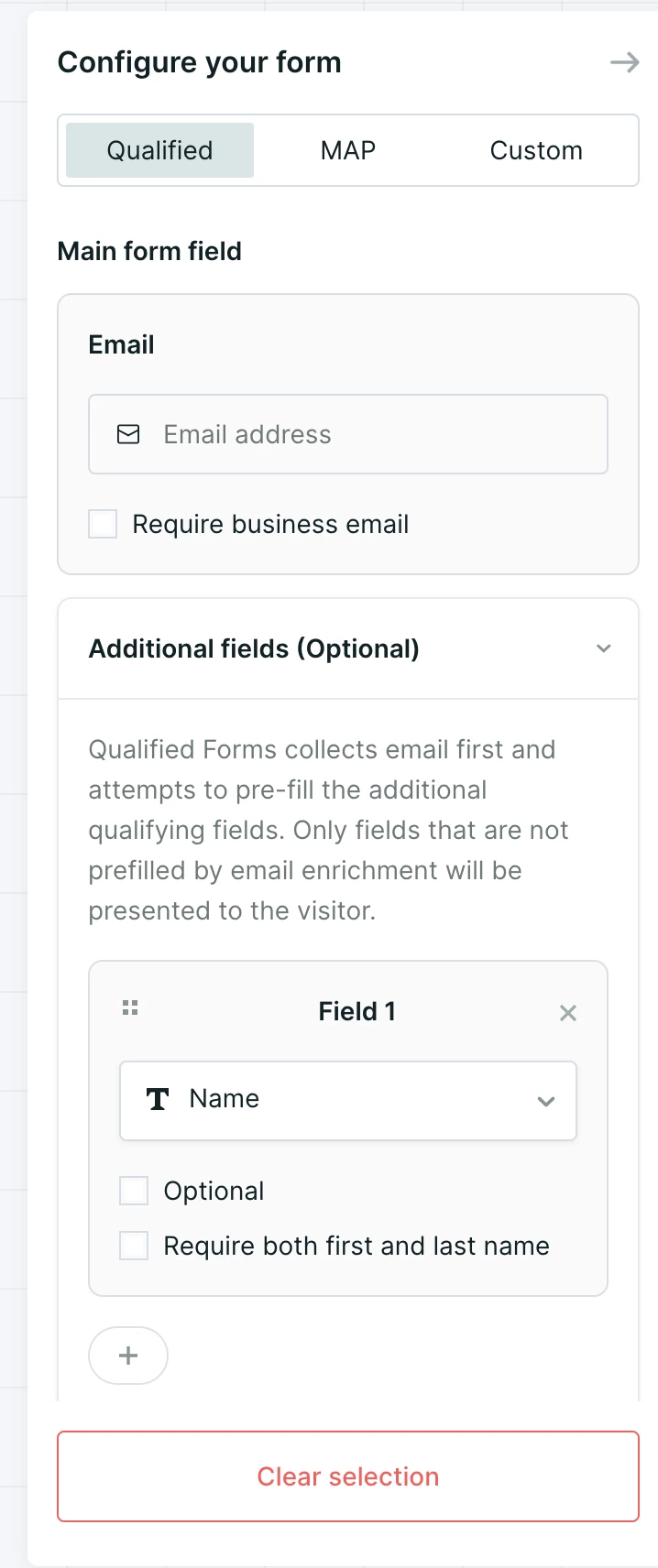
All Qualified forms capture email by default.
To add additional fields, follow the below steps:
- Click the Additional Fields (Optional) button.
- Click the + button.
- Select a Qualified visitor field.
- Select whether the field is optional.
- Configure additional field settings.
- Email: require business email.
- Name: require both first and last name.
- Picklist: select picklist options to show.
- Repeat steps 2-5 as required.
Up to a maximum of five fields, including email, can be selected as part of a Qualified form. Qualified will first ask for a visitor’s email, then follow up with any questions that can’t be answered via enrichment.
- Click the handle (::) and drag to reorder questions on the form.
Qualified form actions
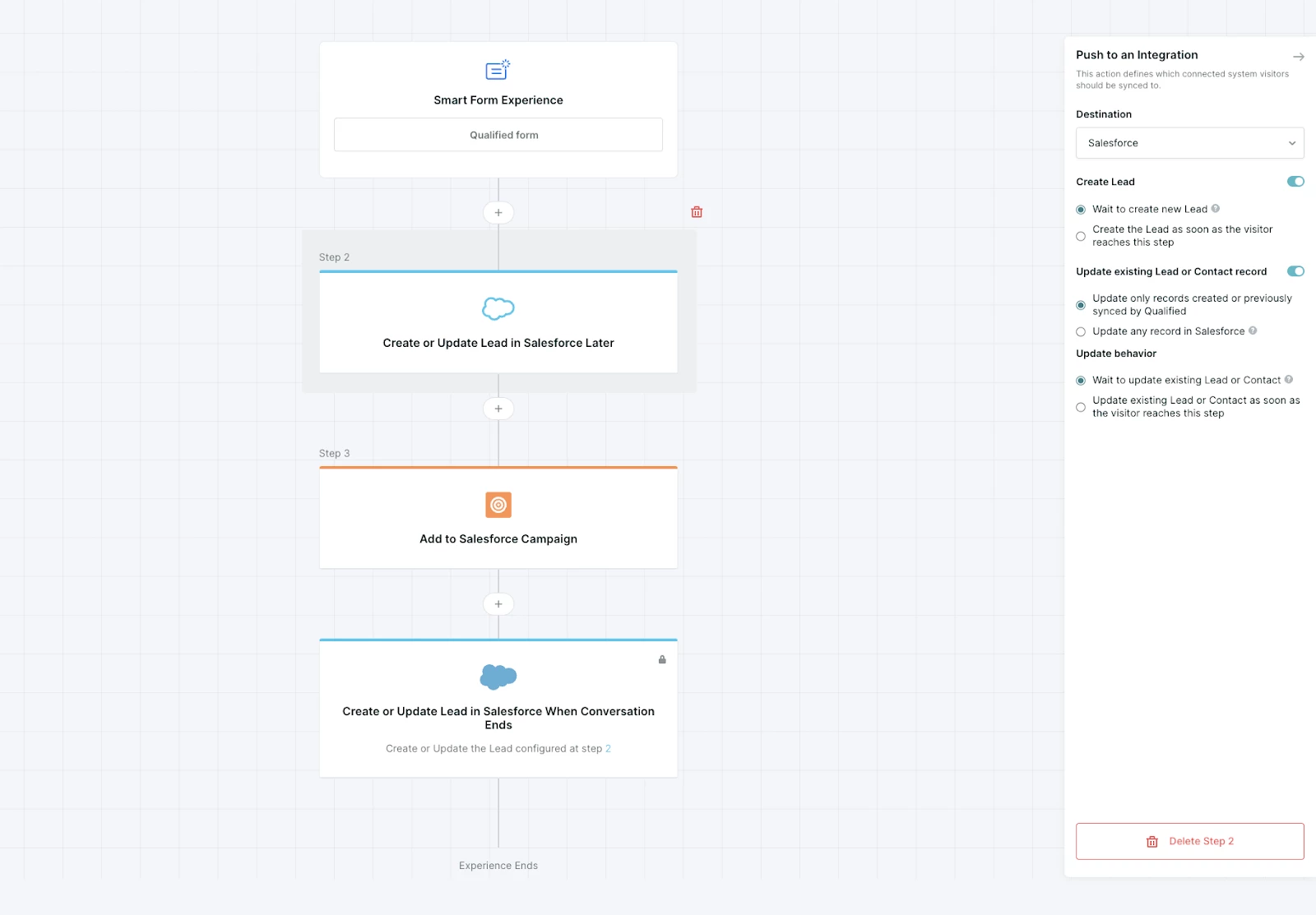
Configure a Qualified form experience with actions to follow up after a visitor engages with an offer.
While Qualified form experiences are like other form experiences in that they can offer meetings, most commonly a Qualified form simply captures a conversion.
Instead use general actions like Navigate or integration actions like Add to a campaign to ensure that visitors who engage with offers are shown content, put into a nurture sequence, or marked as interested in an event.
Using Qualified forms in offers
When building an offer, select form as the CTA type and then select your Qualified form.
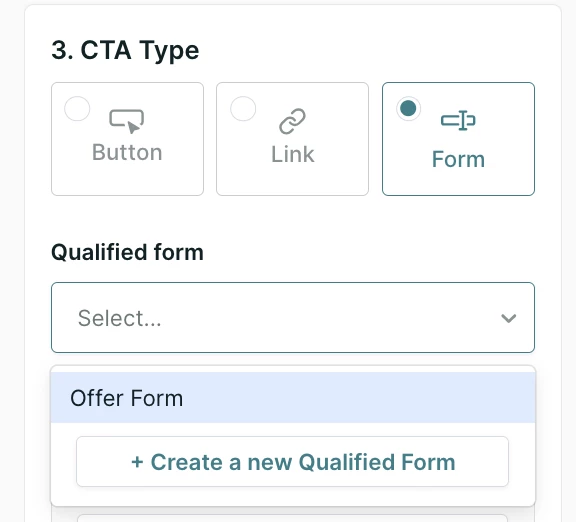
Only enabled forms can be selected when building an offer.



.svg)


