


Qualified routing rules are extremely important to get your visitors into the hands of the right sales reps on your team. As visitors interact with Qualified and your reps you might have questions about what routing rule was used to direct them to a member of your team.
Find the visitor transcript history
The first step to tracking down which routing rule a visitor has fallen into is finding the visitor session you want to look at. A visitor can have multiple sessions on your website and can be routed multiple times as well.
A session is defined as every time a visitor is on the website. A session will end for a visitor when they are idle for more than 60 minutes.
- Navigate to Analytics → Reports.
- Click the + button to create a new report and use the filters on the left to search for your visitor.
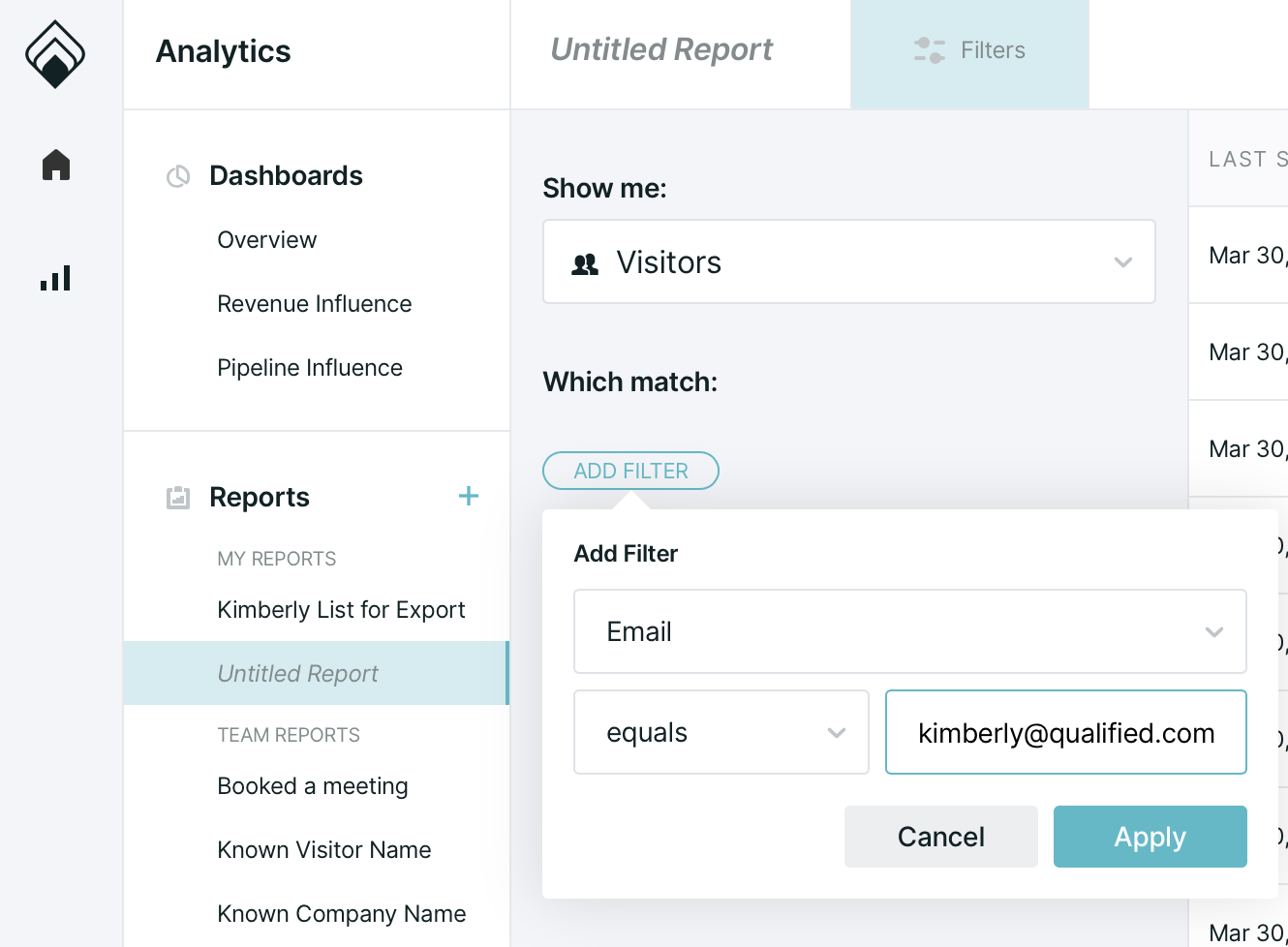
Keep in mind that searching for a visitor is usually quicker if you use the filters to narrow down the information you know about them such as email or name.
View the visitor transcript and routing rules
Once you’ve found your visitor's session, click on the visitor and select "Go to visitor" in the report to open up the transcript. This will show you all of the pages the visitor viewed on your website, which selections they’ve made in your experience, and the conversations they’ve had with your reps.
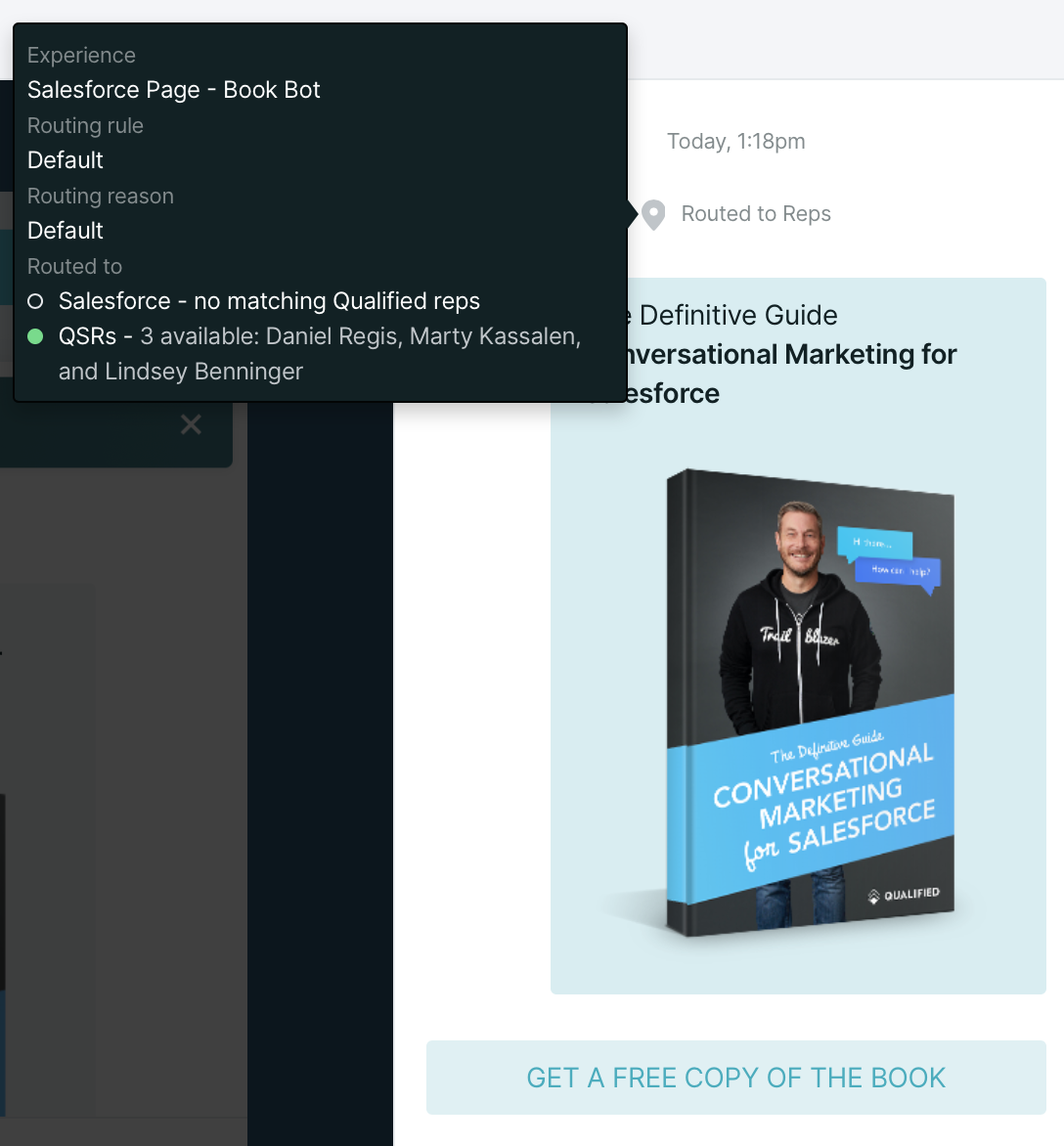
Routing rules will only show up if the visitor has hit one or more routing steps within your experience. Hover over the routing icon to see more details about the routing rule that took place, such as:
- The experience the visitor was in when they were routed
- Routing reason (this is set in the experience)
- Who the visitor was routed to
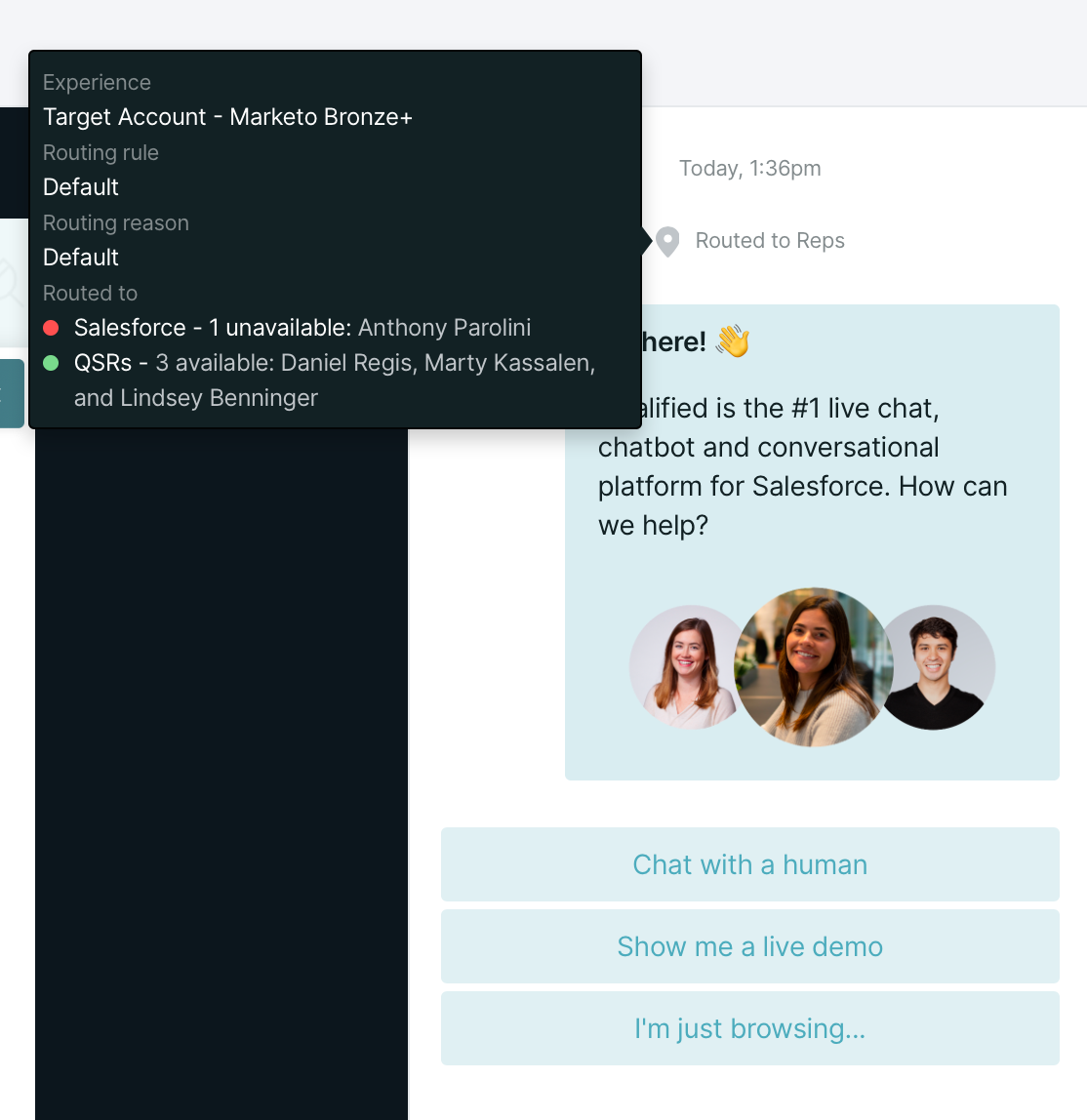
Hovering over the routing rule will give you more information about what happened during the route. You’ll also notice red and green dots next to the names of the reps that the visitor was routed to. This will indicate if the rep was available during the time in which the visitor was routed.



.svg)


