


With related object filtering, Qualified now gives you even more control over how you segment, route, and personalize buyer experiences—using any Salesforce object directly related to your core records.
What is related object filtering?
Qualified natively supports filtering by Leads, Contacts, and Accounts. Now, with related object filtering, you can build experiences and routing rules based on any Salesforce object that is directly related to these core records—one degree of relationship deep.
This opens up powerful new use cases and enables even deeper personalization and routing logic across experience builder, routing, and segments.
Configuring related object filtering
To configure related object filtering when building experiences, routing rules, or segments:
1. Select the Lead, Contact, or Account object.
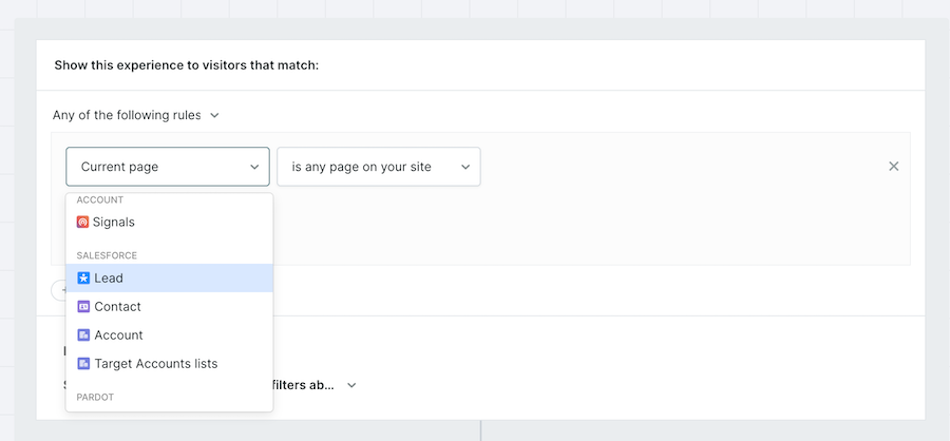
2. In the next dropdown, select Related Object.
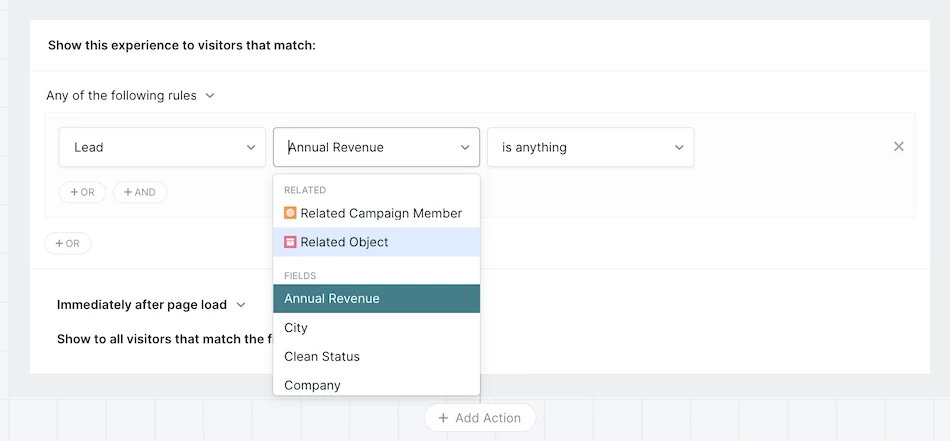
3. Select your related object and the field to filter on.
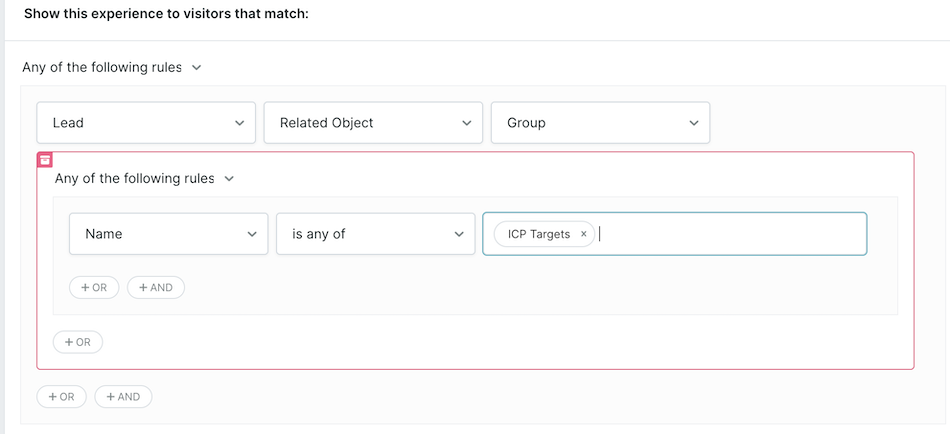
This new filtering capability does not impact your existing analytics. Analytics in Qualified continues to follow the same behavior, meaning related object data (like Opportunities or Campaigns) will not appear in reporting dashboards.
If you are missing fields or related objects, press the Update Fields button in Settings → Salesforce → Connection
Limitations to keep in mind
While powerful, there are a few technical limitations to be aware of:
- Filtering is limited to one degree of relationship from the core object
- Date fields and TextArea fields are not currently supported
- Analytics reporting does not include data from related objects
- Some slower performance may be experienced when updating field metadata, especially in larger orgs
Permissions required
To use related object filtering, your Salesforce integration must have read access to specific metadata objects. Make sure your Salesforce admin grants read access to the following:
- EntityDefinition
- FieldDefinition
- EntityParticle
- PicklistValueInfo
If these permissions are missing, related objects or fields may not appear when building filters.



.svg)


