


As an admin, you can link any teammate in Qualified to a Salesforce user without that representative having to log into Salesforce personally. Once this link is established, routing, handoffs, and other Salesforce-driven behaviors function for that representative exactly as they would if they had connected their own account or been invited directly from Salesforce.
What you can do
Assign a Salesforce user to a teammate
Select a representative in Qualified and link them to a specific user in your Salesforce org. This link is created within Settings, and the representative does not need to sign in to Salesforce to complete the process.
Disconnect a teammate from Salesforce
You can remove the link between a Qualified user and their assigned Salesforce user at any time.
Because the link created by an admin is identical to the connection used when representatives connect themselves, all routing and integration behaviors remain consistent.
Where to find it
To manage these connections, navigate to Settings → Organization → Users.
-
For a user without a Salesforce link: Use the Assign option and select a Salesforce user from the dropdown menu.
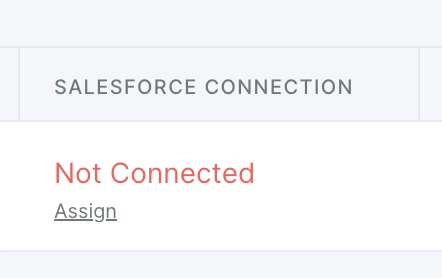
-
For a user with a Salesforce link: Use the Disconnect option to remove the existing link.
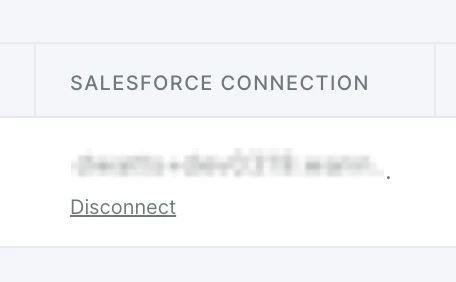
The dropdown menu displays active standard users from your connected Salesforce org. Note that users already linked to another teammate will not appear as available for assignment.
Requirements and permissions
Only admins or users with specific permission to edit users can assign or disconnect Salesforce users. Please ensure your user has the “Edit Users” permission to make these changes.
Additionally, your team must have an active, org-level Salesforce connection.
Salesforce access required
Qualified reads data from Salesforce to populate the list of assignable users; however, it does not create or update records in Salesforce during the assignment or disconnection process.
The integration user or connected app identity used for your Qualified–Salesforce connection must have the following permissions in its Salesforce profile or permission set:
-
Read access on the Profile object.
-
View Roles and Role Hierarchy
-
View Setup and Configuration
-
View All Profiles
-
View All Users
-
Access to the Profile.Name field.
-
Read access on the User object (specifically for Id, Email, Username, Name, and CreatedDate).
Without "Read" access on the Profile object and the Profile.Name field, the dropdown menu may appear empty or return errors.
Important details
-
One link per Salesforce user: Each Salesforce user can only be linked to one Qualified teammate. If you attempt to assign a Salesforce user that is already linked elsewhere, you will receive an error.
-
Disconnection impact: Disconnecting a user only affects the link within the Qualified platform. It does not change the user's status or modify any data within Salesforce.



.svg)


