


Note: This article covers AI Studio, an earlier iteration of the control center for your AI SDR agent. If your organization uses Agent Studio (much more common), see Setting up your agent profile in Agent Studio instead. The settings described below are still correct if your organization still uses AI Studio.
AI Studio is the central hub for configuring Piper, including personality settings, content management, goals, rules of engagement, scorecard testing, and inbox management. This article covers the General tab, where you can configure:
General settings
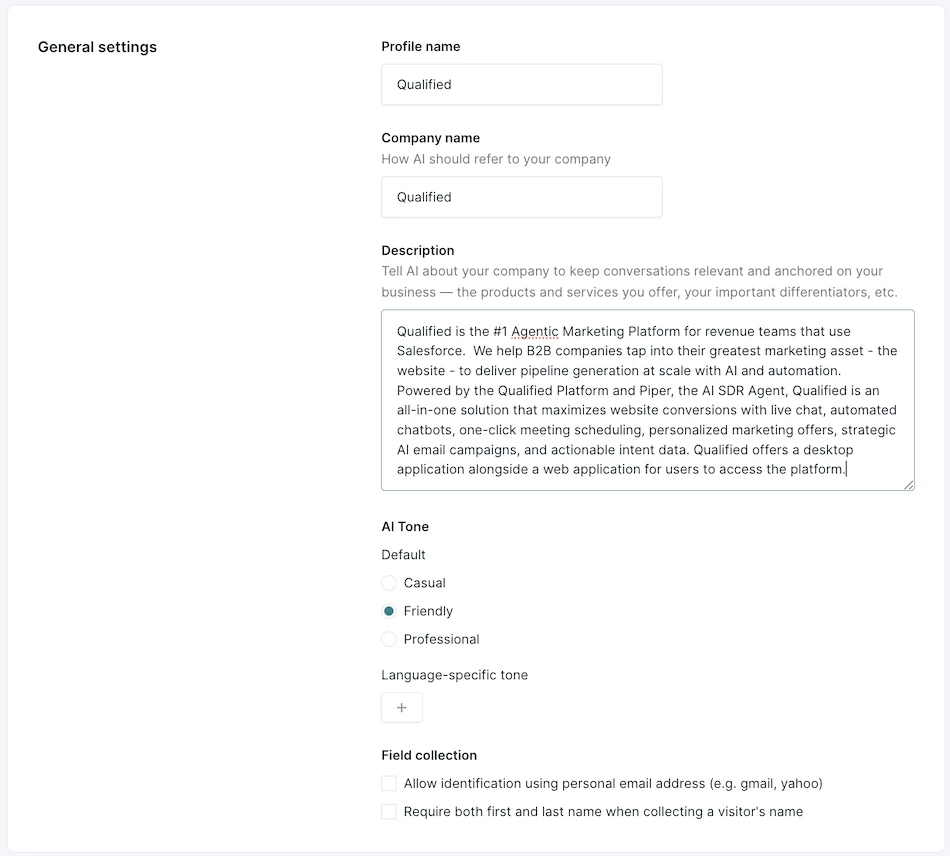
The General settings section defines foundational AI SDR settings. To configure:
1. As an Admin, go to Settings → AI Studio → General
2. Enter your Company Name and a clear Company Description
3. Choose an AI Tone:
1. Casual - Conversational and friendly (most informal)
2. Friendly (Default) - Engaging yet professional (semi-formal)
3. Professional - Polished and direct (most formal)
If you have your AI SDR set to chat in multiple, languages, you will see an option to add tone overrides to different languages. See Enabling Multi-Language for Piper for more information.
4. Email collection (Optional) - Check the box to allow Piper to accept personal email addresses when qualifying visitors.
5. First and Last Name collection (Optional) - Check the box to require Piper to collect both a first and last name when qualifying visitors.
Copilot domains
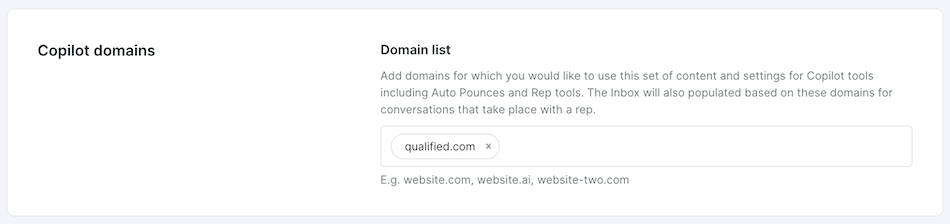
Copilot domains define which domains should use this AI Profile for auto pounces and rep AI tools. The Inbox will also populate based on these domains for rep-involved conversations. To set up Copilot domains:
- Go to Settings → AI Studio → General and scroll to Copilot Domains.
- Add the domain(s) where this AI Profile should be used.
- Click Save to apply changes.
AI SDR profile
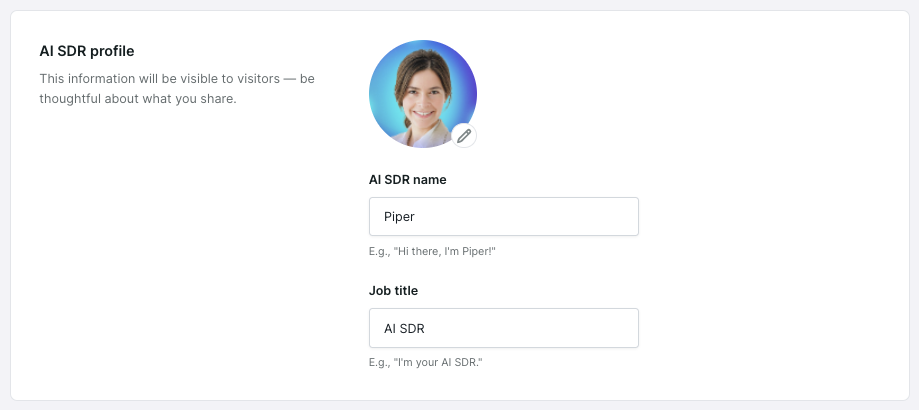
Customize your AI SDR agent’s AI SDR profile to align with your brand identity.
- Go to Settings → AI Studio → General and scroll to AI SDR Profile.
- Add a Profile Photo (recommended; defaults to your messenger logo if not uploaded).
- Enter an AI SDR Name.
- Provide a Job Title.
Rep AI tools
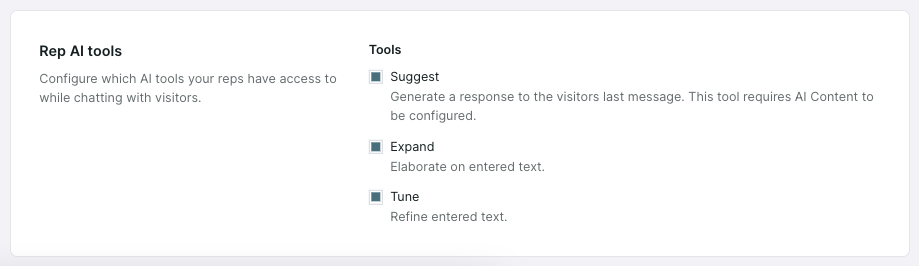
Rep AI Tools allow reps to have more efficient conversations and generate pipeline with the help of your AI SDR agent. To enable:
- Navigate to Settings → AI Studio → General, and scroll down to Rep AI tools.
- Enable the following features:
- AI Suggest: Generates response suggestions. (requires content setup). Learn more about training Piper with content.
- AI Expand: Turns short notes into full responses.
- AI Tune: Adjusts tone and fixes grammar in messages.
Multiple AI SDR profiles
With Multiple AI SDR profiles, you can configure different AI SDR agent personas for different website domains or subdomains. To create multiple profiles:
- Navigate to Settings → AI Studio → General.
- Click on the current profile name at the top, and click Create AI profile.
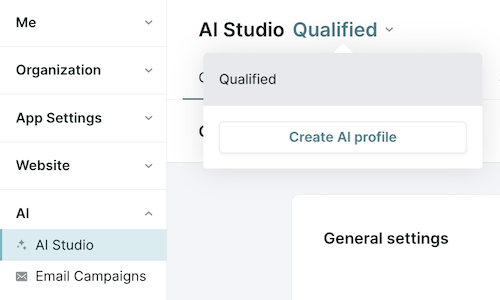
If you receive the message "You have reached the maximum number of AI profiles allowed", contact your Qualified Success Architect for additional profiles.
- Enter a Profile name for the new profile and click Create.
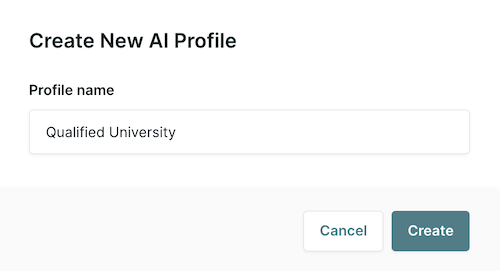
- Configure the AI Studio settings for the new AI profile.
To switch between profiles:
- Click on the current profile name at the top and select the desired profile from the dropdown menu.
Delete profile
Deleting an AI Profile is permanent and will remove all associated settings, content, goals, and rules of engagement. This action cannot be undone. To delete an AI Profile:
- Go to Settings → AI Studio → General.
- Click on the current profile’s name at the top and select the profile to delete.
- Scroll the bottom of the General tab to the Delete profile section
- Click the Delete profile and confirm this action.

You must have at least one AI Profile at all times. An error message will appear if you attempt to delete the last remaining profile.



.svg)


