


Ensuring Piper provides accurate and effective responses is critical to maintaining high-quality visitor interactions. The scorecard and inbox tools allow you to test, refine, and improve Piper’s conversational accuracy.
Using the scorecard
The scorecard allows you to simulate visitor interactions and assess Piper’s response quality before it engages with real users. It provides insights into response accuracy and helps identify areas for improvement.
Before utilizing the scorecard, it's important to complete the settings under the Agent Profile, Content, Guides, and Goals tabs, as they affect Piper’s responses within the scorecard.
Steps to use the scorecard
- Navigate to Settings → Agent Studio → Scorecard.
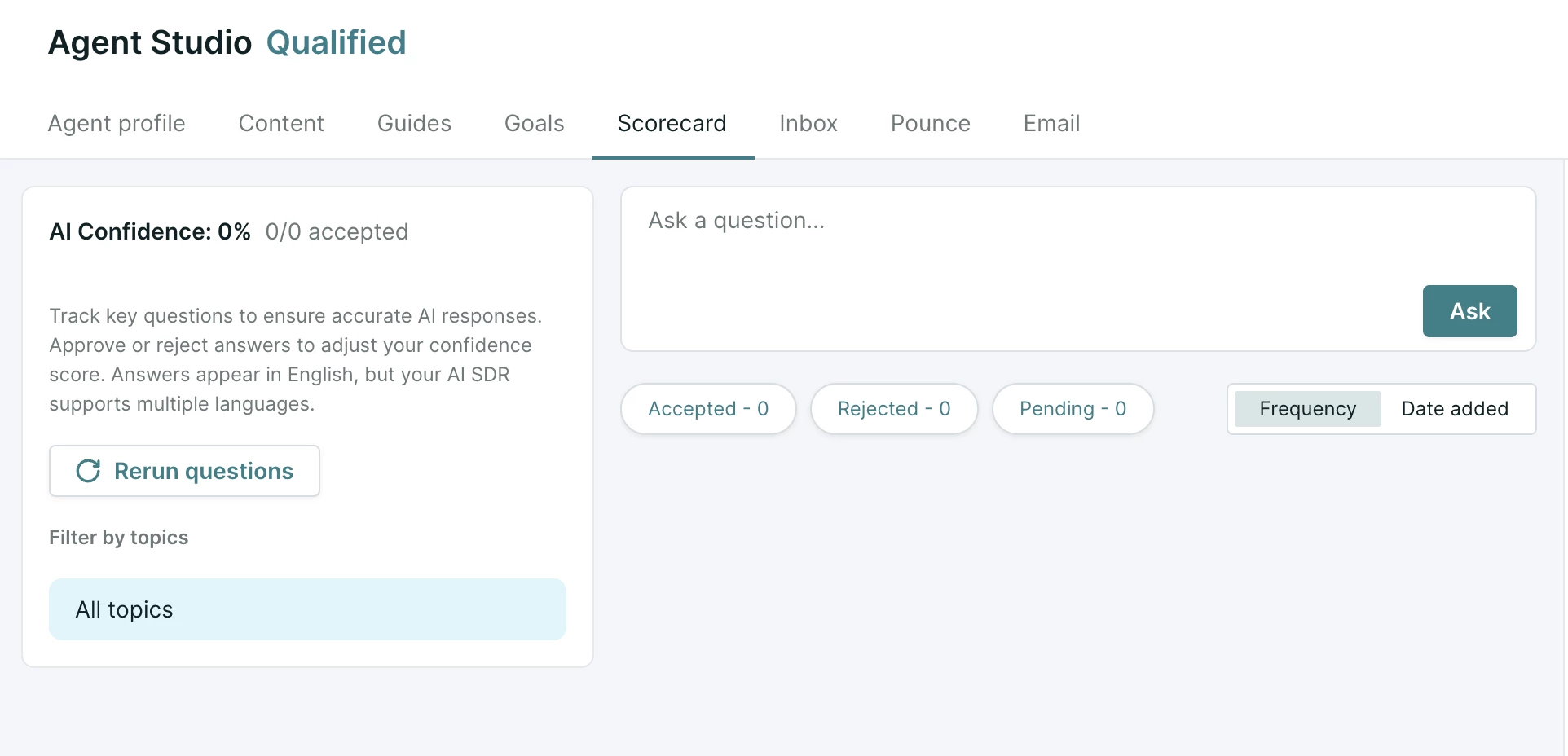
- In the Ask a Question box, enter a common visitor inquiry and click Ask.
- Review Piper’s response and rate it:
- 👍 Thumbs up: If the response is accurate and helpful.
- 👎 Thumbs down: If the response is incorrect or unhelpful.

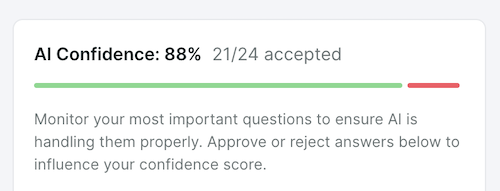
- As responses are scored with a thumbs up or thumbs down, the AI Confidence score on the left will update to reflect Piper’s accuracy.
- Review citations and triggered goals:
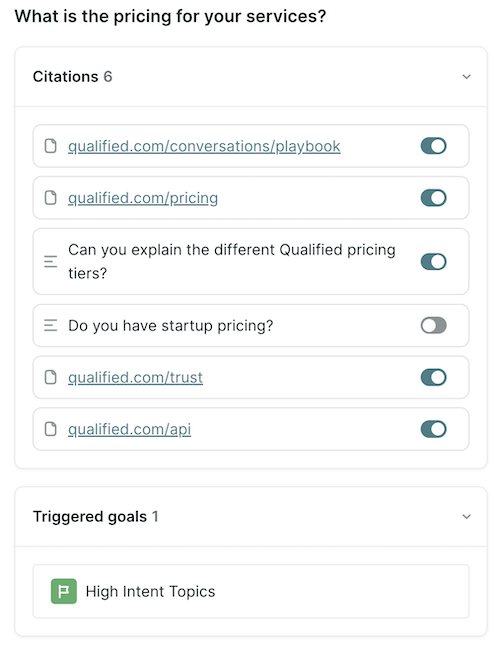
- Check citations: Review the sources Piper used to generate its response. If a citation is outdated or incorrect, you can disable it.
- Disabling a source affects every future response. Be sure the source is no longer relevant before disabling it.
- View triggered goals: Ensure the response aligns with business objectives.
- Check citations: Review the sources Piper used to generate its response. If a citation is outdated or incorrect, you can disable it.
- If a response is unsatisfactory, categorize the issue:
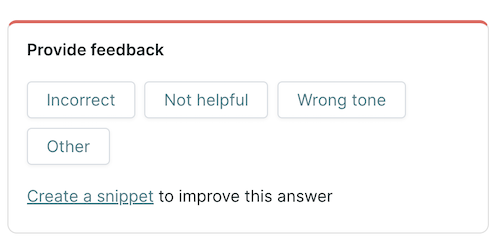
- Incorrect: Response contains factual errors.
- Not helpful: Response does not address the question effectively.
- Wrong tone: Response does not align with brand voice.
- Other: For miscellaneous feedback.
- Improve responses with snippets:
- Click Create a Snippet to add new content and refine answers.
Pro Tip: It's important to re-run the Scorecard's evaluation after making changes, like adding snippets or publishing new pages to your website.
Tracking visitor questions in the inbox
The inbox logs visitor questions and helps identify knowledge gaps in Piper’s responses.
Steps to use the inbox
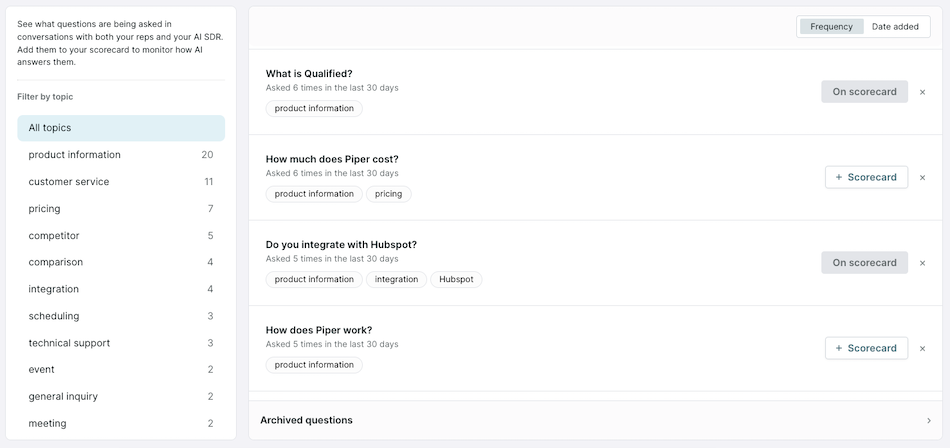
- Navigate to Settings → Agent Studio → Inbox.
- Sort questions by Frequency or Date Added.
- Use the Filter by Topic option to narrow results.
- Click + Scorecard to add important visitor questions to the Scorecard for further refinement.
Best practices
- Regularly review scorecard feedback to improve Piper’s response accuracy.
- Use inbox data to identify trends in visitor inquiries.
- Update content regularly: Recrawl webpages and add snippets to enhance accuracy. Learn more about training Piper with content.



.svg)


