


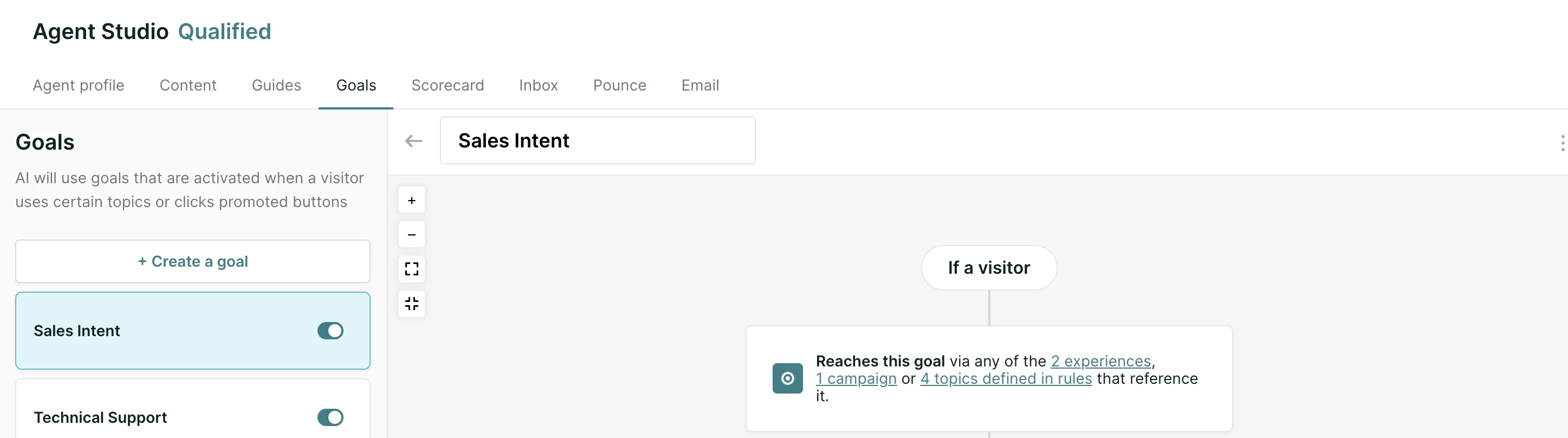
Goals define Piper's intended actions when interacting with visitors. You tell your AI SDR agent when to pursue a goal by @mentioning it in your guides. Each goal consists of:
- Qualification criteria: conditions visitors must meet.
- Goal actions: the outcome, such as booking a meeting or routing to a rep.
Create a new goal
- Navigate to Settings → Agent Studio → Goals.
- Click + Create New Goal.
- Enter a Name for the goal, i.e. “Sales Intent”.
Mention goals in guides
Once your goal is configured, tell your AI SDR agent when to pursue it in your guides. @mention the goal by name and describe when it applies, for example when a visitor asks about pricing and plans, or wants to compare your offerings with a competitor's.
Because the guide says when a goal applies, the goal itself only needs to handle qualification and the outcome. You don't need keyword triggers.
Goals can also be @mentioned in your email writing guide and in email campaign guides. For more on writing guides, see Configuring guides in Agent Studio. For email, see Setting up agentic email campaigns.
Buttons on the Start Multi-modal AI SDR step in an experience act as quick-start phrases. When a visitor clicks one, your agent responds based on your guide and content, which can lead it to pursue a goal.
Define the trigger criteria (legacy)
Legacy: This section applies only to organizations that still configure their agent in AI Studio, where goals are triggered by keywords and buttons. If your agent uses guides, skip this section and @mention goals in your guides, as described in Mention goals in guides above. For the rest of the legacy setup, see Configuring Piper in AI Studio (legacy).
Legacy trigger criteria is set in two ways, depending on the kind of trigger criteria. Goals are triggered by topics set in rules of engagement, and by buttons set on experiences.
By topics
- Navigate to AI Studio → Rules of Engagement
- Select + Add Goal Trigger
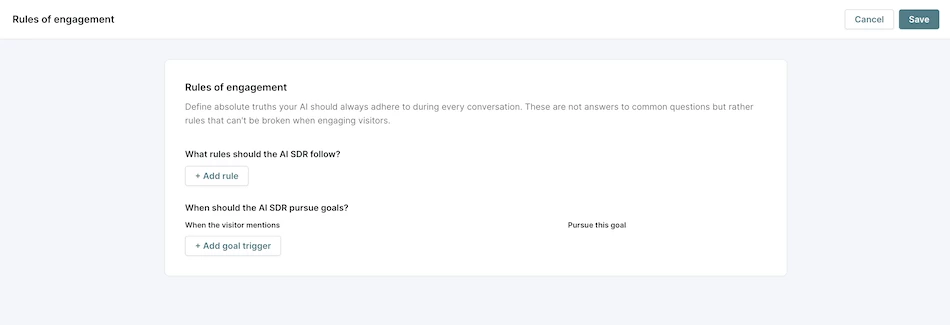
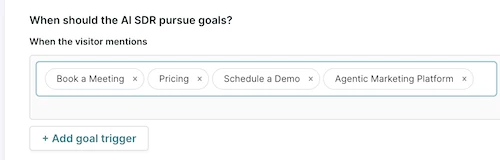
- Enter the keywords that should trigger your goal. Press Enter after each keyword.
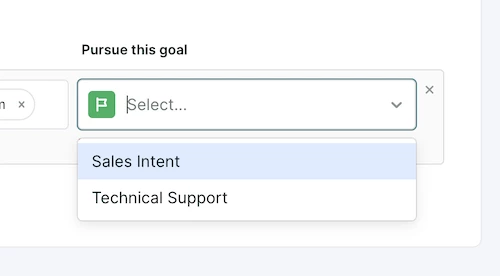
- In the dropdown on the right, select the appropriate goal.
By CTA buttons
- Navigate to Experiences → Automatic
- Within your selected experience, select the Start AI SDR action.
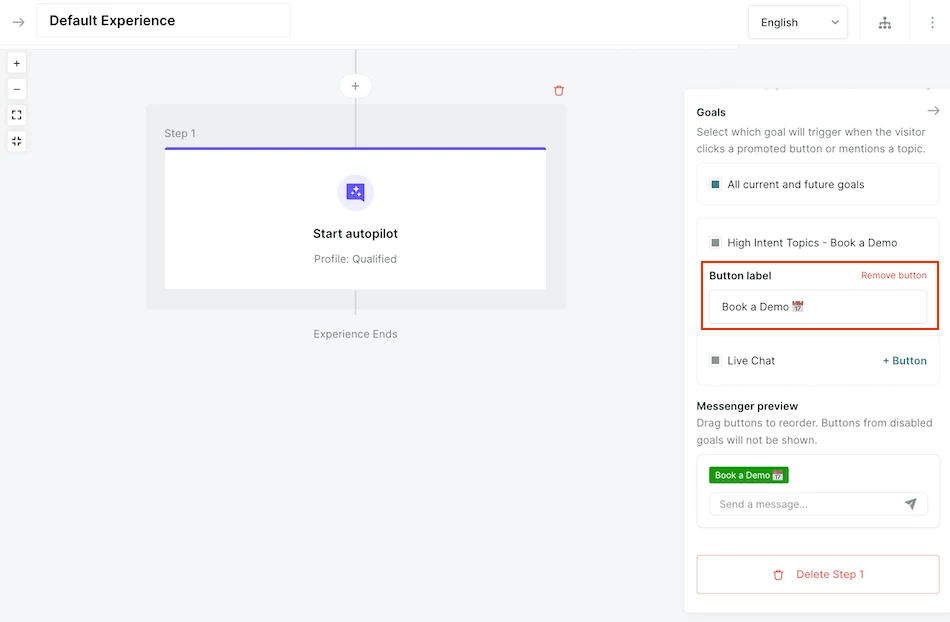
- Next to the appropriate goal, select +Button
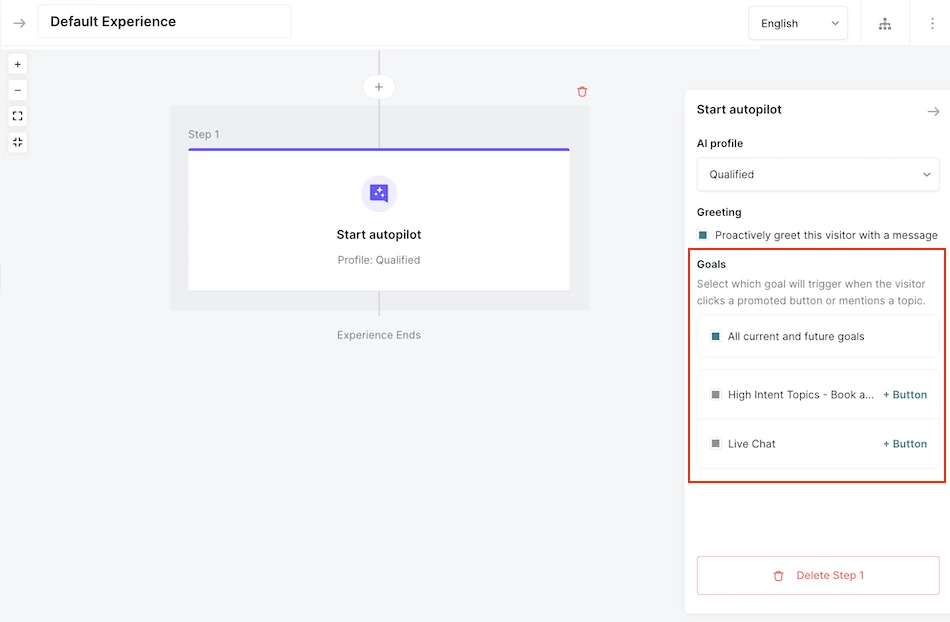
- Customize the text of the button
(Optional) Configure the qualification criteria
Qualification criteria ensure only the right visitors proceed with a goal. If this goal doesn’t require specific criteria beyond collecting an email, you can skip this step.
By default, goals will include the Ask for email address step before doing any qualification. If you don’t want or need Piper to collect email addresses before executing qualification or triggering goal actions, simply delete this step.
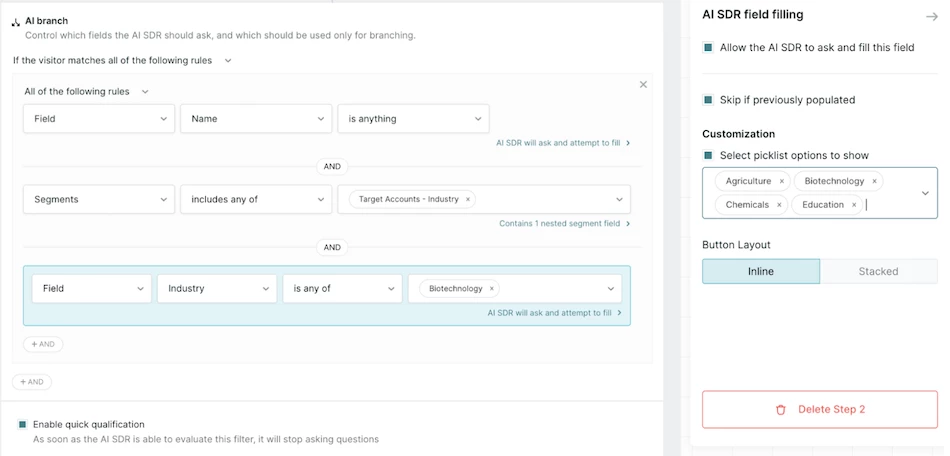
- Click + Add Action, then select AI Branching.
- Define eligibility conditions to determine whether the visitor qualifies for the goal (e.g., booking a meeting or routing to chat).
- Use visitor fields and segments to specify what information Piper should collect before proceeding:
- Example fields: Company Size, Industry, Name, Company Name.
- Use the Allow the AI SDR to ask and fill this field checkbox to ensure Piper will collect the information - if this box is unchecked, the evaluation will be run without Piper asking the visitor about it.
- Optionally, Piper can skip asking about fields that have been previously populated for a visitor.
- For picklists, use the Customization section to choose which picklist options are displayed - the default behavior is to display all of them.
- Example segments: Target Accounts, Industry Verticals, Geographic Locations.
- Within a segment, Piper will display the relevant field(s) that determine segment membership.
- Example fields: Company Size, Industry, Name, Company Name.
- Checking the Enable Quick Qualification checkbox will allow Piper to move beyond the evaluation as soon as she has enough information to do so.
- If "AND" logic is used, failed evaluation of any field will proceed to the left branch below the qualification block, skipping remaining evaluations.
- If "OR" logic is used, any correct evaluation will proceed to the right branch below the qualification block, skipping remaining evaluations.
- Leverage existing Salesforce or MAP Data:
- Piper can use Salesforce or your Marketing Automation Platform (MAP) for qualification.
- If the visitor exists in the referenced system, but the data is null, Piper will not ask for this information. The visitor will not match and will proceed down the “No Match,” left side of the branch.
Use qualification criteria to filter out unqualified visitors, such as existing customers, competitors, or employees, preventing them from booking a meeting or chatting with your team.
Select a goal action
Primary goal actions
-
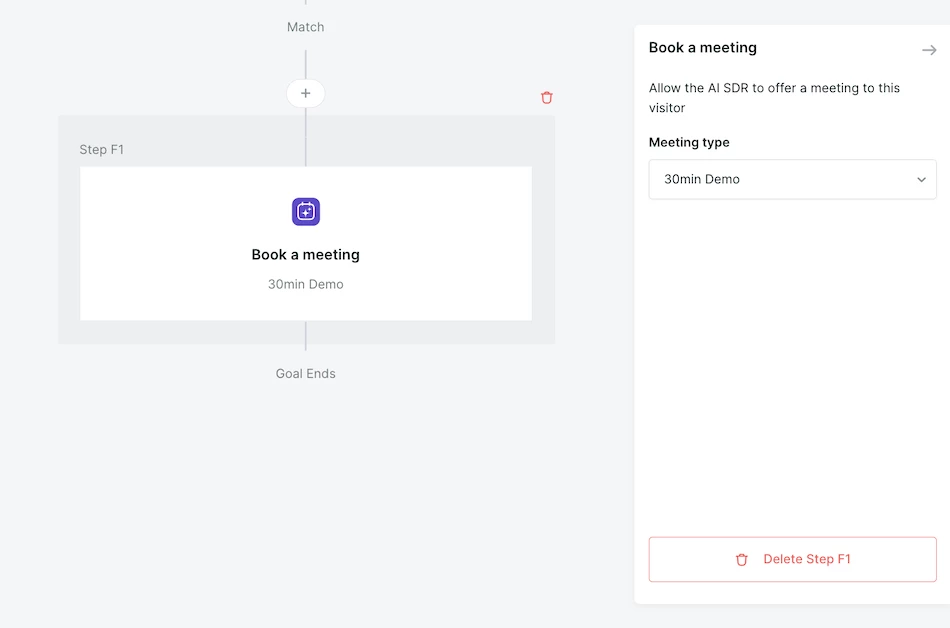
Book a meeting – Piper offers a meeting if the visitor qualifies.
-
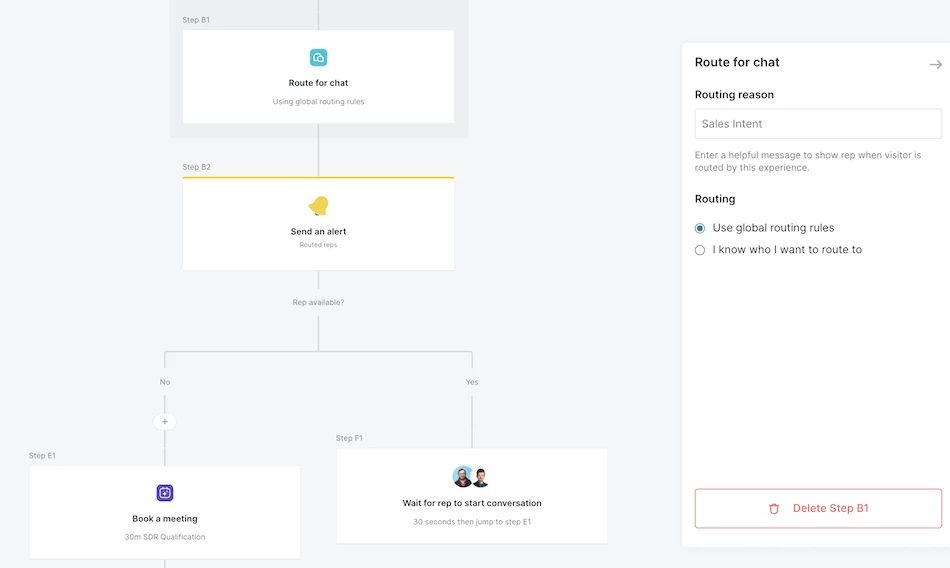
Route for chat – Piper prioritizes live chat, but offers fallback meeting booking if a rep is unavailable.
-
Visitor guidance – Provides a response based on conversation flow.
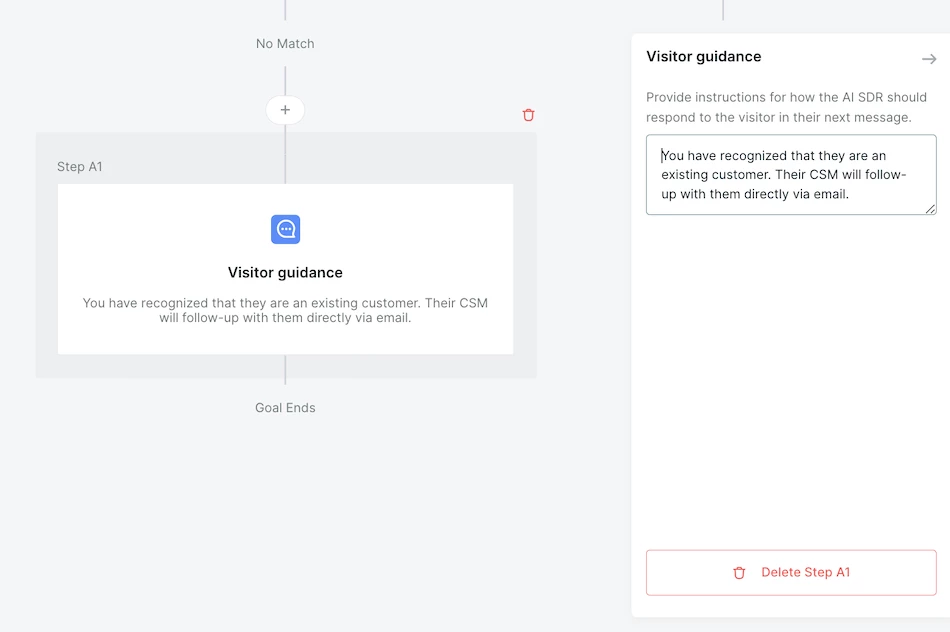
Ensure that each branch of a qualification rule has a final primary goal action.
If visitors will be disqualified from booking a meeting or chatting with your team, add Visitor guidance to instruct Piper how to respond when they are disqualified.
Additional goal actions
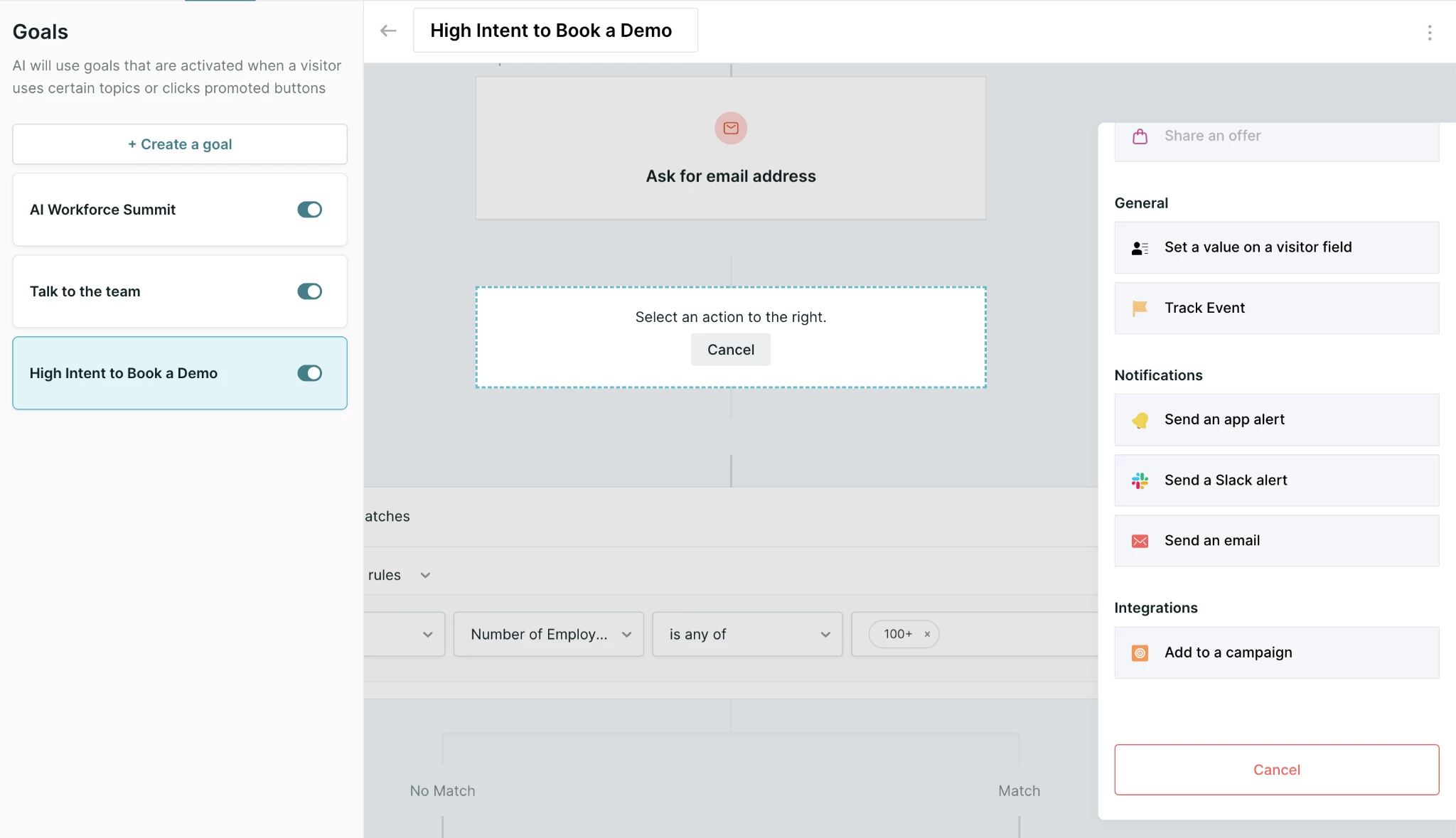
In addition to the primary action(s) taken at the end of a goal, such as booking a meeting or offering visitor guidance, your AI SDR agent can also take additional actions while executing the goal. The following additional actions may be taken at any point during your goal execution:
-
Set a value on a visitor field: Update a Qualified visitor field to a set or variable value. If this field is mapped, it will be pushed to external systems when workflows are triggered.
-
Track event: Send a custom website event for analytics and tracking purposes.
-
Send an app alert: Send a notice within Qualified to logged in users.
-
Send an email: Send an email to a static address. May include all known visitor fields.
-
Send a Slack alert: Push a notification to a Slack channel or user.
-
Add to a campaign: Add the visitor to a Salesforce campaign and/or update their campaign membership status.
Jump to steps in goals
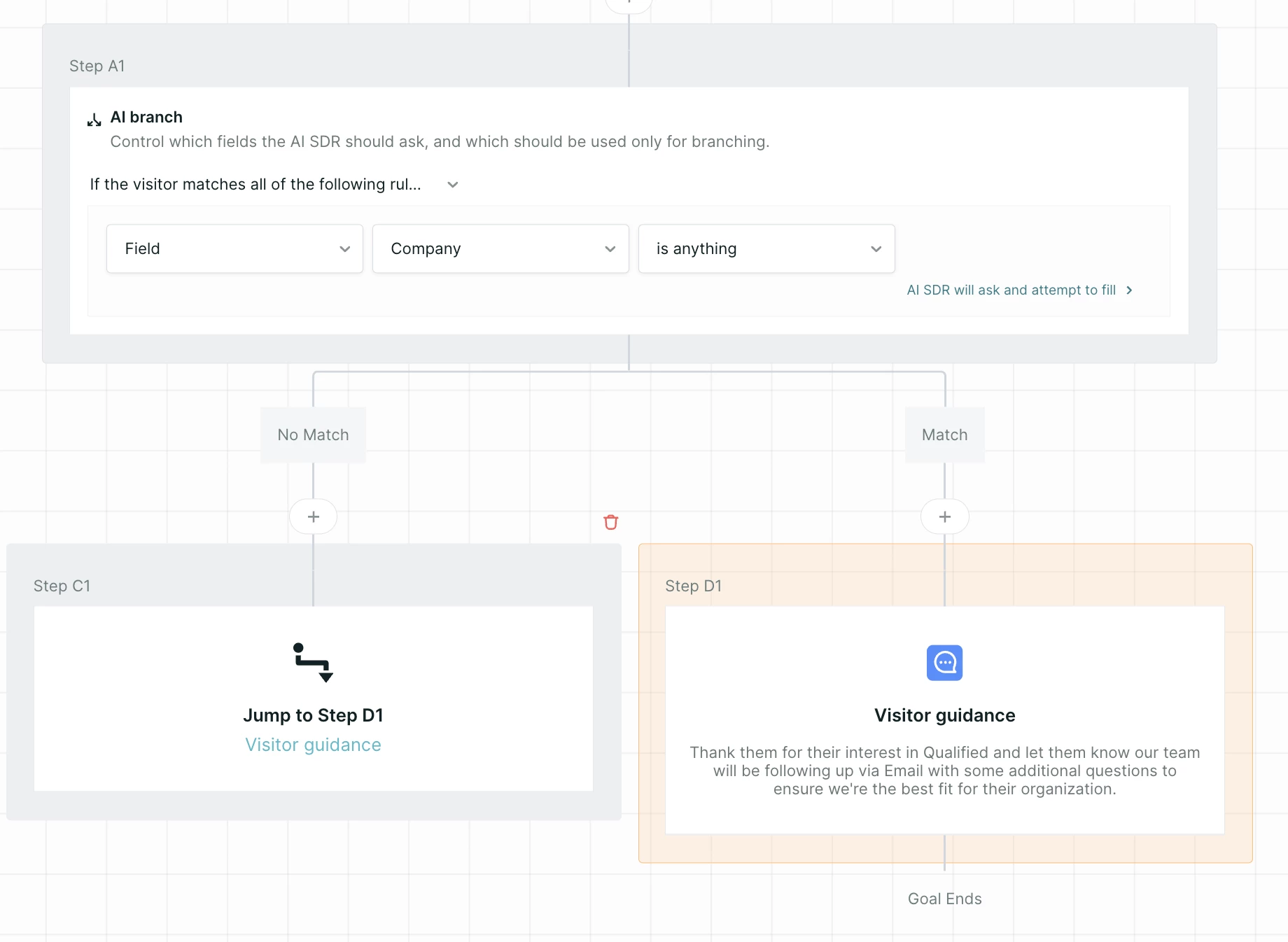
Use this action to move to a different branch or section of a goal’s flow. This is useful for different kinds of qualification that will end in the same meeting type or visitor guidance.
Save and activate the goal
-
Click Save Goal.
-
Your AI SDR agent can pursue the goal as soon as a guide @mentions it.
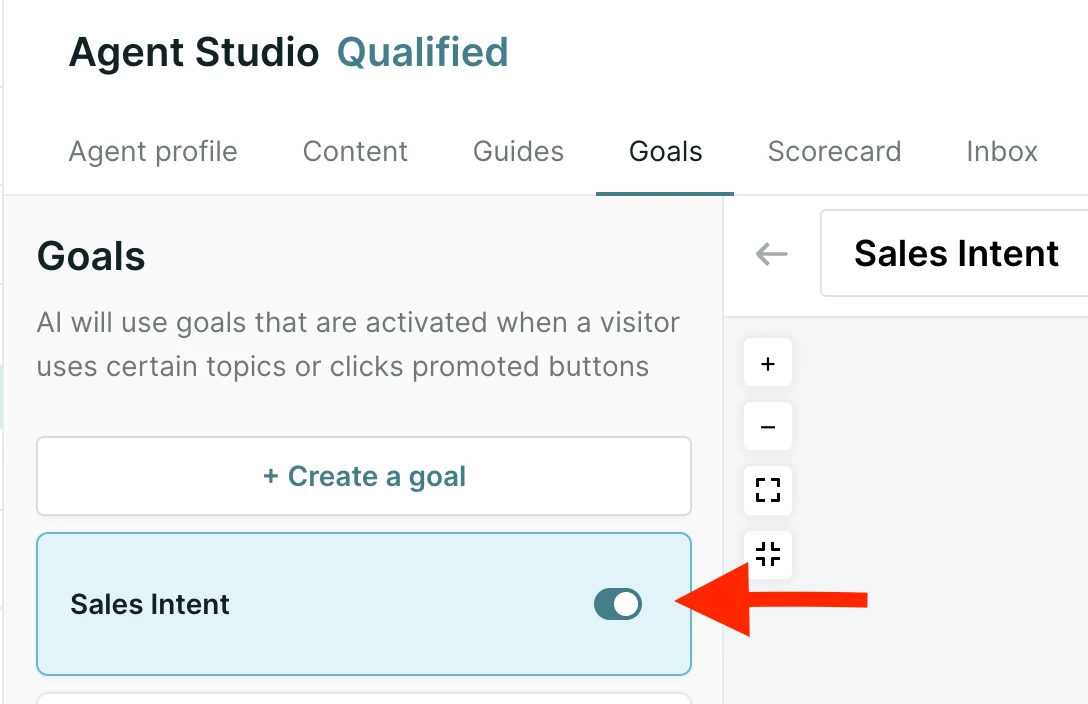
Legacy: If your organization configures your agent in AI Studio, also use the toggle to activate the goal.



.svg)


