


Piper the AI SDR agent can hold a conversation over email. When a lead replies, your agent replies back, continuing the exchange until it hands the thread to a rep, completes a campaign goal, or the lead exits the campaign.
This applies to agentic email campaigns. In legacy campaigns, a reply removes the lead from the campaign unless automatic replies are enabled. See Setting Up Agentic Email Campaigns for a comparison of the two.
Configuring Email replies
- Navigate to Email → Campaigns.
- Find the campaign you’d like to have your AI SDR agent handle responses to.
- Press Edit Campaign.
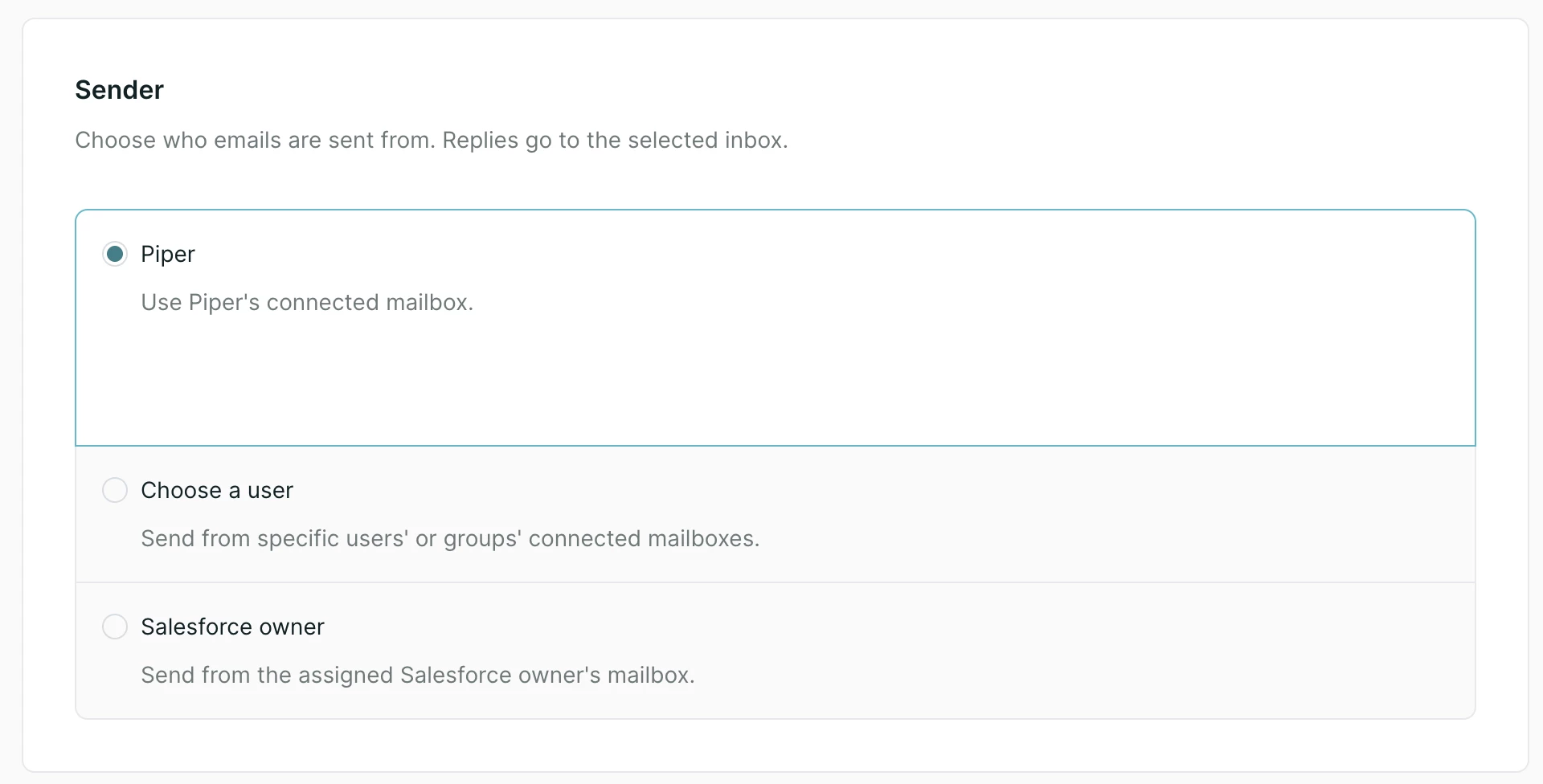
- Under Sender, select the name of your AI SDR agent to ensure the email campaign comes from your AI SDR agent.
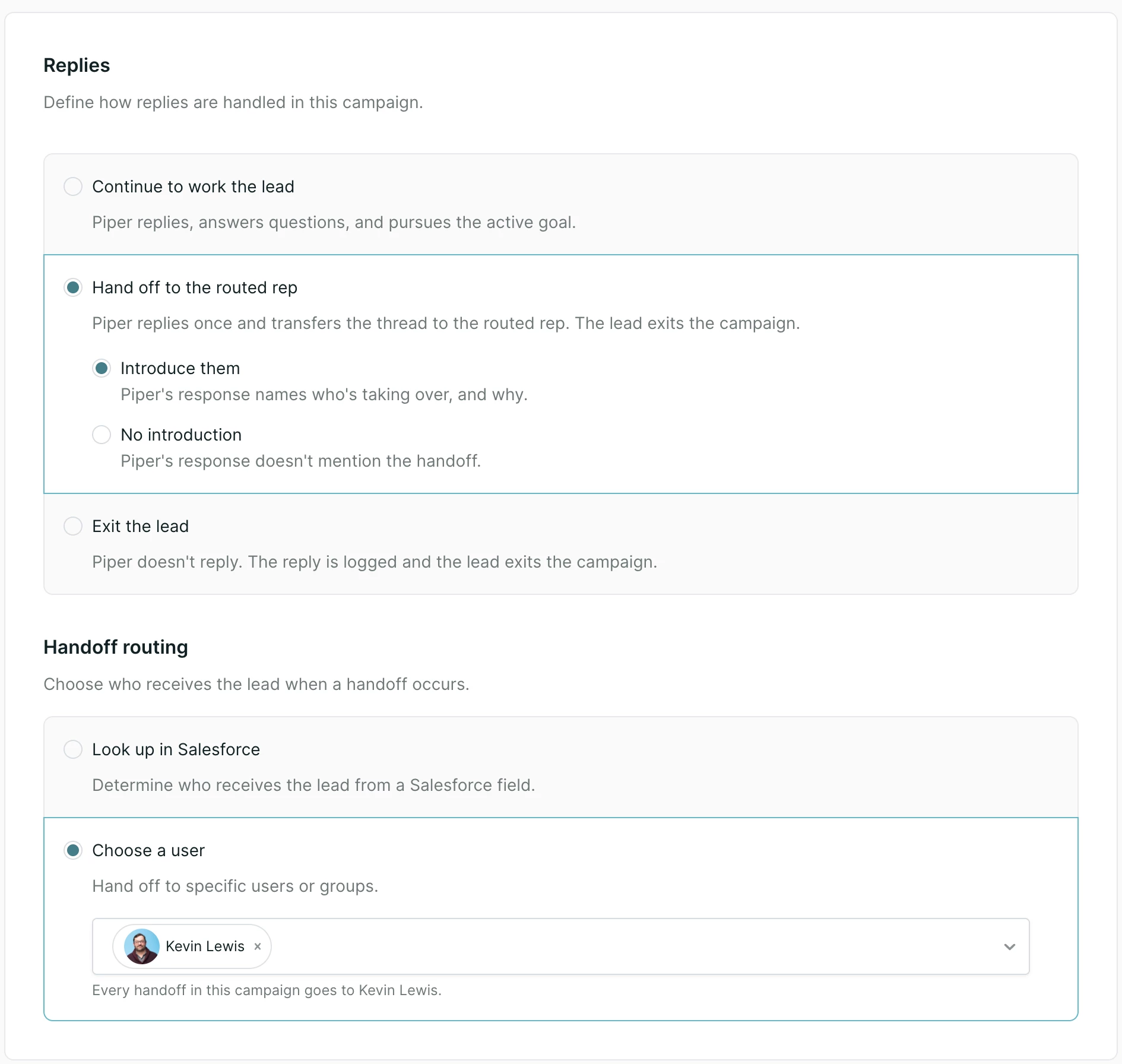
- In the Replies section that appears, choose what should happen when a lead replies.
- Continue to work the lead: your agent will continue to answer questions and pursue the active goal.
- Hand off to the routed rep: your agent will reply once, transferring the thread to the routed rep. The lead will exit the campaign.
- Choose whether your agent will introduce the rep, or not mention the handoff.
- Exit the lead: your agent doesn’t reply. The reply is logged and the lead exits the campaign.
Handoffs
Handoff configuration
If you’ve chosen to hand off to a routed rep, you can choose how the handoff works. There are two options:
- Look up in Salesforce: Designate a rep based on your existing Salesforce ownership rules. You can also add a fallback to a specific Qualified user, in case the Salesforce owner is not found.
- Choose a user: Select a specific rep or a group to handle all replies for that campaign.
When your agent decides not to reply
Your AI SDR agent will not reply to emails that are:
- Automated messages, such as an out-of-office reply.
- Junk messages, or attempts to confuse it.
- Emails that clearly state no further action is needed.
Simple acknowledgements, such as "Sounds good, I booked a time," are handled differently. Your AI SDR agent replies to these, and then closes the thread out without handing off to a rep.
Test your AI SDR agent’s replies with the preview
You can use the preview button in your email campaign setup to see how your AI SDR agent will handle inbound email replies. When automatic replies are turned on, you'll see a new Reply option in the preview.
This tool allows you to:
- Open the preview: Access the new "Reply" dialog box.
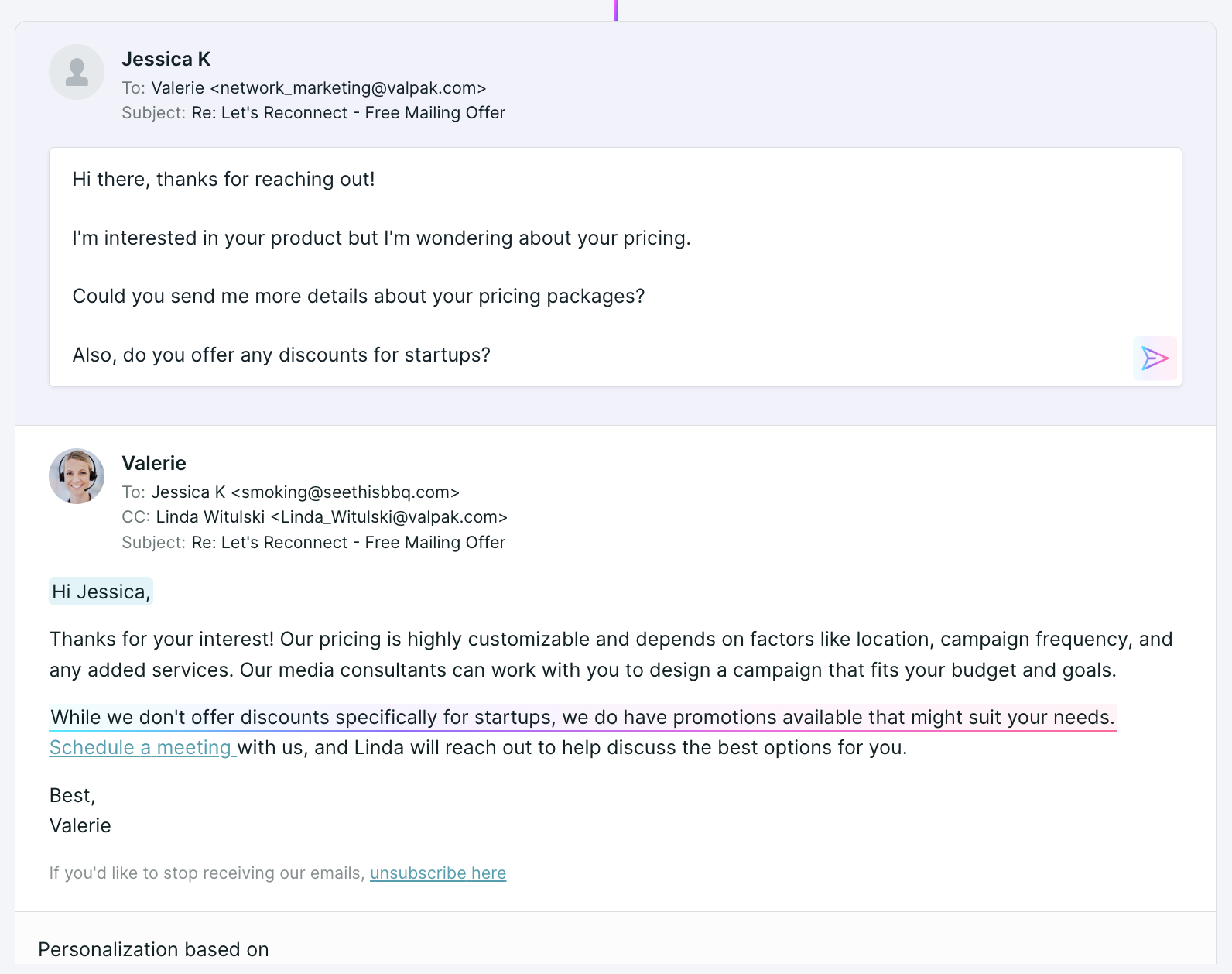
- Type a sample response: Enter a sample question or comment from a lead.
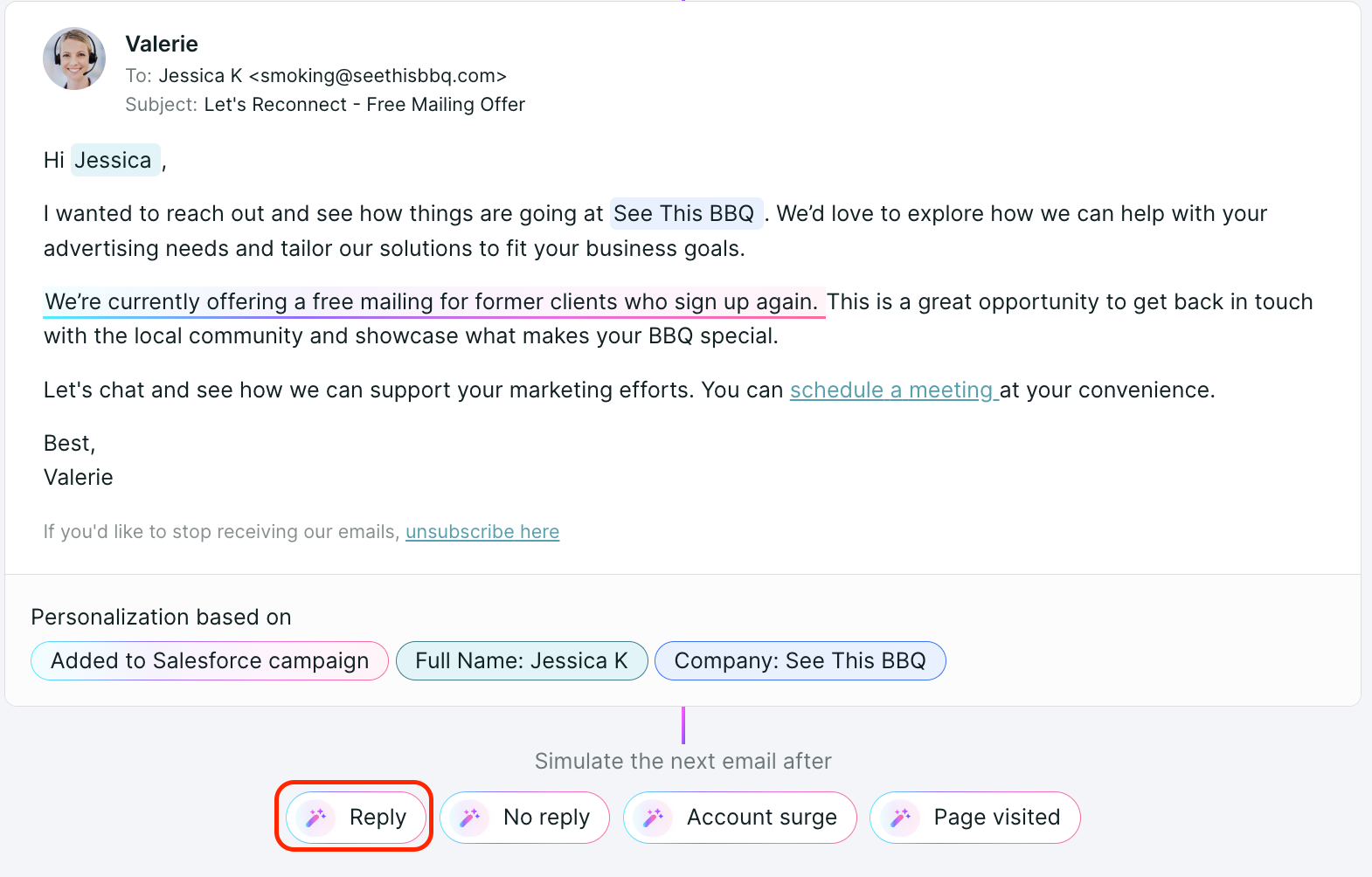
- Preview your AI SDR agent's reply: See exactly how your agent would handle the conversation in an email, and even edit their response live to fine-tune their communication.
Important things to note
- Reply speed: your AI SDR agent checks the inbox for new replies every five minutes. When a sender first connects their mailbox, reply detection runs about once an hour for the first day or two before settling into the five-minute cadence.
- Forwarded threads: if a lead forwards the email and someone else replies, your AI SDR agent will not reply, because the context of the original thread is lost. It replies only to the intended recipient.
- Content source: replies are based on the content you have already added to Agent Studio, including links, PDFs, and text snippets.
- Analytics: you can track replies within the main campaign tab. We recommend creating a workflow or a report filtered to that campaign to monitor sends and replies.



.svg)


