


Agent Studio introduces Guide-based architecture, a streamlined way to manage your AI SDR agent's behavior.
Guides function like a digital playbook, providing the agent with the same context, goals, and boundaries you would provide to a human SDR. Using natural language, you can direct how your agent identifies prospects, handles objections, and drives toward specific pipeline goals. Your agent utilizes these guides to determine the next steps to take during a conversation.
Moving to Agent Studio? If you’re transitioning from the legacy AI Studio, most of your existing configurations have already been migrated to Guides. You’ll find your brand name and description in Company, your previous ROEs in Guardrails, and your account logic in Accounts.
Action Required: While your previous writing styles have been moved, you must manually set up your Conversations guide. This is where you provide the specific strategic instructions and @mention Goals required to power your multi-modal agent.
Navigating to your Guides
All strategic instructions are managed within Agent Studio. To access and edit your Guides:
- Navigate to Settings → Agent Studio.
- Select the Guides tab from the top menu.
The Guides sidebar groups your guides into two sections:
- Setup: Company and brand, Guardrails, Emails, Conversations
- Strategy: Accounts, Activities
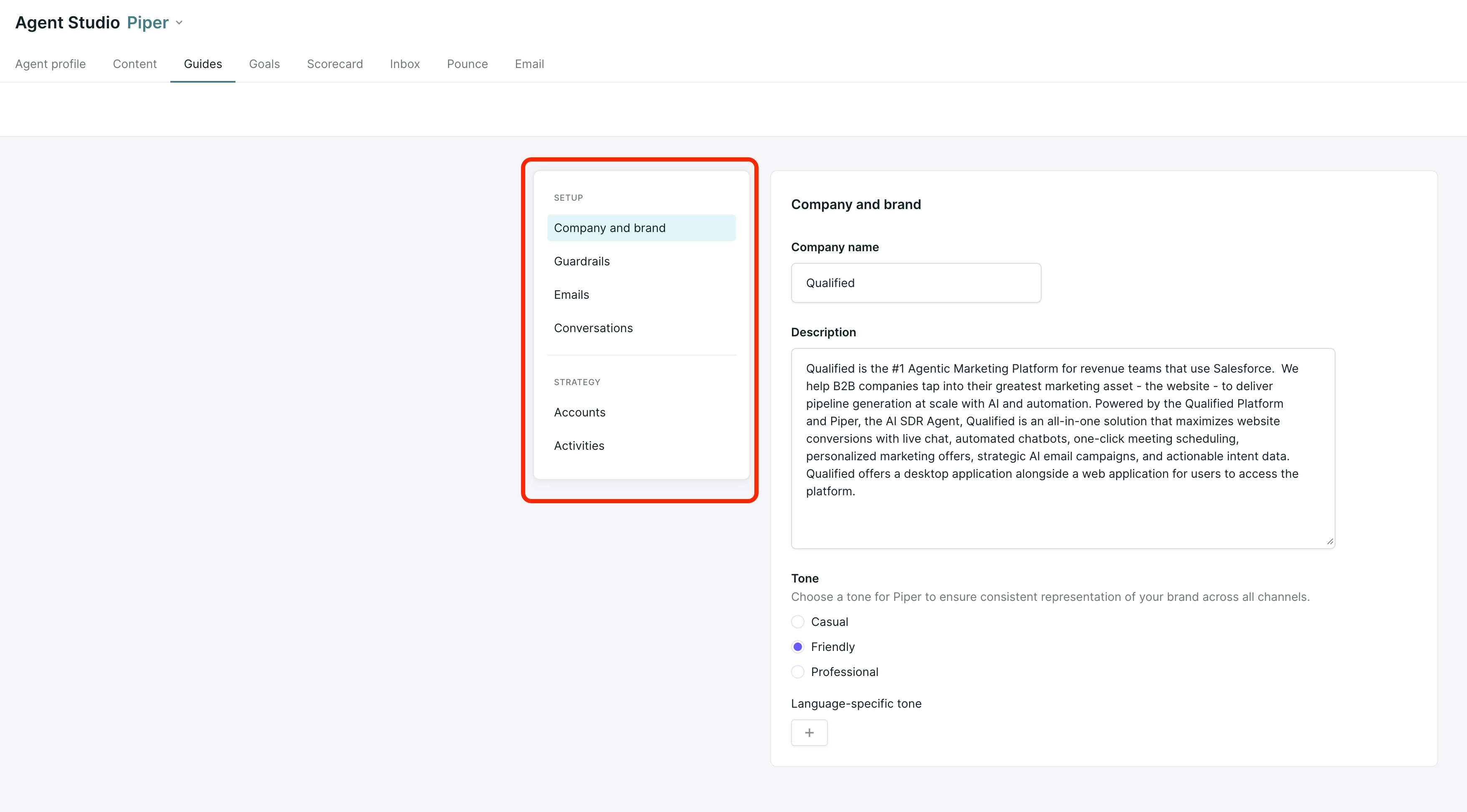
Essential Setup Guides
To begin, the AI SDR agent relies on these foundational Guides to establish its core identity and logic.
Company and brand
This guide defines your corporate identity. It provides the agent with the "who, what, and why" of your business.
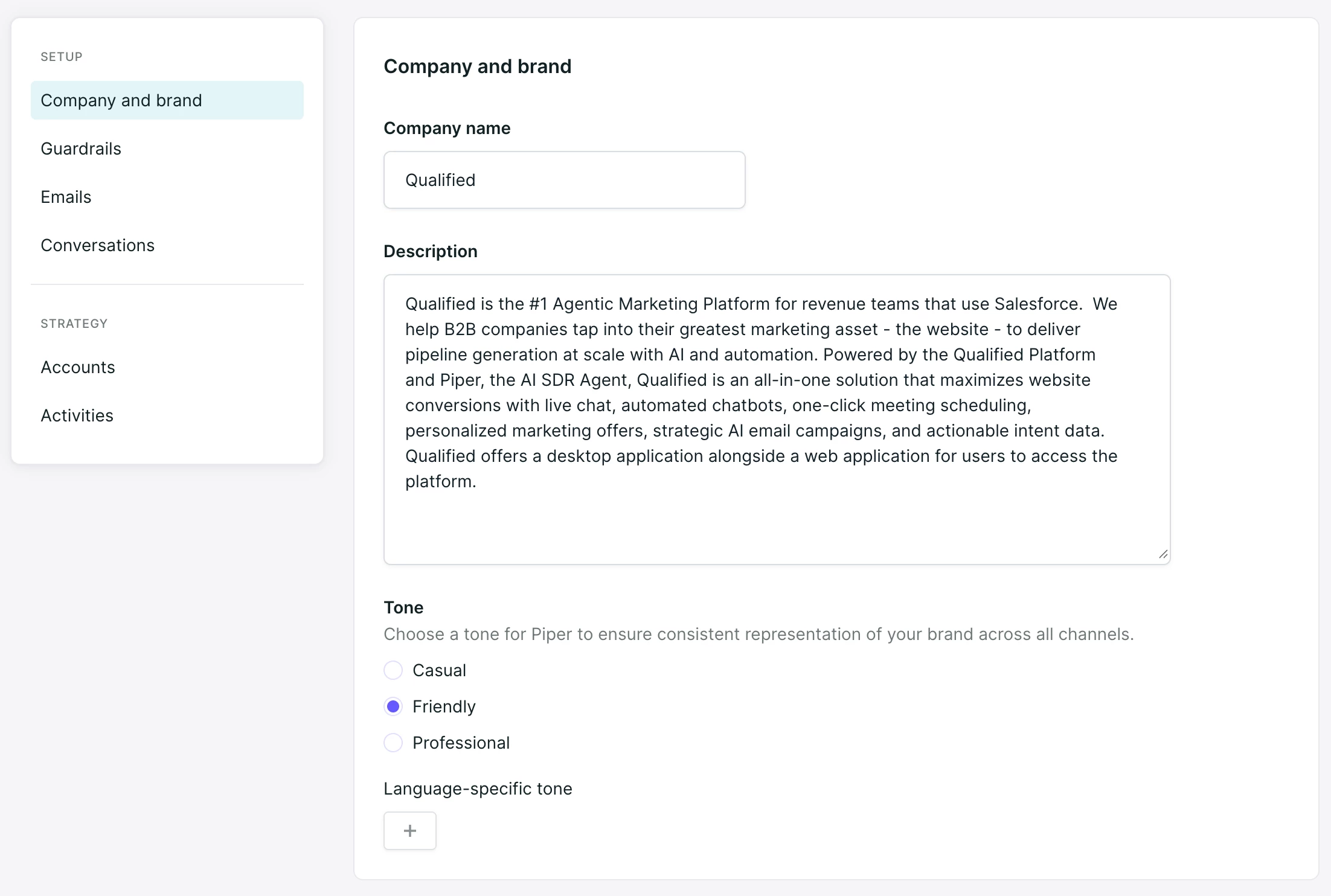
- Company name: Your official brand name.
- Description: A detailed brief of your products, services, and differentiators.
- SDR agent tone: Select the general voice and tone for your agent (e.g., Casual, Friendly, or Professional).
- Language-specific tone: Use the + button to define specific tones for different languages if your agent interacts with a global audience.
The Goal: To equip your agent with your core value propositions and a consistent brand voice.
Pro-Tip: Describe your company as if you were explaining it to a new hire. Focus on the specific problems you solve and use natural language.
Guardrails
This guide sets the rules your agent follows in every channel, including conversations and AI emails. Use it for boundaries on what your agent says and does. These should not be answers to common questions; those belong in your content.
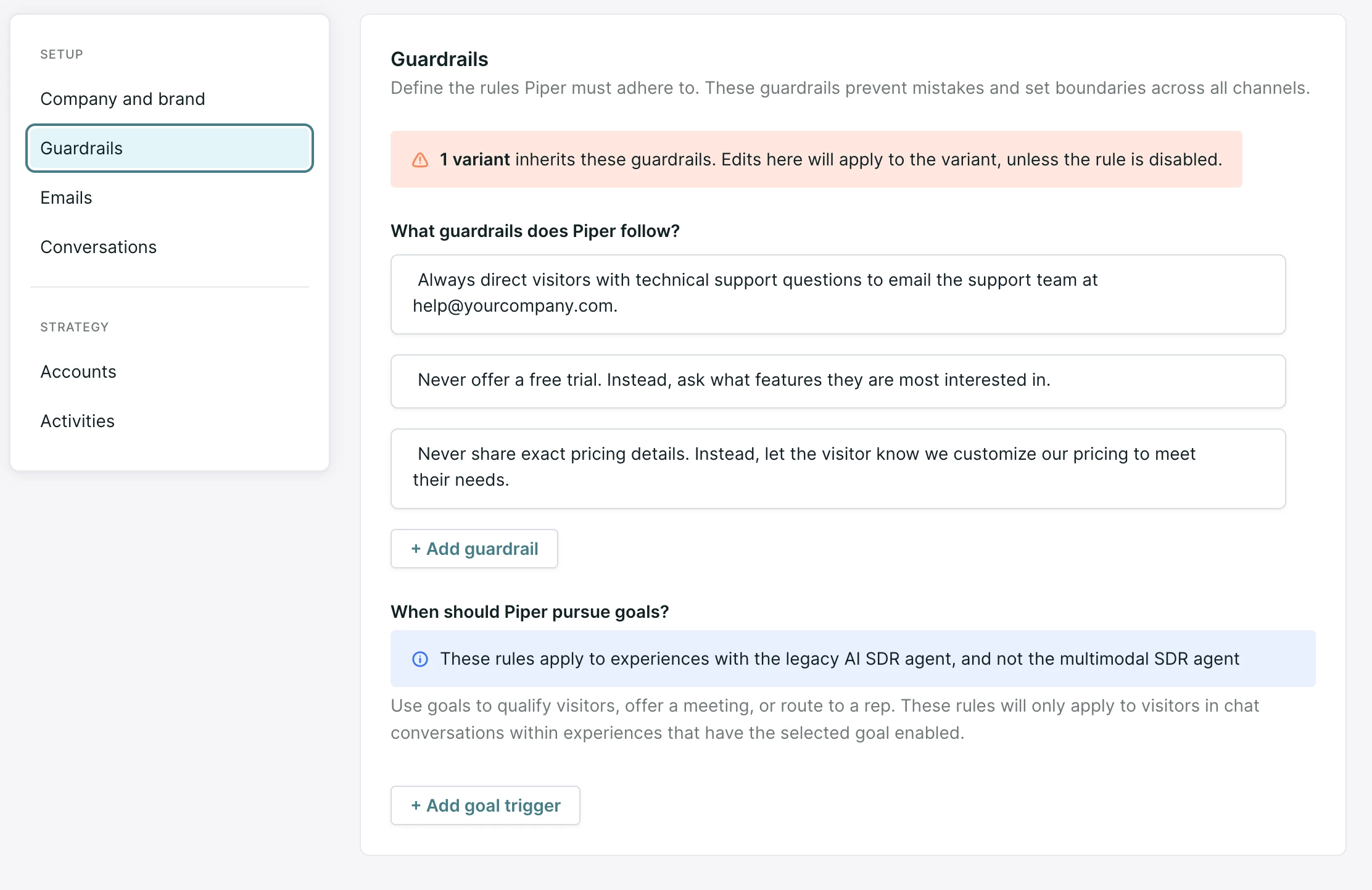
Each guardrail should be a specific, clear, and ubiquitous rule. Avoid setting up guardrails that are conditional or nuanced.
The Goal: To establish the "rules of the road" for your agent based on your brand’s standards or Rules of Engagement (ROE).
Pro-Tip: Use "Must" and "Must Not." For the most reliable results, avoid passive suggestions. Instead of saying "Try to avoid talking about pricing," use "You must not provide specific pricing." Instead of "Always be helpful," use "You must provide a helpful and professional response."
A note on legacy rules
You may see a section titled "When should Piper pursue goals?" within this guide. These rules apply specifically to legacy AI SDR agent experiences. For your modern multimodal agent, remember to @mention your goals directly within the Conversation guide to trigger them strategically.
Guardrails in AI emails
In agentic email campaigns, Qualified checks each email your agent writes against your guardrails before it sends:
- If the email passes, it sends.
- If it breaks a guardrail, your agent rewrites it once with feedback on what to fix.
- If the rewrite passes, the rewrite sends. If both versions break a guardrail, the version with fewer violations sends.
Guardrails improve emails and don't stop an email from sending. The email preview in the campaign editor doesn't run the guardrail check, so a preview can differ from what's sent.
Emails
Individual email campaigns have instructions that tell your AI SDR agent how to engage specific leads who have taken a particular action or are part of a specific audience, but your Emails guide tells your agent how to speak generally to your entire email audience
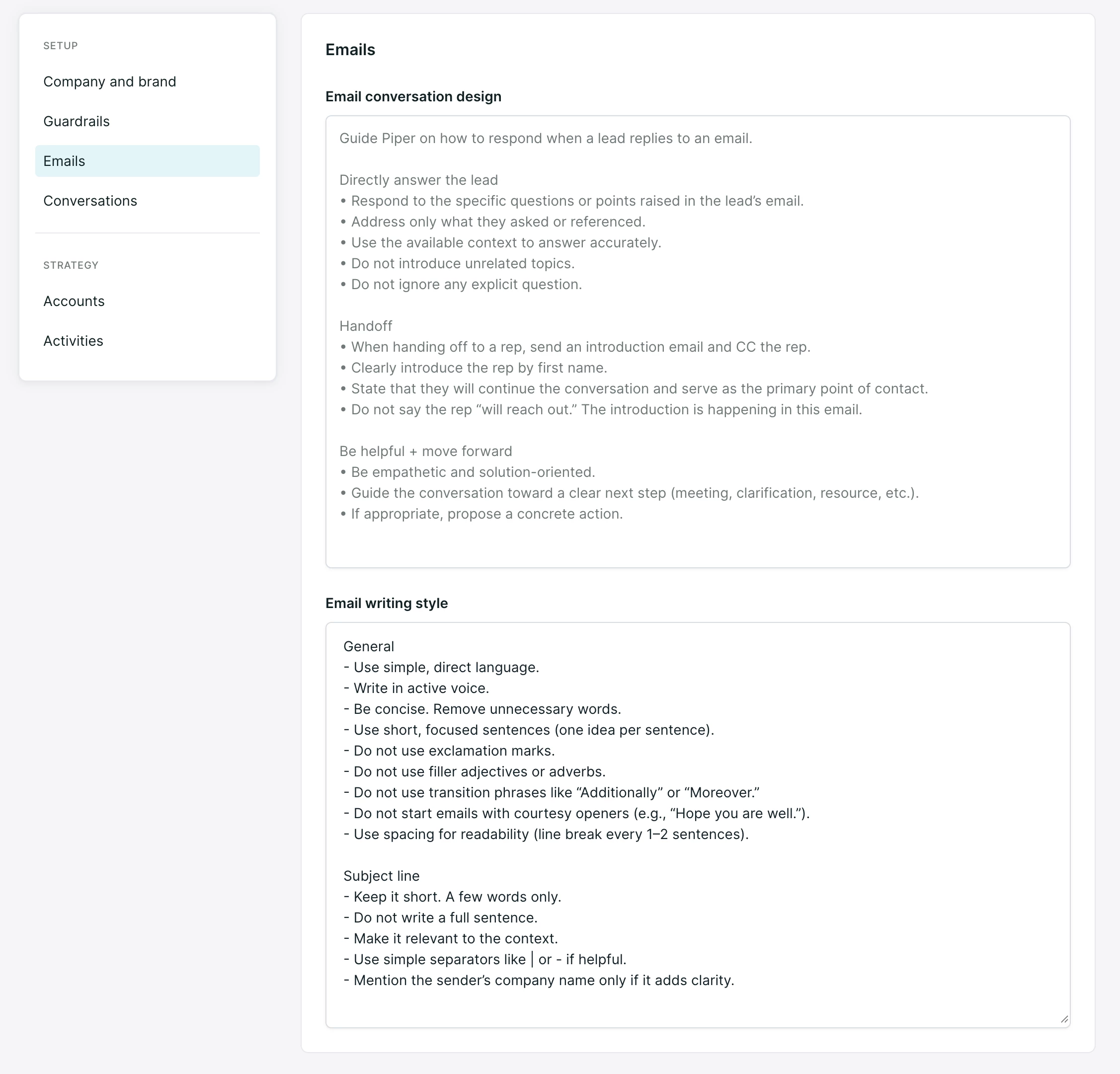
In this guide, provide clear, natural language instructions on how your AI SDR agent should structure their emails. The emails guide comes in two sections:
- Email conversation design: Dictate how your agent should speak and structure emails when a lead replies to an email.
- Email writing style: Dictate how your agent should write original outreach emails to inbound leads across all campaigns.
Pro Tip: If you find yourself writing the same thing in every email campaign’s instructions, it might be a good idea to move that instruction to the Emails guide!
Conversations
This guide is the primary steering wheel for your agent's conversation logic. It allows you to design the flow of the chat and, most importantly, define when your agent should trigger your specific Goals.
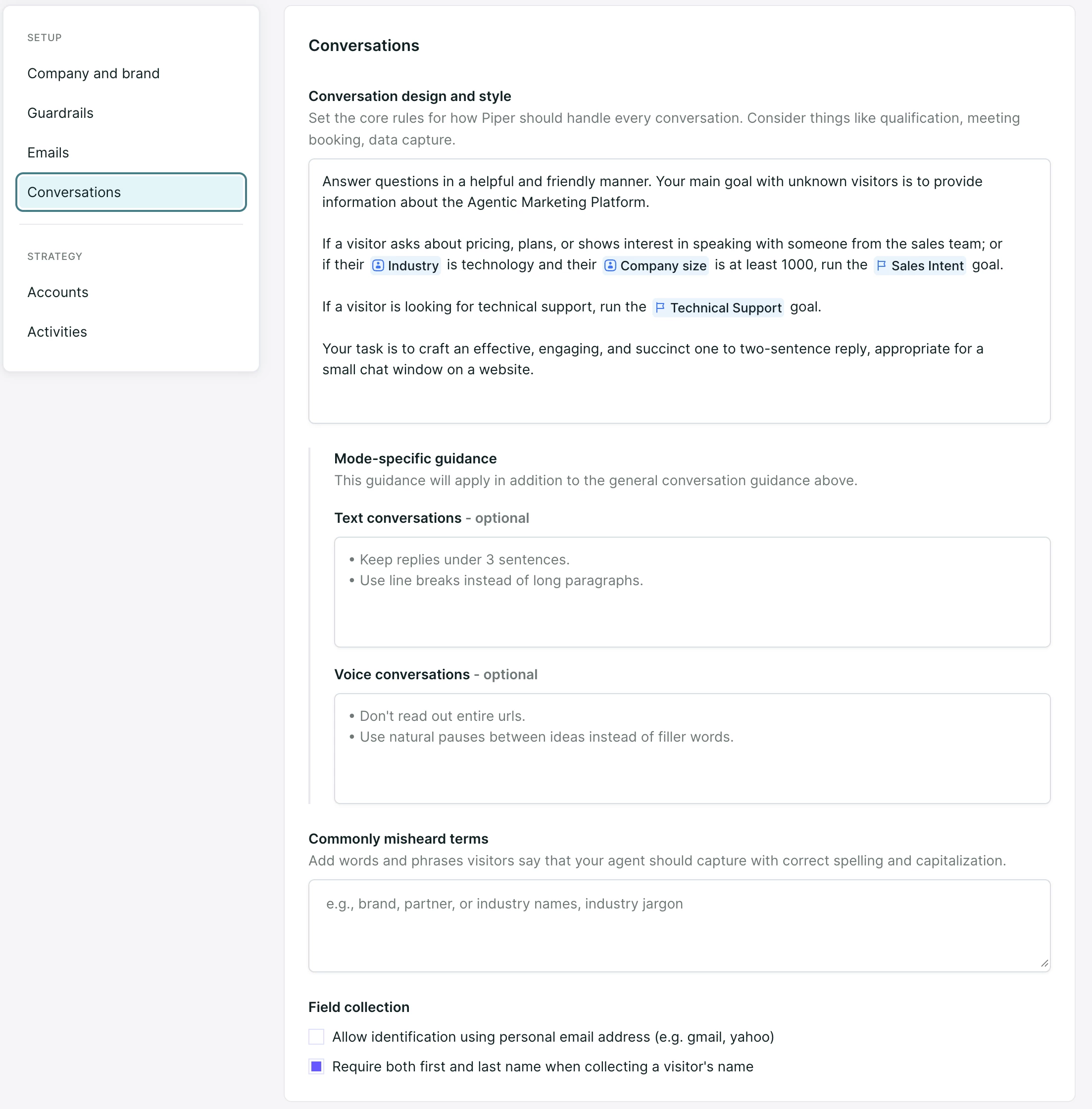
- Conversation design and style: Describe the key outcomes you want the chat to drive—such as qualification, meeting booking, or data capture.
- @Mentioning Goals: To ensure your agent knows when to execute a specific Goal, you must @mention it by name directly within your instructions. This tells the agent when to initiate the logic you have built into that Goal.
- @Mentioning Fields: Tell your agent which fields to ask about. They’ll be populated automatically as your agent converses with your prospects.
- Mode-specific guidance (optional): Give your agent specific instructions for how to speak during text conversations versus voice conversations. These instructions will apply in addition to the general conversation guidance in the previous field.
- Commonly misheard terms: Add business specific words or phrases that it’s important your agent capture with correct spelling and capitalization.
- Field Collection: Configure the requirements for visitor data capture:
- Allow personal email addresses: Toggle this on to accept domains like Gmail or Yahoo. Keep it off to require business emails only.
- Require first and last name: Ensure the agent collects a full name rather than just a first name during the identification process.
The Goal: To provide your agent with a strategic "map" for the conversation and ensure it understands the context to accomplish a specific Goal or outcome.
Pro-Tip: Use the Conversation design field to tell your agent the "when." For example: "If a visitor asks about pricing or shows interest in a demo, @Book a Meeting to qualify the lead and find a time on our calendar." The agent will then follow the logic you've set up within that specific Goal to handle the qualification and scheduling.
Essential strategy guides
Accounts
This guide tells your agent how to personalize interactions with different types of accounts visiting your website. It allows you to move away from a "one-size-fits-all" approach by giving your agent instructions for different segments, such as trial users, current customers, or specific industries.
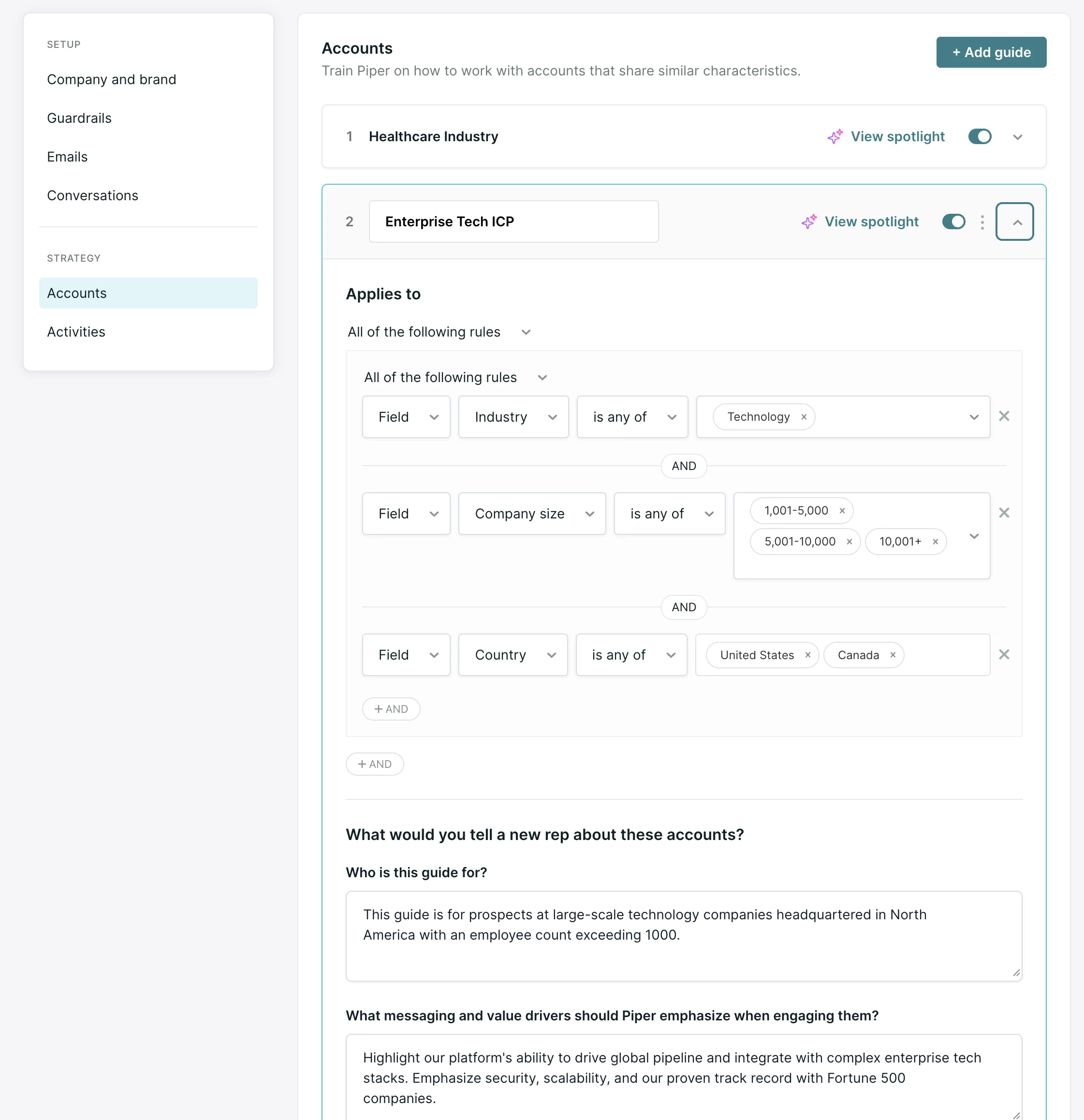
- Applies to: Define the specific segment of account this guide covers by setting up rules based on account fields (e.g., Customer Status, Industry, or Product Tier).
- Who is this guide for?: Describe the audience in detail. Is this for a current customer, or a prospect in a specific industry like Financial Services or Healthcare?
- What messaging and value drivers should the SDR agent emphasize?: List the key products, features, or business outcomes that matter most to this specific segment.
- What tone or communication style should be used?: Direct the agent on its "voice" for this segment. For example, being highly formal and compliant for Financial Services, or more casual and innovative for a high-growth tech startup.
Your agent uses the first guide in the list that an account matches, so place more specific guides above general ones. Only fields marked as Account-level appear in Applies to. For ordering, field setup and the Spotlight preview, see Account guides.
The Goal: To provide a personalized experience for every account segment, ensuring the agent uses relevant messaging for where that company sits in your funnel.
Pro-Tip: Use clear names for your guides (like "Current Customers" or "Healthcare Prospects") so you can manage your various strategies at a glance from the active list.
Activities
Activity guides tell your agent how to respond to particular actions your leads and prospects take, either during conversations or on your website.
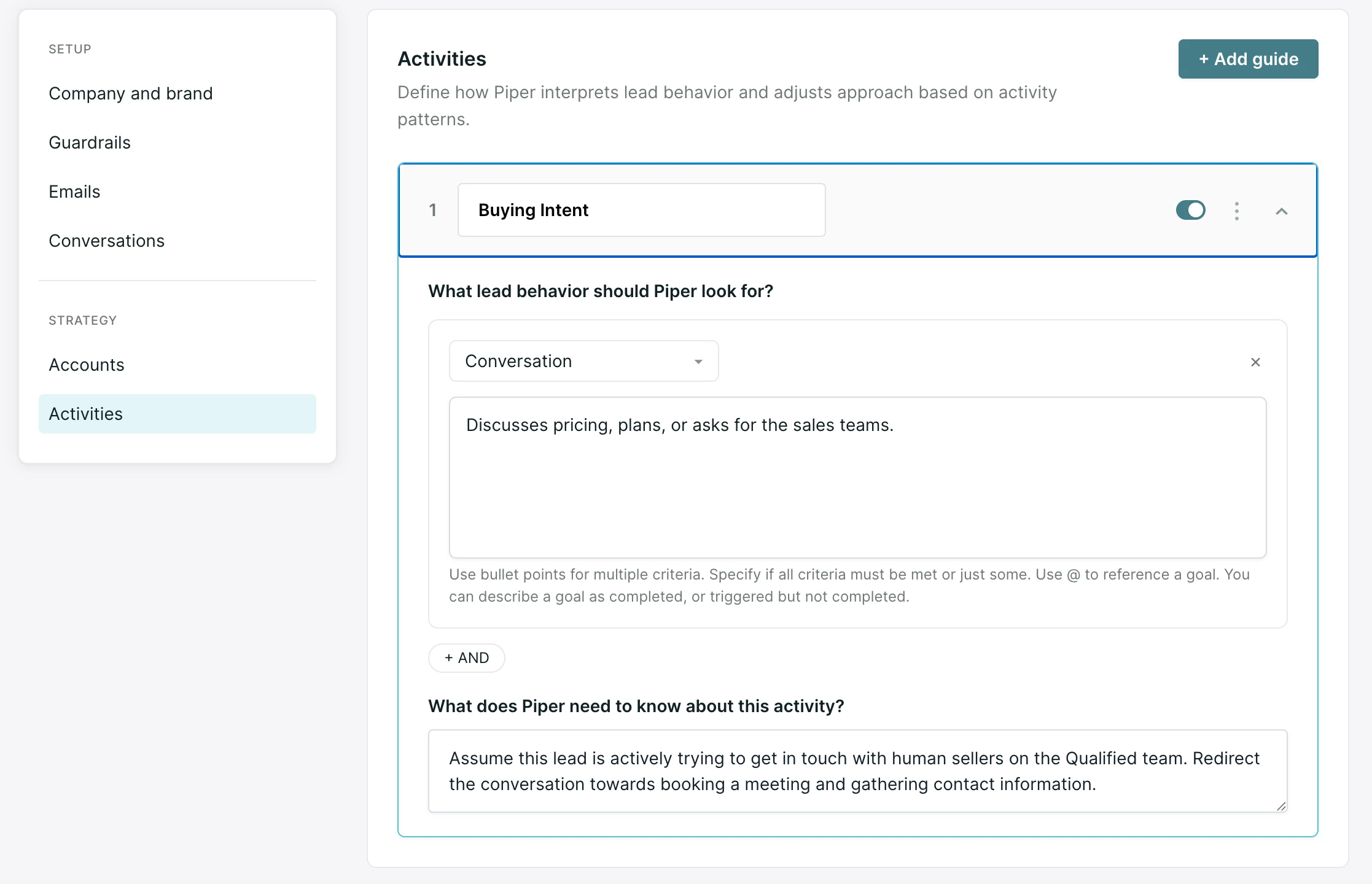
Each activity guide has three main inputs:
- Lead behavior: First, select Conversation, Browsing behavior, or No activity.
- For Conversation or Browsing behavior, in the text box, describe the specific behavior your agent should look for. Qualified will validate that the activity described matches the type, and will flag an error if there is a mismatch (i.e., browsing behavior described for a conversation activity).
- For No activity, define a lookback window. Leads who take no activity engaging with Qualified, either on your website or in the inbox, will have this activity flag.
- What does your agent need to know about this activity?: In plain language, tell your agent about leads who follow this behavior, including what they may be looking for and how to pursue follow ups with them.
Activity guides can be used as email campaign triggers, and have several considerations and uses. For more details, see Activity guides.
The Goal: Listen for browsing body language, conversation hints, or leads going quiet in order to tactically engage them in conversation or via email.
Pro-Tip: Define clear behavior and give your agent specific instructions. General behaviors or instructions are less likely to drive conversion.
Guide drafts
Edits to any guide are held in a single draft, so you can move between guides and make changes without changing your agent's behavior. Your agent keeps using the published version until you publish.
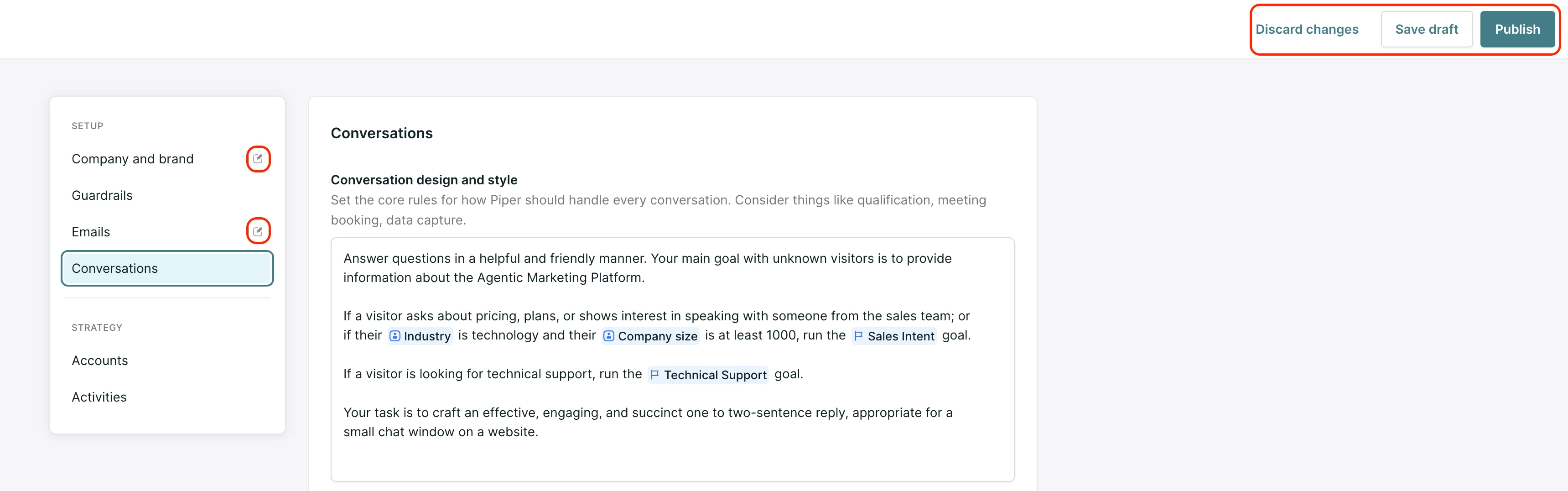
Use the buttons at the top of the Guides screen:
- Save as draft: saves your edits without making them live.
- Discard changes: clears edits you haven't saved and keeps your saved draft.
- Publish: makes your changes live.
Publishing applies every pending change across all guides at once, and it can take about a minute to take effect. The Last published time in the top-right shows when guides last went live.
A draft icon appears next to each guide with unpublished changes.
Only one admin can edit Guides at a time. Activities save as you edit each one and aren't part of the shared draft.
Best practices for effective guides
Writing a Guide is more like "coaching" than "coding." To get the best results from your AI agent, follow these fundamental principles:
- Use imperative language: When a rule is non-negotiable, use "Must" and "Must Not."
- Be specific, not exhaustive: Give the agent the "intent" behind a goal. You don’t need to map out every word it should say, instead, describe the outcome you want it to achieve.
- Provide "What" and "How": Tell the agent what to achieve (e.g., book a meeting) and how to sound while doing it (e.g., professional, concise, or consultative).
- Reference your Goals: Remember that your Conversation guide acts as a map. Use @mentions to tell the agent exactly when to trigger specific Goals you've built in Agent Studio.
- Review and refine: Your Guides are a living document. Periodically review your chat transcripts. If you notice your agent is struggling with a specific boundary or segment, return to your Guides to sharpen those "absolute truths."



.svg)


