


When you enable the agentic marketing platform with Piper, you'll notice that the Visitor Fields section has been updated to simply Fields.
This change reflects a fundamental shift from a visitor-centric model to a person/lead-centric model. Now, your AI SDR agent can be knowledgeable about and work with Qualified leads that may not have a current website session attached.
Your existing visitor fields will be automatically migrated to this new view with all their current settings intact.
How to create and configure a field
The fields section generally works as it has in the past, with some additional features.
To create a new field, click the + Add Field button in the top right-hand corner.
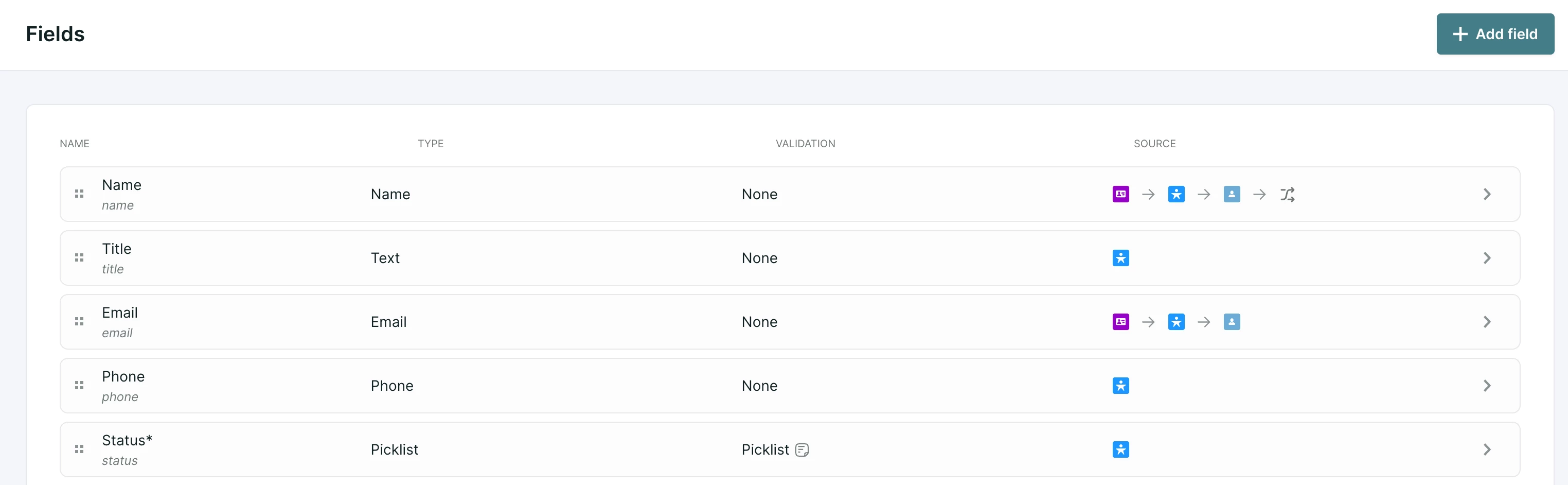
This will open a side panel with the following configuration options:
General
- Name: This is a unique name or identifier for the field that is used within the Qualified application.
- API name: This is automatically generated based on the "Name" and can be used for client-side API purposes.
- Type: Select the field type (e.g., Text, Number). This should be set to match the field type in your external systems (like your CRM or MAP) if you plan to connect them.
- Hide Field: Check this box if you want the field to be hidden on card layouts for sales reps in the Visitor360 view.
- Live Stream: Check this box if you want the field to be shown in your Live Streams.
AI usage
The following settings are designed to enhance how your AI SDR agent utilizes field data in the agentic marketing context:
- This field represents account-level data: Check this box to make this field a selectable filter option for Account Guides.
- Can mention in messenger: When available, this will allow your AI SDR agent to mention information from this field within chat messages to the specific lead.
- Only mention this field for known Qualified leads: When available, this will limit your AI SDR agent to only using this information if the lead is known to Qualified (meaning their email address is known).
- Can mention in email: When available, this will allow your AI SDR agent to include information from this field in emails to the lead.
Sources
Use this section to map external sources, such as Salesforce (SFDC) or Marketing Automation Platforms (MAP), to pre-fill data into these Qualified fields when necessary.



.svg)


