


Qualified offers a client-side API, and these calls affect one visitor at a time. This API allows you to handle events, populate Qualified visitor fields, and more. We also have a reporting API that provides information about rep and bot (Experience) conversations.
Add the following client-side API calls to the main Qualified JavaScript snippet on your website. The calls should be inserted at the bottom of the <head> tag.
Important! Our technical support team and Qualified Success Architects can help support the API calls below once they’re placed on a website by your internal web team. At this time, Qualified is not able to support code beyond what’s documented below. Please work with your web team to troubleshoot custom code.
handleEvents
qualified('handleEvents', function(name, data) { ... })
Register an event handler when a visitor takes a specific action, like booking a meeting or starting a conversation. This call allows you to run arbitrary JavaScript when Qualified events occur, including sending event data to external systems.
Note: We have integrations that send events to Google Analytics, GA4/Google Tag Manager, and Facebook. These specific integrations don't require our client-side API. Connect with your Qualified Success Architect to enable event handling on your account.
Default implementation: standard events
Our client-side API is configured for three standard events, events which Qualified created:
| Event Name | Description |
|---|---|
| Conversation Started | A visitor chats with a rep, AI SDR agent, or experience in the Qualified messenger. |
| Meeting Booked | A visitor books a meeting with a rep using a meeting booker or fullscreen meeting scheduler. |
| Email Captured | A visitor enters their email when booking a meeting, talking to an AI SDR agent, or they reach an Ask a Question experience step (This event is not emitted when an email is gleaned from the identify API call). |
To handle Email Captured events, verify that your Experience schedules visitor meetings or requests visitor emails:
- In Qualified, go to Settings → Experiences
- Click on the relevant Experience to open it.
- Review the Experience for a compatible step or action:some text
- Offer a meeting
- Offer a meeting (fullscreen)
- Ask a question → Email
- (Optional) If none of the options above are in the Experience, insert one. Finish customizing the Experience and click Save Experience.
AI SDR agents will collect email addresses as part of qualifying visitors according to their goals. See more here.
Then, enter the standard event name(s) into the JavaScript’s handleEvents call.
Default implementation: custom events
Custom events are other actions or occurrences that you want to track. To handle custom events, first customize all appropriate experiences:
- In Qualified, go to Settings → Experiences → [Automatic, Manual, Button, or Form Experiences]
- Click on the relevant experience to open it.
- Add a Track Event action after the step you want to handle.
- Enter and copy the new event’s name.
- Click Save Experience.
Next, enter your new custom event’s name into the JavaScript’s handleEvents call.
Code sample
qualified('handleEvents', function(name, data) {
	switch(name) {
    	case 'Conversation Started':
        	handleConversationStarted(data);
            break;
        case 'Email Captured':
        	handleEmailCaptured(data);
            break;
        case 'Custom Trigger 1':
        	handleCustomTrigger1(data);
            break;
        }
    })
Data definition
| Field | Type | Description |
|---|---|---|
| bot | bot | Identifier of the bot experience |
| bot_conversations_id | string | Identifier of the bot conversation that started the rep conversation |
| field_values | object | Populated visitor field values, keyed by API Name |
| message | message | The sent text that triggered the event |
| rep_conversation_id | string | Identifier of the rep conversation that resulted from the bot conversation |
| sender | sender | The sender that triggered the event |
| name | string | Name of event. Fixed names for standard conversation events, or custom names provided in experience setup. Same as NAME argument of handleEvents. Valid values:
|
Bot definition
| Field | Type | Description |
|---|---|---|
| id | integer | The specific bot that triggered the message |
| name | string | Name of bot, as seen in the Experience Builder |
Message definition
| Field | Type | Description |
|---|---|---|
| text | string | Message text that triggered this event, or null if triggered by a custom event |
Sender definition
| Field | Type | Description |
|---|---|---|
| rep_name | string | Name of participating rep or null if bot |
| type | string | Type of sender that triggered the event. Valid values:
|
Sample response
{
	bot: {
		id: 1234,
    	name: "My Experience"
    	},
    bot_conversation_id: "gct6jvH379QyHnoX3x83pgq3ktk5d1KUCKvbq",
    field_values:    {
    	country_code: "IN",
        ga_client_id: "examplenumber",
        ga_tracker_id: "UA-1213457573-1",
        playback_url: "exampleURL",
        stateprovince_code: "KA",
        },
    message: {
    	text: "Hello there! Do you have a moment to chat?"
        },
    rep_conversation_id: "gct6jvH379QyHnoX3x83pgq3ktk5d1KUCKvbq",
    sender: {
    	rep_name: null,
        type: "rep"
        },
    name: "Conversation Started",
    }
identify
qualified('identify', { ...fieldValues })
Populate Qualified visitor fields with information learned during a visitor’s website session. This call adds values to empty visitor fields and updates visitor fields that previously contained data. For example, hard code a specific visitor field to “Website.”
Default implementation
This call is customized with your visitor fields’ exact API names. To find the API names:
1. In Qualified, go to Settings → App Settings → Visitor Fields
2. Click Show API Details:
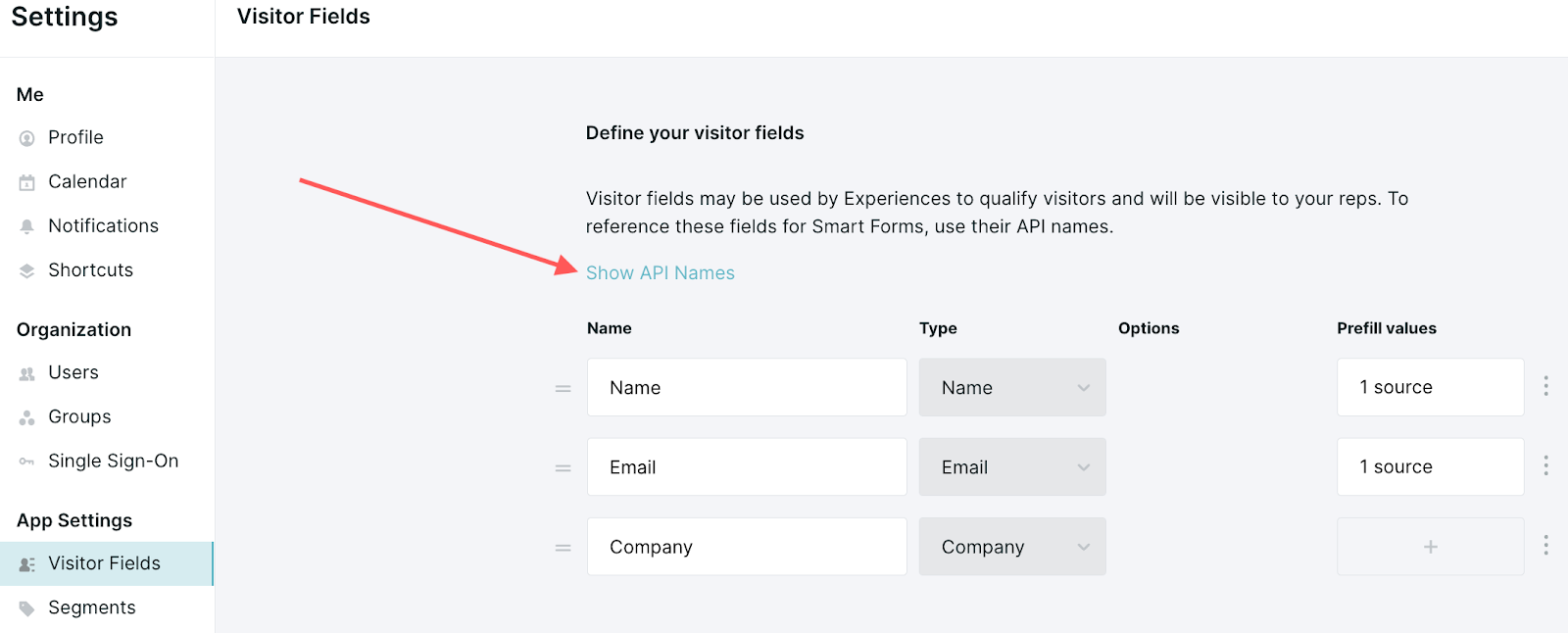
3. Copy the visitor field’s text from the API Name column.
Then, use the API names as keys for the fieldValues argument in your JavaScript.
Options
The identify call can be added to the same script tag as the initial JavaScript function or in a script tag after the function.
The field values can also be passed in as a series of key-value pairs, like:
// You can set as many field values as desired in one call.
// Field API names are found in Visitor Fields settings in Qualified
	const fieldValues = {
    	<field_api_name_1>: field_value_1,
        <field_api_name_2>: field_value_2,
        ...};
    qualified('identify', fieldValues);
Code sample
<script>
	const fieldValues = {
    	email: "email@address-here.com",
        country_code: "US",
        };
    qualified("identify", fieldValues);
</script>
page
qualified("page");
As a visitor browses your single page app (SPA), a website with only one “page,” they may meet the conditions for an Experience. This call rechecks and launches qualifying Experiences. Without this call, Qualified doesn’t register page changes on SPAs, so Experiences may not display when visitors navigate around your website.
Default implementation
This call is relevant only when Qualified is installed on a SPA.
Log in to your Qualified admin account and verify that the Experience trigger is Current page. This ensures the correct Experience is triggered. If you instead select Page view, the page call causes the Experience to begin inadvertently.
Add the page call to your JavaScript.
Code sample
// Navigate to pricing page
	const url = new URL(window.location);
    url.searchParams.set('page', 'pricing');
    window.history.pushState({}, '', url);

// Now let Qualified know about the page navigation
	qualified('page');
showExperience
qualified('showExperience', 'experience-#########', startCollapsed = false)
Trigger a specific manual experience when visitors meet your criteria. This call can be used in conjunction with the qualified identify call to display a specific Experience dependent on ingested external data.
Note: This call, along with showFormExperience and showExperienceForForm, now shows and clears its loading state in the active PiperX surface instead of the active legacy messenger. Arguments and usage are unchanged.
Default implementation
This call is customized with your manual experience’s unique API number. To find that number:
-
In Qualified, go to Settings → Manual Experiences
-
Click on the name of your experience.
-
In the upper-right corner, hover over API NAME experience and click the Copy icon:
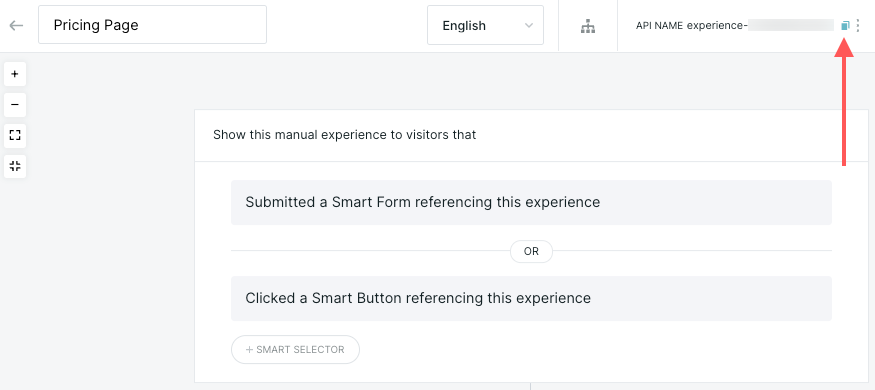
Enter the copied API number into the showExperience call.
Code Sample
const api_name = 'experience-123456';
qualified('showExperience', api_name)
open
qualified('open')
Automatically open the Qualified messenger when visitors meet your criteria. Without this call, visitors need to click the launcher to expand the Qualified messenger. If a visitor closes the Qualified messenger to play a video on your website, for example, use the open call to resurface the messenger after the video ends.
Default implementation
Insert qualified('open') into your JavaScript.
Code sample
// Launch experience when clicking the Open Messenger
buttonconst button = document.getElementById(‘open-messenger’);button.onclick = function() {
	qualified(‘open’);
    }
Note: This call acts on PiperX when PiperX owns the active experience. It continues to act on the legacy messenger when the legacy messenger is active.
setChatIsVisible
qualified(‘setChatIsVisible’,[visible]);
Show or hide the active messenger without opening or closing the underlying experience. Use ‘true’ to show the messenger and ‘false’ to hide it.
Default implementation
This call acts on whichever messenger owns the active experience, PiperX or the legacy messenger.
Code sample
qualified('setChatIsVisible', true);

qualified('setChatIsVisible', false);
handleMessengerEvents
qualified('handleMessengerEvents', function(eventName) { ... })
Register an event handler for messenger events, including UI events and, when PiperX is enabled, voice events. This call tracks events connected to the Qualified messenger, where the handleEvents call tracks standard conversation events. The callback receives only the event name, not an event payload. The subscription follows whichever messenger owns the active experience. The same registration works as a visitor moves between a legacy experience and PiperX, and Qualified doesn't emit the same transition from both messengers.
Default implementation
Enter the following event name(s) in the handleMessengerEvents call:
Events available in legacy Experiences and PiperX
| Event Name | Description |
|---|---|
| messengerOpened | The visitor opens the messenger. |
| messengerClosed | The visitor closes the messenger. |
| messagesDismissed | The visitor dismisses displayed messages. |
Additional events available in PiperX
| Event Name | Description |
|---|---|
| callRequested | The visitor requests a voice call. |
| callStarted | The voice call starts. |
| callEnded | The voice call ends. |
| micMuted | The visitor mutes their microphone. |
| micUnmuted | The visitor unmutes their microphone. |
| meetingOffered | A meeting offer is shown in the PiperX Conversation. |
| meetingBooked | A meeting is booked in the PiperX Conversation |
Note: callConnecting and callFailed are not emitted
Code sample
// log eventName to console
	qualified('handleMessengerEvents', function(eventName) {
    	console.log(eventName);
        }
    qualified('handleMessengerEvents', function(eventName) {
    	eventTracker.track(eventName);
        })
handleMessengerEvents vs. handleEvents
- handleMessengerEvents reports client-side interactions with the messenger UI and, in PiperX, the voice experience. Its callback receives only an event name.
- handleEvents reports standard conversation events broadcast by Qualified. Its callback receives an event name and event data, and it requires standard conversation events to be enabled for your team.
A meeting booked inside the PiperX conversation can invoke both handlers: handleMessengerEvents emits meetingBooked, and handleEvents emits Meeting Booked. The handleEvents event covers bookings across conversation surfaces, including the lightbox and fullscreen meeting booker. The handleMessengerEvents event covers only meeting bookings shown inside the PiperX conversation, and doesn't fire for lightbox or fullscreen bookings.
Note: If both handlers are registered, deduplicate the two meeting-booked signals in your downstream analytics.
getIdentity
qualified('getIdentity', function(data) { ... })
Retrieve Qualified visitor fields with information learned during a visitor’s website session. This call retrieves values from visitor fields provided by the visitor during their session. For example, pull information from a Qualified visitor into a support chat tool.
Note: Contact your Qualified Success Architect to enable getIdentity on your account.
Default implementation
This call will only retrieve specified and pre-selected visitor fields. To find the API names:
-
In Qualified, go to Settings → App Settings → Visitor Fields
-
Click Show API Details.
-
Select the visitor fields to send with this call from the Send via API column.
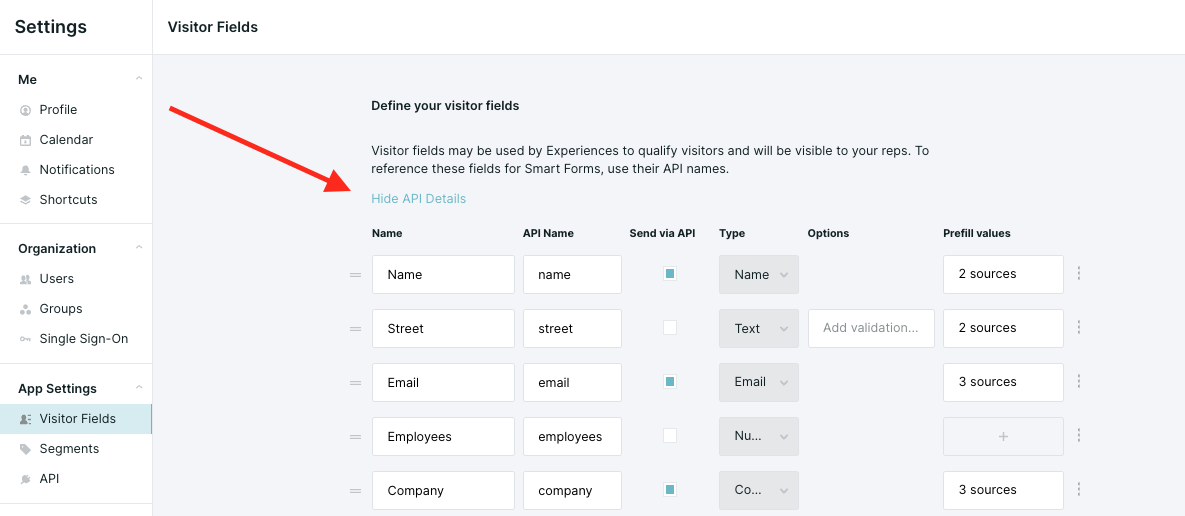
Only selected fields will be available for use with this call. The API names will be used as keys in the fieldValues response. Values sourced from reverse IP and enrichment integrations are not available through this call and will return as “”.
startCall
qualified(“startCall”, {options});
Allows your technical teams to add a custom call button - or any clickable website element - that directly initiates a Qualified multimodal voice or video call. Instead of relying exclusively on the default launcher interface inside the messenger, you can build a tailored call-to-action component that aligns with your brand layout.
Note: This API call requires an active multimodal environment and does not execute if your Qualified organization is configured for text-only interactions.
Options
| Option | Type | Default | Description |
|---|---|---|---|
| maximized | boolean | false | When set to true, the communication session initializes in a full-screen layout rather than the minimized state. |
Code Sample
// Bind call invocation to a custom button element
document.getElementByID(“call-button”).addEventListener(“click”, function () { qualified(“startCall”, {maximized: true }); });
startChat
qualified(“startChat”, { options });
Enables your development teams to create a custom entry button or interactive asset on your website that opens the Qualified messenger and submits an initial message payload. Rather than waiting for web visitors to construct a first response manually, your configuration can push programmatic text entries based on specific user navigation patterns, clicks, or query parameters.
Pro Tip: use the “initialMessage” string to pass user-entered text, like a search bar query, directly into Piper’s conversation!
Options
| Option | Type | Default | Description |
|---|---|---|---|
| initialMessage | string | undefined | When provided, this text string transfers into the chat log as an immediate visitor entry upon deployment. Your AI SDR agent handles the response logic. |
Note: If startChat is called while the messenger window is already open, the initialMessage string will be passed into the chat as a new message.
Code Sample
// Launch the messenger and supply a pre-filled text query
qualified(“startChat”, { initialMessage: “Tell me about pricing.” });
Important clarification about startCall and startChat
Neither startCall nor startChat contains logic to select or trigger an experience on their own; they append logic to a preexisting or pending conversation stream. To dictate which unique experience matches the interaction, you must allow your automatic experience criteria to evaluate the visitor naturally, or execute the showExperience API method containing your target manual experience identifier directly before the chat or call configuration.



.svg)


