


After you've successfully connected to Microsoft Teams, set up alerts within your Qualified experiences and workflows. This will alert your sales team within Teams when visitors on your website take certain actions or are of high interest.
Add alerts
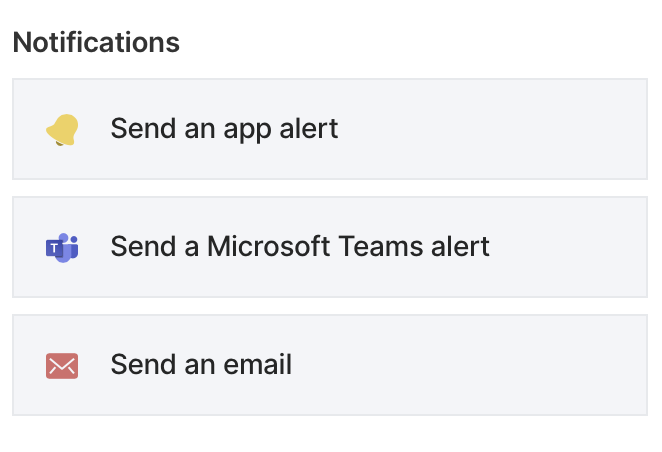
To add alerts, click the Send a Microsoft Teams alert option to your experiences or workflows as shown below.
Note: While we can add Qualified to private teams, we cannot add alerts to private channels.
Customize your alerts
You can enter an alert subject and message body. You also need to select which channels to alert.
When no customized message is created, you'll see a view of all of your visitor fields (as shown below). You can customize your Microsoft Teams message at any time using variable tags to show the information that's most important to you, such as the Salesforce owner (if the visitor is a lead or contact).
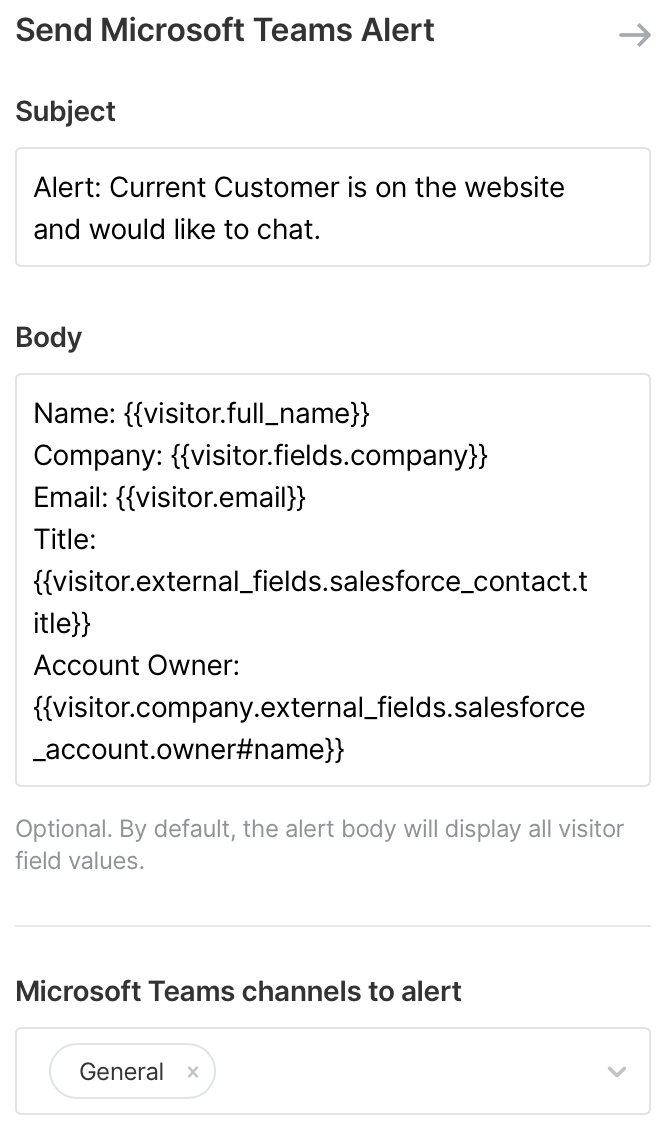
Note that the Team must have the app installed, otherwise the drop-down menu will not contain that specific Team. The drop-down menu is organized with the parent teams being alphabetized, and the channels under each team are alphabetized as well. Disabled channels are moved to the bottom of the dropdown, and valid channels are elevated to the top.



.svg)


