


Piper Presentations lets Piper the AI SDR Agent deliver a first-call sales pitch to website visitors in real time. Your AI SDR agent assembles each presentation during the conversation, pulling slides from the decks you upload and speaking to them without a scripted talk track.
How Piper Presentations works
When a visitor asks to see a presentation, your AI SDR agent builds a profile of that buyer from the signals available across your go-to-market stack, including buying intent, browsing behavior, and account history. It then selects slides from the decks you have uploaded and presents them in a live voice or video conversation.
Four capabilities shape the experience:
- Slide remixing: your AI SDR agent can shorten or expand the pitch and reorder slides during the conversation, based on the time or the interests a visitor states.
- Slide stitching: your agent can pull relevant slides from across your slide library, including first-call decks, customer story decks, and solution or use case decks. There is no limit on the number of slides it can draw from.
- Slide perception: your agent sees each slide as the visitor sees it, so it can answer questions about specific elements on a slide and mark up slides to call out content.
- Slide drop: your agent can follow up by email with a PDF of the presentation to keep the conversation moving after the visitor leaves your site.
During a presentation, your AI SDR agent can answer questions, handle objections, and go deeper on individual slides. When a visitor is ready to move forward, your AI SDR agent can book a meeting with your sales team and share key takeaways from the conversation.
Before you begin
Piper Presentations requires PiperX.
Presentations run in voice and video conversations. Your AI SDR agent controls slide pacing while it presents, so a text-only conversation cannot deliver a presentation today. Visitors who start in text see a prompt to upgrade to a voice call.
Note: To enable PiperX and Piper Presentations, or to learn more about availability for your organization, contact your Qualified Success Architect (QSA).
Presentations and images are separate features. An image is a single, static visual your agent shares on its own, and slide decks for presentations are uploaded and managed separately. To set up images, see How to share slides in a conversation.
Uploading a slide deck
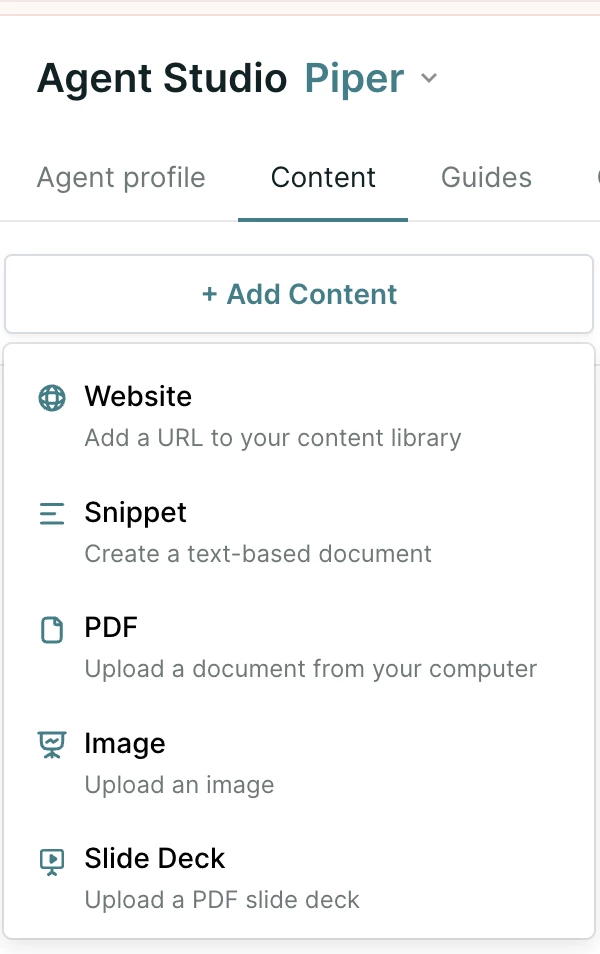
- Go to Settings → Agent Studio → Content.
- Click the + Add Content button.
- Select Slide Deck.
- Upload your deck as a PDF.
- Review the talk track your AI SDR agent generates for each slide in the deck.
Both horizontal and vertical slide orientations are supported. Each PDF can be up to 100MB, with a maximum of 50 slides.
Configuring a deck
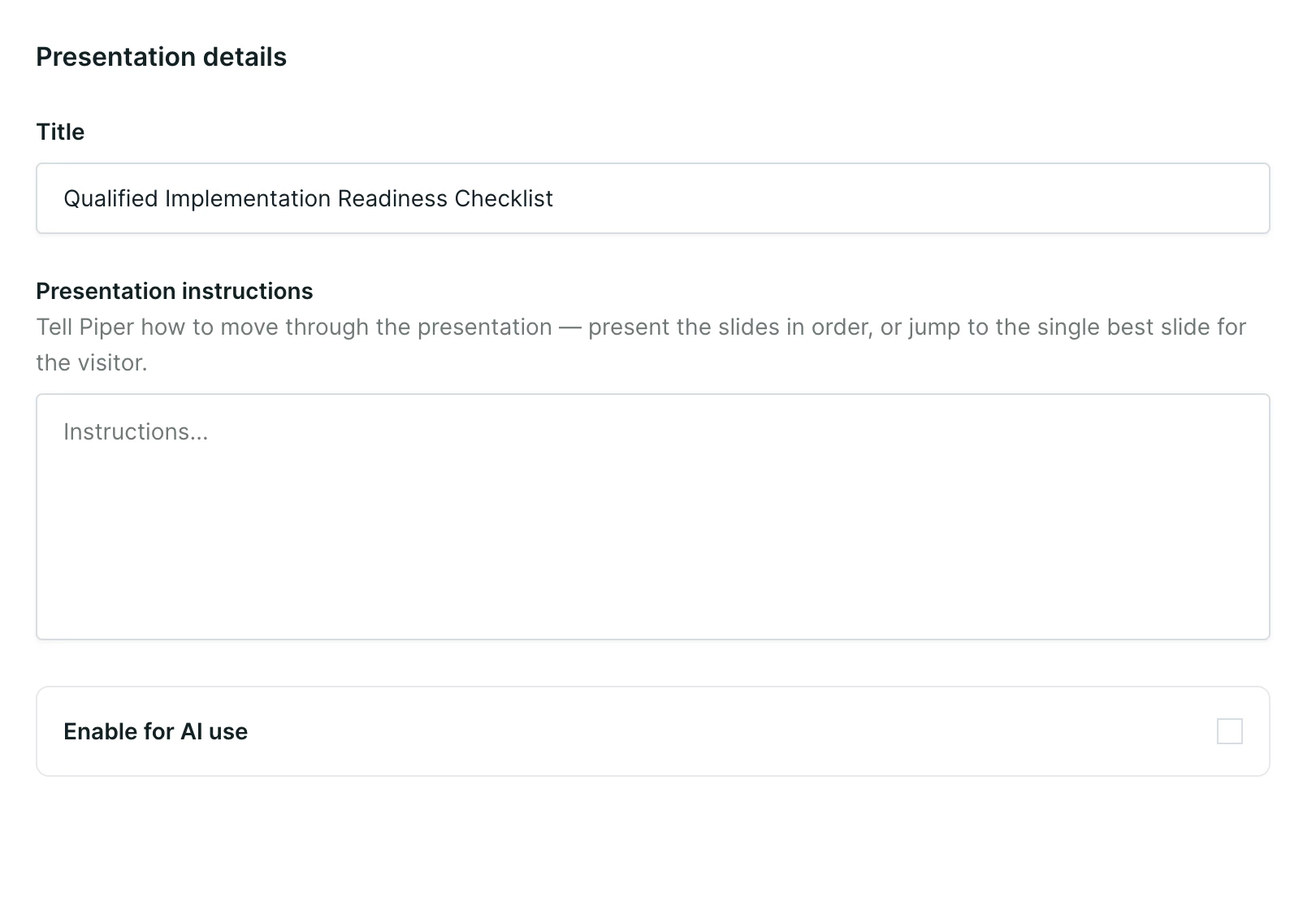
Deck-level instructions
Open Presentation details to set when your AI SDR agent should show the deck and what it should say before it starts presenting. Most organizations should put their triggering logic here, for example "show this deck when a visitor asks for an overview or a pitch."
Deck-level instructions are also where you shape the delivery. You can tell your agent to ask how much time a visitor has and present within that timeframe, to share slides in a specific order, or to present a single slide from a deck rather than the full deck.
Slide-level instructions and talk tracks
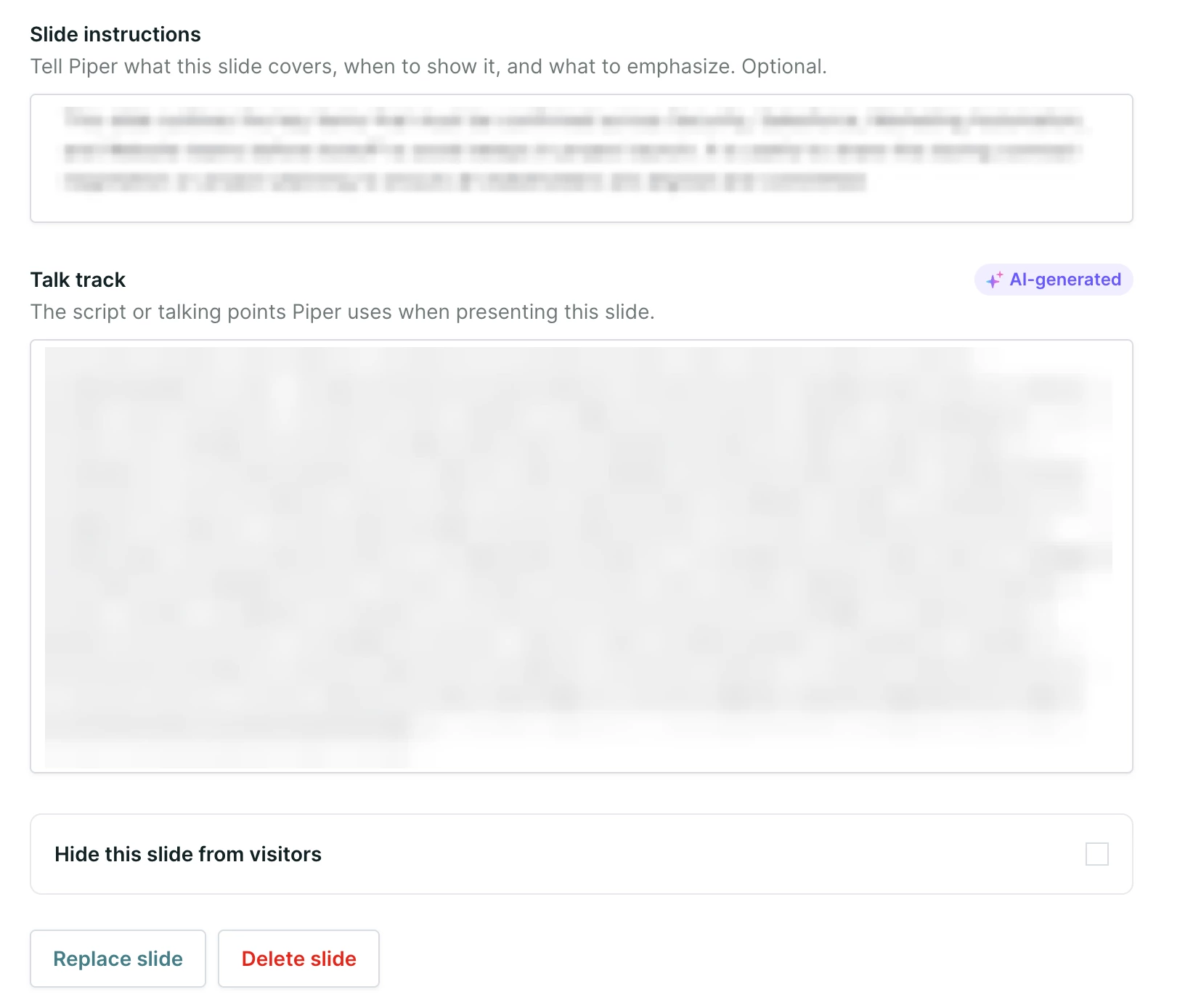
Your AI SDR agent writes a talk track for each slide when you upload a deck. You can edit any talk track, and you can add instructions to an individual slide.
To lock a line word for word, use the "say exactly (...)" format in the slide instructions. A scripted line limits your agent's ability to personalize the pitch and adjust pacing, so reserve this for slides that require tight brand control.
You can also replace the artwork on an individual slide without re-uploading the deck, which leaves the rest of the deck and its talk tracks in place. Individual slides can be deleted or hidden without affecting the other slides in the deck.
Adding a call to action button
Add a call to action button, such as "Show me a presentation," to invite visitors into a presentation. Match the button wording to the trigger instructions on the deck so your AI SDR agent recognizes the request. This follows the same pattern as call to action buttons for guides.
When to use a conversation guide or a goal
Start with deck-level instructions. This is the shortest path for most organizations and gives your AI SDR agent less context to sort through.
Move to a conversation guide when you need simple field-based branching, for example showing one deck when industry is retail. Use a goal when you need multi-branch logic, for example a different deck for each enterprise segment.
Mentioning a specific deck with an @-mention starts the first share. Your agent can still stitch in slides from other decks as the conversation continues.
Controlling when a deck goes live
Enable for AI use determines whether your AI SDR agent can present a deck. Leave it cleared while you upload slides and write instructions so visitors do not see the deck before it is ready, then select it when the deck is finished.
If you want to preview a deck before you enable it for visitors, your Qualified Success Architect can help you set up a test.
Following up by email after a presentation
Slide drop sends the presentation to the visitor after the conversation. To set it up today, create an activity that fires when your AI SDR agent shares a presentation during a conversation, then build an always-run email campaign triggered off that activity.
Your agent attaches the PDF to the email automatically, so there is no attachment setting to enable. The PDF contains the slides the visitor saw during the conversation. The filename matches the name of the deck that started the presentation in Agent Studio.
The follow-up email needs an email address for the visitor. If the visitor has not shared one during the conversation, the email does not send.
Slide drop sends only from a Google or Amazon SES connected mailbox. Microsoft mailboxes aren’t supported yet.
Note: Deck names are visitor-facing. The deck title becomes the PDF filename in the visitor's inbox, so avoid internal-only naming.
Reporting on presentations
Presentation data is available in reports and dashboards, can be used as a report filter, and can be sent to Google Analytics as a custom event. The following fields are available:
- AI SDR Shared Presentation Content?: whether your AI SDR agent presented any content in the session, including a deck, a product demo, or an image
- Presentation Type: which types of content your agent presented, such as slide deck, product demo, or image
- AI SDR Presented Slide Deck?: whether your agent presented a slide deck
- AI SDR Presented Product Demo?: whether your agent presented a product demo video
- AI SDR Presented Image?: whether your agent presented an image or other static content
- Slide Decks Presented: which individual slides within a deck were shown
Session reports can also be filtered on AI SDR profile independently of experience.
Slide decks do not have native link click tracking today. To track clicks on a link you share during a presentation, add a tracked link to a slide's post-presentation instructions, for example "after presenting, share this link," and report on it in Google Analytics. Test this before you rely on it for a self-serve motion.
What presentations support today
- Presentations are delivered in English. Presenting in other languages is disabled.
- Presentations require a voice or video conversation.
- The first presentation in a conversation comes from a single deck. Stitching slides from additional decks begins after that first share.
- The follow-up email includes the slides the visitor saw in the conversation.
- The follow-up email sends only from a Google or Amazon SES connected mailbox.
- Each uploaded PDF can be up to 100MB, with a maximum of 50 slides.



.svg)


