


The goal behavior in this article represents functionality available for customers using the Multimodal AI SDR agent, sometimes called PiperX. For customers using legacy versions of Piper, see this article on goal configuration.
Consistency and personalization are at the heart of authority. To help you deliver a more relevant experience for every visitor, Qualified has introduced new ways to customize how Piper, the AI SDR Agent interacts with your website traffic in conversations.
Promoted buttons in your AI SDR agent steps
You can now add promoted buttons to the Start Multimodal AI SDR step in your automatic experiences. These buttons act as quick-start phrases for your visitors; when a visitor clicks a button, it functions exactly as if they had typed that specific message into the messenger.
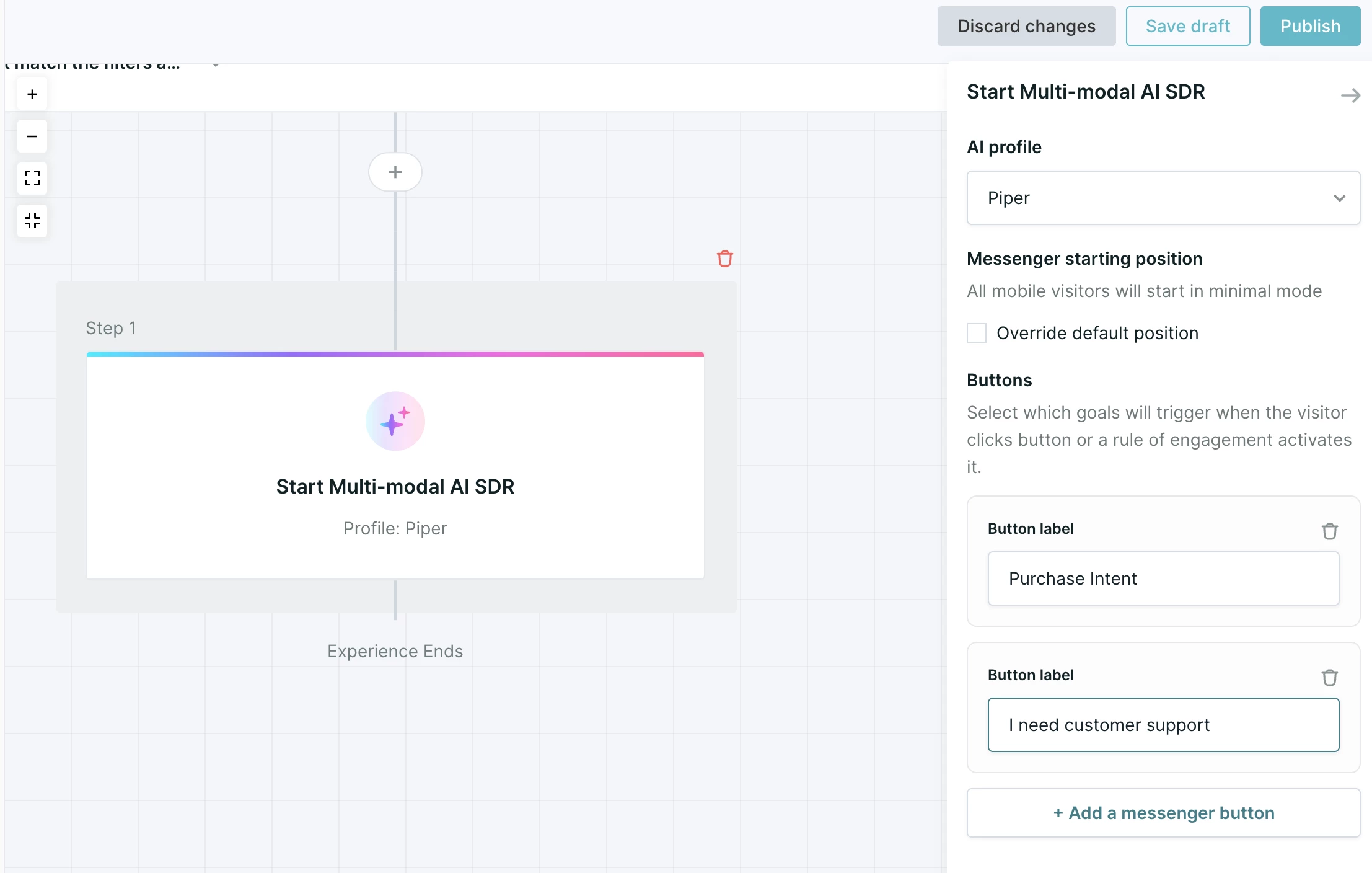
To ensure these buttons lead to the right outcomes, you can configure them to trigger specific goals. This is accomplished by ensuring the button label corresponds directly to a goal that has been @-mentioned within your AI SDR agent's conversation guide.
Check out more on the Conversations guide here.
Reminder: Any goals explicitly mentioned in the conversation guide will be pursued when they are encountered in a conversation. This means the goals will run successfully when triggered by the visitor, regardless of whether they are globally enabled or disabled in your general goal settings.
Customizing button behavior
To maintain a clean and focused conversation, you may want specific call-to-action (CTA) buttons to disappear once they have been used.
Qualified offers an optional feature that allows these buttons to be dismissed from the conversation window immediately after a visitor selects them. This behavior is ideal for one-time actions, such as booking a meeting, and helps reduce repetitive clicks within a single session.
Note: This feature is optional. If you would like this behavior enabled for your account, please contact your Qualified Success Architect (QSA) for more information.



.svg)


