


Before launching your AI Email campaign, it’s important to test how emails will be generated and sent to ensure everything is working as expected. Piper provides two testing methods: previewing emails without sending them or sending real test emails to designated leads. Once testing is complete, you can confidently launch your campaign.
Testing your AI Email campaign
You can test your campaign using one of the following methods:
Test without sending real emails
This method allows you to preview emails for leads that meet the campaign criteria, without actually sending emails.
- Navigate to Email → Campaigns. For legacy campaigns, go to Settings → AI → Email Campaigns.
- Select your campaign and change the Campaign Status to “Testing”.
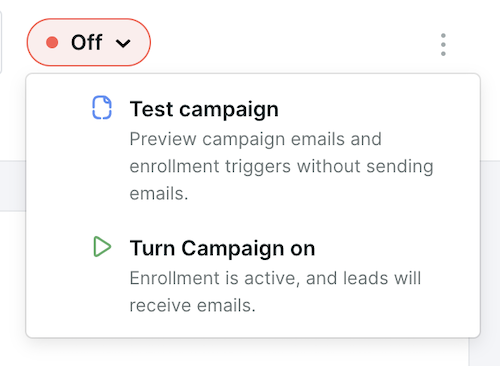
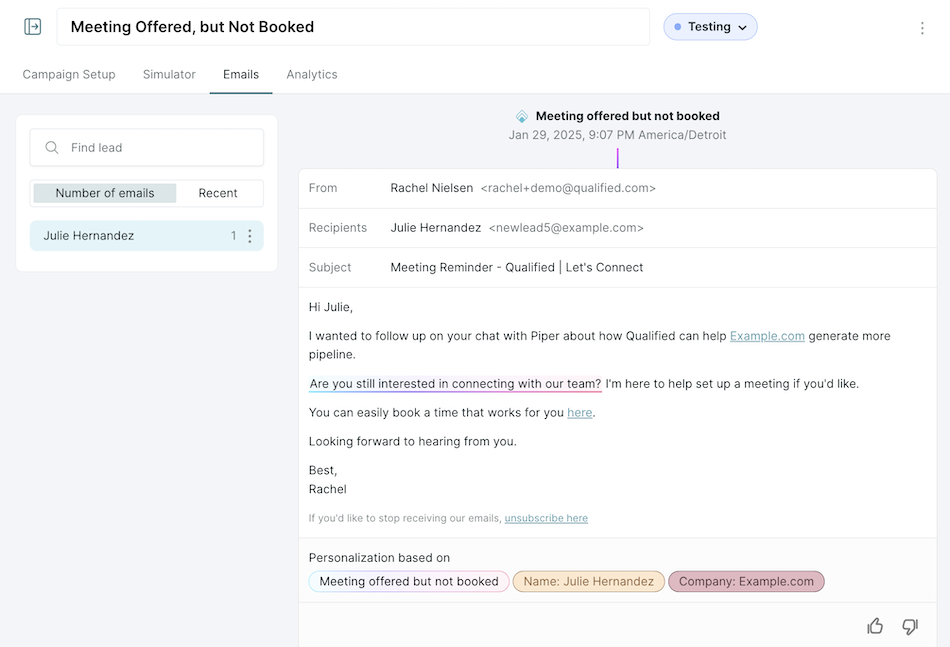
- Piper will generate emails based on campaign settings, but no emails will be sent.
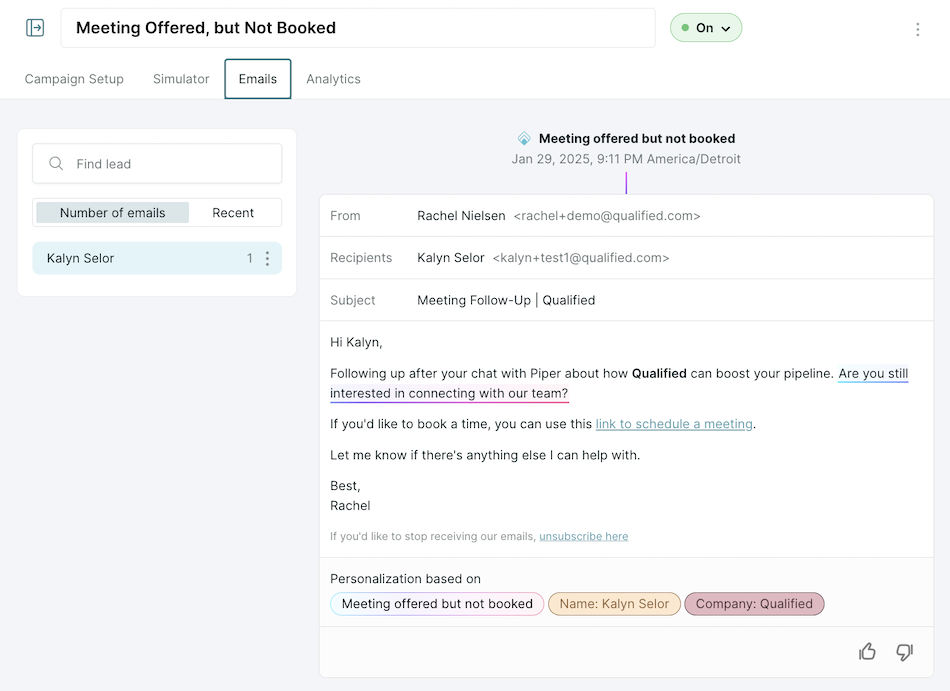
- The generated emails are viewable under the campaign’s Email tab.
In legacy campaigns, you can complete your testing in fewer days by adjusting the email campaign’s Persistence to High (under the Campaign Instructions) to generate more follow-up email examples over a shorter period of time.
Use this method if:
- You want to review how email copy is generated without sending real emails.
- You need to preview emails for a larger audience before launching.
Limitations:
- You won’t be able to fully test unsubscribe clicks or meeting booked scenarios since no real emails are sent.
Send test emails to real leads
For a more comprehensive test, you can send actual emails to designated test leads by adjusting audience targeting.
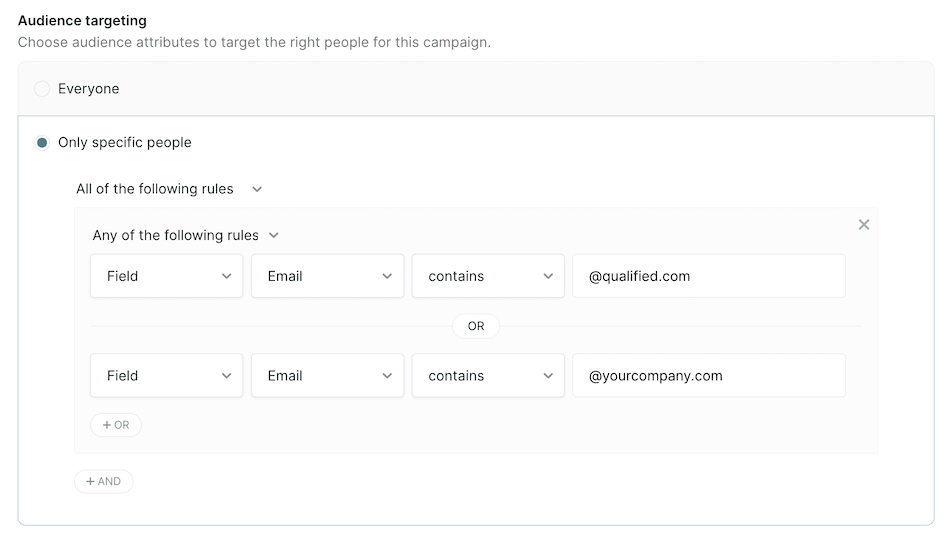
- Within the email campaign setup, update Audience Targeting to include only test records.
- Example: Add criteria such as “Email contains @qualified.com” to ensure emails are only sent to internal test users.
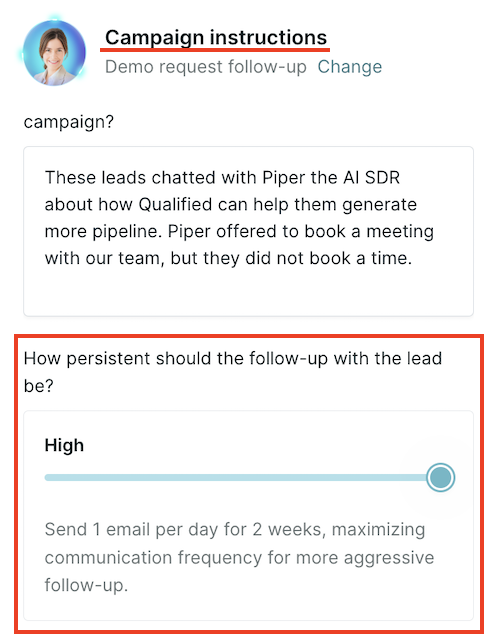
- In legacy campaigns, update the Persistence to High to receive additional follow-up emails over a shorter period of time.
- Change Campaign Status to “On”.
- Piper will now send real emails to test records that meet the campaign criteria, and emails are also viewable under the campaign’s Email tab.
Use this method if:
- You want to test unsubscribe and meeting booked workflows.
- You need to validate email delivery and formatting across different inboxes.
Customers should work with their Qualified Success Architect before using this method to ensure proper test setup.
Launching your AI Email campaign
Once testing is complete, follow these steps to activate your campaign:
- Navigate to Email → Campaigns. For legacy campaigns, go to Settings → AI → Email Campaigns.
- Select your campaign and change the Campaign Status from “Testing” to “On”.
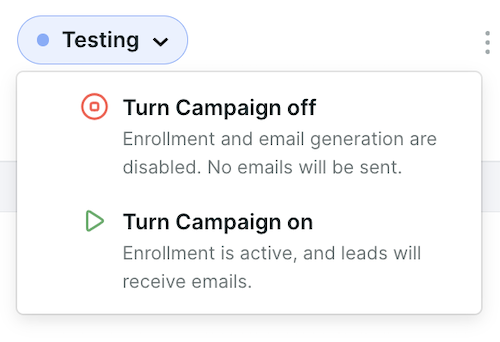
- If any leads qualified for the campaign while it was in “Testing,” you will see a lookback window that allows you to retroactively send emails to those qualified records.
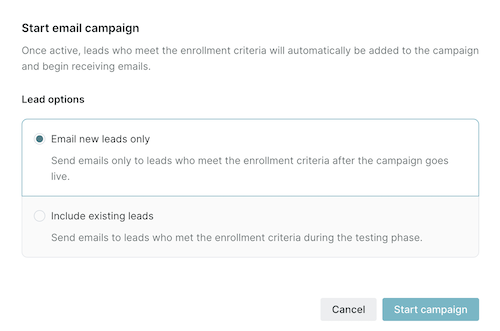
- Confirm your settings and click Save. Your campaign is now live! 🚀
Pausing or turning off your campaign
Once a campaign is live, you can stop it from sending emails in two ways:
- Pause: The campaign stops sending emails, and enrolled leads stay in the campaign. Use this to hold sends for a while.
- Off: Every enrolled lead exits the campaign. Each exit is recorded with the reason Campaign turned off or expired, which can trigger your campaign exit workflows. See Workflows for AI Email campaigns.
Note: Turning a campaign off removes all of its enrolled leads. To stop sends and keep leads enrolled, pause the campaign instead.



.svg)


