


Workflows for AI Email campaigns helps streamline lead management, track engagement, and ensure campaign performance is reflected in Salesforce. Some workflows happen automatically, while others can be custom-configured to align with business needs.
Default workflows to Salesforce
Piper Email includes built-in workflows that automatically push data to Salesforce to update unsubscribe status, log emails sent, and track meetings booked.
Unsubscribe status
Assuming the Email unsubscribe footer has been configured in Qualified, we will automatically update the unsubscribe field indicated in the setup when a lead unsubscribes from an email campaign.
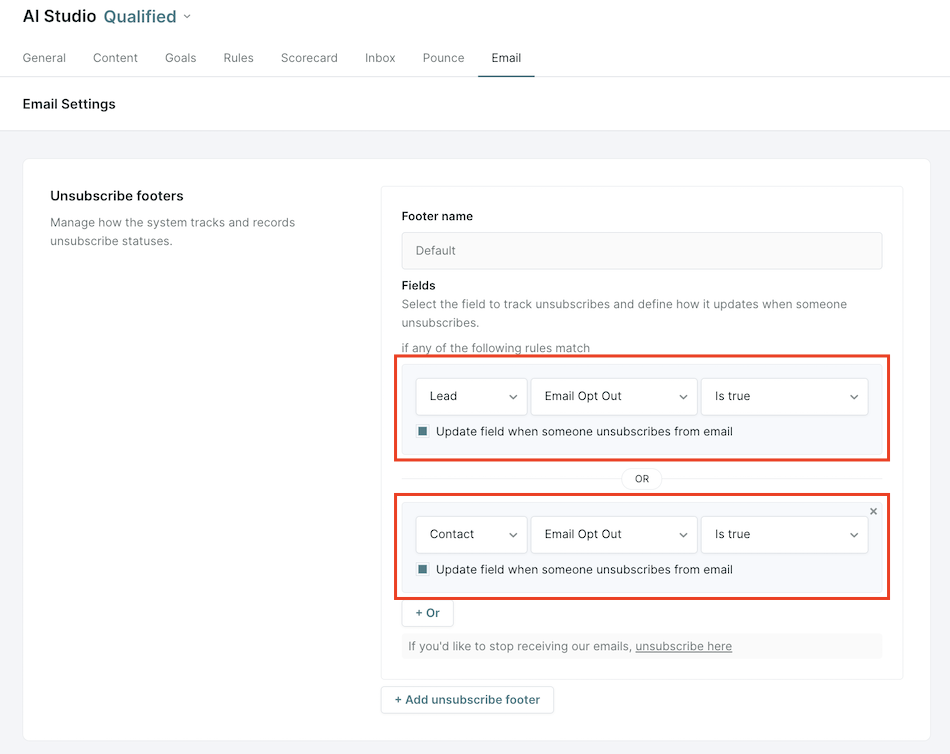
Need more information on configuring the Unsubscribe footer? Check out our article: Email unsubscribe management
Emails sent
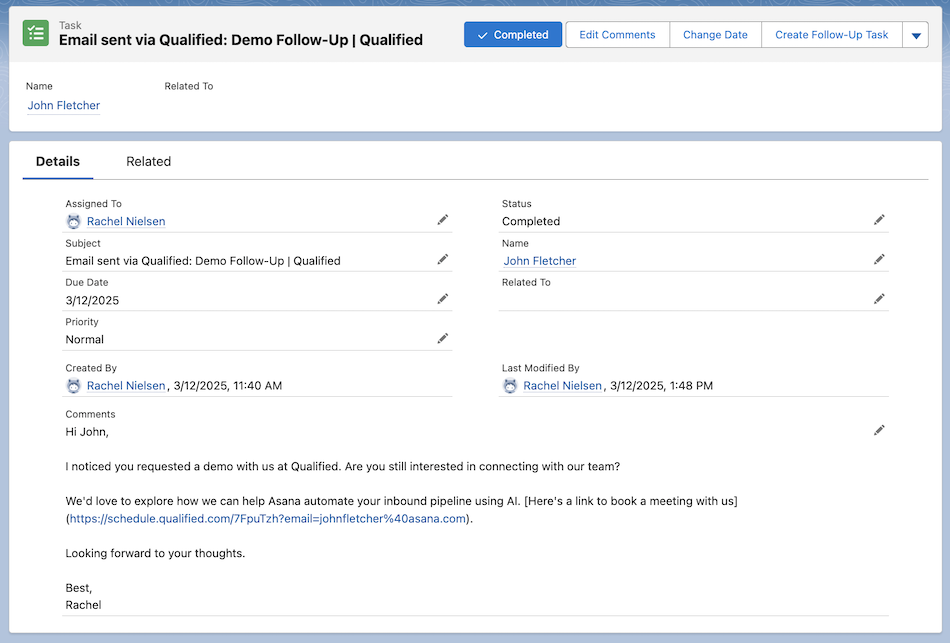
When an AI email is sent to a Lead or Contact, we'll create a Task in Salesforce. We will fill in the following fields:
- Subject: "Email sent via Qualified: {{email subject line}}"
- Description: A copy of the text of the email that was sent.
- Assigned to ID: The sender of the email
- Type: Email
- Status: Completed
- Due Date: The time the email was sent.
Meetings booked
When a Lead or Contact books a meeting via Qualified, through any channel including email, we will automatically create an Event on the record in Salesforce. By default, the following Event fields will be populated with:
- Subject: “Meeting Booked via Qualified with {{meeting owner’s name}}”
- Assigned to: Meeting owner
- Description: Details about how the meeting was booked, including the meeting type and channel.
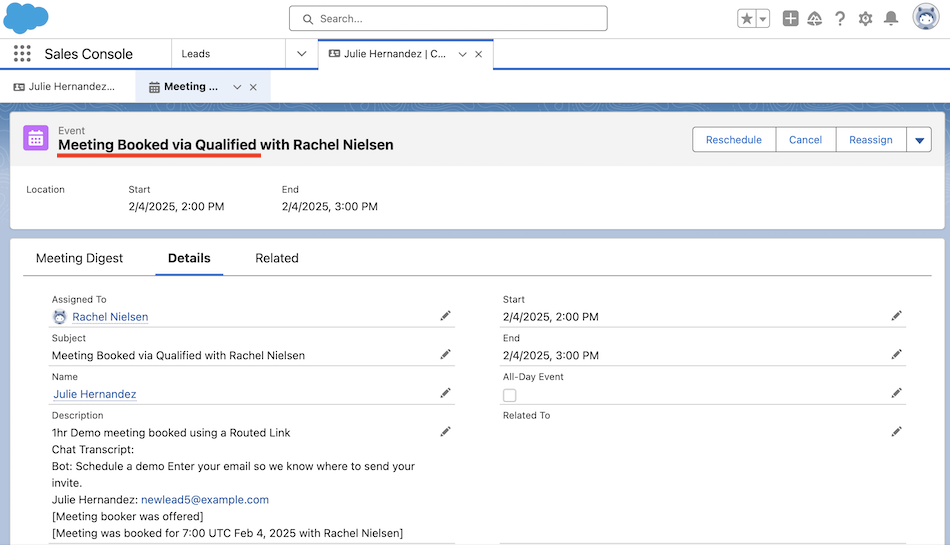
Your company may have disabled the default meeting booked Event and created the Event with a custom workflow instead. If you would like to customize the meeting booked Event (e.g. the Subject or Description), reach out to your Qualified Success Architect for further assistance.
Creating custom workflows
Custom workflows allow admins to automate actions based on AI Email campaign activity, helping to:
- Update Salesforce campaign status to track lead progression.
- Manage Marketo program membership for accurate reporting.
- Update field values based on recipient engagement.
To ensure Piper Email’s impact on pipeline and revenue is accurately recorded, we recommend setting up an attribution workflow to track meetings booked from email campaigns in your Salesforce or Marketo.
Recommended workflow: Tracking meetings booked for attribution
At a minimum, we recommend creating a workflow that logs meetings booked as a result of AI Email campaigns. This ensures visibility into how AI-driven emails contribute to pipeline and revenue.
To track attribution in Salesforce, we recommend creating a new Salesforce Campaign specifically to track Lead/Contacts that book a meeting after receiving an email via Qualified.
Step 1: Create a new workflow
- Navigate to Settings → App Settings → Workflows.
- Click + Create workflow.
Step 2: Define the trigger event
- Select Lead exited campaign as the trigger event.
- From the drop-down, select one or more exit reasons to trigger the workflow. The exit reasons are:
- Engagement window ended: The lead has been active in the campaign for the defined engagement window (2 weeks by default) without meeting any other campaign exit criteria.
- Reply received - Response handling off: The lead replied to a campaign email, and response handling is turned off for the campaign.
- Reply received - No response needed: The lead replied, and your agent determined the reply didn’t need a response.
- Reply received - Responded with handoff: The lead replied, and your agent responded and handed the lead off to a rep.
- Reply received - Responded without handoff: The lead replied, and your agent responded without handing the lead off.
- Meeting booked: The lead booked a meeting with a rep.
- Campaign turned off or expired: The campaign is no longer active, either because its end date has arrived or it was manually ended.
- Custom exit criteria met: The lead met the custom-defined exit criteria set up as part of the email campaign, like a Salesforce Lead or Contact field update. You can change these criteria in the campaign setup.
- Email bounced: The email was marked undeliverable, so the lead is removed from the campaign.
- Email provider suppressed: The lead’s email address is suppressed by the sending email provider, so campaign emails can’t be delivered to it.
- Joined most relevant campaign: The lead joined a more relevant email campaign. Leads can be active in only one campaign at a time.
- Manually removed: A Qualified admin removed the lead from the campaign.
- Unsubscribed: The lead unsubscribed using the link in the unsubscribe footer.
- Invalid sender: The rep or AI SDR email address used to send an email to the lead is no longer valid or needs to be reauthenticated.
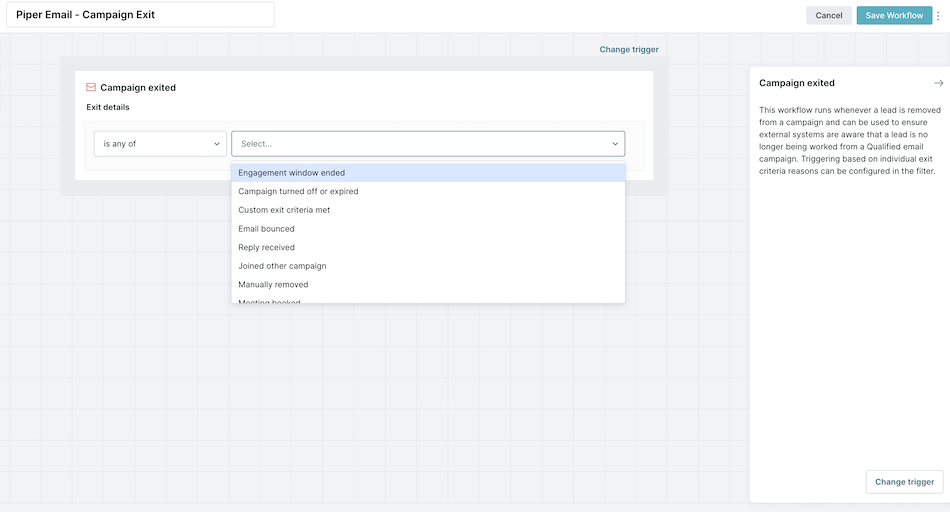
Having a workflow for the Meeting booked exit reason is a key step in attribution!
Step 3: Configure workflow actions
Set up actions based on Salesforce or Marketo
- For Salesforce:
- Update the lead/contact status (e.g., “Meeting Booked”).
- Add the lead/contact to the aligned Salesforce Campaign for tracking.
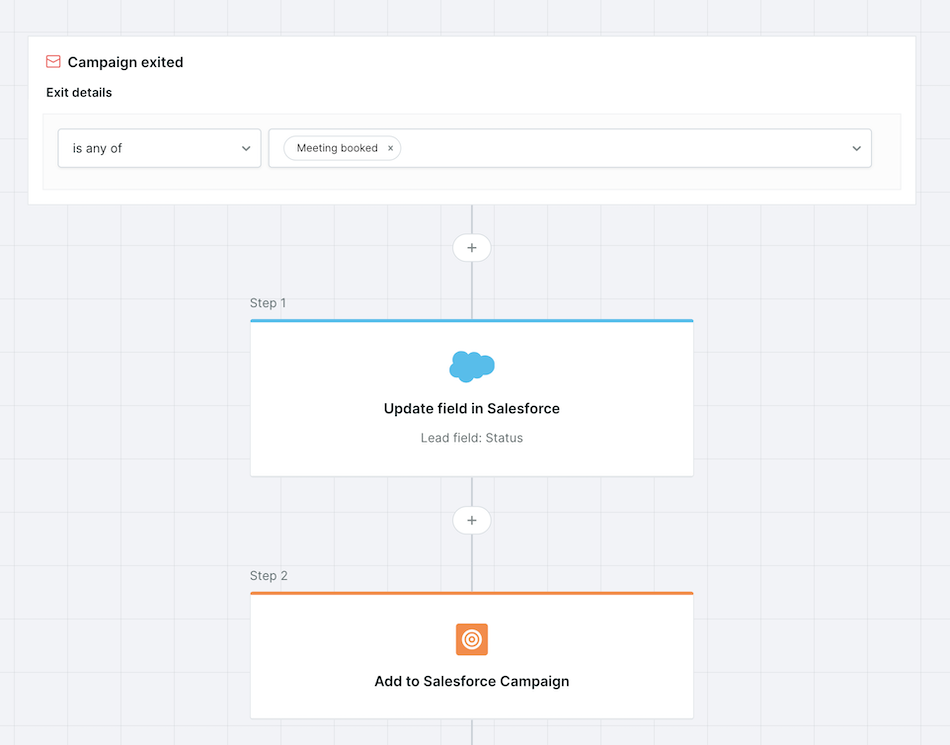
- For Marketo:
- Update the lead’s status to “Meeting Booked”.
- Add the lead to a Marketo Program for tracking and reporting.
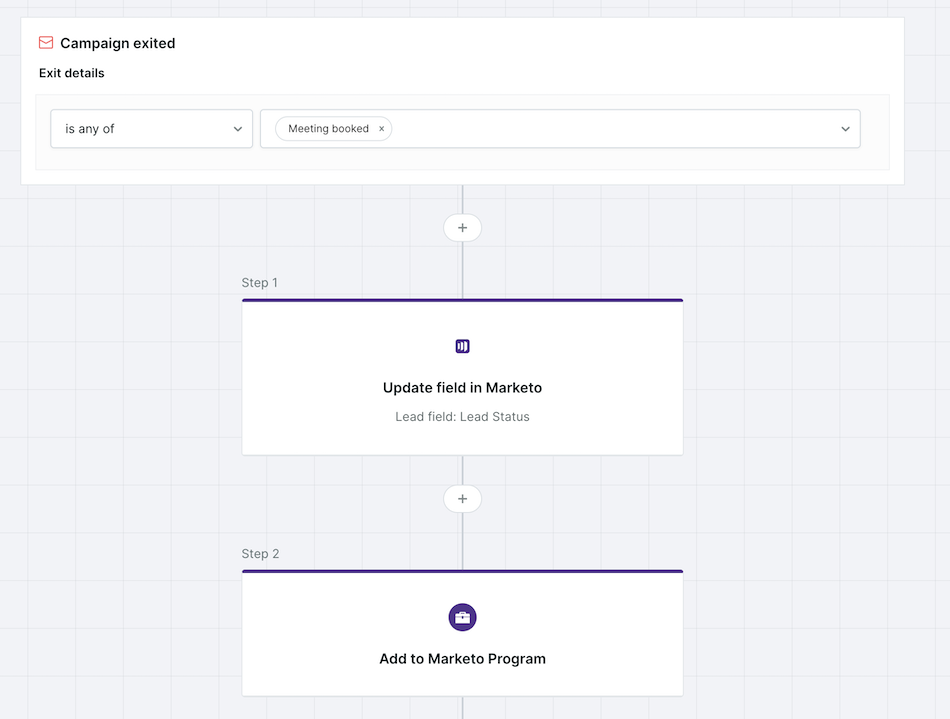
Step 4: Apply branching logic (optional)
If tracking attribution for multiple AI Email Campaigns, use branching logic to:
- Assign leads to the correct Salesforce Campaign or Marketo Program based on which email campaign they exited.
- Maintain granular campaign attribution to analyze performance at the campaign level.
Step 5: Save and activate the workflow
- Click Save workflow.
- Test the workflow using sample leads before rolling it out live.
Interested in learning more about automating workflows? Check out our article on Using workflows in Qualified. For the full list of workflow triggers, see Triggers in workflows.



.svg)


