


AI Email offers flexible unsubscribe workflows to fit different email types and organizational needs. Depending on how you configure your unsubscribe process, Piper the AI SDR Agent can manage unsubscribe status through one field or several, control how field values are matched, and even recognize when a lead asks to be removed by replying directly to an email.
Note: You can’t save an email campaign until you’ve completed email sender setup and set up unsubscribe management as described in this article. See Setting up agentic email campaigns.
Using one field to manage unsubscribes
This setup works well for simpler workflows where all unsubscribe statuses are stored in a single Qualified field. It's also how you track unsubscribes for leads that don't have a Salesforce record, since there's no Salesforce field to write the status to. If the Qualified field is mapped to Salesforce or your marketing automation platform (MAP), Qualified updates those systems too.
Note: To use Qualified fields in unsubscribe footers, or to learn about availability for your organization, contact your Qualified Success Architect (QSA).
Before you start, create the Qualified field you'll use to track unsubscribes, for example Email Unsubscribe. Only Checkbox and Text fields can be used. See Fields.
Steps to set up
- In Qualified, navigate to Settings → Agent Studio → Email.
- If you have multiple AI profiles, select the one that will be used in the email campaign before continuing.
- In the footer's unsubscribe fields, select Field under Lead, then choose the Qualified field where unsubscribe statuses will be read and written. When a lead unsubscribes, Qualified updates this field on the lead, then updates any external field mapped to it.
- Choose the value in the field that indicates an unsubscribe status (for example, Email Unsubscribe → Is true).
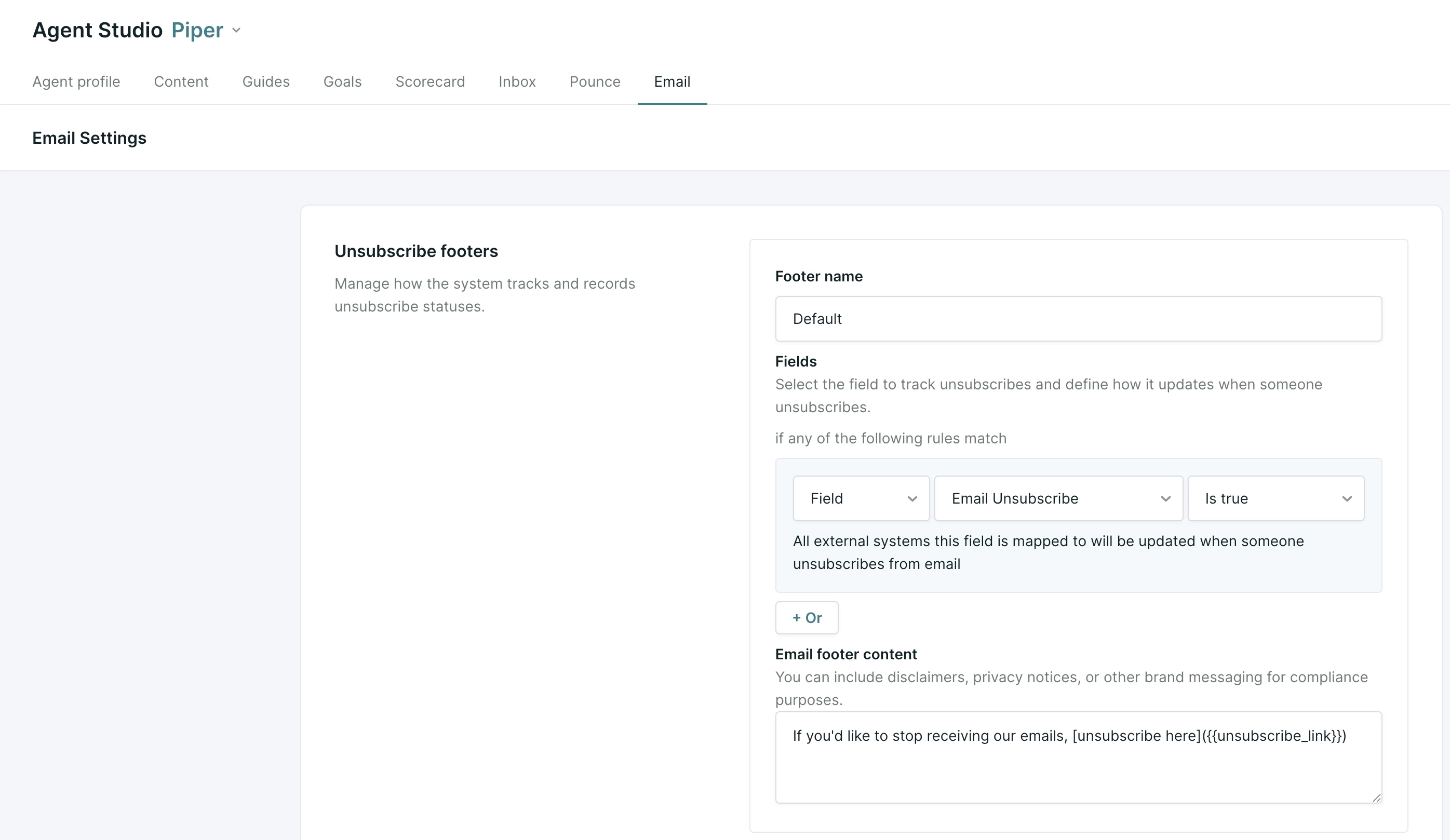
- (Optional) To update your MAP as well, map the Qualified field to the matching field in that system under Settings → Integrations → [integration name] → Field Mapping; for example, Email Unsubscribe to Marketo’s Unsubscribed field.
- If the Qualified field isn’t mapped, only the Qualified field is updated.
- A new mapping applies to future unsubscribes only.
Pro Tip: One footer can include both Salesforce fields and Qualified fields. Each field is set up separately, and all of them update when a lead unsubscribes. This helps with campaigns that mix a reach of leads with and without Salesforce records.
Using separate Salesforce fields for different unsubscribe workflows
This setup is suited for advanced workflows where unsubscribes are managed across multiple Salesforce Lead/Contact fields (e.g. different email vendors or campaign types).
At this time, read-only field behavior is only supported for the Salesforce Lead and Contact records. All MAP Contact fields will be updated if they are mapped in the unsubscribe footer.
Steps to set up
- In Qualified, navigate to Settings → Agent Studio → Email.
- If you have multiple AI Profiles, make sure to select the one that will be used in the Email Campaign before continuing.
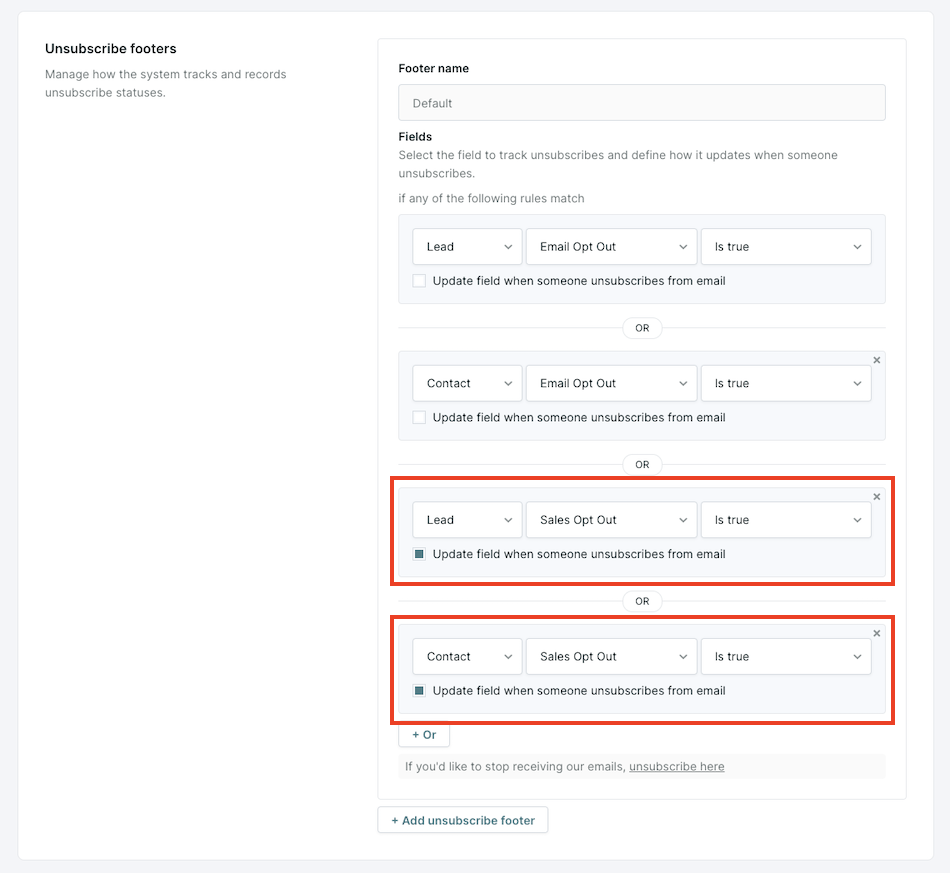
- Select the Salesforce Lead field and Contact Field where unsubscribe statuses will be READ-ONLY, and choose the value in the field that indicates an “unsubscribe” status (e.g. “Email Opt Out” → “Is true”)
- Make sure to leave the Update field when someone unsubscribes from email box UNCHECKED for this field.
- If a Lead or Contact has this field set to the “unsubscribe” status, they will not be entered into the Email Campaign(s) using this unsubscribe footer.
- Next, select the Salesforce Lead field and Contact Field where unsubscribe statuses will be READ and WRITTEN, and choose the value in the field that indicates an “unsubscribe” status (e.g. “Email Opt Out” → “Is true”).
- Check the box labeled Update field when someone unsubscribes from email under the fields in Step 3 to ensure the status is automatically updated when a Lead or Contact unsubscribes from the Email Campaign.
Matching unsubscribe field values
For each field you use to track unsubscribe status, you can choose how Qualified matches the field's value against the status you define.
- Equals checks for an exact match against one of the values you enter. This works well for picklist fields with a single canonical value, like
opt_out. - Contains checks whether the field's value includes one of the values you enter. You can enter multiple values under Contains, and a match on any one of them counts as unsubscribed.
- Boolean fields use Is true or Is false instead of Equals or Contains.
A few things to keep in mind:
- Matching is case-sensitive for both Equals and Contains.
- When a lead or contact unsubscribes and Qualified writes back to the field, only the first value you entered is written. If you're using multiple values, order them with this in mind.
- An empty or blank field value doesn't count as unsubscribed.
- This same matching behavior applies to Qualified fields in a footer.
Customizing the unsubscribe footer
You can create multiple unsubscribe footers, each with its own wording and unsubscribe requirements, to match the type of email campaign it's used for.
Steps to customize
- Under Settings → Agent Studio → Email, click the + Add unsubscribe footer button to create a new footer.
- Add the Footer Name, the unsubscribe Fields, and customize the Email footer content ensuring the language clearly communicates the unsubscribe process to recipients.
- Footer must include the unsubscribe link merge tag. Example: [unsubscribe here]({{unsubscribe_link}})
- Save the updated footer.
Additional unsubscribe options
Note: these features must be enabled by your QSA before using. If you’re interested, please reach out to your QSA.
Using a custom https unsubscribe link
Instead of the built-in {{unsubscribe_link}} merge tag, your footer can point to your own hosted unsubscribe page or preference center.
- The footer must still contain a markdown-formatted link: [link text](target_url).
- The target can be
{{unsubscribe_link}}or a validhttps://URL. You can include more than one link in a footer, for example a privacy policy link alongside your unsubscribe link. - A bare
https://URL without markdown syntax is rejected, andhttp://links aren't accepted. - When you use your own hosted link, Qualified renders it exactly as configured. Your page is responsible for handling the actual unsubscribe request. Qualified doesn't manage that process for custom links.
- Custom links are turned on for your whole organization, so the change applies to every campaign and footer.
- Turning on custom links also turns off one-click unsubscribe headers in your campaign emails.
If you are using a custom https unsubscribe link and this feature is later disabled for your organization, Qualified emails will revert to sending with the default unsubscribe footer.
Reply-to-unsubscribe detection
When available for your organization, your AI SDR agent can also recognize when a lead replies to a campaign email asking to be removed, for example "unsubscribe me" or "stop contacting me." This works automatically, with no per-campaign or per-rep setup required.
When your AI SDR agent detects a direct opt-out request in a reply, it exits the lead from the campaign with the reason Unsubscribed and runs the same process as a standard unsubscribe: updating the connected Salesforce field and refreshing the lead's data.
Not every reply counts as an opt-out. General disinterest ("not interested"), budget concerns, mentions of an existing vendor, and requests like "cancel my trial" are handled as regular replies. They don't trigger the unsubscribe process.
If your footer uses a custom https unsubscribe link instead of the built-in unsubscribe link, reply-to-unsubscribe detection won't apply to those campaigns. Talk to your QSA if you rely on reply-based opt-outs before enabling a custom link.



.svg)


