


When booking meetings through the Qualified platform, capturing upfront context is essential for delivering a tailored sales experience. While Piper, the AI SDR Agent seamlessly automates interactions on your website, Qualified also provides powerful tools for standard scheduling paths. Previously, the default functionality for direct links and routed links was limited strictly to email collection.
Overview
With the introduction of pre-meeting questions, you can now give prospects the option to provide more information to your representatives ahead of a scheduled call. This capability allows you to gather deeper insights—such as specific customer use cases—ensuring your team can engage in a more targeted conversation. Pre-meeting questions can be utilized seamlessly across live booker, direct links, routed links, and meeting landing pages.
Configuring your pre-meeting questions
To set up pre-meeting questions for a specific meeting type, follow these steps:
-
Navigate to Settings → Meeting Types.
-
Find and select the specific meeting type you want to configure questions for.
-
Select the Booking Questions tab.
-
Click the Set Up Questions button.
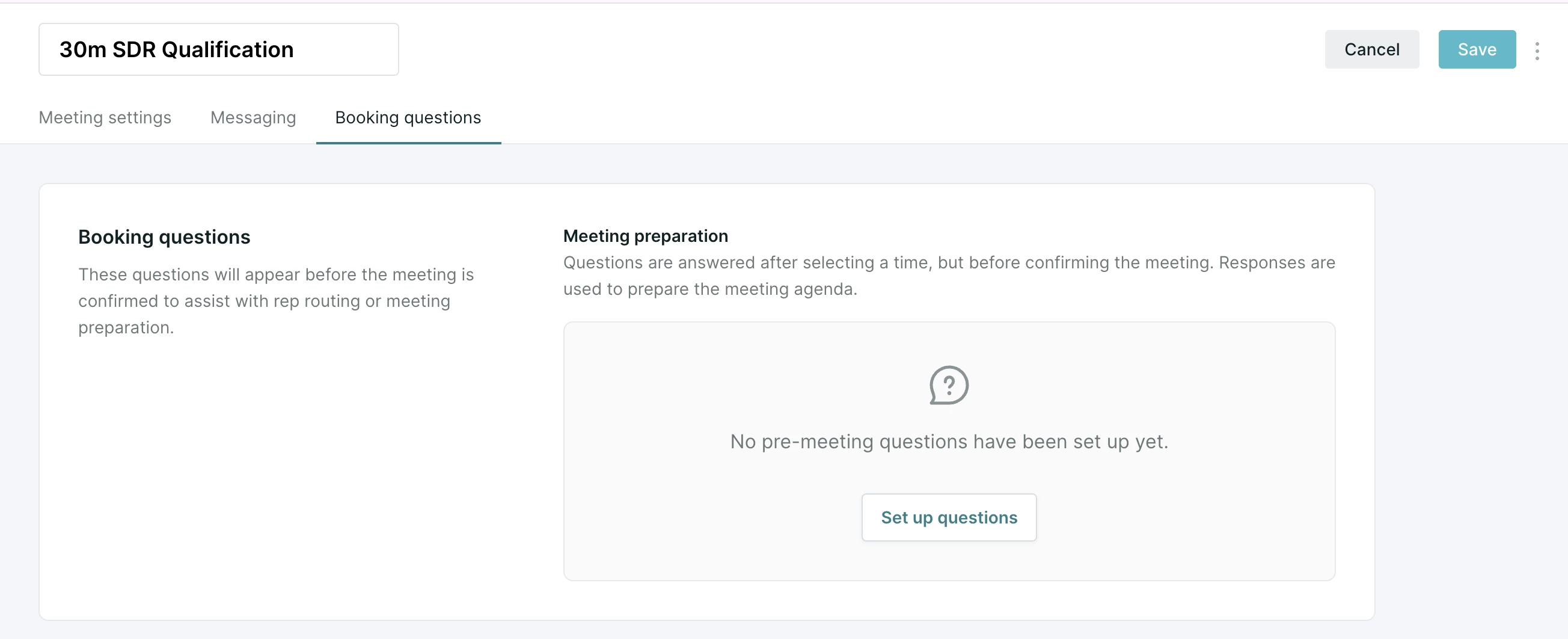
- Choose a Title for the pre-meeting questions flow.
- Choose your question type by selecting Text, Picklist, or Visitor Field.
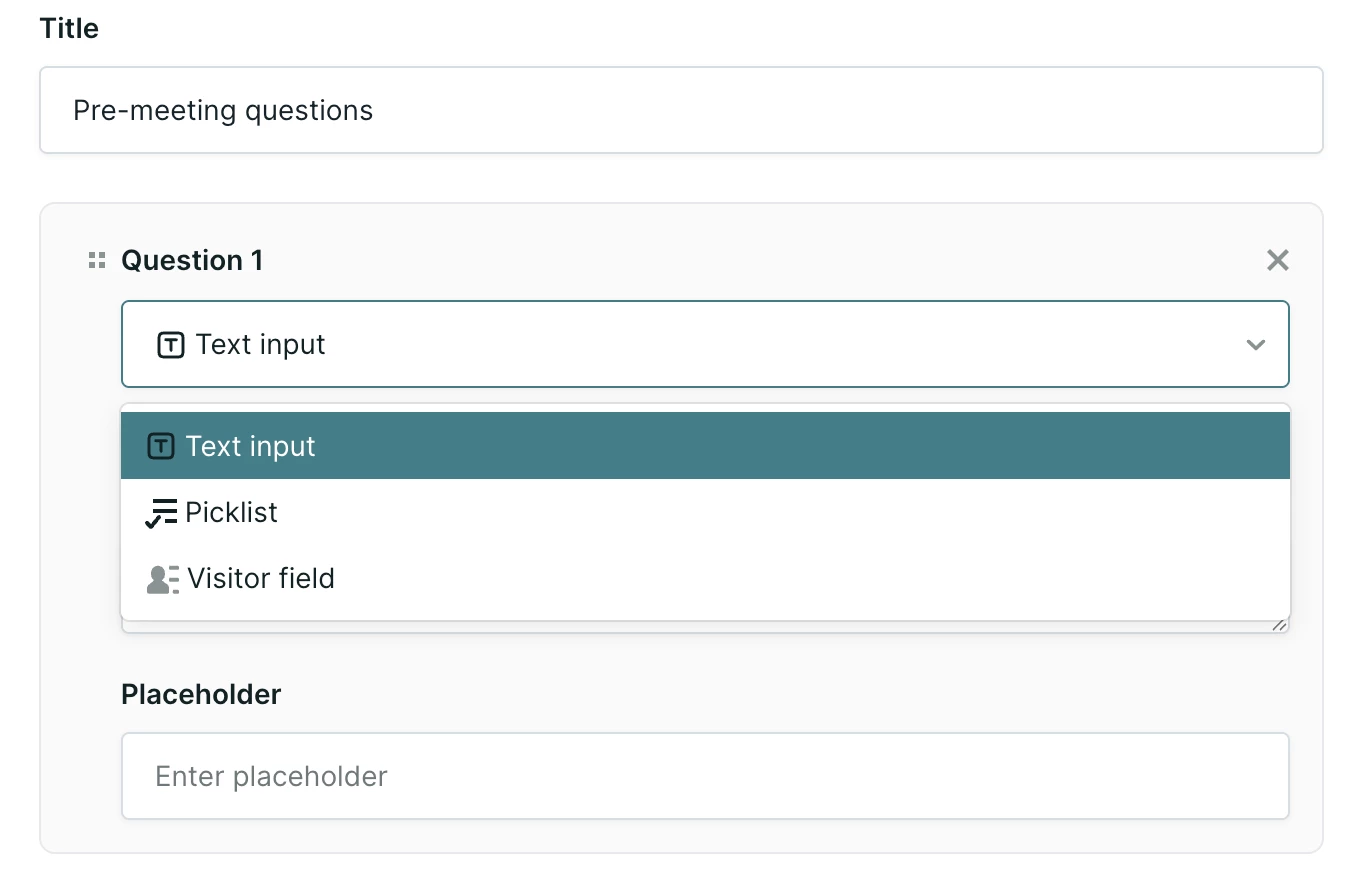
- Optionally, select whether the question is Required using the checkbox.
- Enter your preferred text into the Question and Placeholder fields.
- Configure any specific settings required for your chosen question type, such as defining your picklist values or mapping the specific Qualified visitor field to be populated.
- Click the + button and repeat steps 6-8 for additional questions, up to 10.
- When finished, click save.
All answers provided by the visitor will automatically be included in the body of the calendar invite sent to your representative.
Understanding field types
When creating your questions, you can select from three distinct field types based on how you want to manage and store the incoming information:
-
Text input: This option creates a field where visitors can type custom answers in the form of words and sentences. This field type remains entirely specific to Qualified and cannot be used to sync data to external systems.
-
Picklist: This option allows you to create a field where visitors choose from pre-defined values that you establish. Similar to text inputs, this field type is specific to Qualified and will not sync to external applications.
-
Visitor field: This option enables you to select fields that are directly connected to the visitor field section of Qualified. Selecting a visitor field allows you to sync captured data directly to externally connected systems like Salesforce or your marketing automation platform, in addition to attaching it to the meeting invite.
Important considerations
To ensure your scheduling and data workflows function smoothly, please keep the following operational behaviors in mind:
-
Data enrichment: If you select a visitor field, the field values will not be automatically enriched or prefilled after the visitor provides their email address. Users will be required to manually answer every single question, regardless of whether they are already a known record in your system.
-
Routing rules: Pre-meeting questions will not be used for routing in this initial iteration of the feature. However, the product team is actively working on expanding routing capabilities for future updates.
-
Salesforce record creation: To guarantee that new records are properly created in Salesforce, you must use a Qualified workflow. We recommend configuring your workflow to trigger based on a "meeting booked" or "meeting offered not booked" event status.



.svg)


