
Make sure the right people from your team attend prospect meetings with meeting routing. Configure meeting routing so Qualified offers the calendar(s) for reps best suited for that meeting type, territory, and other criteria.
Overview
Meeting routing dictates which sales rep calendars are shown when a visitor books a meeting. You can create different meeting types (like '30-min Demo' or '15-min Discovery') and attach a specific Routing Rule Set to each one.
Once configured, these routing rules automatically apply whenever that Meeting Type is offered across the Qualified platform, including:
-
Conversations: When your AI SDR agent or a rep offers a meeting during a live chat.
-
Form and button experiences: When an "Offer a meeting" step is triggered after a form fill or button click.
-
Routed Meeting Links: When a prospect clicks a specialized link (e.g., in an email) to book with a team.
Meeting routing is distinct from Qualified conversations routing. A visitor may chat with an SDR but need a follow-up meeting with an AE. Separate routing for chat and meetings lets you staff both areas effectively.
How to customize meeting routing
Meeting routing is set up using Routing Rule Sets. Each ruleset can be applied to one or more meeting types. This controls which reps are included in the visitor’s new meeting.
The routing logic itself lives in a Meeting Queue, which you then select in a routing rule. To set up a queue, see How to configure and use Meeting Queues.
To configure meeting routing:
-
Navigate to Settings → Meetings → Routing
-
Click Create new routing rule set.
-
Build the default meeting routing rule based on your team’s needs. For example:
-
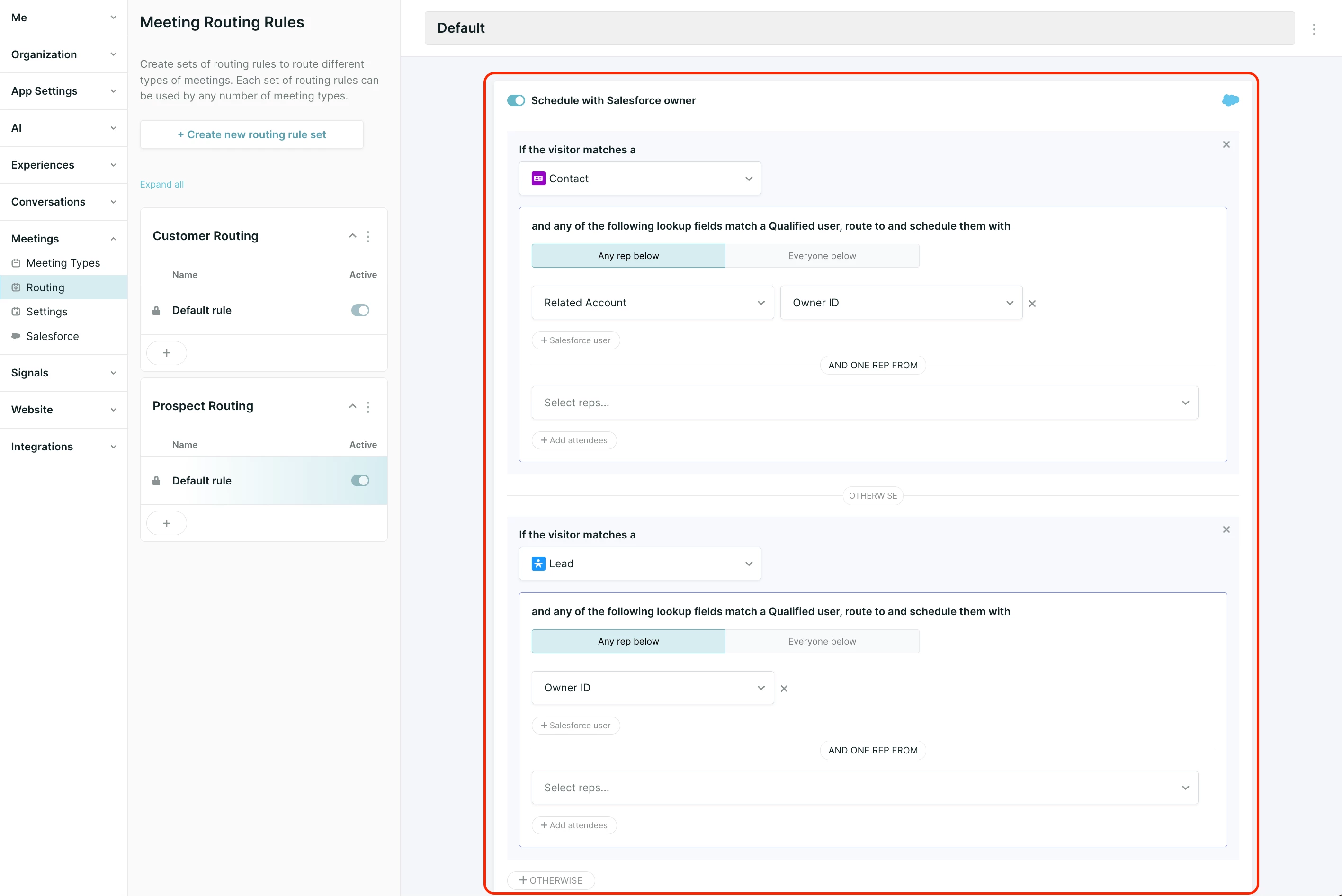
Schedule with Salesforce owner: If the visitor matches a Lead, Contact, or Account record in Salesforce, route to the record owner.
-
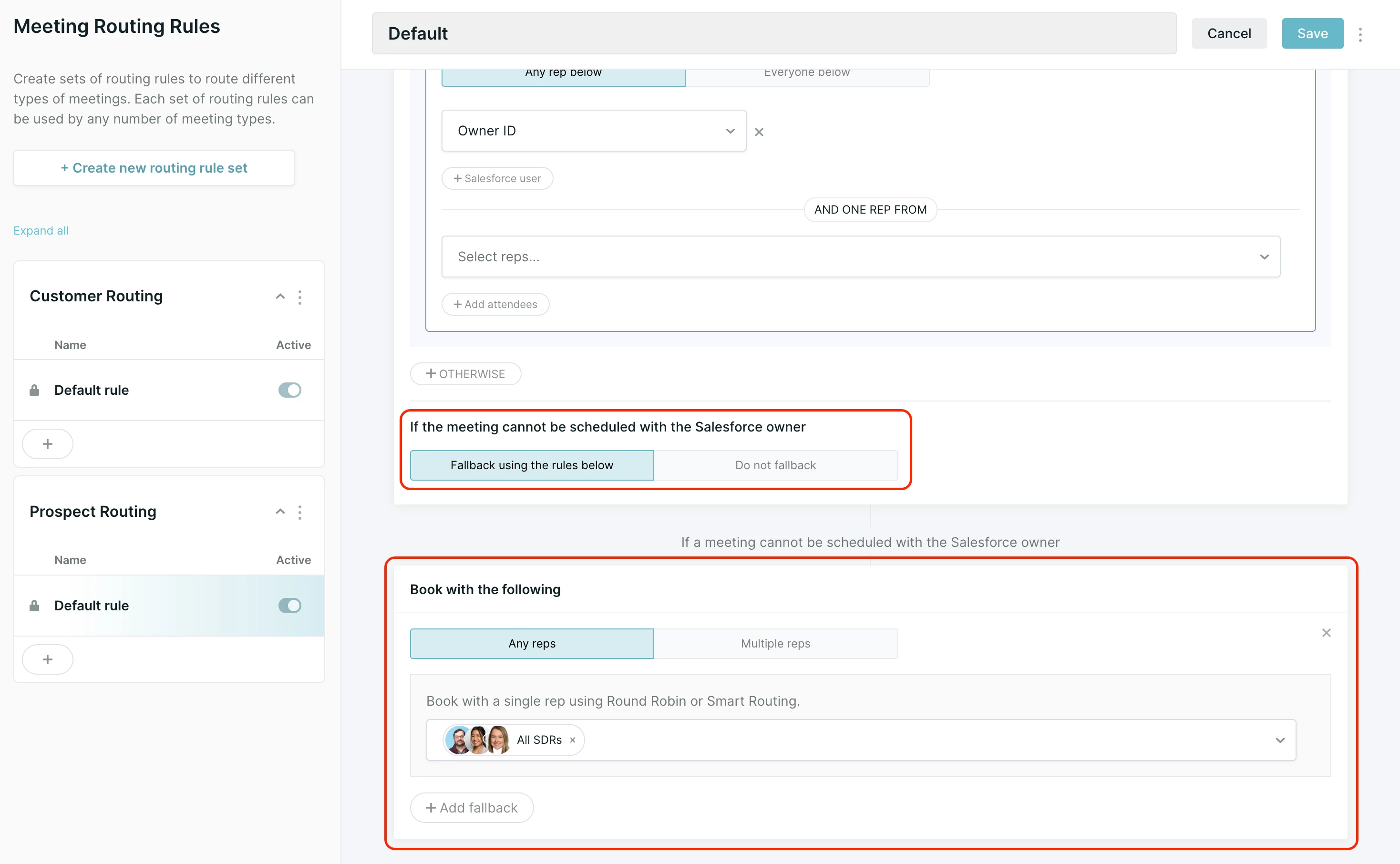
Book with the following (Fallback): This is where you select the reps or Meeting Queue to route to if the visitor does not match a record in Salesforce, or that feature is disabled.
When you select a Meeting Queue here, the routing logic (Flexible or Strict round robin) comes from the queue's settings. See How to configure and use Meeting Queues.
-
-
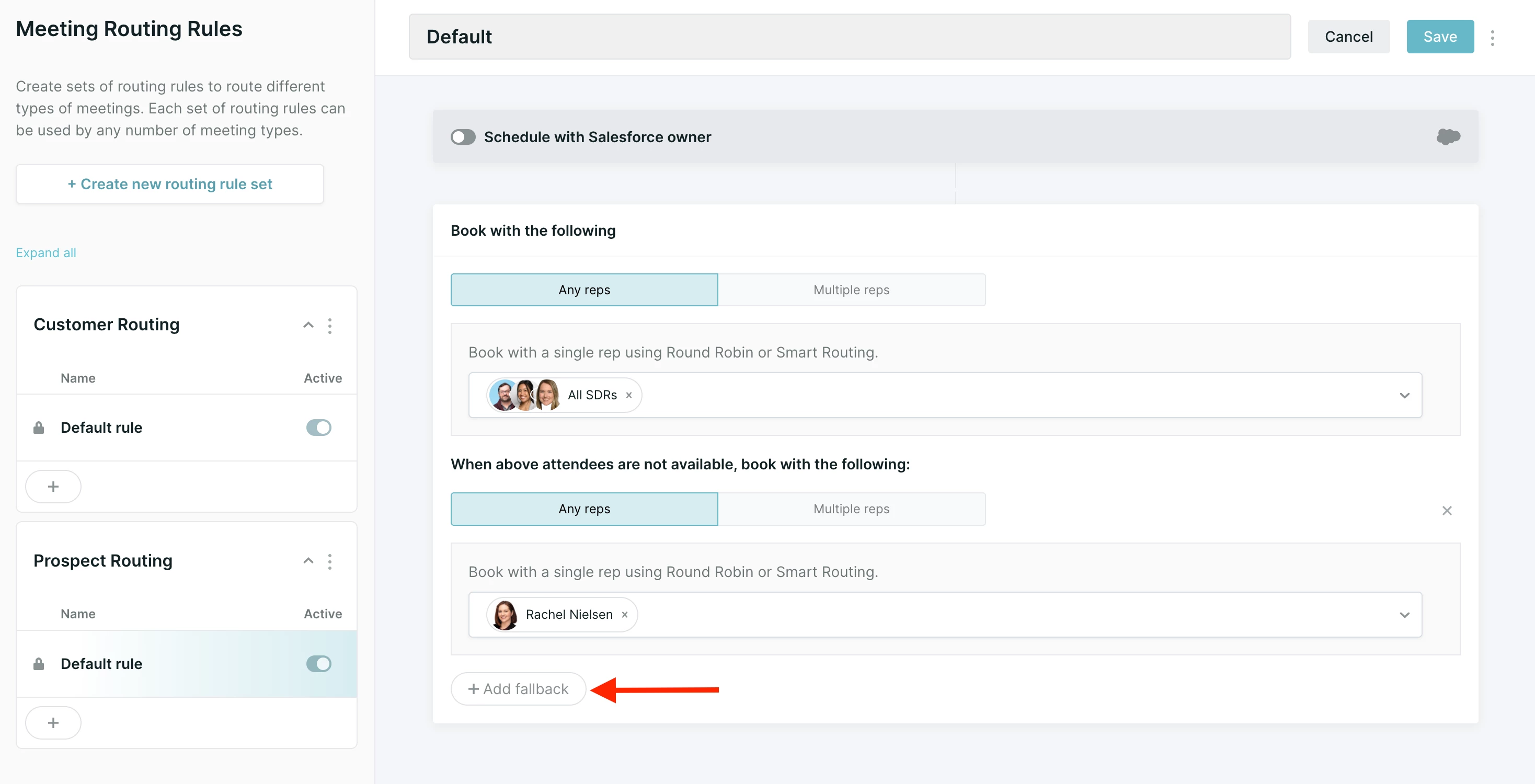
Add Additional Fallbacks (Optional): To ensure a meeting can always be booked, you can add multiple fallback destinations.
-
Within the "Book with the following" block, click the Add fallback button.
-
This adds another destination for the system to try if the one above it fails.
-
The block holds up to four destinations: the first destination, plus up to three more added with Add fallback. The system tries them in order until it finds an available rep.
-
-
-
Click Save in the top-right corner.
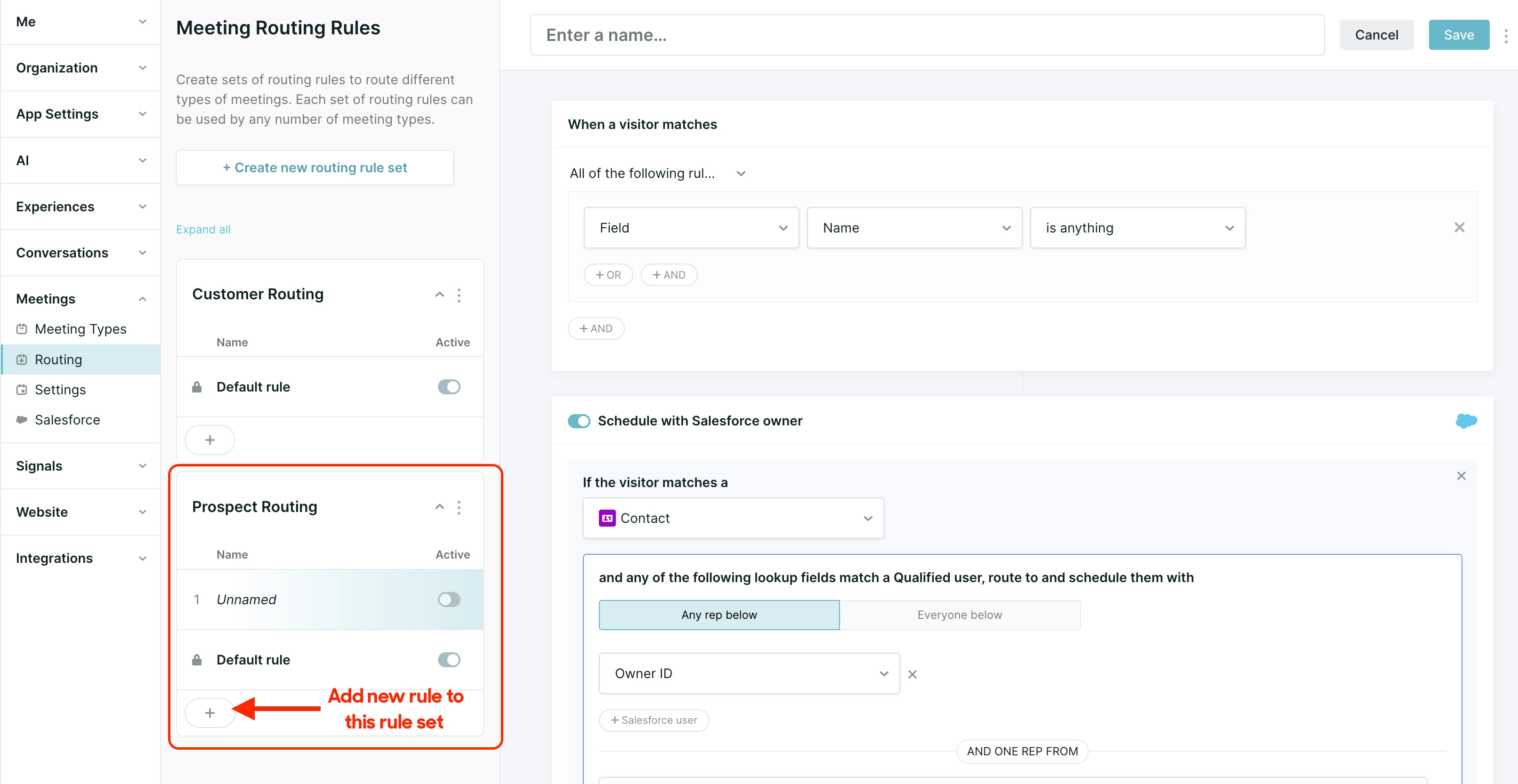
If you want multiple meeting routing rules for the same meeting type(s), click the + icon to create an additional routing rule within the Routing Rule Set:
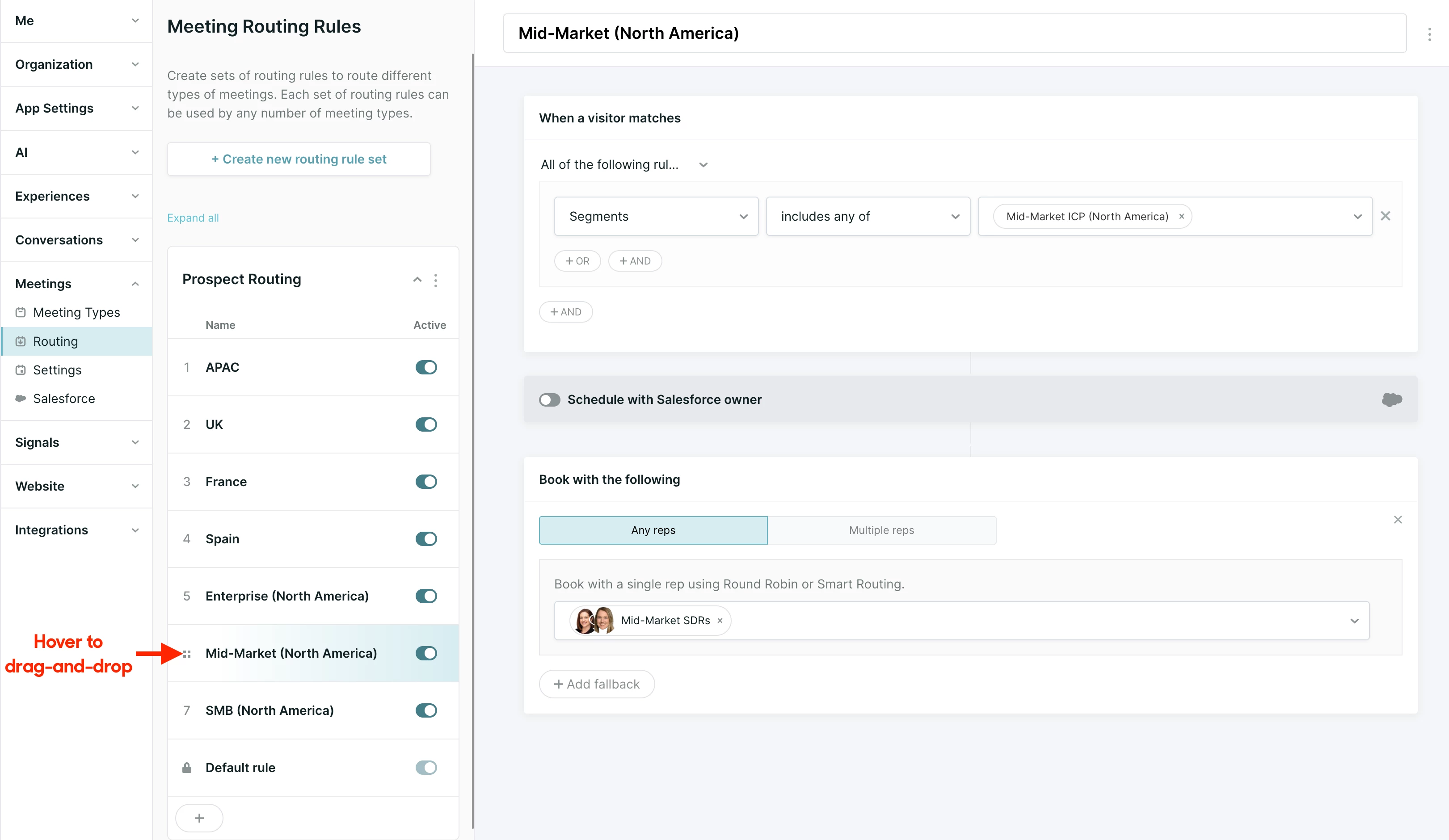
The routing rules within a set are evaluated in the order they’re listed. Hover over the routing rule’s number and then drag-and-drop the routing rules to re-order them:
Why and when fallbacks are used
The system will attempt a fallback if no reps are available in the primary destination. This ensures that a prospect can always find a time, even if their dedicated rep is unavailable. Common reasons include:
-
No time slots available: The reps' calendars are fully booked.
-
No availability configured: The reps haven't set their "Bookable Hours" in their Qualified profiles.
-
No calendar connected: The reps' calendar connections (Google, Outlook) are invalid or disconnected.
Routing to multiple groups of attendees
There are cases where you may need to book a meeting with multiple attendees, and even route between groups of attendees. Qualified's meeting routing can handle that too. Below are some common use-cases:
- Salesforce routing: Route to the Salesforce owner, and to a Meeting Queue of Solution Engineers.
- Fallback routing: Route to a Meeting Queue of Account Executives, then to a Meeting Queue of Solution Engineers.