


Your prospects have several ways of meeting with your team, from quick discovery calls to product demos and more. With Qualified Meetings Landing Pages, you can offer multiple meeting types to your visitors with one link. Let them choose the meeting type that works best for them and book seamlessly.
Overview
With meeting links, you can quickly offer a meeting to prospects, even if they aren’t currently on your website. Meeting link landing pages allow you to further expand these options for your prospects, allowing them to choose the kind of meeting they’d like to book. These meetings can have variable durations, routing, and messaging, whatever your prospects need.
Configuring meeting types
You may have multiple kinds of meetings that your prospects can have with your team. Each meeting type has its own settings, duration, routing rules, and more.
For more on creating meeting types, see Customizing meeting types and confirmation emails.
Creating a meeting landing page
Once you have the appropriate meeting types configured, you can build your meeting landing pages to offer them to your prospects.
To get started:
- Navigate to Meetings → Meeting Links.
- Click the “Create Landing Page Link” button.
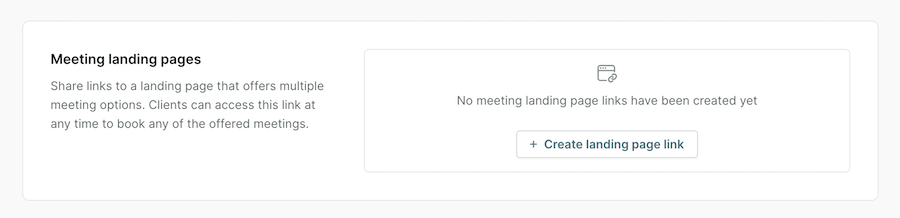
Only admins can create landing pages. If you’re an admin and don’t see the “Create Landing Page Link” button, contact your Qualified Success Architect.
Naming your landing page
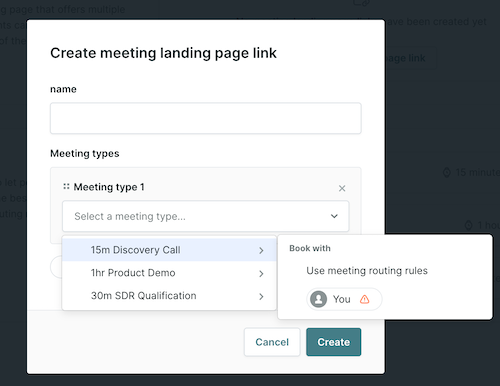
First, give your landing page a name. Prospects won’t see the name, but it can help you identify if a landing page is meant for a particular use case, campaign, or audience.
Add meeting types
Add each meeting type that your prospect will be able to choose from on your landing page:
- Choose the meeting type from the drop-down.
- Select whether the meeting should use that meeting type’s routing rules, or route directly to you.
- Add additional meeting types by pressing the “+” button.
- Drag and reorder meetings as needed.
- Click “Create”.
Meeting type names are meant for internal use and may not suit visitors. To change the title visitors see for a meeting type on your landing page, open the meeting type and update its landing page title on the Messaging tab.
Previewing meeting landing pages
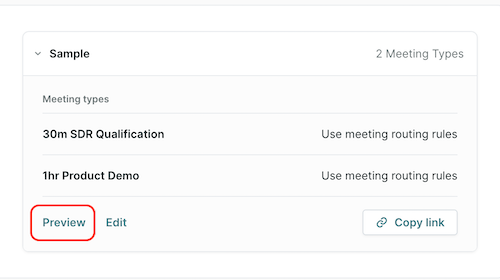
Once your meeting landing page has been configured, click the “Preview” button to view how your landing page will look for your prospects. This is a fully functional preview of the landing page. You’ll be able to view each meeting type and even book meetings to test functionality (have your reps cancel any test meetings you book to keep their calendars free for prospects!).
Meeting landing pages use the theme, branding, and content settings established for your organization (see Customizing the Qualified meeting booker). To give a landing page its own theme, use the Theme picker in its edit dialog. See Configuring individual meeting link themes.
Sharing meeting landing pages
Once your meeting landing page is ready to use, press the “Copy link” button to get a shareable link that will allow your prospects to book meetings. You can send this link individually to prospects, include it in your email signature, or make it part of a digital campaign.
Things to know
- Only admins can create and edit meeting landing pages.
- Each meeting type can appear only once on a landing page.
- A meeting type that a landing page uses can’t be deleted. Remove it from the landing page, or delete the landing page, first.



.svg)


