

When a visitor is matched to a Salesforce account, Qualified presents Signals data in the Account 360 and on the visitor’s associated account object in Salesforce. Qualified pushes Signals data into Salesforce to update your mapped fields with the most recent information.
Map Qualified Signals data to Salesforce
First, your Salesforce admin needs to create new fields in Salesforce for Qualified Signals data. This can be done by downloading the Signals unmanaged package or adding fields manually.
Download the Signals unmanaged package
Qualified offers a Signals unmanaged package that includes a collection of custom fields added to the Account object, reports, and dashboard components to showcase Signals data for your organization.
How to install
Note: First, reach out to your Qualified Success Architect (QSA) for the package password. Once you have it, follow the steps below to install the unmanaged package.
- Go to the Signals package’s installation page.
- Enter your username and password for your Salesforce organization and click Log In. The installation page will appear.
- Enter the password provided by your Qualified Success Architect.
- Select Rename Conflicting Components in Package.
- Select Install for All Users, which specifies the following settings on all internal custom profiles:
- Object permissions: Read, Create, Edit, and Delete enabled
- Field-level security: set to visible and editable for all fields
- Apex classes: enabled
- Visualforce pages: enabled
- App settings: enabled
- Tab settings: enabled
- Page layout settings: enabled
- Record Type settings: copied from admin profile
- Click Install.
- Click Done.
If you want to test the package first, open the same Signals unmanaged package page and log in to your sandbox account, rather than your production account.
Included components
The Qualified Signals unmanaged package includes fields added to the Account object, reports, and a dashboard.
Fields added to the Account object
- Qualified Signals Engagement Intent
- Qualified Signals Engagement Score
- Qualified Signals Engagement Trend
- Qualified Signals Research Intent
- Qualified Signals Research Score
- Qualified Signals Visitor Count
- Qualified Signals Session Count
- Qualified Signals Active Session Time
- Qualified Signals Meetings Booked Count
- Qualified Signals Rep Conversation Count
- Qualified Signals Bot Conversation Count
- Days Since Last Activity_Qualified
Reports
- Signals Scores with Accounts
- Engagement On Fire Accounts by Rep
- Engagement Hot Accounts by Rep
- Engagement Warm Accounts by Rep
- Hot Research Accounts by Rep
- Warm Research Accounts by Rep
Dashboard
- Signals Sales Prioritization Dashboard
Customize your Salesforce reports and dashboards
As you analyze the included reports and dashboard or build your own, make modifications within Salesforce to suit your team’s unique needs. For example, create a new filter to exclude existing customers or only view target accounts. Alternatively, use the Signals Sales Prioritization Dashboard’s global filter for Account Owner.
Troubleshooting
Why are my fields empty in Salesforce?
If all of the fields are empty, check that each Signals field is mapped to its Account field in Qualified. See Map the new fields in Qualified.
If the only blank fields are Qualified Signals Research Intent and Qualified Signals Research Score, Research Intent may not be enabled for your organization. To learn more about availability, contact your Qualified Success Architect (QSA). Any installed package reports referencing Research Intent, such as Hot Research Accounts by Rep, and the Research Intent tiles on the Signals Sales Prioritization Dashboard will also not display any data. You can delete those tiles from your dashboard for a more streamlined appearance.
Why does my installed package not include all of the components listed here?
If you downloaded our Signals unmanaged package before December 2022, you may have slightly different components that do not include Research Intent.
To bring Research Intent data into Salesforce, create two additional fields: Qualified Signals Research Intent (data type: text) and Qualified Signals Research Score (data type: number). Then map them to their Signals fields, following the steps in Map the new fields in Qualified. You can then build Salesforce reports and dashboards that include your accounts' Signals Research Intent without losing existing data.
Why can’t I install the Signals unmanaged package?
If the installation stops with the message This package can’t be installed, followed by Opportunities Missing Organization Feature: Opportunity.HistoricalTrending, your Salesforce org needs historical trend reporting turned on for Opportunities before the package can install.
Ask your Salesforce admin to enable historical trend reporting for the Opportunity object. Salesforce’s guide is Set Up Historical Trend Reporting. Then return to the installation page and install the package again.
Manually create custom fields in Salesforce
If you choose to manually create custom fields in Salesforce for Signals data, follow the guide below on what fields you’ll want to create:
Your Salesforce org may already have a Days Since Last Activity field, so creating a new one is not necessary. If your org doesn't already have one, follow Salesforce's instructions for creating it.
Days Since Last Activity is a formula field that calculates TODAY() - LastActivityDate. If you track scheduled activities in Salesforce that have not happened yet, it may show a negative number. You can create a filter within Salesforce to remove those values.
Map the new fields in Qualified
Whether you installed the unmanaged package or created the fields yourself, map each one in Qualified so Signals data has somewhere to go.
- Go to Settings → Integrations → Salesforce → Connection.
- In the Salesforce fields section, click Update fields. This pulls your new Account fields into Qualified.
- Go to Settings → Signals → Salesforce.
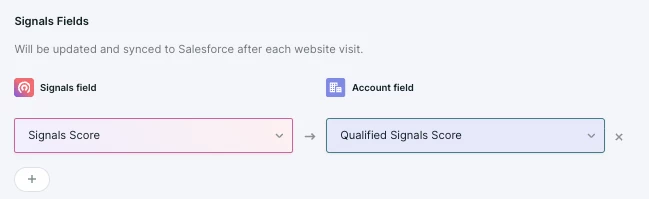
- Under Signals Fields, map each Signals field (left column) to its Salesforce Account field (right column).
- Click Save.
When Signals data is updated in Salesforce
Qualified pushes Signals data to Salesforce in two ways:
- After account activity: when a visitor from an account is on your site, Qualified pushes that account's updated Signals fields to Salesforce within about five minutes. These updates go out in small batches every five minutes, so your Account records stay close to real time.
- Nightly, for inactive accounts: each night, Qualified updates accounts that had no website activity that day. This keeps their Signals fields current, including any score decay from inactivity. The nightly update is delivered in batches of 5,000 accounts, so in a large org it can take a while for every account to update.
By default, Signals activity is aggregated by domain. When several Salesforce accounts share a domain, Qualified pushes the same combined Signals values to each of them.
Note: Signals can report on each account separately instead, which suits a flat Salesforce account structure better than a parent and child hierarchy. To turn this on for your organization, contact your Qualified Success Architect (QSA).
For how these pushes count against your Salesforce API limit, see Mapping Signals data to Salesforce Accounts.
Qualified Canvas App
Previous versions of Qualified Signals used a Visualforce component installed on the Lightning Record Page for Accounts. If your team set up the Signals Account 360 view this way, that configuration continues to work and no changes are needed. When you're ready to migrate, see Displaying Qualified Data in Salesforce with the Canvas App.