


Learn how to test and validate how Piper handles conversations and executes actions on the website & systems.
Certifying Piper means completing the tests in this article. Qualified doesn't record or display a certified status, so there's nothing to check in the product once you've finished.
Create a test experience
The first step to completing an end to end test with Piper is to create a test experience that only your team has access to, so you can have conversations with Piper exactly as a website visitor would.
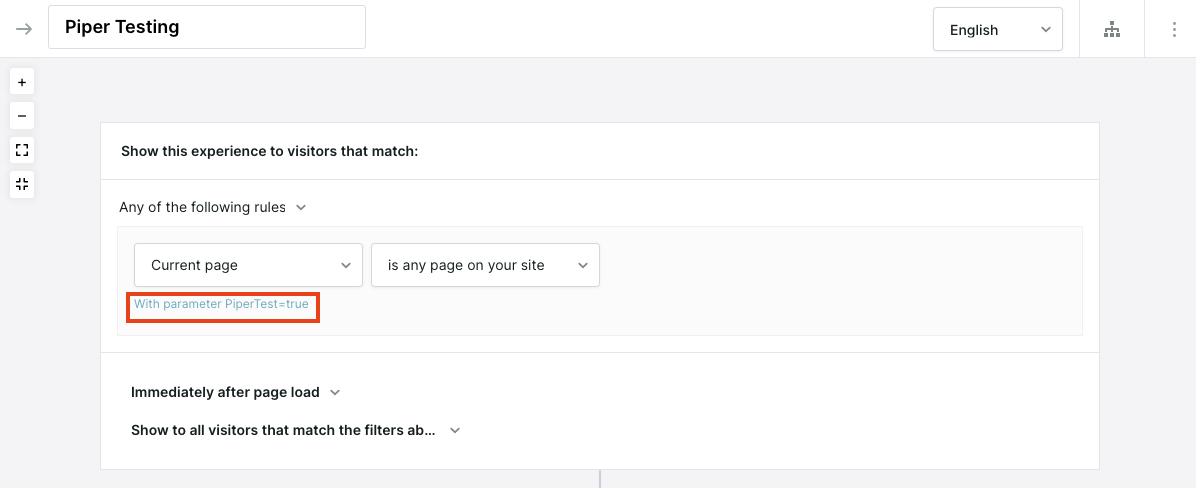
As an admin, you’ll start by creating a new automatic experience in Qualified. To ensure only members of your team are able to access the test experience on your website, add a unique testing parameter to the experience trigger criteria.
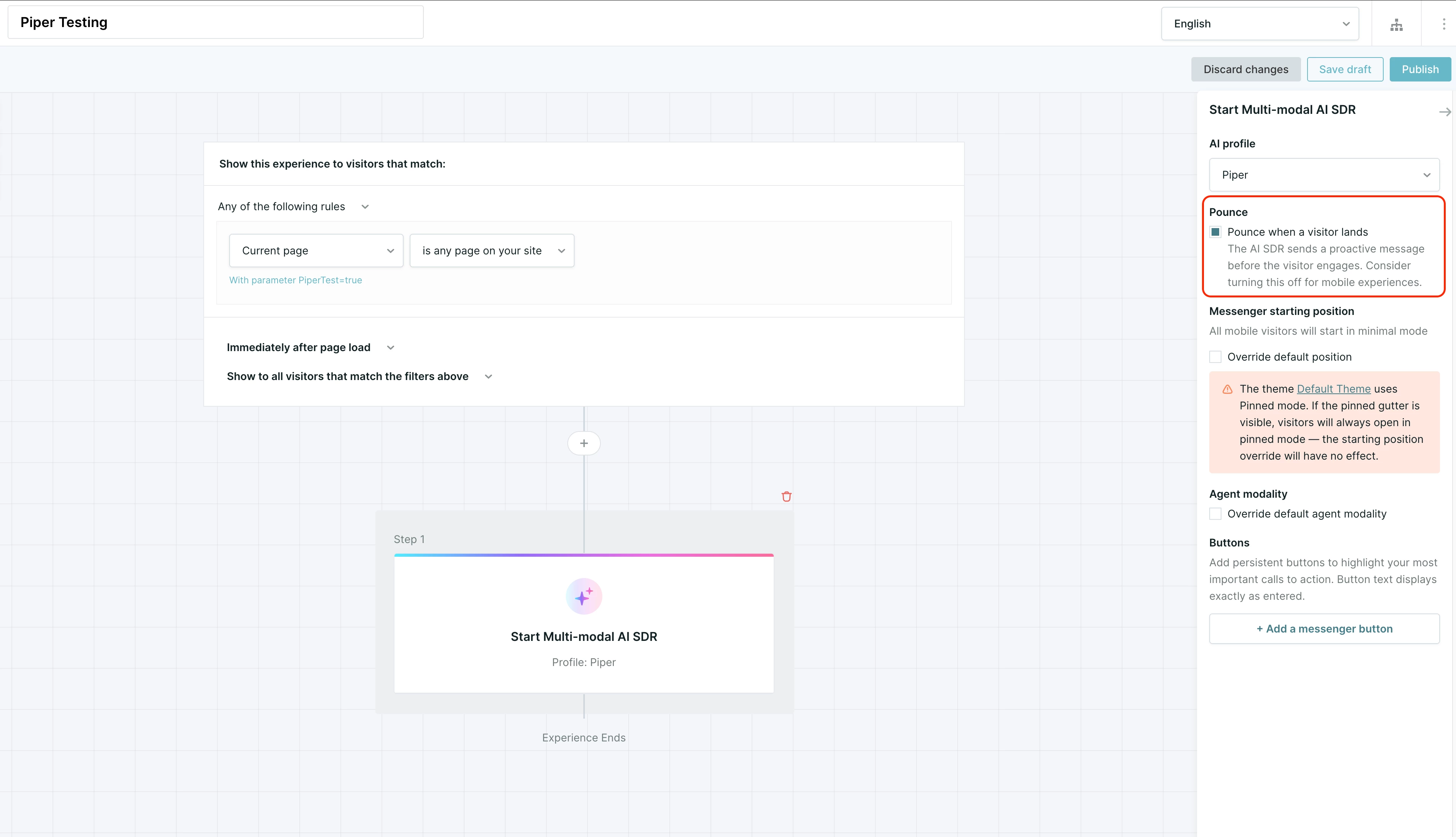
Next, add the Start Multi-modal AI SDR step to your test experience. Under Pounce, choose how your agent greets you:
- Check Pounce when a visitor lands so your agent proactively greets you when you arrive on the website.
- Leave it unchecked so your agent waits for you to start the conversation.
Once you’ve configured and Published your test experience, make sure to activate the experience by sliding the “Active” toggle to the right.
If you have questions about creating a test experience, reach out to your Qualified Success Architect or help@qualified.com.
Enable Piper workflows
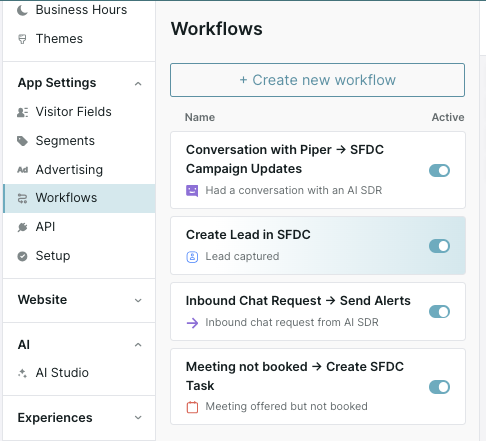
To ensure you’re also validating how Piper executes actions on the website & systems, you’ll need to make sure you activate all necessary workflows before beginning your end to end test.
Test Piper on your website
Once you’ve activated your test experience and workflows, you’re ready to run through an end to end test with Piper.
Below are the general steps you should follow to validate how Piper handles conversations and executes actions on the website & systems:
- Open a new Incognito web browser
- Visit your website, and include the test parameter you added at the end of the URL.
- Your test URL should look something like this: www.qualified.com/?PiperTest=true
- Engage with Piper and have a conversation.
- Ask questions about your company, products and competitors. Also ask questions that should test your guardrails and your conversation guide.
- Trigger a goal by steering the conversation toward it, such as asking to book a meeting or by clicking a button.
- Answer any qualification questions Piper asks in a way that would qualify you for the goal action of booking a meeting or routing to a rep.
- Book the meeting or chat with the rep.
- Once complete, close the incognito browser to end your session.
- Verify that the Lead is synced to Salesforce or your Marketing Automation Platform with all the expected information.
- Repeat steps 1-9 to test guardrail behavior, different goals, and disqualified goal actions.
If you have questions about testing Piper or need assistance with the process, reach out to your Qualified Success Architect or help@qualified.com.



.svg)


