


Your AI SDR agent's knowledge is built on the content you provide it. By adding web pages, sitemaps, PDFs, manual snippets, images, and slide decks to the Content Library in Agent Studio, you can help your agent provide accurate and helpful responses to your website visitors.
This article will guide you through navigating the Content Library, adding different types of content, and managing it effectively.
Navigating the Content Library
The Content Library is designed to make finding and managing your content intuitive. When you navigate to Settings → Agent Studio → Content, you will see two primary sections for organization on the left-hand menu: Source and Status.
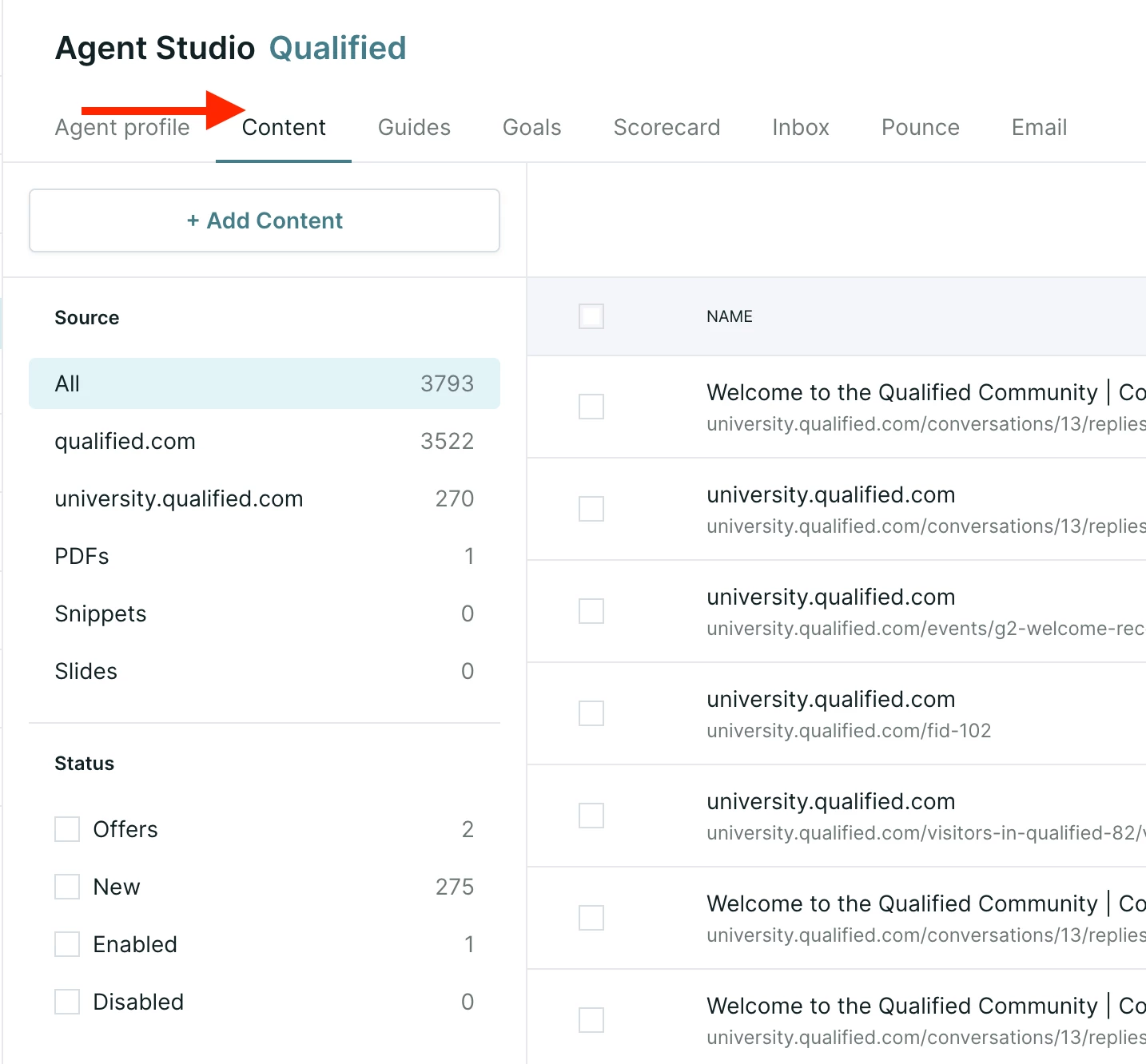
- Source: This section organizes all crawled information by its type.
- All: The default view, showing all of the content currently in the AI SDR agent's brain.
- URL: Shows all the websites you've crawled, grouped by domain.
- PDFs: Shows only your uploaded PDF files.
- Snippets: Shows only the snippets your team has created.
- Image: Shows only the single images your agent can share in a conversation.
- Slide Deck: Shows only the slide decks your agent uses for presentations.
- Status: This section helps you see what content is being used and how.
- Offers: This shows all URLs you have promoted to be used as helpful resources in an email.
- New: This tab shows you any new URLs that have been discovered during a website recrawl.
- Enabled/Disabled: These tabs show you which websites, PDFs, and Snippets are currently active or inactive in the AI SDR agent's brain.
Adding content to the AI SDR agent's brain
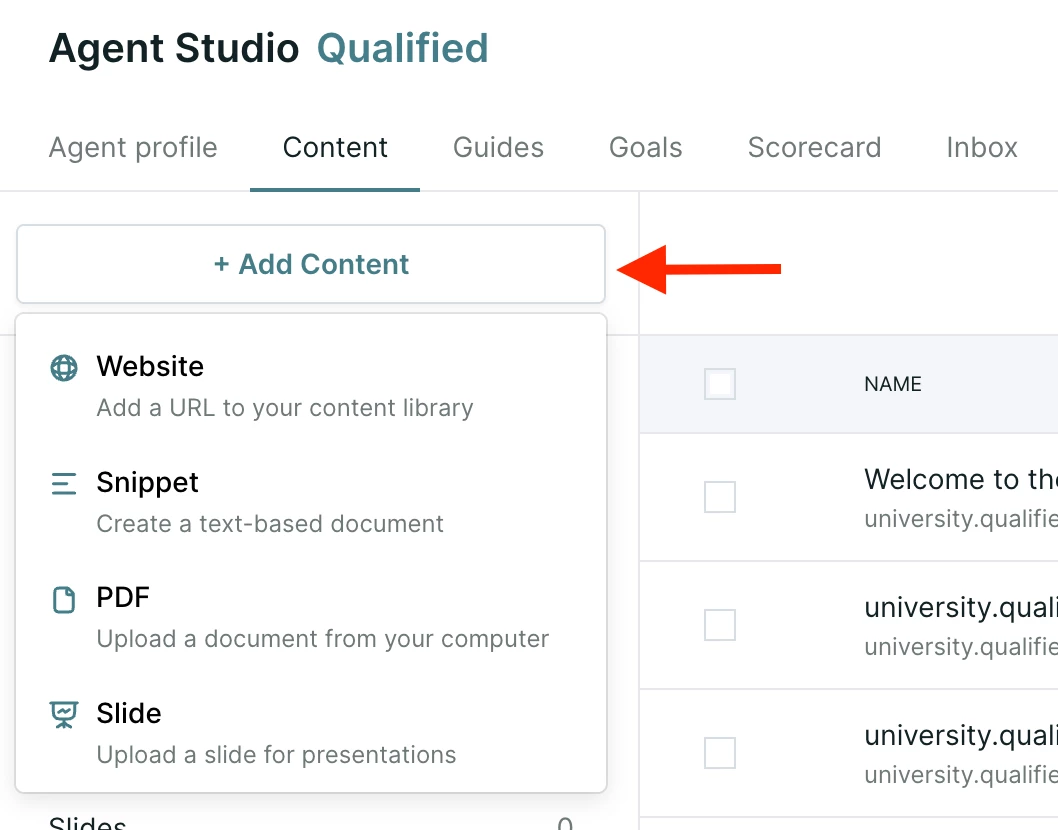
You can add content by clicking the +Add Content button in the top left corner. Each organization can add up to 200 content sources. A website crawl counts as one source, and each additional domain you crawl counts as another. Each snippet, PDF, image, and slide deck also counts as one source.
Adding a website or sitemap
- Click +Add Content → Website.
-
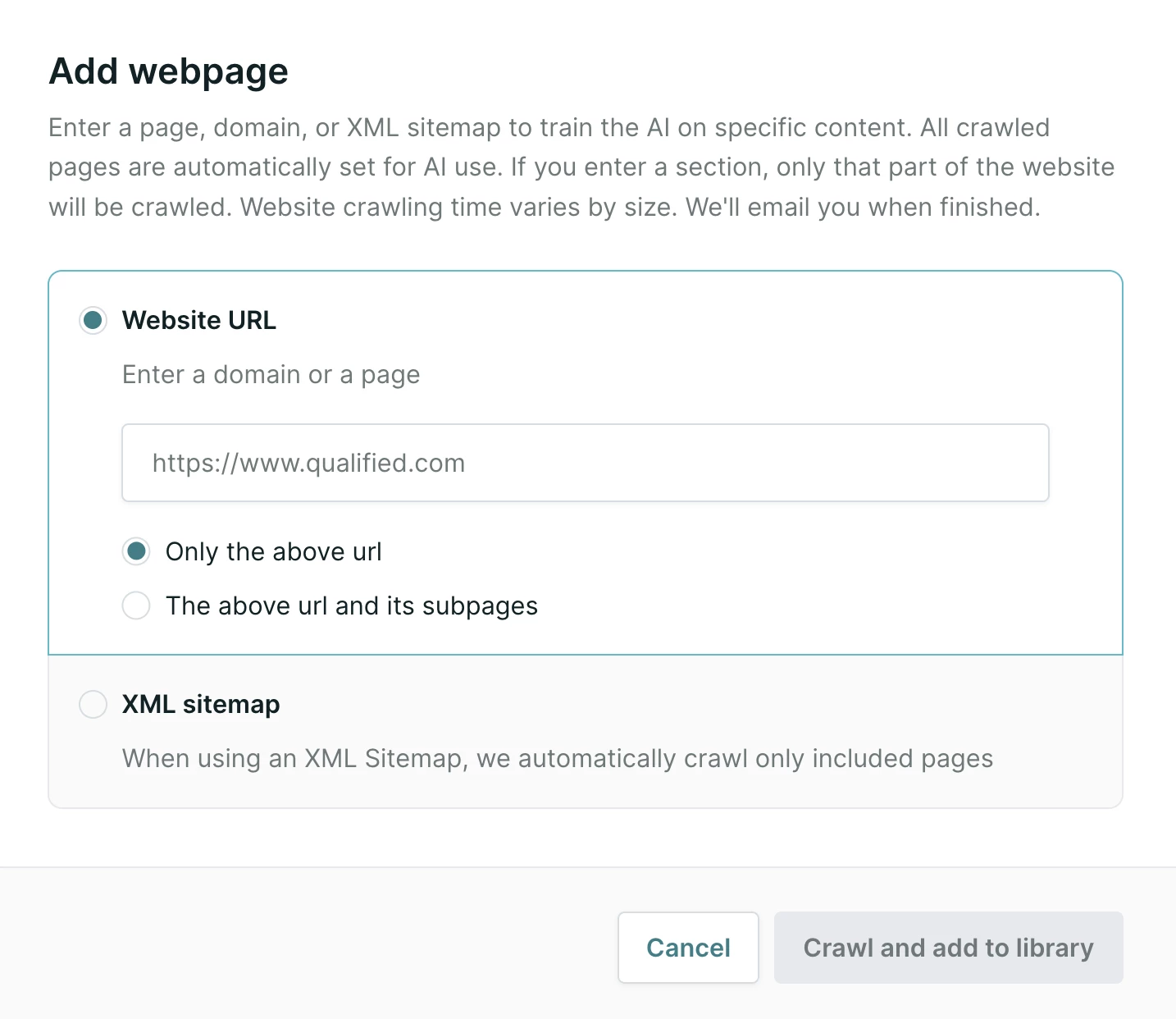
Choose your crawling method:
-
Crawl a URL: Select Only this URL or This URL and its subpages and enter the URL you want the AI SDR agent to learn from.
-
Crawl a Sitemap: Select XML sitemap and enter the URL for your sitemap file (e.g.,
www.yourwebsite.com/sitemap.xml).-
Why would I use a sitemap? Some websites have outdated content you don't want the AI SDR agent to learn. A sitemap allows you to provide a curated list of only the most relevant and up-to-date URLs for the agent to crawl, giving you more control over its knowledge base.
-
-
-
Click Crawl and add to library.
-
Depending on the size of your website or sitemap, the initial crawl may take several minutes to complete. We will email you once it’s done.
Adding a custom snippet
Snippets work well for information that isn't on your website, like FAQs or key talking points.
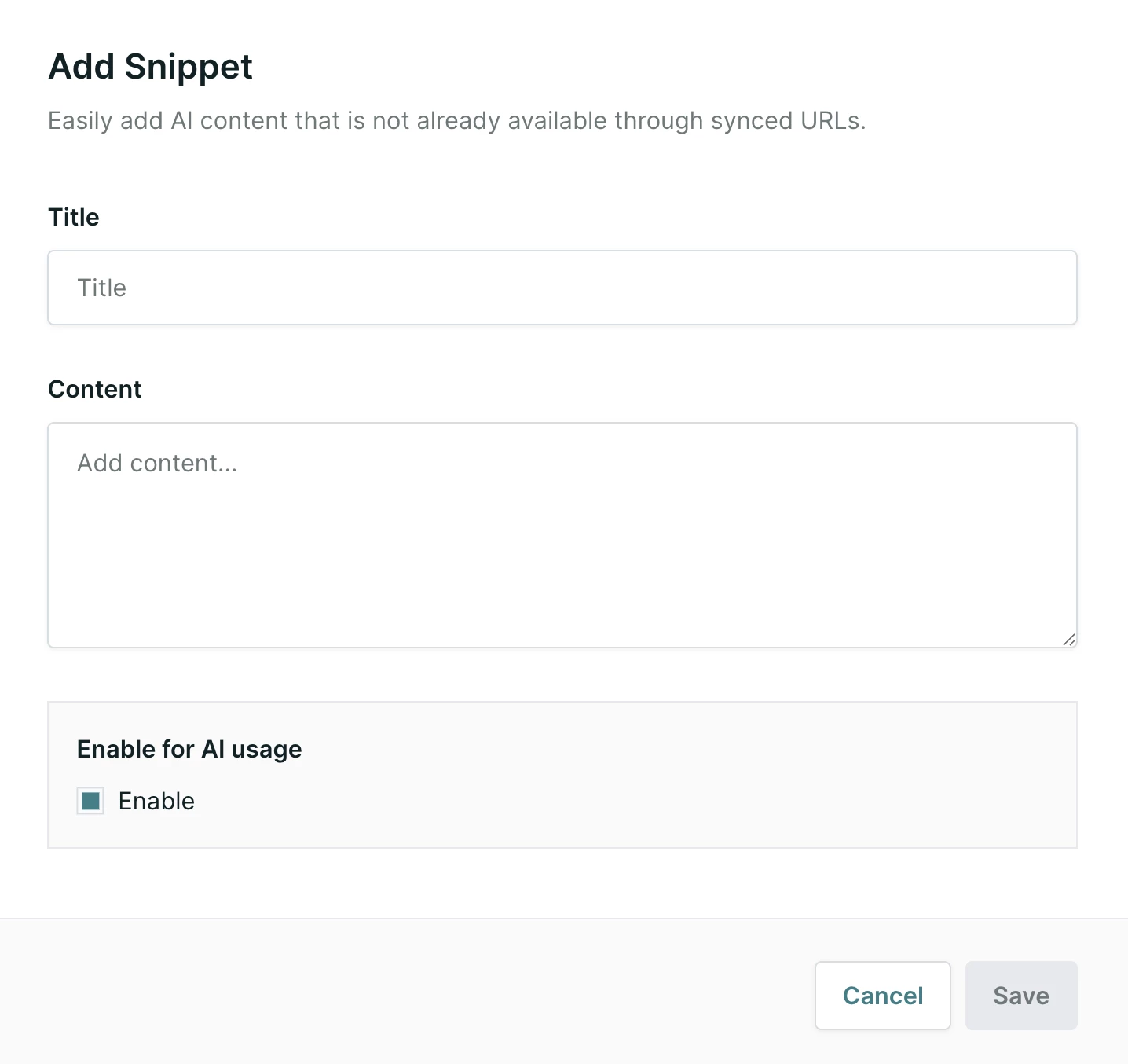
- Click +Add Content → Snippet.
- Enter a unique Title and add your text content.
Click Save. The content will be enabled by default.
Adding a PDF file
PDFs give your AI SDR agent knowledge from key documents that may not live on your website, such as whitepapers, product sheets, or case studies.
- Click +Add Content → PDF.
- Enter a unique Title and upload your file.
- Click Save. The content will be enabled by default.
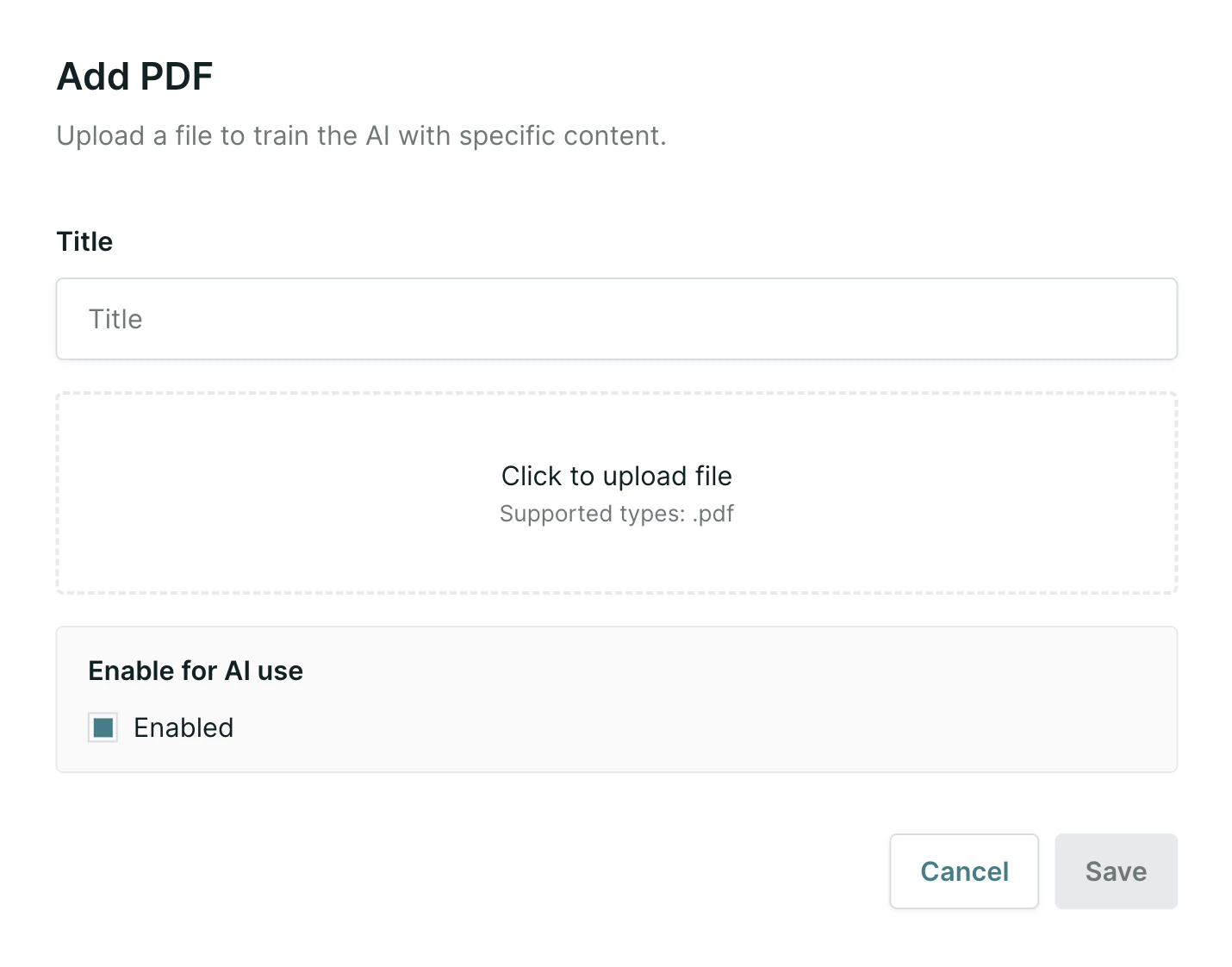
Important Notes for PDFs:
-
Direct Upload Only: Only direct PDF file uploads are supported. The system cannot extract PDF content from a URL during a website crawl.
-
File & Page Limits: Each file is limited to 20MB in size and 100 pages in length.
Adding an image
Images are single visuals, such as a process diagram or an implementation roadmap, that your AI SDR agent can share in a conversation when they're relevant.
- Click +Add Content → Image.
- Upload a JPG or PNG file under 10MB.
- Review the Title and Description your agent generates from the image. The title is internal, and your agent uses the description to talk about the image while it's on screen.
- Turn on Enable for AI use, then click Upload.
Learn more in How to Share Slides in a Conversation.
Adding a slide deck
Slide decks are what your AI SDR agent presents to visitors in a live voice or video conversation.
- Click +Add Content → Slide Deck.
- Upload your deck as a PDF. Each PDF can be up to 100MB, with a maximum of 50 slides.
- Review the talk track your agent generates for each slide.
To set when your agent presents a deck and how it delivers it, see Piper presentations.
Managing your content
The Content Library provides tools for managing your agent's knowledge.
Managing website content
After a website has been successfully crawled, you can manage its content and settings at any time.
-
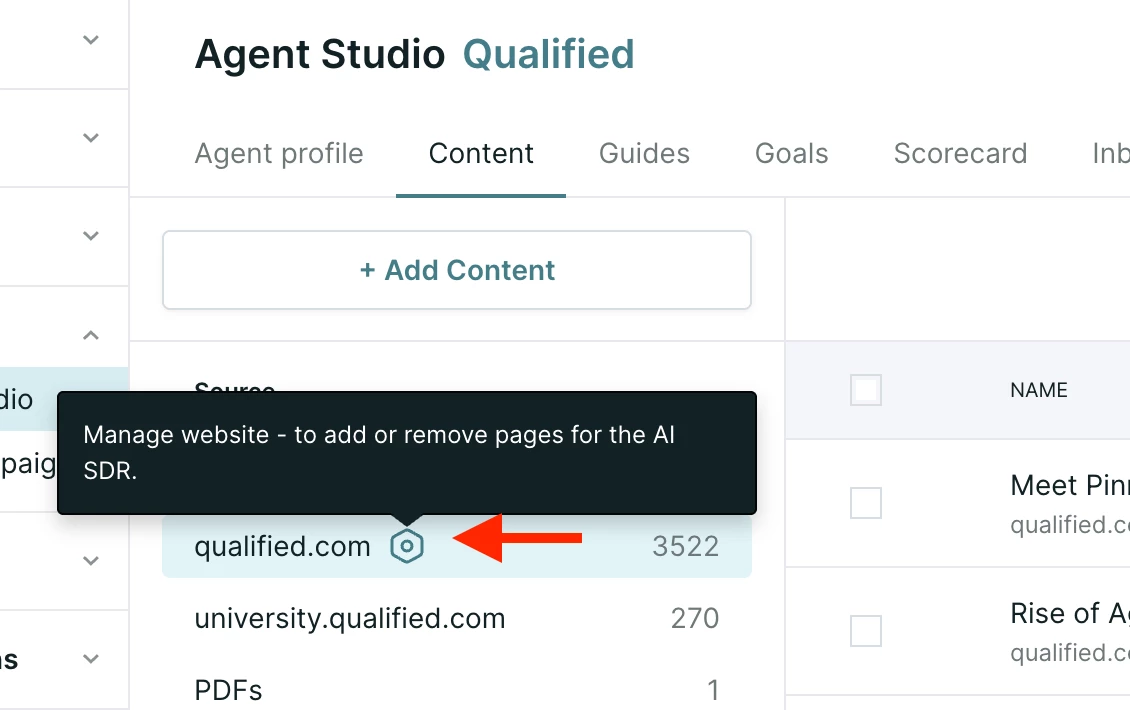
From the URL source view, click the gear icon next to the domain you wish to manage.
-
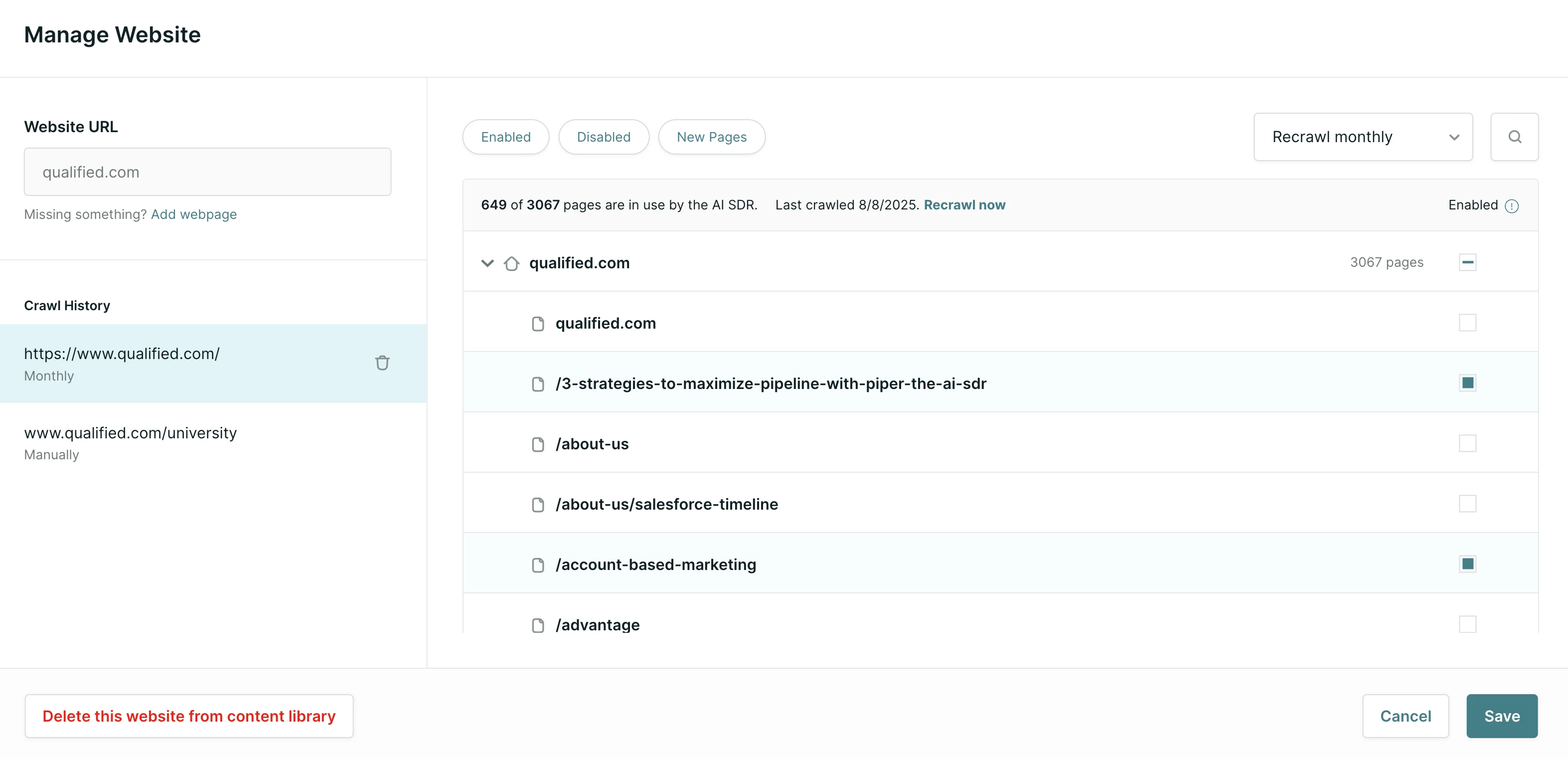
This opens the website management modal, where you can:
-
View crawl history: See all individual crawls for that domain rolled up in one place on the left-hand side.
-
Enable or disable pages: Click into an individual crawl to see all its pages. Use the checkboxes to enable or disable specific pages from the AI SDR agent's knowledge.
-
Set the recrawl frequency: Choose Manual-only (the default), Weekly, or Monthly. Until you change it, the website is recrawled only when you click recrawl now.
-
Trigger an immediate recrawl: Click recrawl now to start a new crawl immediately.
-
Using bulk actions
You can manage multiple content items at once using bulk actions. The available actions change depending on the content type you have selected.
-
Go to the URL, PDFs, or Snippets source view.
-
Use the checkboxes to select multiple items. A bulk action menu will appear at the top.
For URLs: After selecting multiple URLs, you can bulk Share as an Offer or Disable as an Offer.
For PDFs and snippets: After selecting multiple PDFs or Snippets, you can bulk Enable or Disable the content from being used by the AI agent.
Best practices for content management
- Use a sitemap for precision: For the highest quality knowledge base, provide a sitemap that contains only the most important and up-to-date URLs you want the AI SDR agent to know.
- Prune your page trees: If you crawl an entire domain, use the website management modal to review and disable any irrelevant pages (like career pages, old blog posts, etc.).
- Use snippets for key information: Add critical information that may not be on your website, like top FAQs or competitor insights, as snippets so the agent has that information to draw on.
- Regularly audit your content: Periodically review your PDFs and Snippets to disable or delete outdated information. Use the New status filter to easily review pages added after a recrawl.



.svg)


