


Piper Conversations multi-language allows businesses to engage with visitors in multiple languages, providing a seamless experience for global audiences. This feature enables Piper to detect and respond in different languages based on visitor preferences, improving engagement and accessibility.
Piper also has multi-language capabilities for email! To see more, read here.
Key features
Pounce language
- Your agent inherits the conversation language from the visitor’s configured experience (default is English).
- Visitors will receive proactive greetings in the language selected in the experience.
- If a visitor starts communicating in a different language, your agent will detect the change and switch languages accordingly.
- Pounce is turned on per experience: on the Start Multi-modal AI SDR step, under Pounce, select Pounce when a visitor lands.
For how pounce messages are written, read configuring Piper’s pounces in conversations.
Language change detection
Piper updates conversations dynamically when:
- A visitor requests to switch to another supported language.
- A visitor starts communicating in a different language.
When this occurs, Piper will immediately update the conversation language setting and continue the conversation in the detected language.
Piper speaks in many languages. If a visitor requests an unsupported language, the conversation language stays as it is and your agent continues in that language.
Multi-language website content
- Your AI SDR agent matches content to the page the visitor is on. When the visitor’s URL has a locale prefix, such as website.com/fr/product, your agent only uses content from pages with the same prefix.
- Matching is based on your URL structure, so your website needs locale-based URL paths (such as /fr/ or /en-gb/) for this to work. The language the visitor speaks in the conversation doesn’t change which content is used.
How to implement Piper multi-language for conversations
Step 1: Crawl website content
- Crawling your website content ensures that each localized webpage receives a language tag, allowing Piper to prioritize content based on visitor language.
- Existing customers: Re-crawl your content and ensure that translated webpages are indexed and enabled for use.
- New customers: Initiate a full content crawl to ensure all localized pages are properly indexed and enabled for use.
- Navigate to Settings → Agent Studio → Content and initiate a full content crawl or recall existing content.
Learn more about how to educate your AI SDR agent with content.
Step 2: Configure multi-language experiences
- Navigate to Settings → Experiences → Automatic and create a new experience.
- Set the experience language to the appropriate language from the dropdown menu.
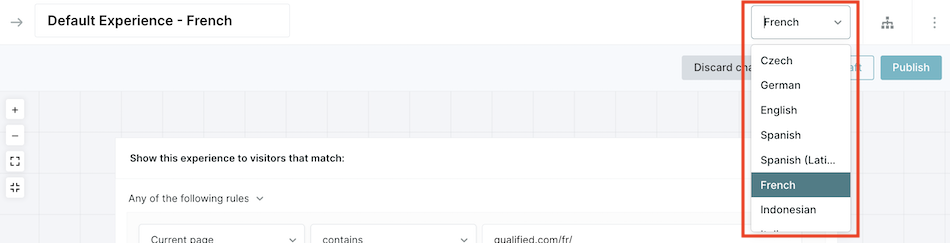
If you do not see this option in experiences, reach out to your Qualified Success Architect to inquire about adding Piper multi-language support to your plan.
- Define trigger criteria for the experience to ensure Piper matches visitors with the correct language experience.
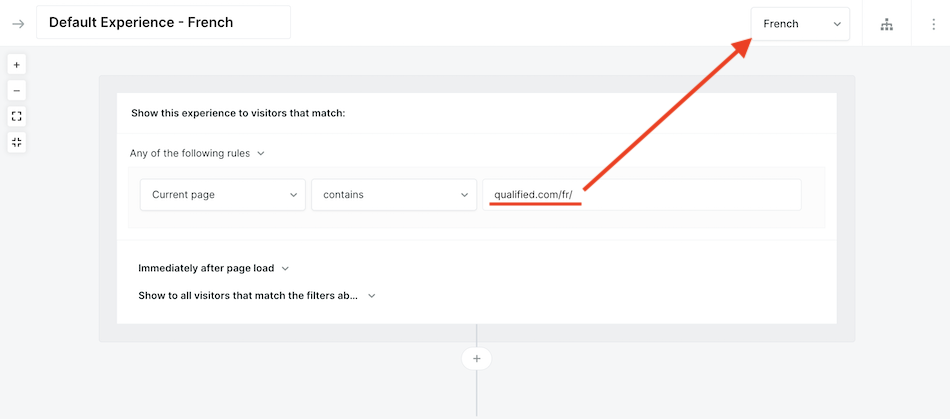
- Add the Start Multi-modal AI SDR step to enable Piper within the experience.
- Write any button CTAs in the step in the experience’s language. Your agent treats that as the base language and translates button CTAs, suggested questions, and picklist options for visitors who speak another language.
- @mention the goals you want your agent to pursue in your Conversations guide. Your agent pursues any goal the guide @mentions when it comes up in the conversation, so the goals for this experience are set in the guide rather than on the step.
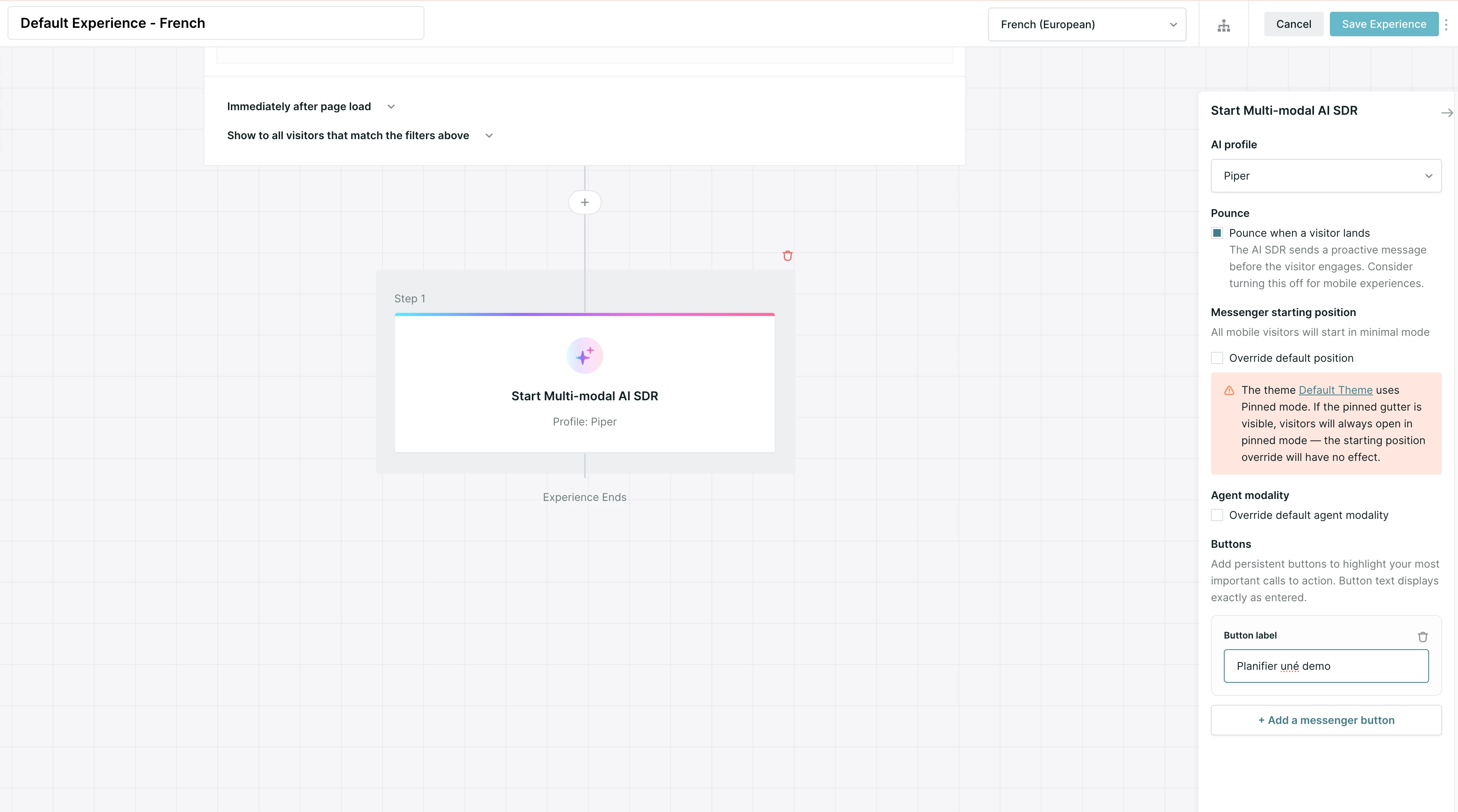
- Manually translate any static conversation steps, such as Custom Greeting, Ask a Question, or Send a Message, that appear before the Start Multi-modal AI SDR step.
Step 3: Set a tone for each language
You can give your agent a different tone for each language, to match what visitors in each region expect.
- Go to Settings → Agent Studio → Guides → Company and brand.
- Under Language-specific tone, click + and select a language.
- Choose Casual, Friendly or Professional for that language.
- Publish your guides.
For example, you might use a Professional tone for Japanese and a Friendly tone for English.
Step 4: Translate meeting confirmation and reminder emails
For detailed instructions on setting up Multi-Language meeting confirmation and reminder emails, refer to the meetings in multiple languages article.
Additional settings and considerations
Content search and prioritization
- By default, Piper will search and recommend content that shares a locale prefix with the current URL - thus, visitors on a page with /fr/ in the URL will be recommended other pages with a /fr/ in the URL.
- If the current page has no locale prefix, Piper will search and recommend content with no locale prefix.
For more details on locale prefixes and Piper’s content strategy, contact your Qualified Success Architect.
Goals and translations
- Goals do not need to be created separately for each language unless content varies significantly.
- Piper translates topics dynamically based on the conversation language.
- If different qualification questions are required per language, create separate goals for those use cases.
Picklist fields
- Piper automatically translates picklist values based on conversation language.
- Duplicate values across languages are merged into a single selection.
- Merging works best when options are clearly different from each other. Options that are close variants may merge inconsistently.
- Example scenarios:
- If picklist options are already in the conversation’s language, no changes occur.
- If options are in a different language, they will be translated.
- If options exist in multiple languages, Piper merges them into a single set.
Important: Wherever possible, write picklist options in a single language, using values that are clearly distinct from one another. If different currencies or region-specific terms are needed, create separate picklist fields for those variations.
CTA button translations
- Button CTAs in the Start Multi-modal AI SDR step are translated automatically from the experience’s language. Button CTAs in the legacy Start AI SDR step must be translated manually.
Meeting confirmation and reminder emails
- Current meeting confirmations must be manually translated.
- For detailed instructions, refer to the meetings in multiple languages article.
Multi-language and multi-domain setup
- Multi-language works best for businesses with consistent offerings across regions.
- Multi-profile is required for businesses with distinct regional content, products, or services.



.svg)


