


While your AI SDR agent uses website content and PDFs to learn facts, images allow your agent to engage visitors visually. By uploading specific images, you can have your agent share content, such as implementation milestones or process diagrams, at the moment they are relevant in a conversation.
Images were previously called slides.
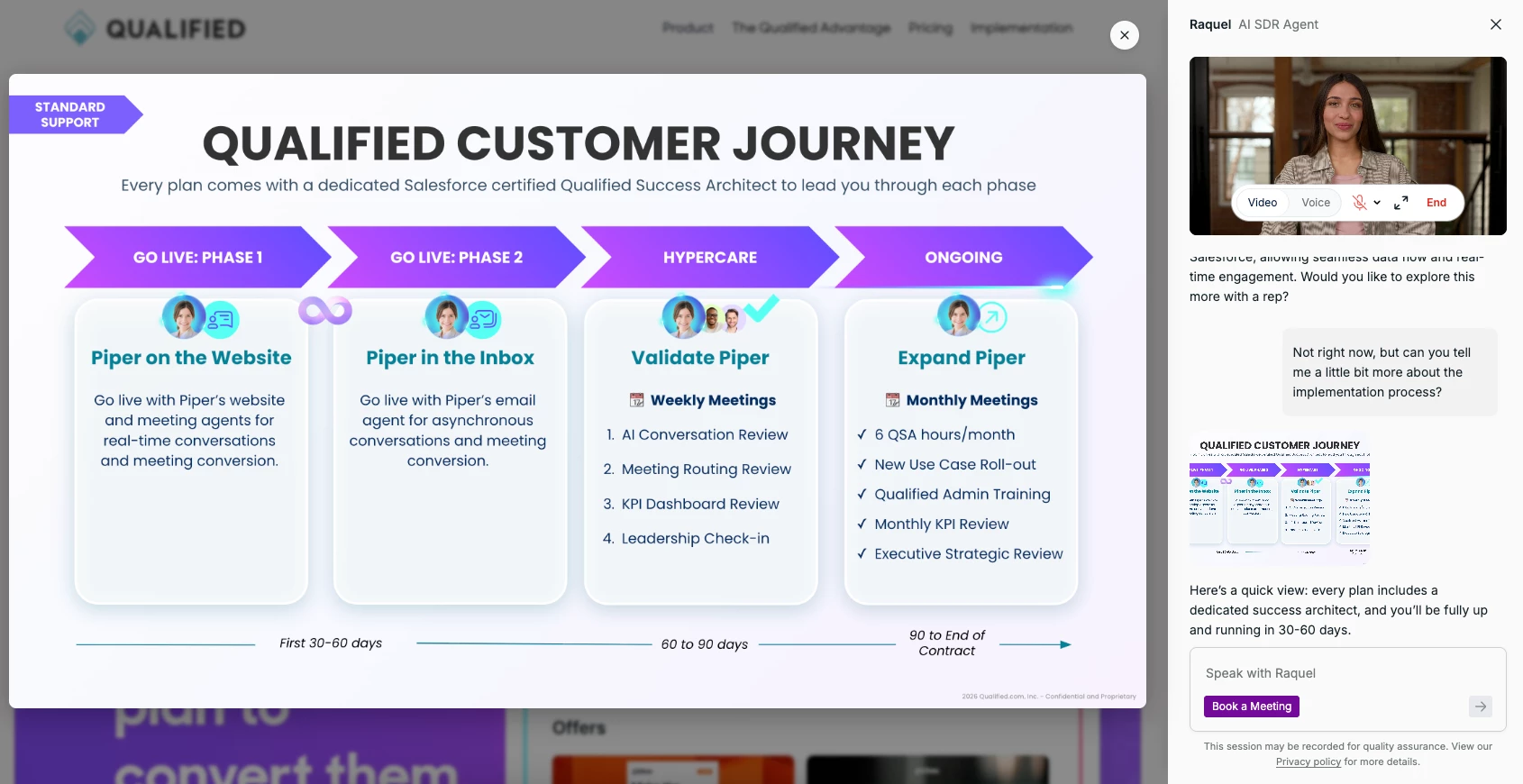
Understanding content types
The Content tab in Agent Studio serves two primary purposes:
- Knowledge base: Providing URLs, Snippets, and PDFs for the agent to understand your business.
- Interactive assets: Managing offers (links to high-value pages) and images (single visuals) that the agent proactively shares with buyers to drive conversion.
Images are separate from presentations. To have your agent present a full slide deck, see Piper presentations. For an overview of everything in Agent Studio, see Welcome to Agent Studio: transitioning from AI Studio.
How to add an image
To begin building your agent's visual library, navigate to the Content section of your settings:
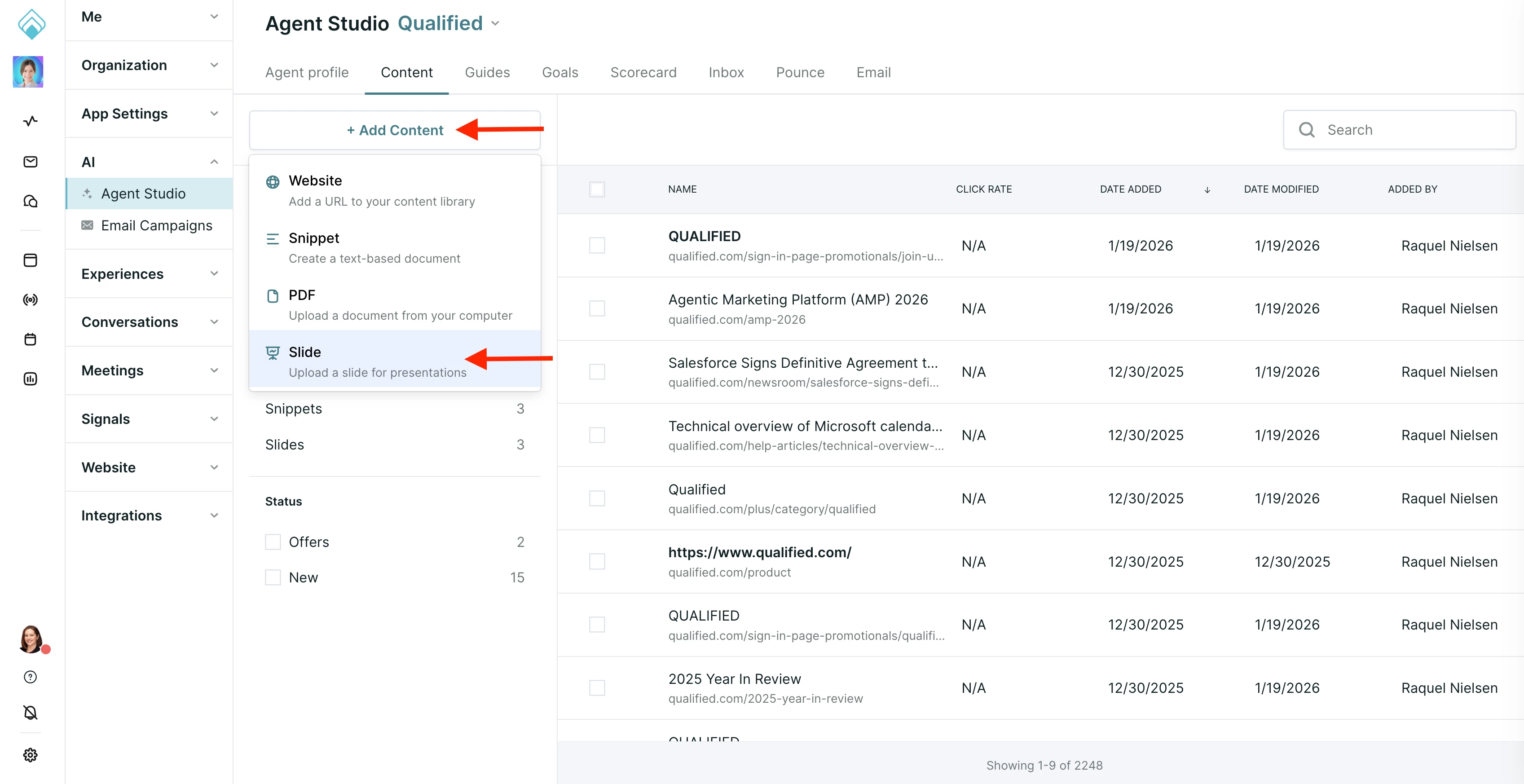
- Go to Settings → Agent Studio → Content.
- Click the + Add Content button and select Image.
Configuring your image
When you upload an image, the agent automatically processes the visual content to determine how and when to use it during a conversation.
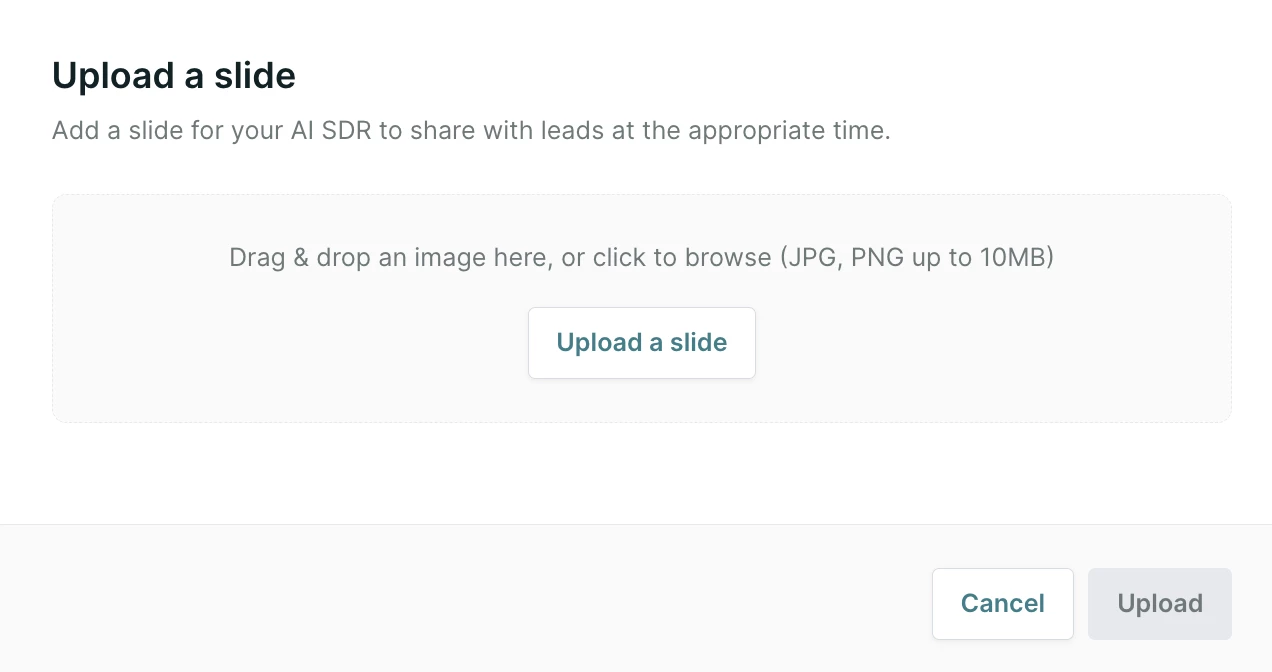
- Upload the image: Drag and drop your file or click to browse (JPG or PNG format, under 10MB).
- Automatic processing: Once added, the agent will analyze the image to auto-generate the following:
- Title: This is an internal title for the image within your library. This is not visible to the visitor.
- Description: A summary of what is in the image. This is a critical field: your agent uses this text to narrate the image to the visitor as it appears in the conversation.
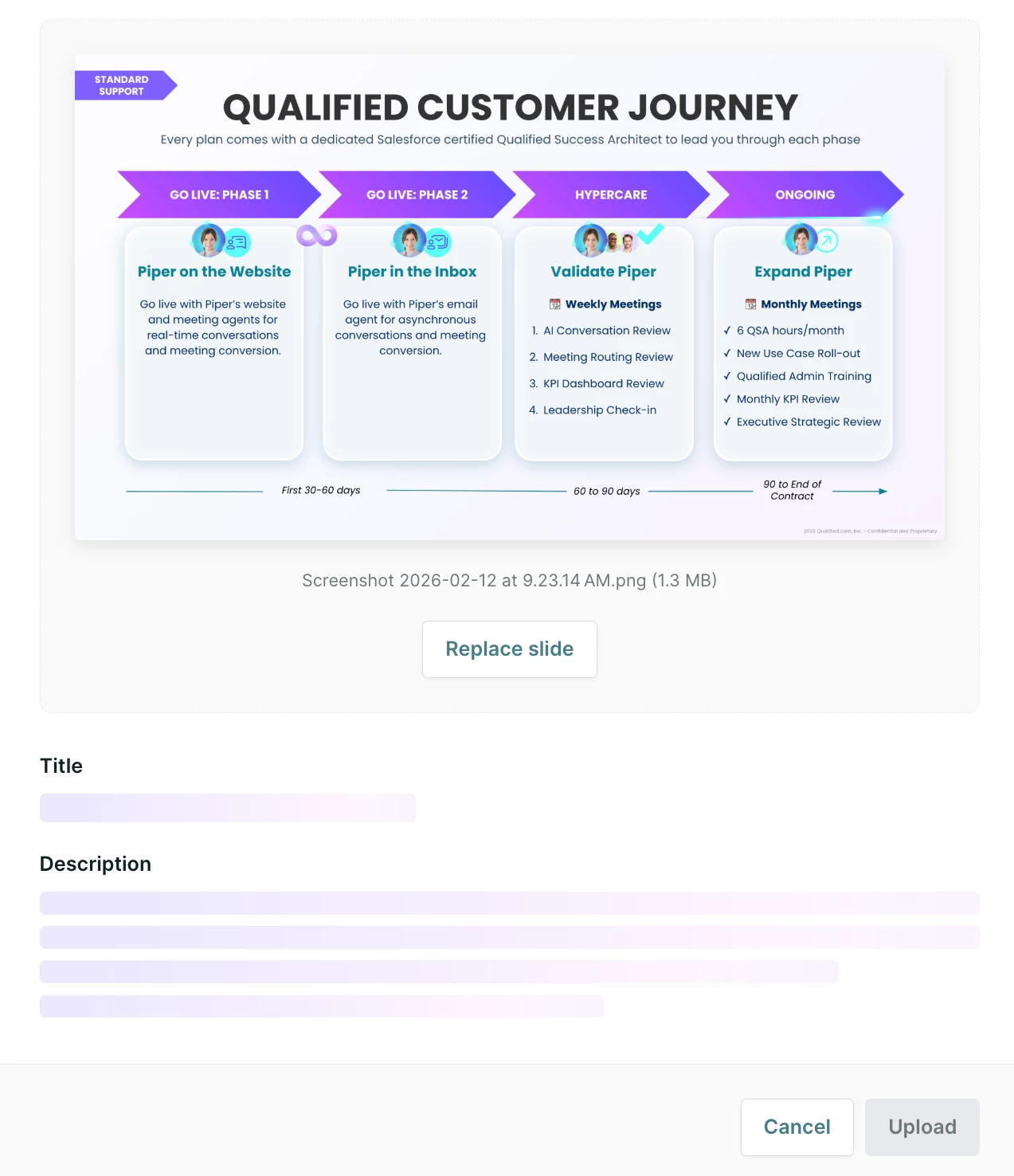
- Review and edit: While the agent generates these fields automatically, you have full control to edit the Title or Description to better align with your messaging or brand voice.
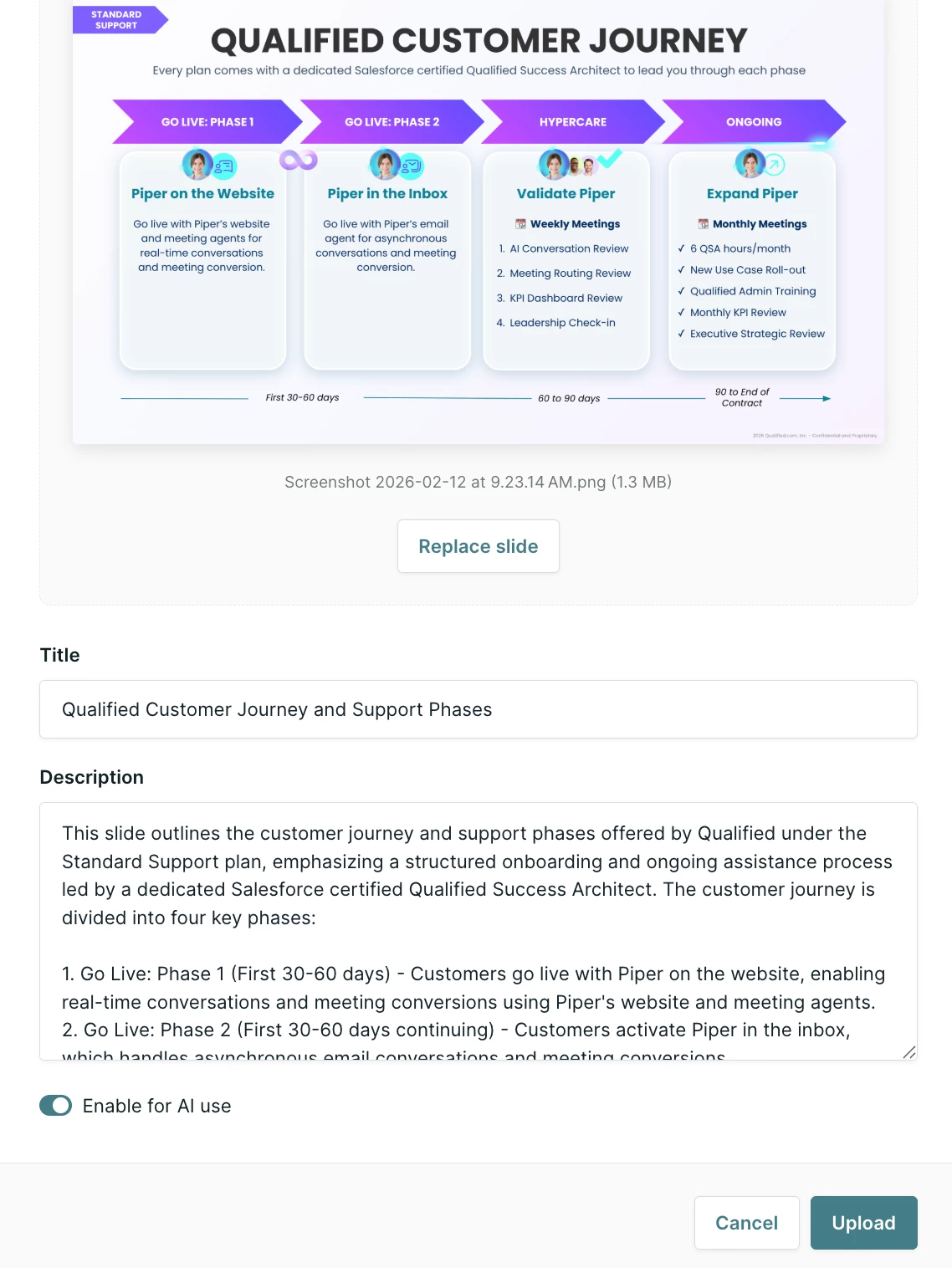
- Enable for AI use: Ensure the Enable for AI use toggle is turned on. This authorizes your agent to proactively pull this image into conversations when the content is contextually relevant.
- Finalize: Click Upload to save the asset to your library and make it available for your agent to use.
Tip: Review the auto-generated Description to ensure it captures the key differentiators you want the agent to emphasize when sharing this image. Since the agent uses this text to inform its messaging while the image is displayed, a quick polish here ensures the spoken context aligns with the visual.
Best practices
- Discovery visuals: Start by uploading the top 5 visuals your SDRs use during discovery calls.
- Complementary data: Use images to show information that is hard to explain via text, such as a "Process Map" or "Implementation Roadmap."
- High resolution: Ensure any text within your images is large and legible.