


Qualified form and button experiences are a cornerstone of Qualified’s meeting booking functionality. Once you have set up your form or button experience, you will need to configure the actions that allow your experience to engage with your visitors.
Visitor engagement
When creating a form or button experience, determine whether the experience will Enable meeting booking (fullscreen) or Start a conversation. This will determine whether the rest of the experience happens in the Qualified messenger or in a full-screen lightbox focused on scheduling meetings.
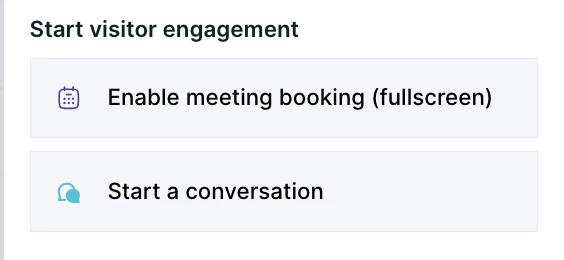
General actions before visitor engagement
Some General actions, such as setting values on visitor fields or branching based on rep availability or known information about the visitor, can be placed before determining the visitor engagement style.
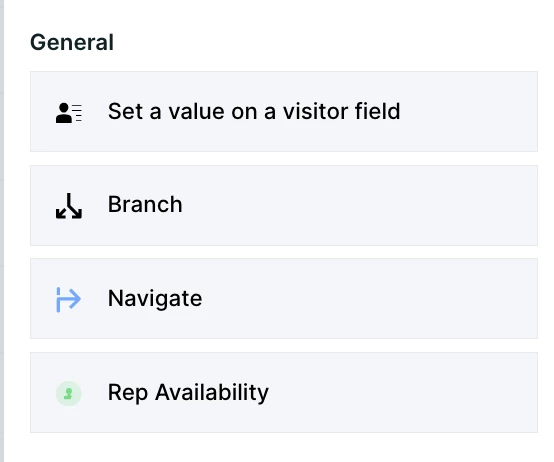
When branching, choose an engagement style for each branch outcome.
A single form or button experience can contain both conversation actions and meeting actions as different outcomes based on a branch placed earlier in an experience.
The jump to a step general action in conversations experiences does not allow a visitor to jump from a conversation branch to a meeting booking branch. Once a visitor engagement method has been determined for a visitor, it cannot be changed within an experience
Fallback to default button behavior
When a branch action is selected before determining visitor engagement style, the No Match path (and the Match path, if an engagement style was not already selected) will default to the special Fallback to default button behavior action. This action step ends the Qualified experience and allows the button to perform the action it is otherwise configured to perform.
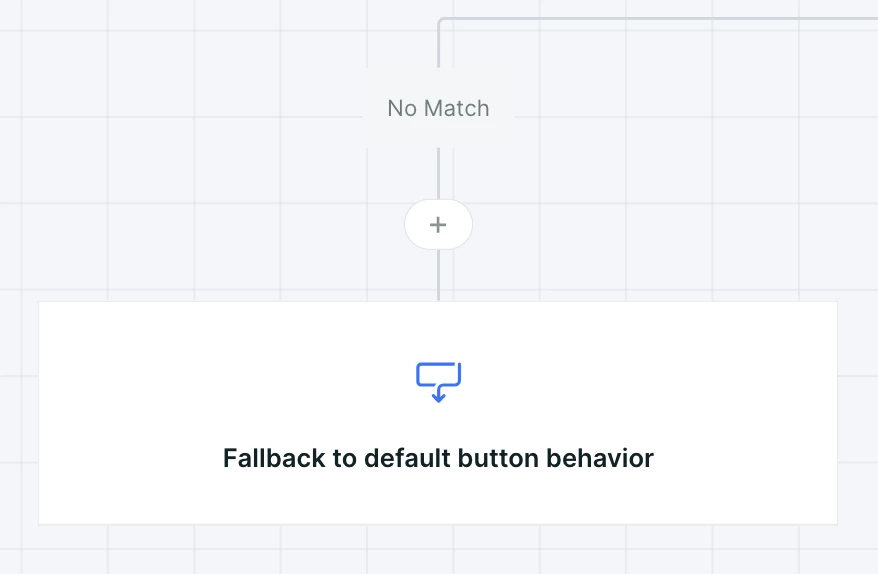
Pro Tip: A common use case for this functionality is on a Get a Demo button. You can use branching to determine if a visitor is already qualified - a known visitor from an ABM account, for example. If they’re qualified, offer them a meeting! If not, let the button take them to the form, where you can learn more information about them.
The rest of this article focuses on the actions available in full-screen meeting booker experiences. For more information on conversation actions, see here.
Automatic meeting booking actions
Selecting enable meeting booking (fullscreen) will automatically populate several action steps within an experience.
Ask Qualifying Questions (buttons only)
Pro Tip: If you’d like to skip email qualification and use general routing rules to immediately offer a meeting, simply delete this step.
When launching a meeting experience from a smart button, the meeting booker can gather additional information to help determine whether a visitor is qualified. This step does not appear in form experiences.
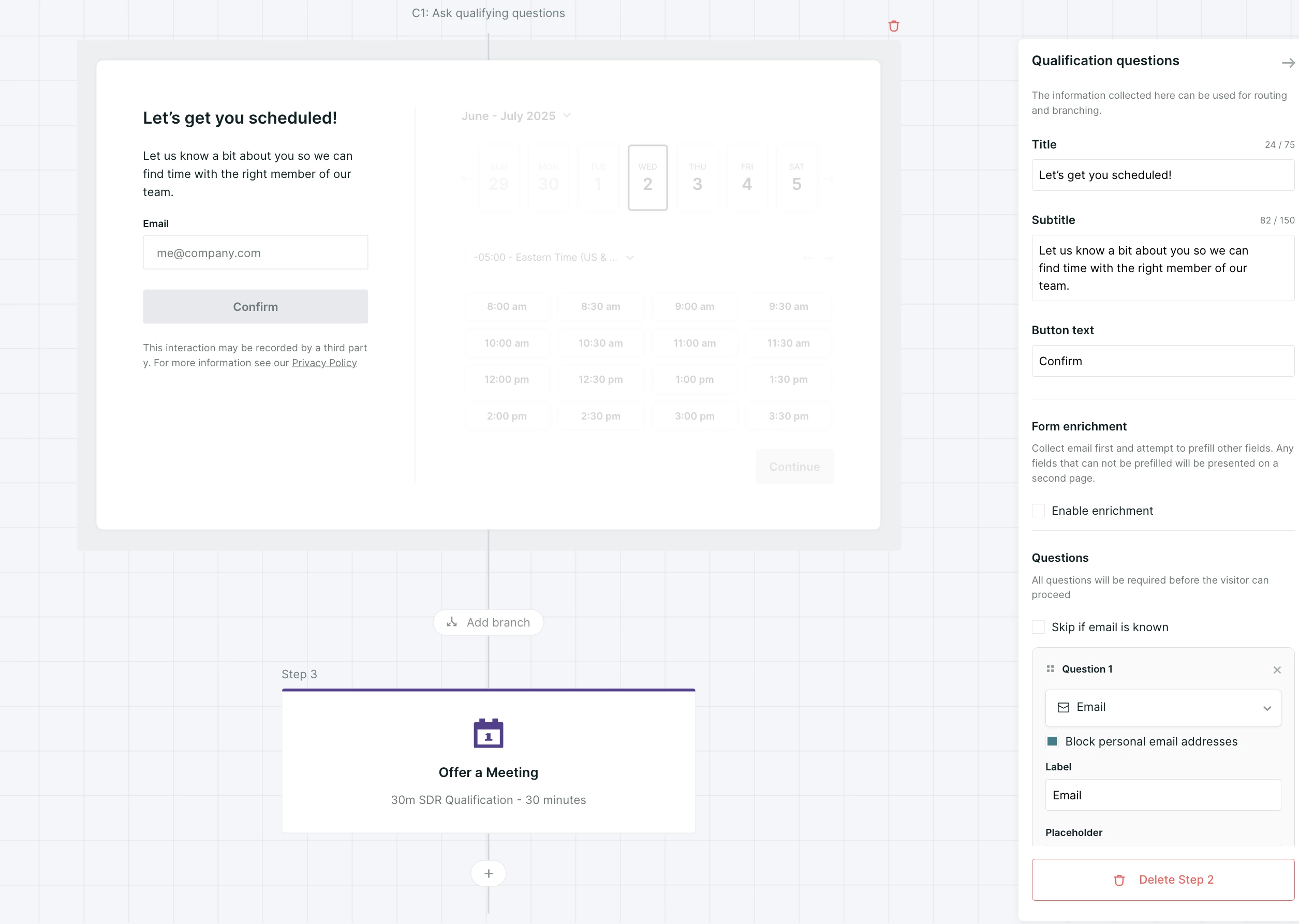
By default, this will ask visitors for their email. There are several other configurations that can be set:
- Title: the header that appears in the lightbox during this section
- Subtitle: body text below the Title that lets the visitor know they will be asked questions.
- Button text: the text on the button that continues the experience
- Enable enrichment: if checked, Qualified will first ask the visitor for their email address. Once gathered, Qualified will attempt to populate other visitor fields before continuing with the evaluation.
- Questions: the visitor fields that Qualified will ask the visitor to populate. Each form has several additional configurations:
- Skip if known: If checked, this question will not be asked if the visitor field is already populated.
- Field-specific questions: fields like email and name have additional configurations like whether personal email addresses should be blocked or if both a first and last name are required.
- Label: the label of the field being asked.
- Placeholder: light grey text in the box where the visitor is prompted to provide their information.
- Select picklist options to show (picklist fields only): If checked, select the picklist fields to display. They will display in the order selected.
If Enable enrichment is selected, only email will appear on the first lightbox screen. Additional questions will display on a subsequent screen based on whether they were populated via enrichment.
Up to 10 fields, including email, can be included in this qualification.
Disqualification (only after qualification questions)
After qualification but before offering a meeting, there is a special option to add a branch action. The “match” outcome of this branch action will always be to offer a meeting and continue with the steps detailed below.
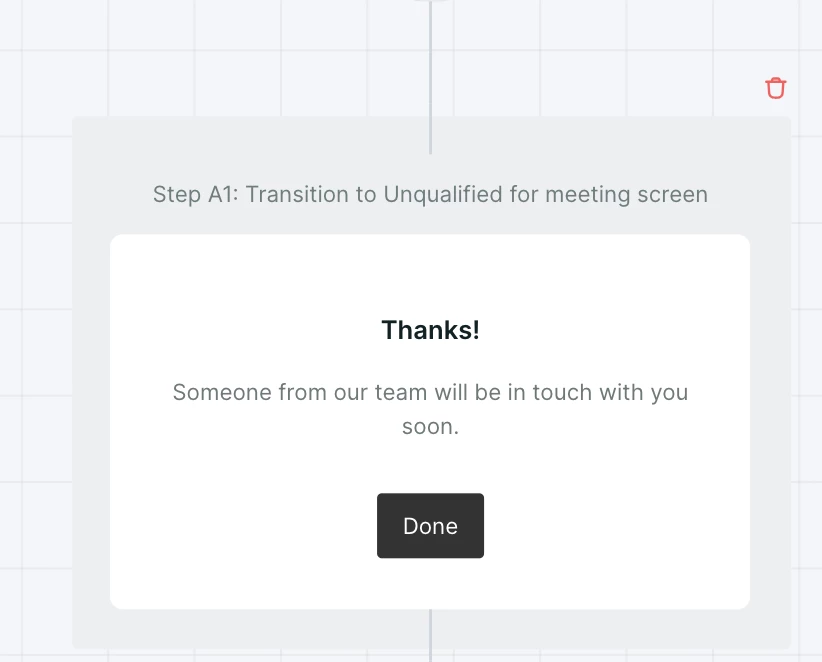
The “no match” outcome, for non-qualifying visitors, allows the addition of select meetings experience actions, followed by a special Disqualification message action that displays a message in the lightbox with configurable text. This disqualification action always ends the meeting experience.
Offer a meeting
This step determines the meeting type that will be offered via the full screen meeting booker. Configure this step to change the meeting type or determine whether standard or custom routing rules are used for the meeting.
Show the meeting booker
See a preview of the lightbox meeting offer.
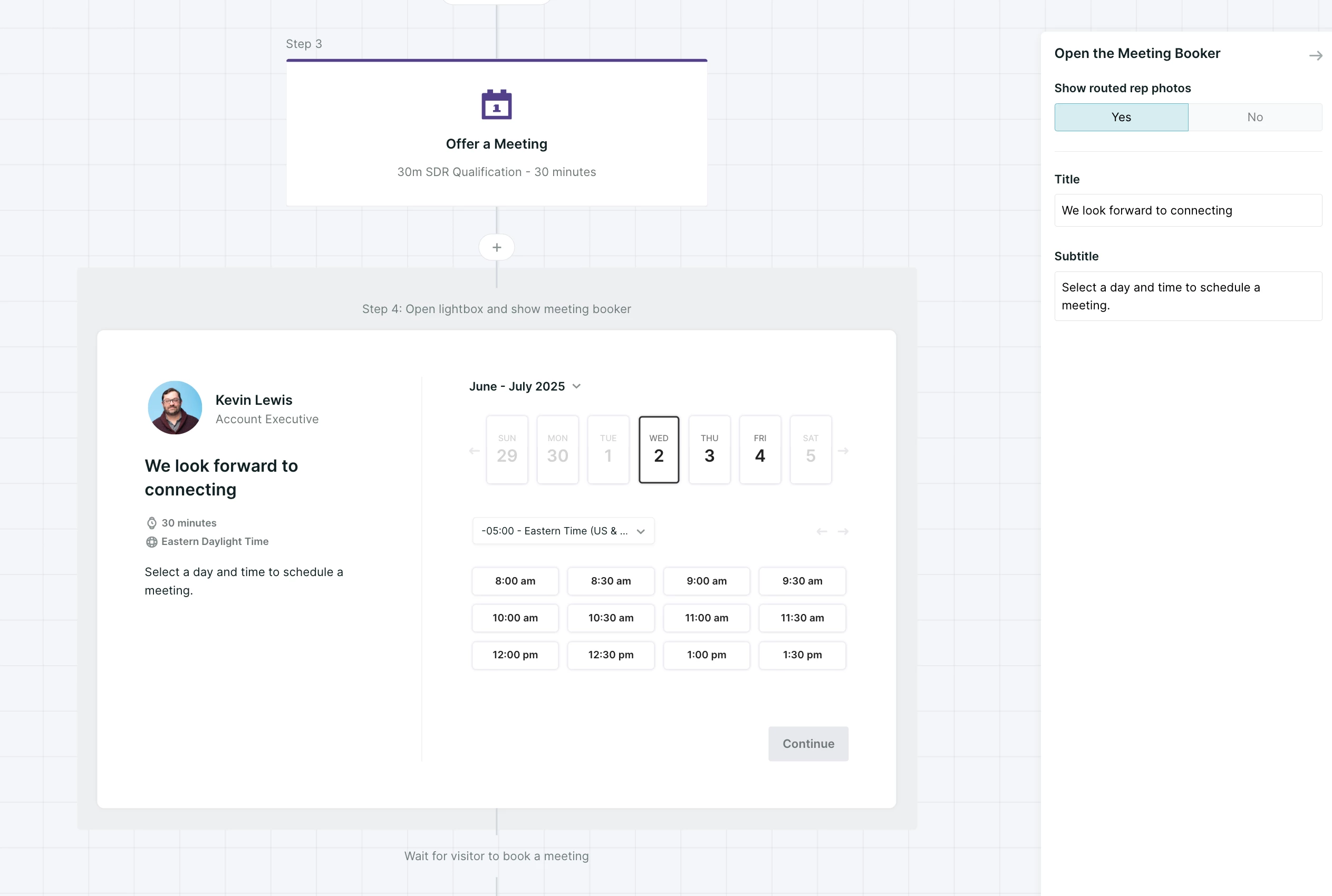
There are several configurations here:
- Show routed rep photos: configure whether the rep’s photo will appear at the top of the meeting booker.
- Title: The main header that appears under the rep’s name and title
- Subtitle: the body text inviting the visitor to book a meeting.
Additional meetings experience actions
In addition to the standard meetings actions that are created automatically, several other actions are available at various points in the meetings experience builder. These actions behave similarly to their conversations or general experience counterparts.
General actions
Note: The general actions Qualification Questions, Navigate, Branch, Offer a Meeting, and Disqualification Message will all appear in the actions menu when building a Meetings experience, but are generally greyed out except in the specific locations where they are auto-created when a meetings visitor engagement is selected.
Notifications actions
Integrations actions



.svg)


