


As a Qualified admin, you can trigger alerts to your reps as part of an experience. These alerts can be triggered in the Qualified app or via email, Slack, or Microsoft Teams.
While notifications can be sent as part of individual experiences, our current recommended best practice is to set these up using Workflows instead.
For more information about launching experiences in Qualified, check out Setting up automatic experiences and Setting up meeting experiences
Send in-app Alerts to Qualified reps
Using the Send an App Alert action will automatically notify Qualified reps who are logged in to the Qualified app on a browser or the desktop application, regardless of if they are available. In-app alerts appear as toast pop-ups in the lower left corner of the Qualified console.

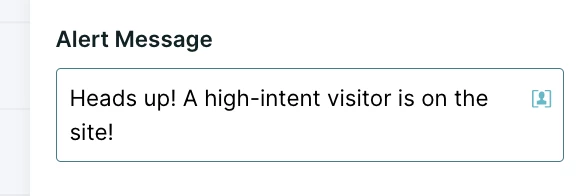
Alert message
Customize the message text that will appear within the Qualified app. If the alerted rep has voice alerts enabled, the text of the alert message will be read aloud.
Reps to alert
Choose user groups and/or specific reps to send alerts to. An alert will be sent to each selected rep who is logged in to Qualified.
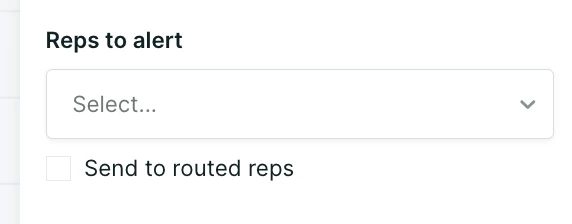
Use the checkbox to quickly select all reps who have been routed a particular visitor.
Slack and Microsoft Teams alerts
If you are connected to Slack or Microsoft Teams, use this action to send a notification to these collaboration platforms instead.
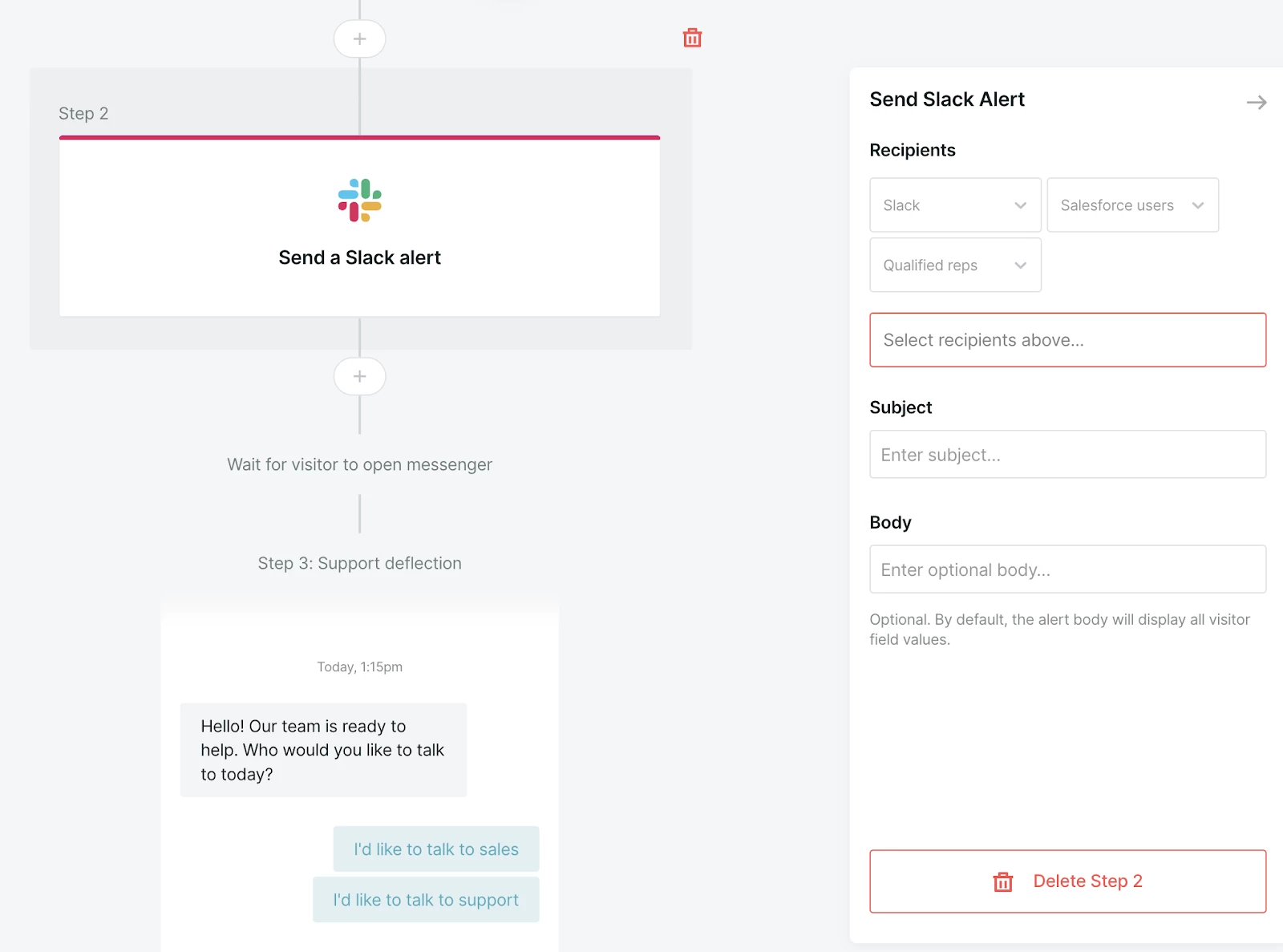
Slack and Teams alerts have a few configuration settings, detailed below:
- Recipient
- Slack
- Slack: Choose a Slack channel or specific User
- Salesforce User: Choose a lookup field on the Lead, Contacxt, or Account record to identify a slack user
- Qualified Reps: Choose a Qualified Rep
- Outreach/Salesloft Sender: Send an alert to the user who sent an email in Outreach/Salesloft that led the visitor to the site.
- Microsoft Teams
- Channel: Alert a Microsoft Teams channel.
- Slack
Slack messages cannot be sent to private channels. In order to send a Teams message, the team must have the Qualified App installed, and the Teams user that configured the connection must have access to the channel in order to send the message.
- Subject: The subject of the message
- Body (Optional): The body of the message. If left optional, this will contain all known visitor fields.
Send an email
Send an email to someone on your team, informing them that a visitor is on the site. The email is sent from "app@qualified-alerts.com".
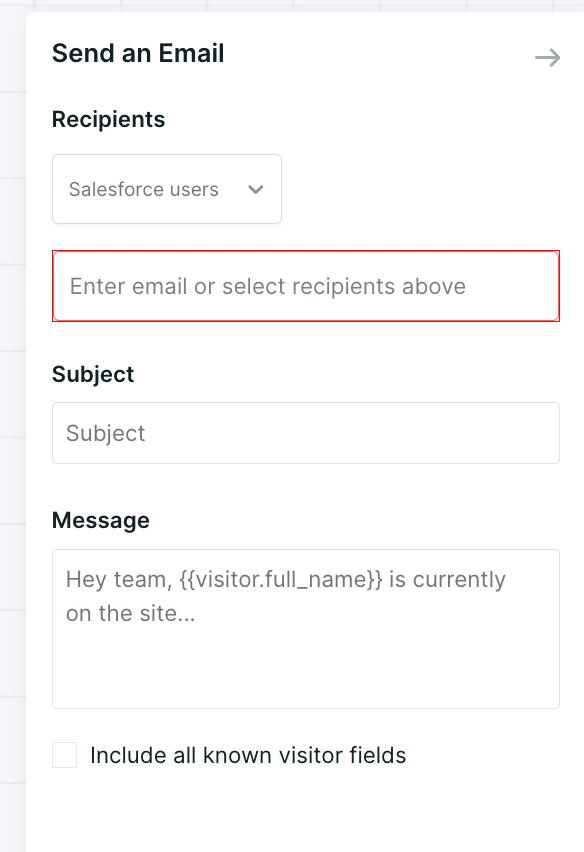
To configure, select the details below:
- Recipient: Enter an email address or multiple, or select Salesforce users to automatically email.
- Subject: The subject line of the email
- Message: The body of the email
- Include all known visitor fields?: Selecting this checkbox will append all known visitor fields to the message body of the email.
Note that this option is not intended to send emails to visitors or prospects, but to alert employees when visitors engage with your experience.


.svg)


