


Piper, the AI SDR agent, is primed and ready to make sure she’s sharing the most relevant content from your website and sales motion to your prospects. Piper uses the lead's context, the visitor's context, and a list of your promoted content to identify and share the most relevant offer in pounces, conversations and email.
PiperX: With the Start Multi-modal AI SDR step, your agent shares offers in pounces and in email. Sharing an offer partway through a chat conversation is available only with the legacy Start AI SDR step.
How your AI SDR agent uses offers
Your AI SDR agent can share this content in two ways:
- In Chat Responses (Topic-Based): Your AI SDR agent can share promoted content as a response in a chat conversation when the visitor mentions a topic related to one of your promoted pieces of content. This is available with the legacy Start AI SDR step.
- In Pounce and Email (Context-Based): When initiating a conversation (pounce) or sending an email, your AI SDR agent will examine various data points to reference a relevant offer. This context includes the matched account guide, page views, and the conversation or email campaign history.
Content selection process
The following information is considered by your AI SDR agent when evaluating a lead or visitor:
- Account guide
- Conversation guide
- Agent profile
- Page view history
- Conversation history
- Email campaign history
- Email clickthrough
- Ad clickthrough
Your AI SDR agent uses a confidence score to decide whether to share an offer, and will display the offer if the confidence score is high enough. To influence this decision, it is recommended that you utilize account guides to provide specific context.
Activating and managing offer content
To activate this feature, you must tell your AI SDR agent which offers to use in chat and email from the Content tab of Agent Studio. Your AI SDR agent will not use a starred offer if the visitor has already navigated to the corresponding URL. There are two ways to mark a piece of content that you’d like to share.
- For an individual URL, click the URL in the Content Library and then toggle on the “Allow your AI SDR to share this content in conversations and email” toggle in the Offers section. You will see a preview of how the offer will appear when it is shared.
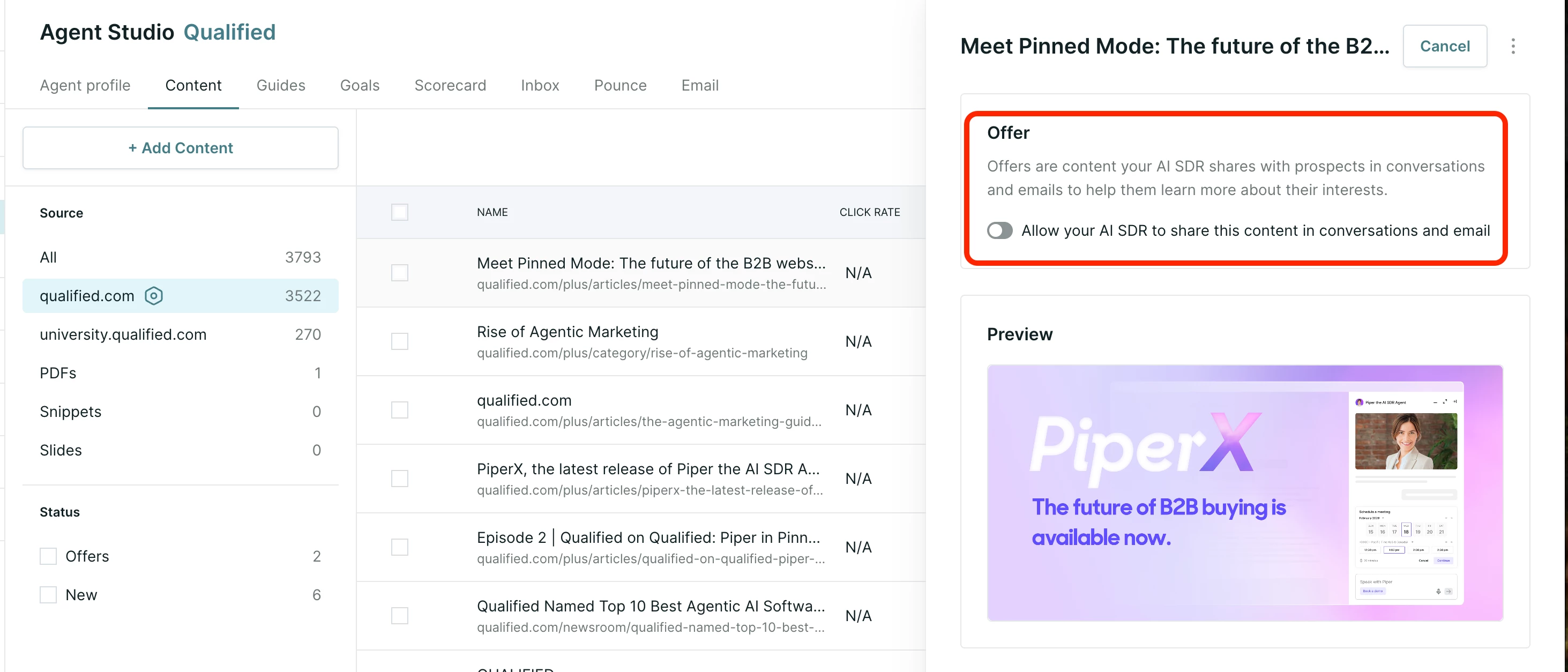
- To mark multiple URLs, select the checkboxes to the left of the URLs, and then click the ✩ Share as offer button at the top of the screen.
Accounts are currently limited to 25 pieces of starred content. You’ll receive an in-app notification if you exceed this limit.
Controlling offer usage
You have controls to manage when your AI SDR agent includes offers:
- Chat Offers: With the Start Multi-modal AI SDR step, your agent can include offers in its pounce greetings. In the legacy Start AI SDR step, a setting controls whether the agent serves offers in its greetings and conversations.
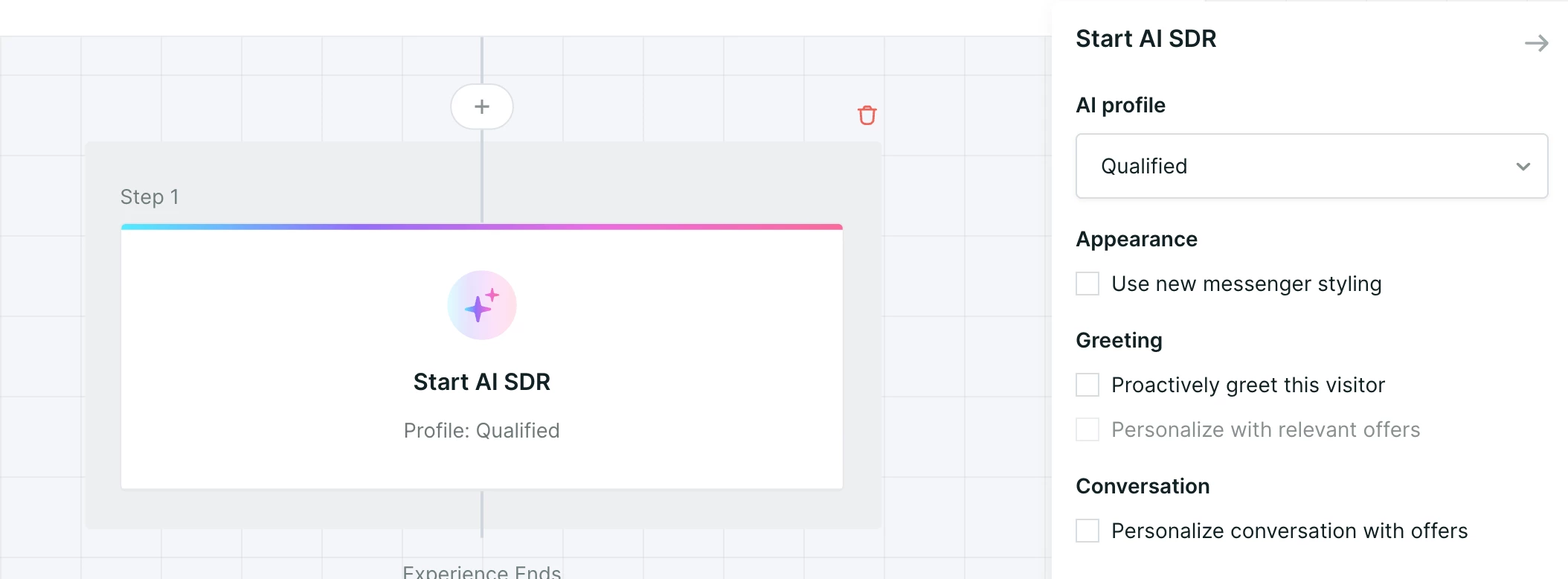
For offers shared in chat or auto pounce, your AI SDR agent is instructed never to share more than two offers per conversation.
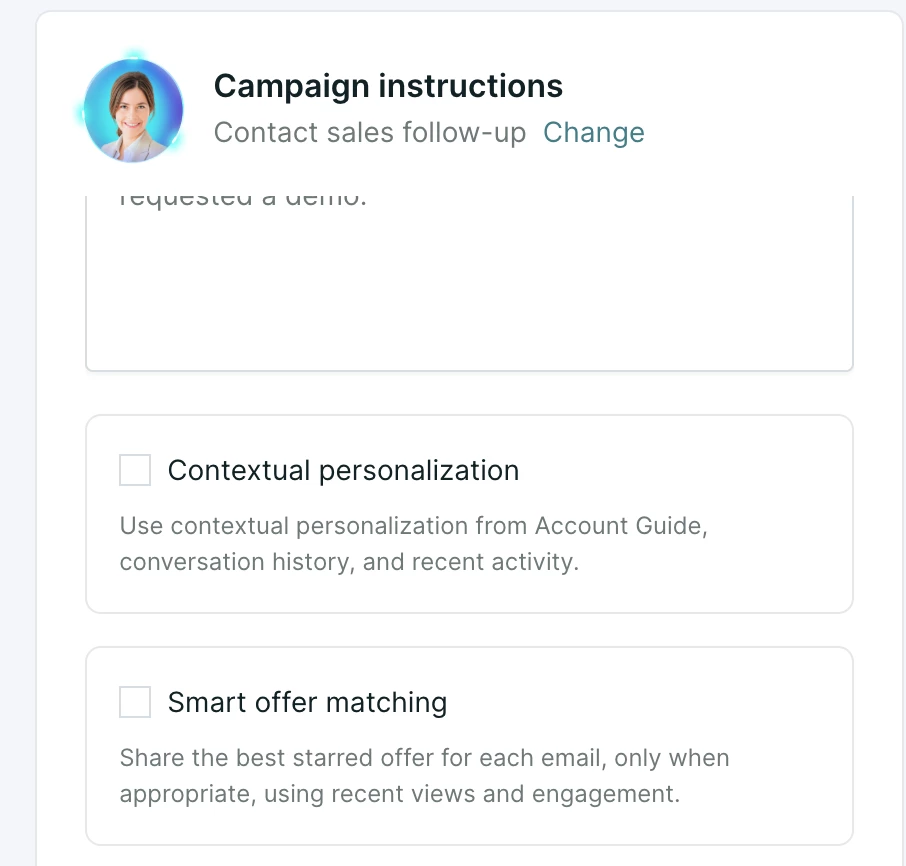
- Email Offers: In agentic email campaigns, your agent can include content you’ve shared as an offer when it’s relevant to the lead. To guide it more precisely, say when to include offers in the campaign’s Campaign Guide instructions (for example, "Include a case study in the third email"). Goals you reference in the Campaign Guide can also share offers and other content.
In legacy email campaigns, a setting in the email simulator allows your agent to include offers, and you can say when to include them in the campaign context.
Offer metrics and reporting
For any URL designated as an "offer" in the Content tab, you can view analytics to measure its effectiveness. These metrics are only collected after the offer has been selected and will not apply retroactively.
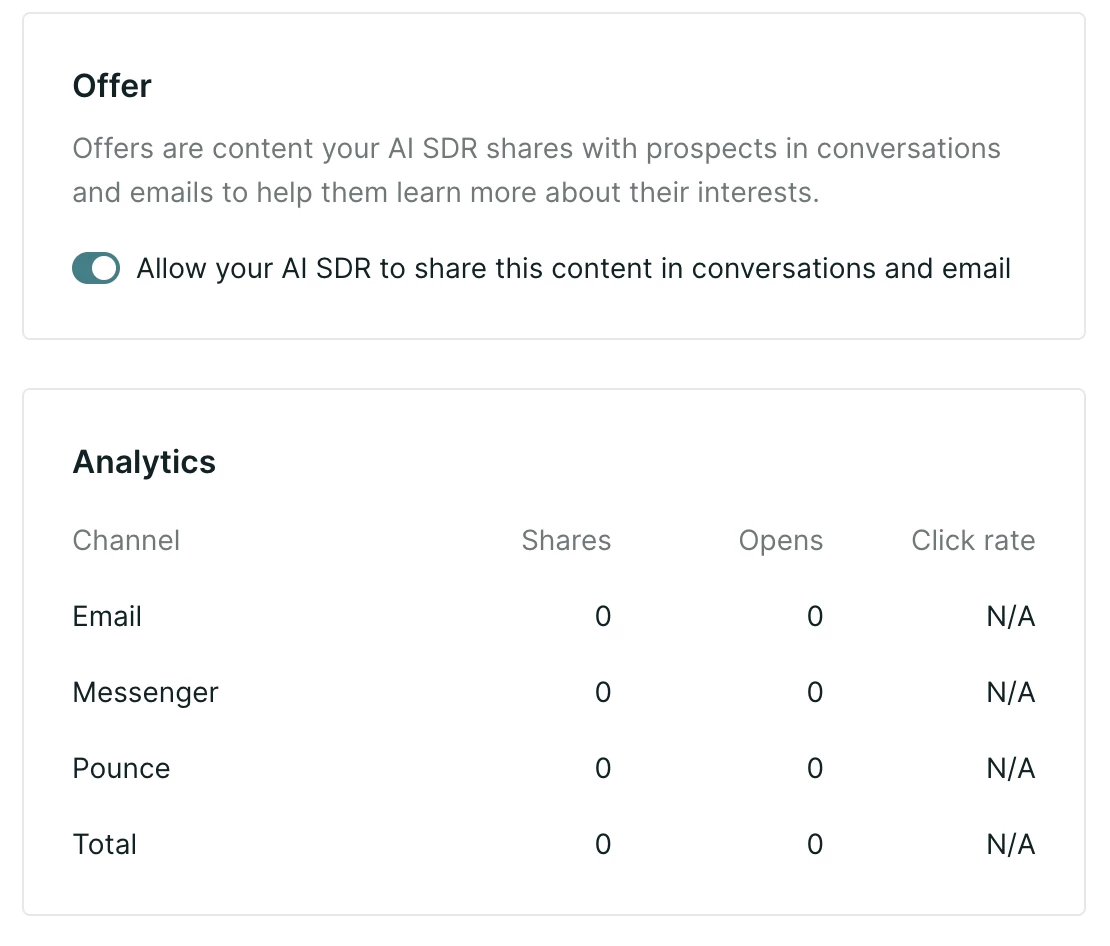
After clicking on an offer URL, the right panel displays the following metrics for offers, grouped by modality:
- Shares: The number of times the offer was shared with a lead.
- Opens: The number of times the offer was opened by a lead.
- Click rate: The number of times the offer was opened divided by the number of times it was delivered.



.svg)


