

Qualified admins can set global theme settings that control the look and feel of your AI SDR agent, the Qualified messenger, meeting bookers, and more.
Note: Any changes to your themes will immediately take effect anywhere your Qualified messenger is installed.
Getting started
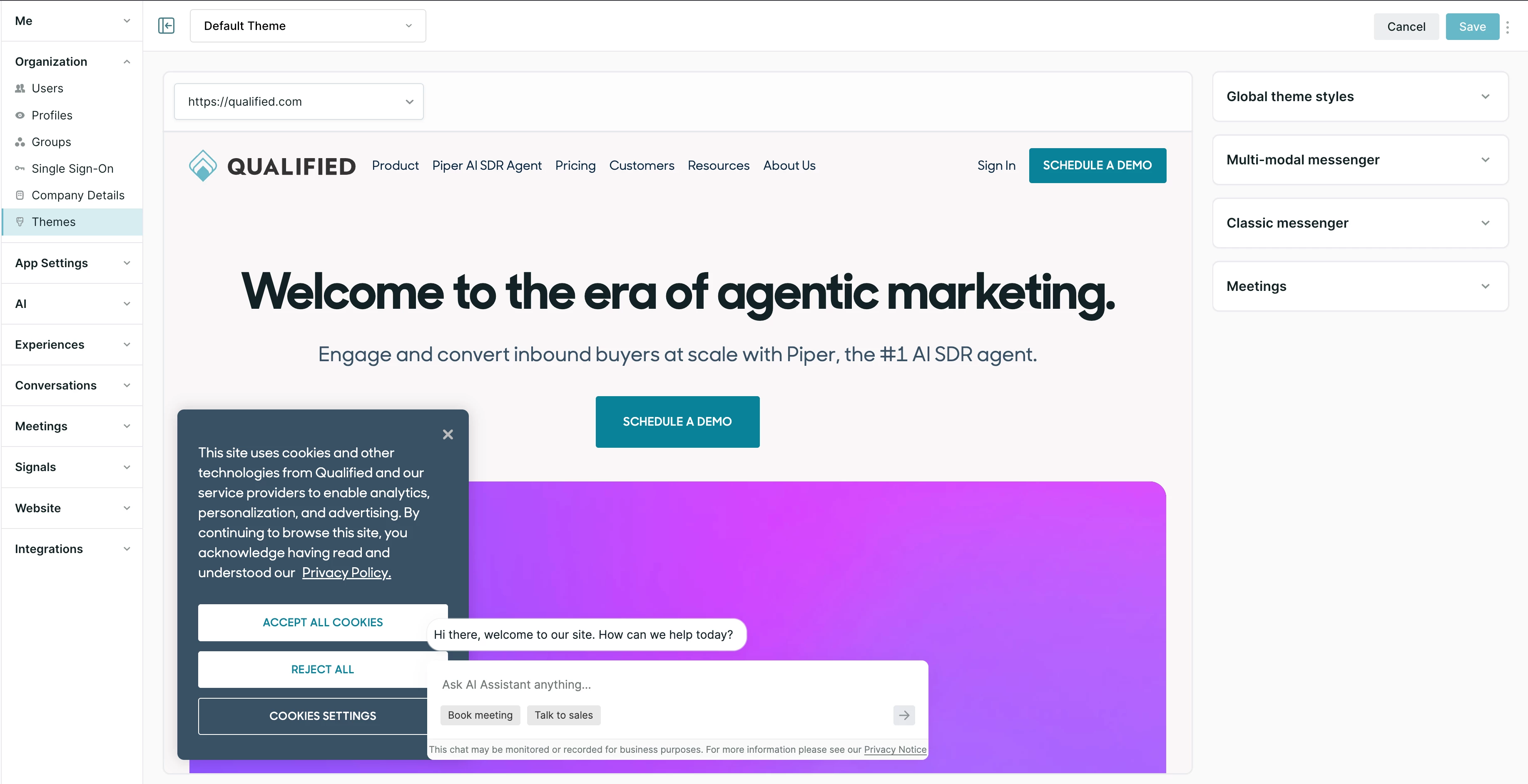
To start customizing your Qualified theme(s) as a admin, go to Settings → Organization → Themes. In each of the expandable sections, you can configure specific parts of Qualified’s look and feel.
Global theme styles
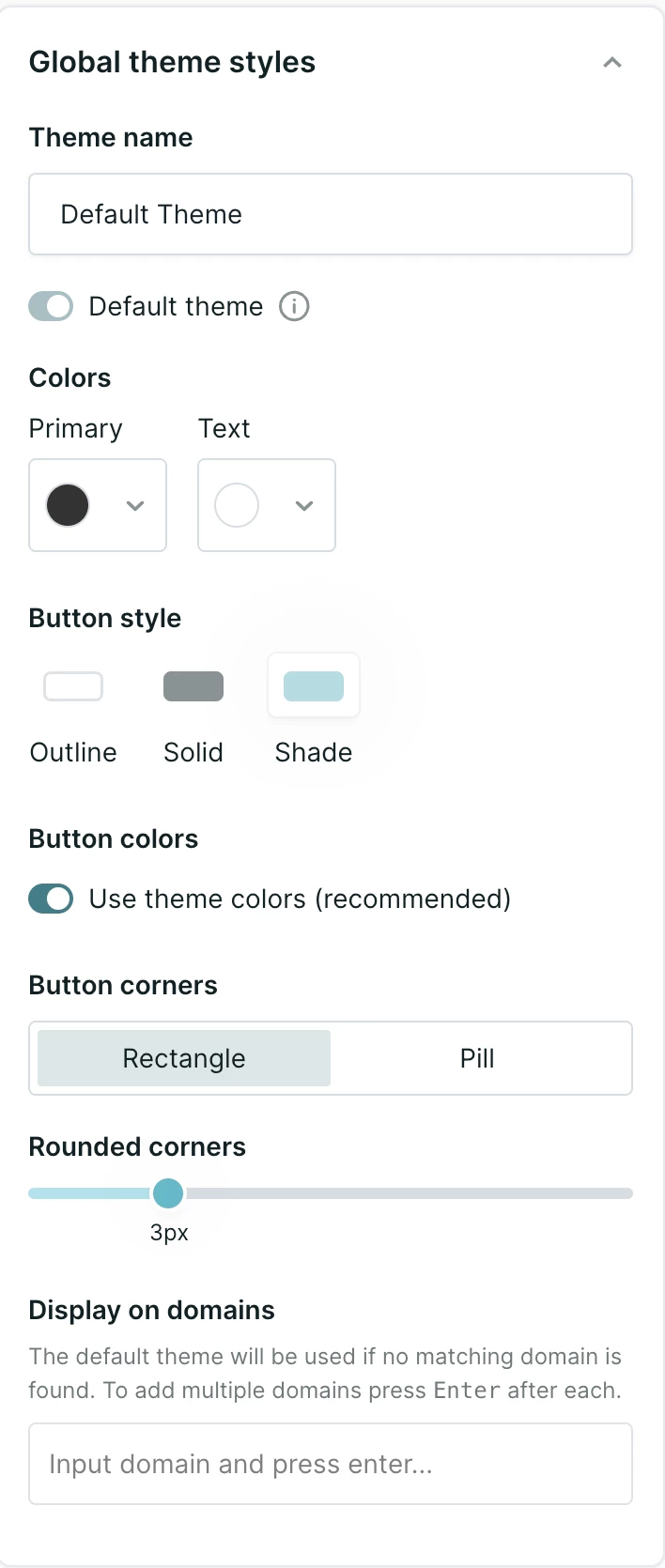
Theme Name and Default Theme
If your plan includes multiple branding themes, you can use this section to name your theme and select whether it is the default theme for your website. Default themes are used when no domain-specific theme has been configured.
Learn more about managing multiple themes here.
Colors
Choose which colors are used in your Qualified messenger.
- Primary: Pick your messenger's main color, which appears in chat messages' background, the messenger's header, and buttons' background (if reps don't allow voice and video).
- Text: Pick the color of the text in your messenger header and chat messages.
Button style
Modify how buttons in Qualified look:
- Style: Decide if the buttons are solid (fully opaque background color), outline (color border around the button’s text), or shade (less saturation in background color).
- Colors: Apply your theme’s primary color by default or select a different one.
- Corners: Choose if you want the buttons to be Rectangle shaped with rounded corners or an oblong oval Pill.
Multi-modal Messenger
The multi-modal messenger settings control how your AI SDR agent appears on the website. If you don’t see these options, contact your Qualified Success Architect.
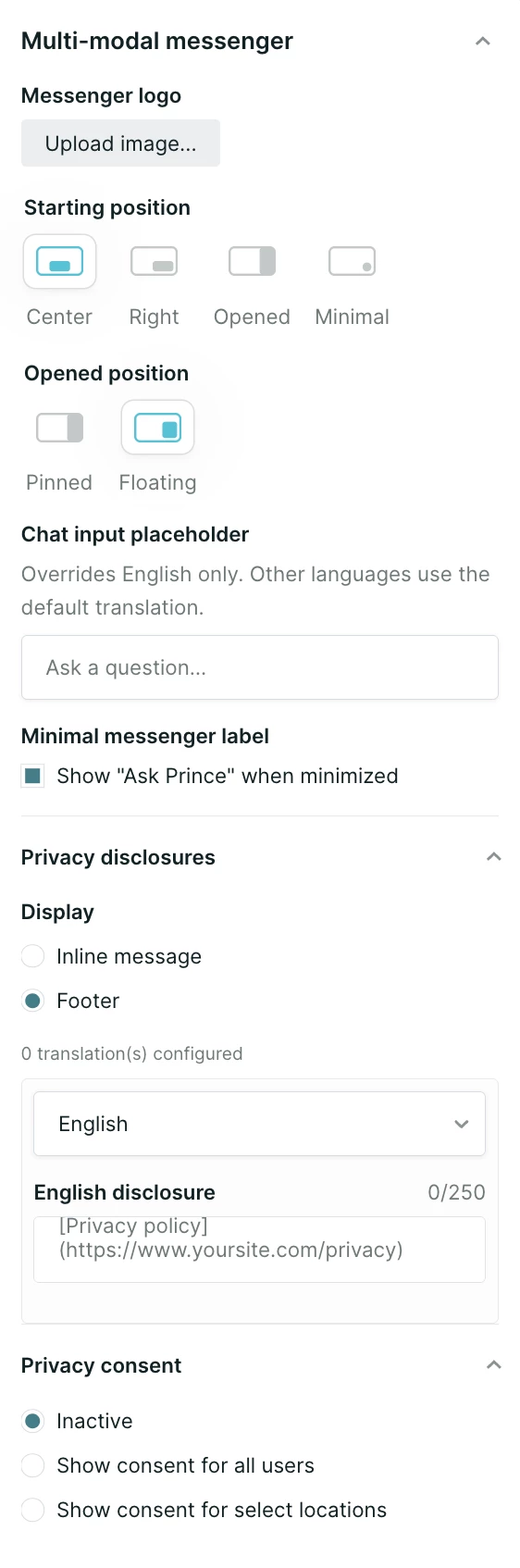
Set the position and disclosure message(s) for your AI SDR agent’s conversations with these options. These settings will be used whenever the AI SDR agent is started via an experience, either with the Start Multi-modal AI SDR action or the “Use new messenger styling” checkbox on the Start AI SDR action.
Messenger logo
Upload a logo to represent your AI SDR agent.
Starting position
Select where the conversation window appears when an experience starts the multi-modal AI SDR agent action. There are four options:
- Center: The conversation window is centered at the bottom of the screen. Chat messages will appear floating above the messenger box until a visitor engages your AI SDR agent in conversation.
- Right: The conversation window sits at the bottom right of the screen. Chat messages will appear within the messenger, above the main text input box until a visitor engages your AI SDR agent in conversation.
- Opened: The messenger window will automatically open according to the Opened position (see below).
- Minimal: An icon will appear allowing the AI SDR agent to be accessed. The messenger will not appear until the icon is clicked.
For visitors using mobile devices, conversations will always start in the minimal position, and then open to full screen.
Opened position
Select how the messenger window appears after a visitor engages with the AI SDR agent. There are two options:
- Pinned: The conversation docks on the right side of the screen, with the main screen region resizing to accomodate.
- Floating: The conversation expands within the messenger window, floating above the main screen region.
Note: When using the “Opened” starting position and the “Pinned” opened position, your team may wish to add the Qualified Docking script to help minimize impacts on Cumulative Layout Score (CLS).
Privacy Disclosure
Customize the privacy disclosure that appears at the bottom of the AI SDR agent window, and use markdown syntax to add a link to your company’s privacy policy. The character limit is 250 characters by default. If this needs to be increased, contact your Qualified Success Architect or help@qualified.com.
See more about privacy settings in Qualified here.
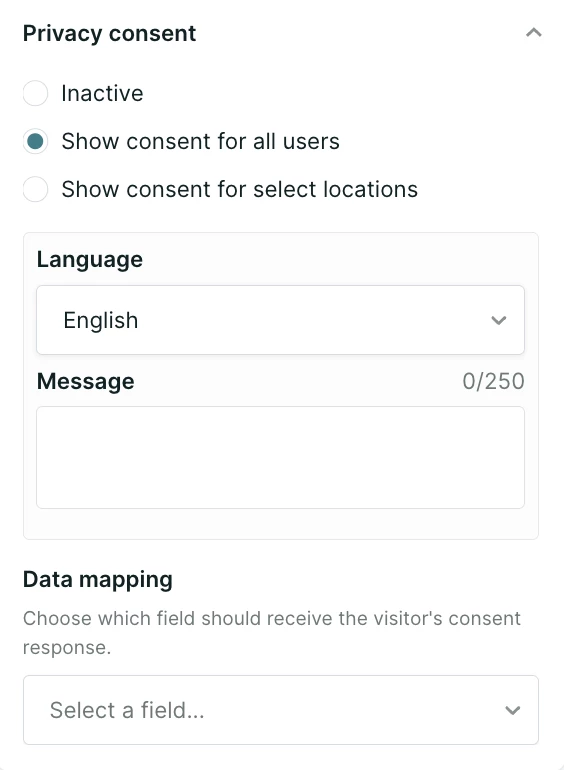
Privacy consent
Optionally, add an explicit privacy consent option for some or all users. When activated, your AI SDR agent will ask visitors for consent based on a custom message you create. Their response can be mapped to a field and stored so their answer is remembered on repeat visits. If they answer no, the conversation does not continue.
Classic messenger
These settings control the look and feel of the classic Qualified chat experience. For more detail, see here.
Meetings
These settings control the look and feel of the Qualified meeting booker for forms, buttons, meeting links, and more. For more detail, see here.


.svg)


