


Meetings themes allow admins to customize the appearance of the meetings widgets to match your brand's colors, fonts, and logo.
This article covers theme settings specific to the Qualified meeting booker. For general theme settings, including colors, button styles, and more, click here.
To start customizing your Qualified theme(s) as an admin, go to Settings → Organization → Themes.
Meeting bookers
When you’re ready to offer a meeting to your prospects outside of a conversation with your AI SDR agent or a sales rep, Qualified will show a meeting booker pop-up that allows your prospect to select the time and date that works best for them. Qualified meeting bookers affected by these theme settings appear when your prospect clicks a meeting link or engages with a form or button experience connected to Qualified meetings.
Customize meetings
Meeting link logo
Upload a logo image to appear above your meeting booker
Logo URL destination
If you have a logo image uploaded, choose where a visitor will be directed when they click on the logo.
Meeting link background
If the visitor arrived at the meeting booker by clicking on a meeting Link, choose whether the background of the page is a color or an image (must be at least 1280x1024).
Preview changes
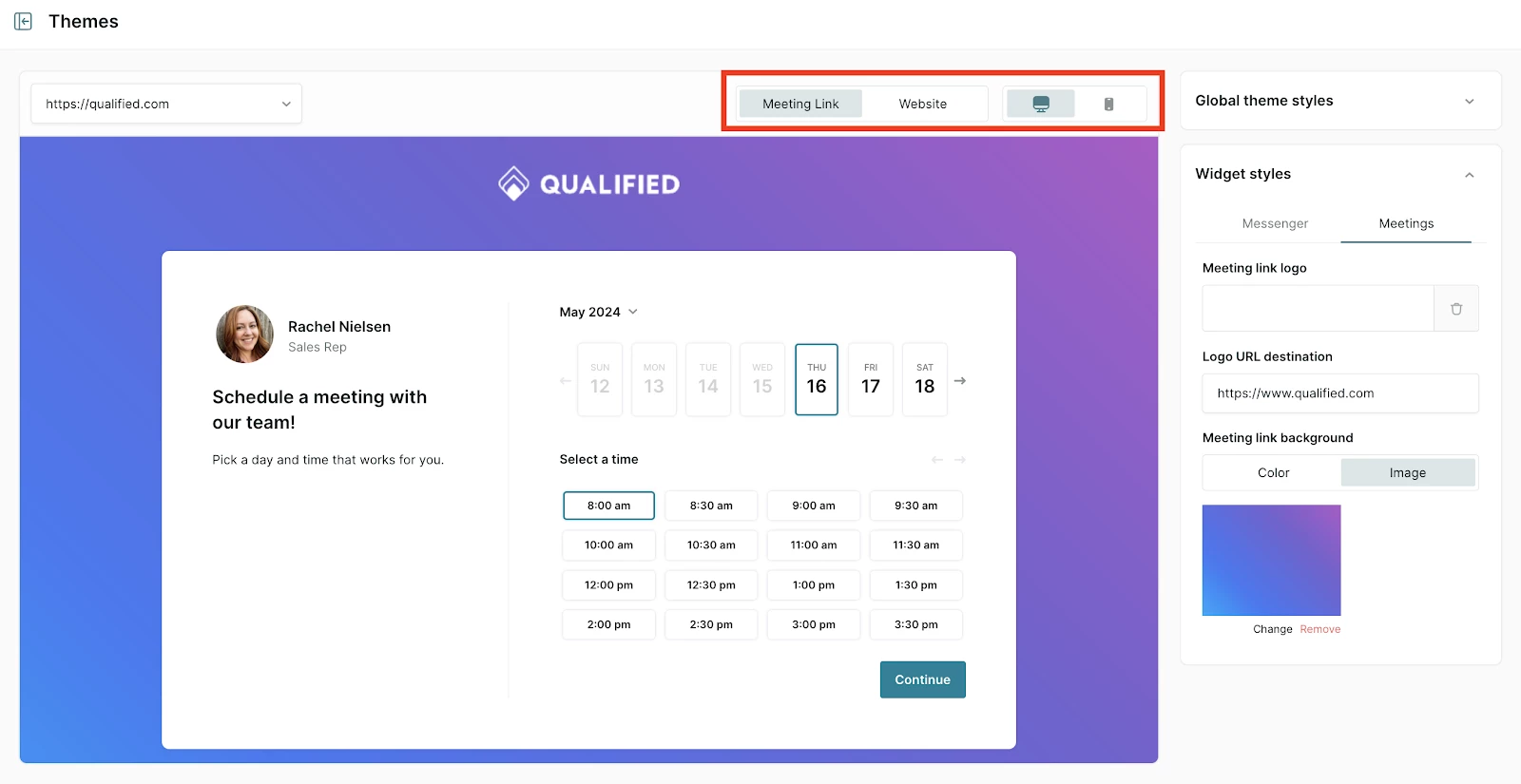
As you are customizing the meetings widget, you can use the options at the top to preview how it will look on the meeting link landing page and website, as well as desktop vs. mobile.
Privacy disclosures
At the bottom of the meetings & forms widget settings, customize the privacy disclosure that appears at the bottom of the widget, and use markdown syntax to add a link to your company’s privacy policy. The character limit is 250 characters by default. If this needs to be increased, contact your Qualified Success Architect or help@qualified.com.
Qualified will use the widgets & forms privacy disclosure when showing a light box pop-up, such as in the Qualified meeting booker or in Qualified offers. You can create multiple versions of the privacy disclosure for different languages. The translation shown to the visitor will be determined by the language set for the Experience they receive on your website.
See more about privacy settings in Qualified here.



.svg)


