


Meeting links let reps share a link to their own calendar, a teammate's calendar, or a routed meeting type, so prospects can book a meeting without starting a conversation on your website.
Activate meeting link sharing
Direct and routed meeting links are activated for reps based on meeting type. In order to display a specific meeting type for reps to copy, an admin must allow meeting link sharing in meeting type setup.
- Direct meeting links allow reps to share a link to this meeting type and book directly with themselves or others. These meeting links do not rely on routing rules.
- Routed meeting links allow reps to share a link to this meeting type and automatically book with the correct reps as defined by the routing rule set for the meeting type. It is recommended that the admin share a description of the routing rule, so internal users are aware of the routing that will be applied when they share the link. To limit who can share the routed link, select Display to only Admin users on the Meeting Links page. Only admins then see the routed link on the Meeting Links page.
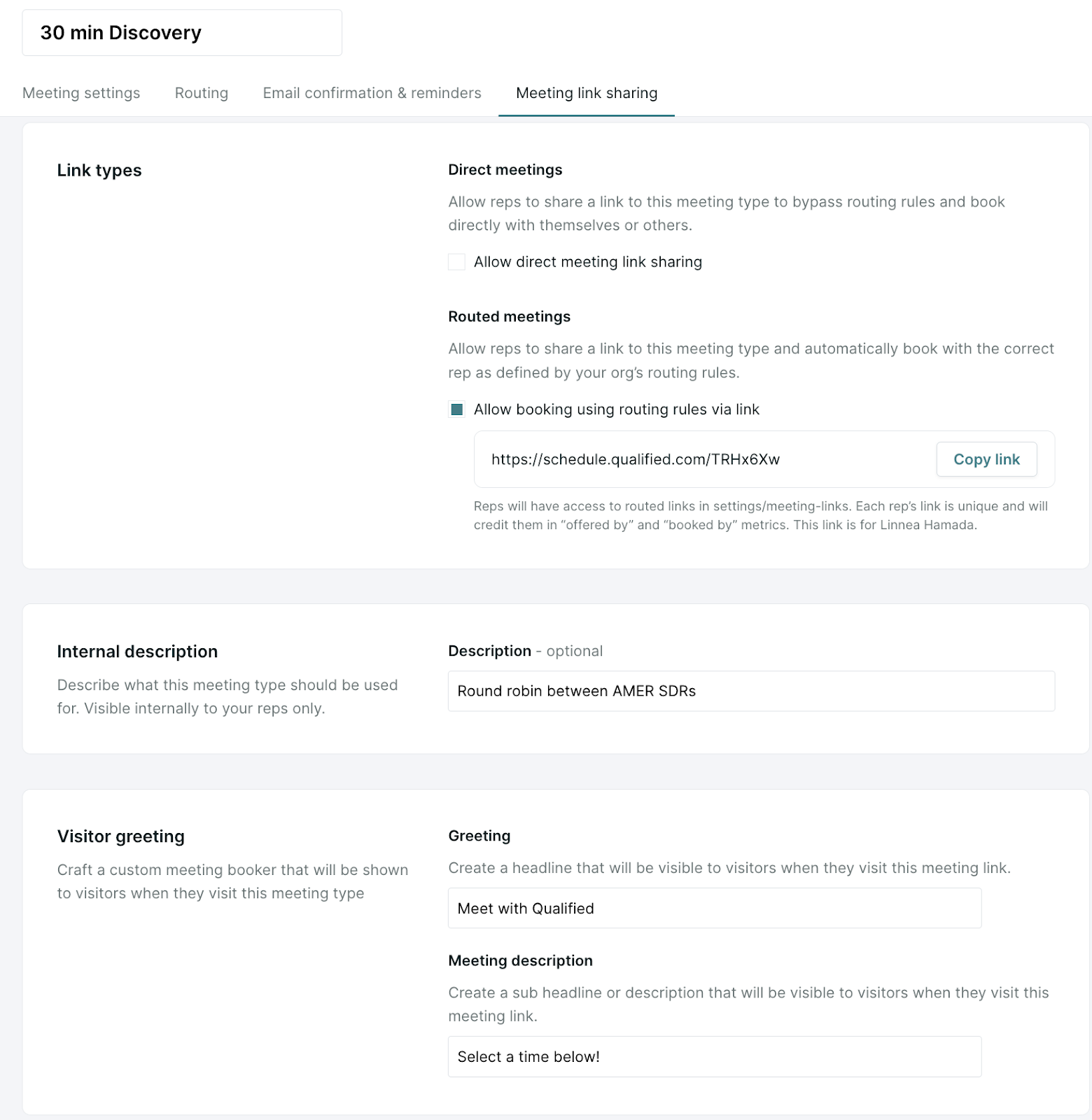
For step-by-step instructions, see Enable meeting link sharing.
Using meeting links
Once meeting types have been enabled for link sharing, links will be visible for reps to copy in Meetings (the calendar icon in the left Nav) → Meeting Links.
Click Copy link to obtain your meeting link and allow visitors to book a meeting directly with you or teammates.
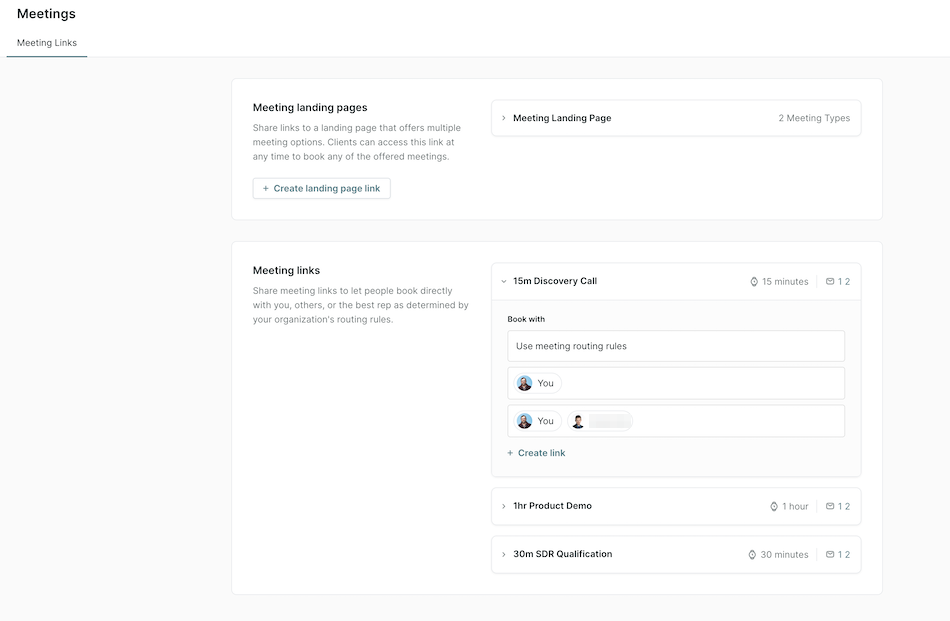
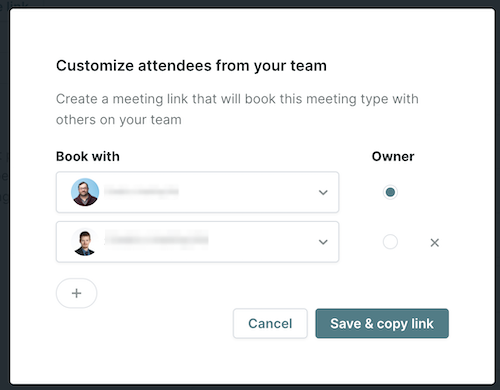
For direct meeting links, reps can add other reps’ calendars and book with any combination of people. This is achieved by clicking “New link”, selecting the individuals to include in the meeting, assigning an owner, and clicking “Save & copy link”.
Learn more about accessing meeting links.
Meeting link visitor experience
Visitors with a meeting link will be offered the specific rep's calendar to select a time.
Confirmation and reminder emails, meeting headlines, and meeting subtitles are configured on the meeting type by the admin.
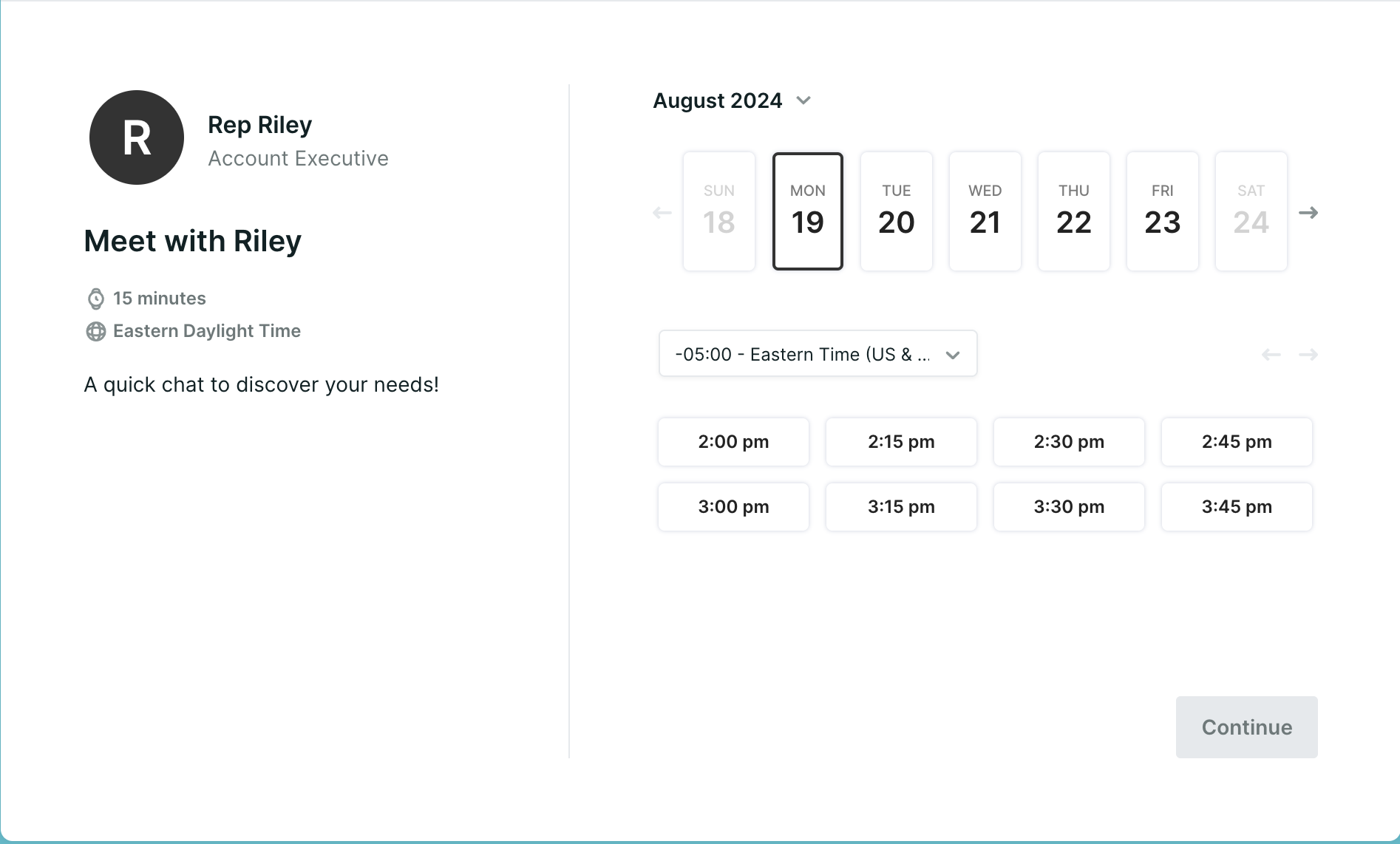
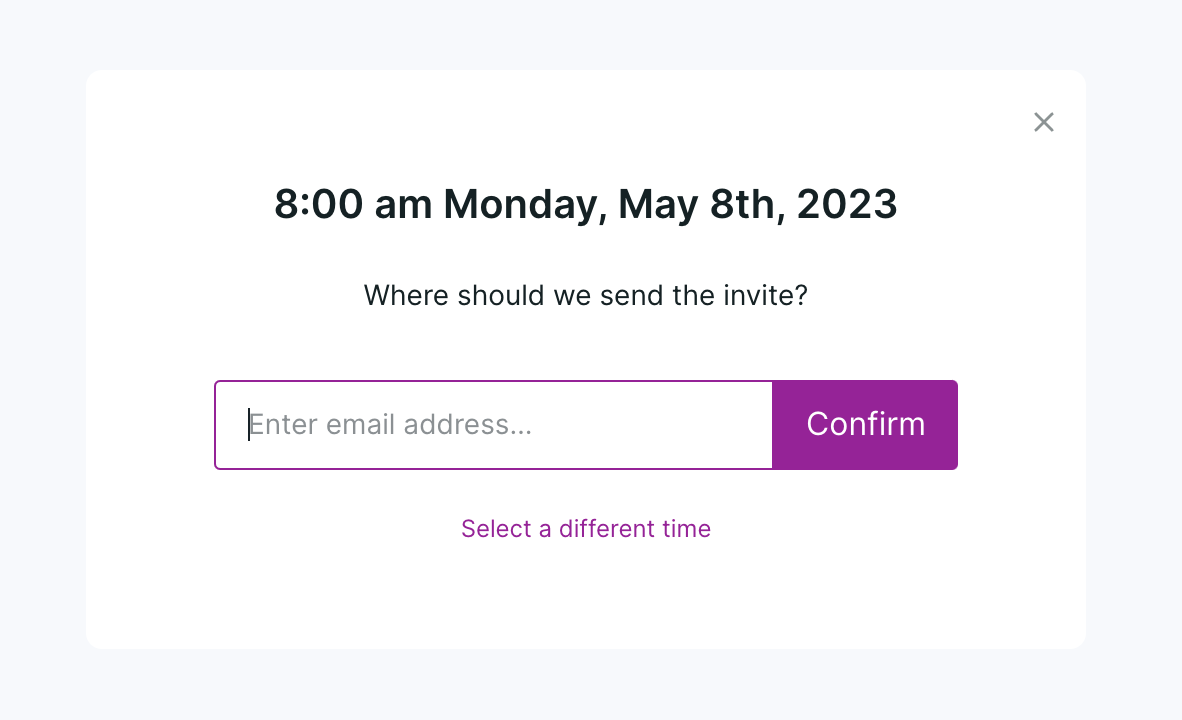
For direct links, the visitor will be able to select a time before providing their email. In this case, visitors will be asked to enter their email for where the invite should be sent. If they wish to select a new time, they can click Select a different time to return to the rep's availability.
For routed links, the visitor will be asked for their email before giving time options. Collecting their email before offering times allows the Qualified routing rules to run and route the meeting to the appropriate people.
Keep these limits in mind:
- Meeting links are hosted on schedule.qualified.com, not on your website.
- On routed links, the prompt “Let’s get you scheduled! Enter your email so we know where to send your invite.” can’t be customized.
- Routed links ask for an email even when Qualified already knows the visitor, unless the link’s URL includes an email= parameter.
- The greeting and meeting description on a routed link can’t use calendar event variables such as {{calendar_event.rep.name}}, because the meeting has no rep until it’s booked.
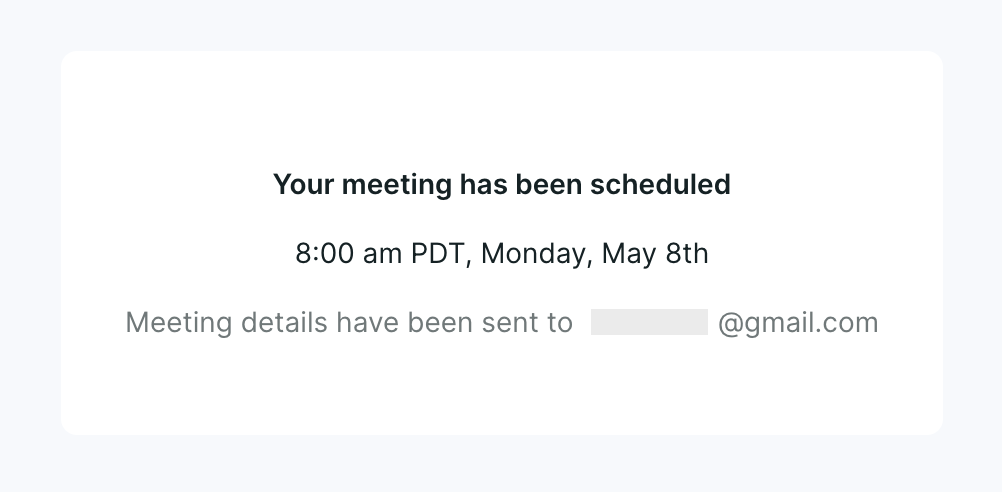
Once confirmed, a screen will display indicating the meeting time and email the confirmation email has been sent to.
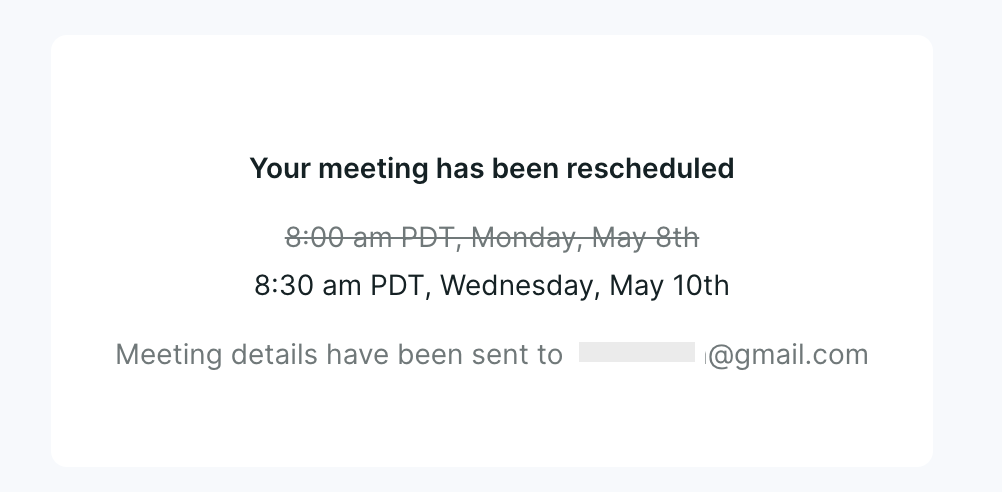
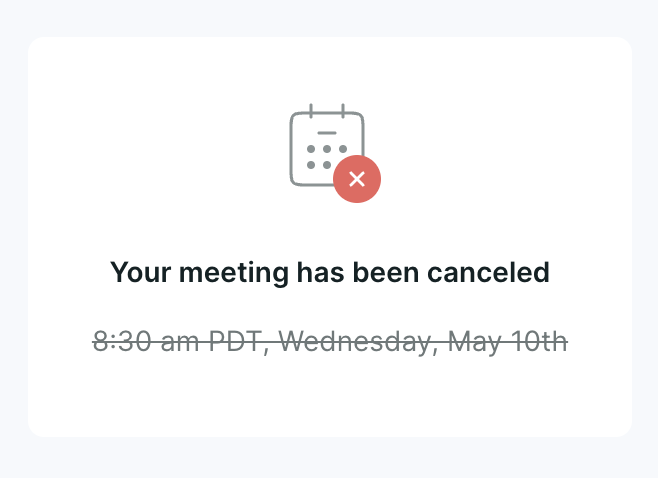
Should the visitor wish to cancel or reschedule, they can do so by clicking Reschedule or cancel within the confirmation email.
Meeting link analytics
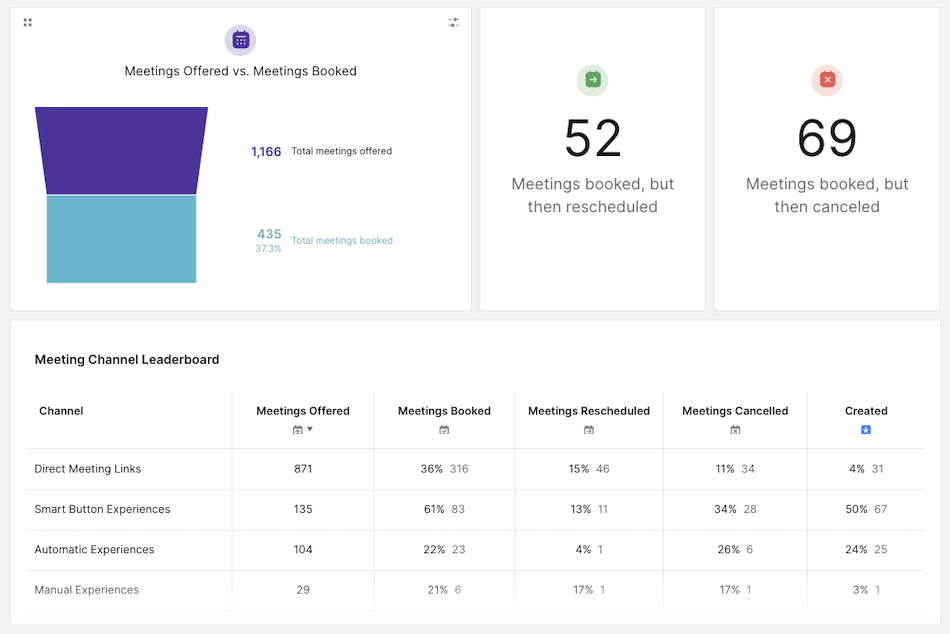
Just like all meetings booked with Qualified Meetings, meetings booked through meeting links will be displayed in reports and dashboards.
- For Meetings analytics, metrics include Meetings Offered, Meetings Booked, Meetings Rescheduled, and Meetings Canceled.
- For Session analytics, when a meeting is booked through a meeting link, the “Channel for Meetings Offered” and “Channel for Meetings Booked” will say “Direct Meeting Link” or “Routed Meeting Link”.
- Meetings booked through a meeting link will create a Salesforce “Meeting Booked” event if the lead or contact already exists in Salesforce. To create a new lead when a visitor books through a meeting link, set up a workflow with the Meeting booked trigger and a Push to an external system action with Create Lead turned on. Learn more in Using workflows in Qualified.
Learn more about using Qualified dashboards and reports.